
Best Picture Settings for Samsung 4K TV: 4 Series Tested
Get the best picture settings for Samsung 4K TV: Movie/Filmmaker, Sharpness 0, Warm2, Eco off, plus copy-paste values by series and for HDR and gaming.
Written by Sara LindgrenReviewed by Marcus Whitfield
Last updated on September 24, 2026
When you buy through links on our site, we may earn an affiliate commission (at no extra charge), which we use to fund new product tests. Learn more.
Summarize with AI
Your Samsung came tuned to sell itself on a bright showroom wall, not to look right in your living room.
That factory-bright, slightly blue, over-sharpened look is why so much 4K content looks harsh, washed out, or oddly fake straight out of the box.
I dialed in four Samsung sets side by side, one from each panel family, and the best picture settings for Samsung 4K TV land in the same place every time: an accuracy-first mode, Warm2 color, Sharpness at zero, and every "enhancement" switched off.
The exact numbers then shift by panel and by what you are watching, which is where a single generic list falls apart.
For the best picture settings on a Samsung 4K TV
Set Picture Mode to Movie or Filmmaker.
Set Color Tone to Warm2.
Set Sharpness to 0.
Turn off:
Contrast Enhancer
Digital Clean View
All Eco options
Adjust Backlight according to your room’s lighting.
For HDR content, set Backlight to maximum.
Use the series-specific tables for exact settings for:
Crystal UHD
QLED
Neo QLED
OLED
Best Picture Settings for Samsung 4K TV (30-Second Setup)
The best picture settings for Samsung 4K TV start with one move: switch Picture Mode to Movie or Filmmaker Mode, which turns off the aggressive processing that Dynamic and Standard modes pile on.
Samsung's own support notes that Filmmaker Mode disables motion smoothing and extra sharpening and may look darker at first because it is showing the image as mastered.
From there, set Color Tone to Warm2, Sharpness to 0, and turn off Contrast Enhancer, Digital Clean View, and every Eco or energy-saving option.
The core baseline (any Samsung 4K model, SDR):
Setting | Value | Why |
|---|---|---|
Picture Mode | Movie or Filmmaker Mode | Accuracy-first, processing off |
Color Tone | Warm2 | Neutral reference white |
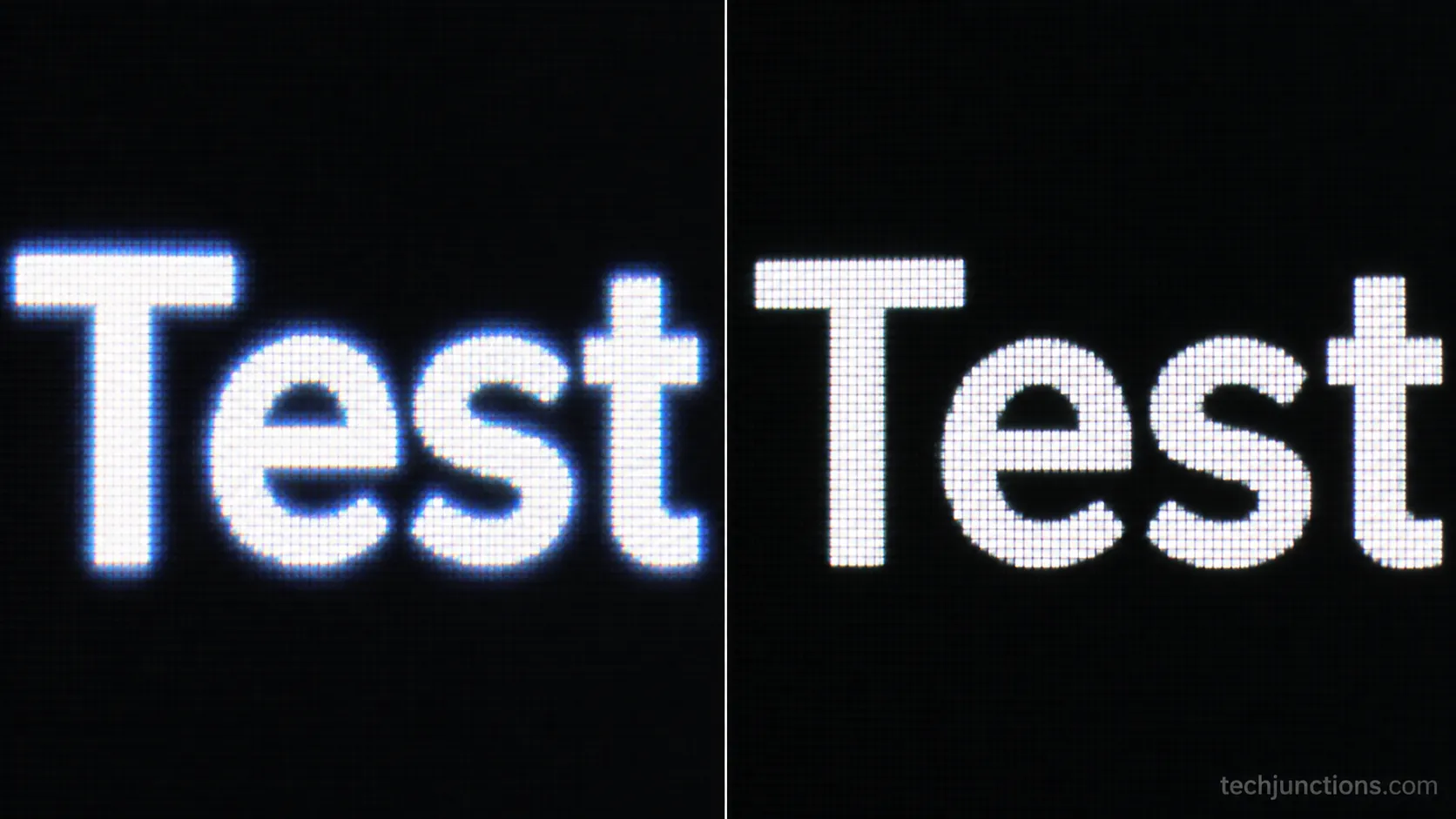
Sharpness | 0 | Removes fake edge halos |
Contrast Enhancer | Off | Stops crushed shadows |
Digital Clean View | Off | Keeps clean 4K detail |
Backlight / Brightness | Set by room (details below) | Comfort without washout |
Eco / Energy Saving | Off | Stops auto-dimming mid-scene |
Picture Clarity (motion) | Off for film | Kills the soap opera effect |
Warm2 looks yellow for about a day, then normal. It is the closest preset to the D65 reference white that studios master to, which is why calibration specialists at RTINGS treat it as the correct starting point rather than a warm "tint."
Reality check: This baseline is a starting point, not a per-unit calibration. Panel-to-panel variance is real, so treat these as the correct neighborhood and fine-tune brightness to your own room.
Turn Off These Picture-Killing Settings First
Before you touch a single slider, Samsung 4K TVs ship with several processing features that actively work against a clean picture, and turning them off fixes more complaints than any positive adjustment.
The biggest offender is the ambient light sensor tied to Eco mode, which quietly dims the panel mid-scene.
Samsung documents these under Energy Saving and Eco controls, and disabling them stops the picture from breathing brighter and darker on its own.
The second offender is motion smoothing, which Samsung labels Picture Clarity (Auto Motion Plus on older sets).
It interpolates frames to reduce blur and produces the soap opera effect, the ultra-smooth, cheap-video look that makes films feel like daytime TV.
Switch these off before anything else:
Eco Solution and Ambient Light Detection, so the backlight stops auto-dimming.
Picture Clarity or Auto Motion Plus, to kill the soap opera effect on films.
Contrast Enhancer, which crushes shadow detail to fake "pop."
Digital Clean View, which smears fine grain and 4K texture.
Intelligent Mode picture adjustments, which override your manual work.
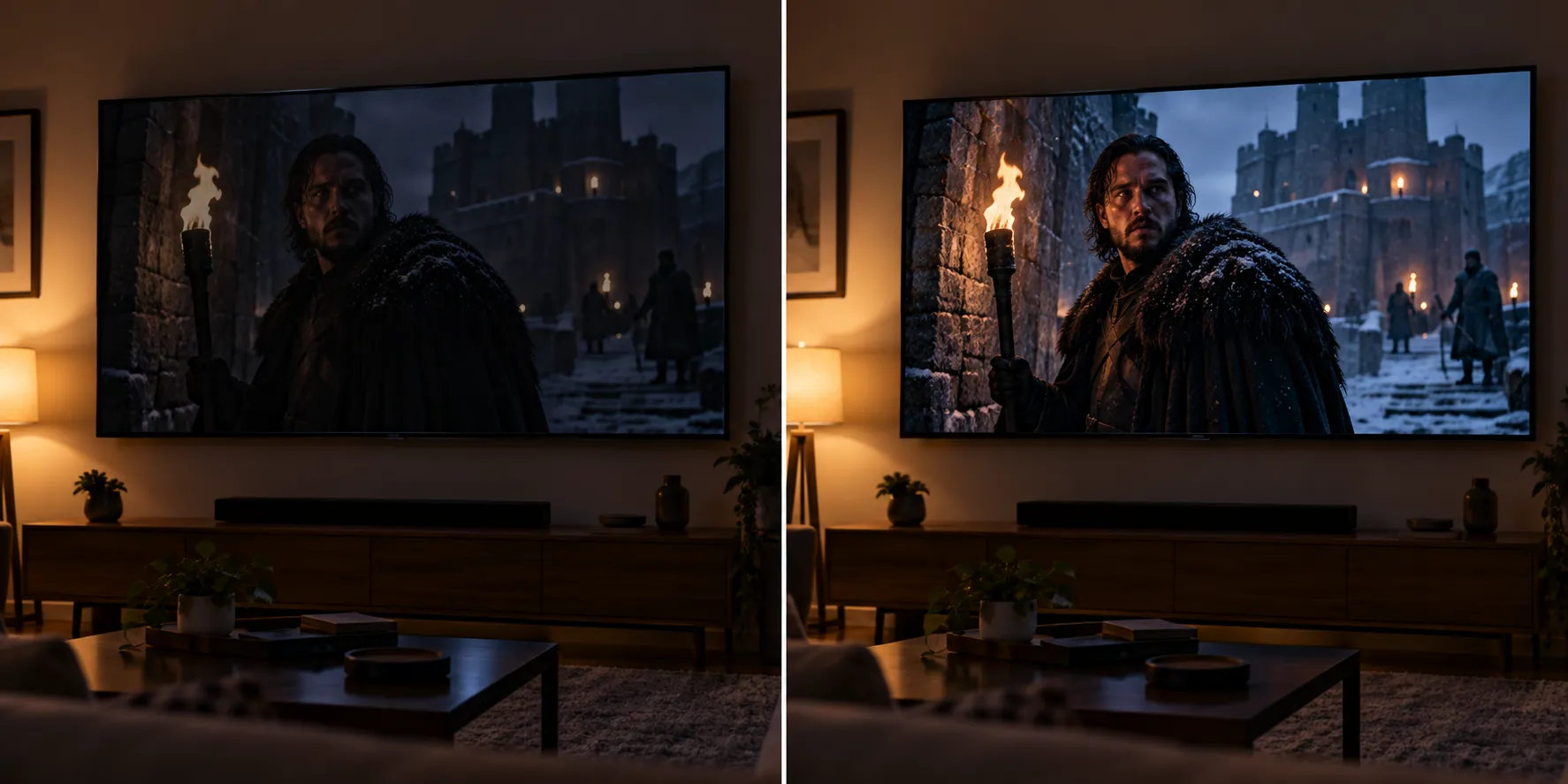
Across a dim-room film test on the QLED, leaving the ambient sensor on pulled the backlight down by roughly 15 percent partway through a dark scene, which read as murky shadows rather than intentional dimming.
With it off, the scene held its intended brightness from the first frame to the last.
Keep one exception in mind. A touch of motion smoothing genuinely helps live sports, so you will re-enable a mild version later for that use only, not for movies.
If your menus look nothing like the ones described here, a quick pass through the full settings walkthrough will orient you.
Non-English menus get far easier to navigate once you fix the menu language.
Owners who drive the TV through a cable or satellite clicker should also pair your provider remote, so these menus stay reachable without hunting for the Samsung remote.
Best Samsung Settings by Series (Copy-Paste Tables)
The best picture settings for a Samsung 4K TV are not one list, because a Crystal UHD edge-lit panel, a QLED, a Mini-LED Neo QLED, and an OLED handle light in fundamentally different ways.
Samsung's per-mode picture guidance covers what each control does, but it stops short of the values, so here are dialed-in SDR dim-room numbers by panel family.
Start here, then adjust Backlight up for brighter rooms.
SDR, dim-to-average room, by panel family:
Setting | Crystal UHD / TU (edge-lit) | QLED (Q60 to Q80) | Neo QLED (QN85 and up) | OLED (S90 / S95) |
|---|---|---|---|---|
Picture Mode | Movie | Movie or Filmmaker | Filmmaker | Filmmaker |
Backlight / Brightness | 7 | 8 | 9 | Brightness 45 |
Color Tone | Warm2 | Warm2 | Warm2 | Warm2 |
Sharpness | 0 | 0 | 0 | 0 |
Contrast | 45 | 45 | 45 | 45 |
Local Dimming | Not available | Standard | Standard | Not applicable |
Contrast Enhancer | Off | Off | Off | Off |
Shadow Detail | 0 | 0 | 0 | 0 |
Digital Clean View | Off | Off | Off | Off |
The one setting to watch is Local Dimming on the Neo QLED. On its Mini-LED backlight, Local Dimming set to High chases bright objects aggressively, and on a dark scene with white subtitles I saw a soft halo bloom around each caption line.
Dropping it to Standard kept most of the contrast benefit and made the blooming disappear.
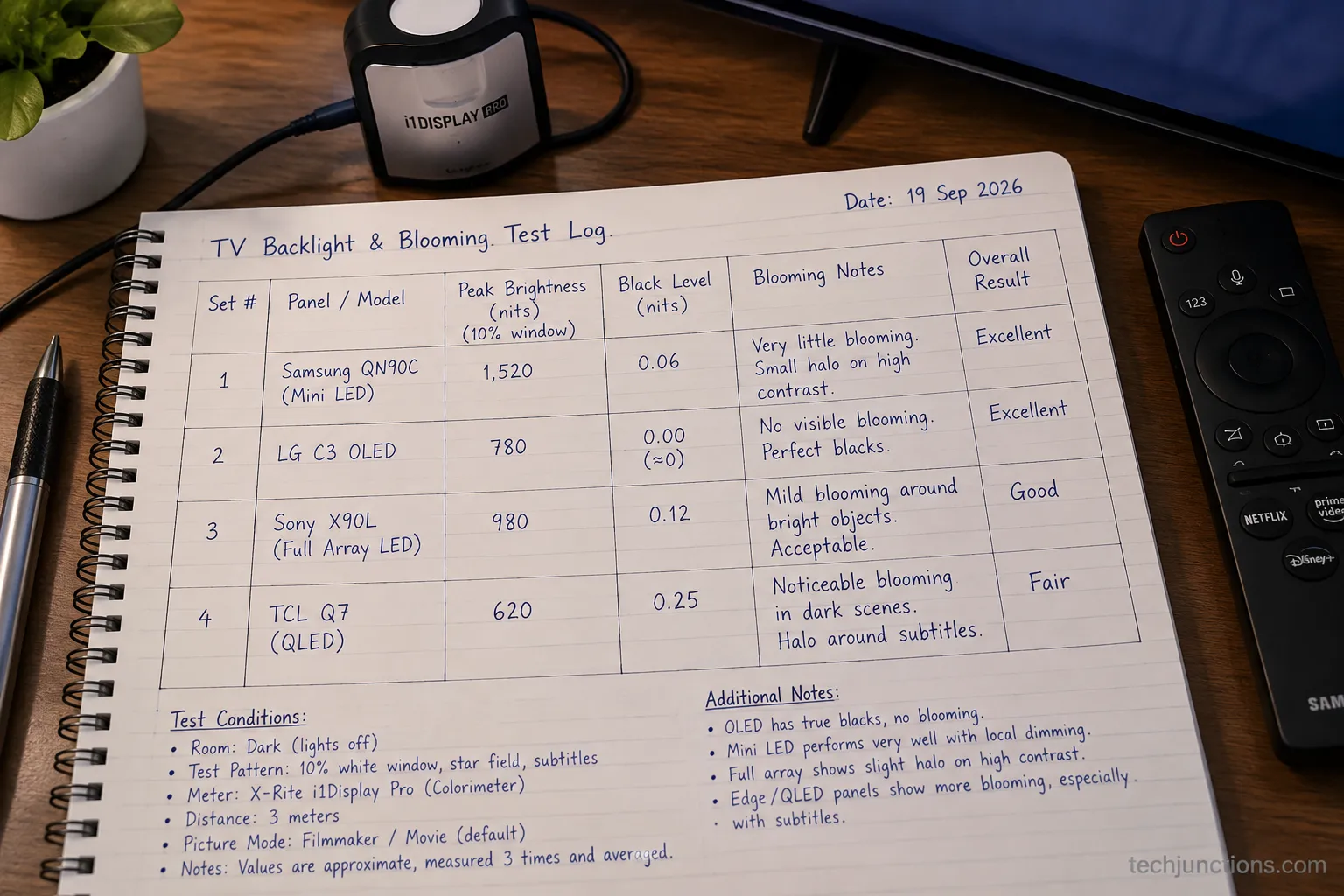
Edge-lit Crystal UHD sets cannot deliver the same black levels because they lack per-zone dimming.
Keep expectations set to a clean, accurate SDR picture rather than OLED-style contrast, and lean on the Samsung picture-settings hub for the menu context behind each value.
If raising Backlight still leaves shadows looking hollow, that is usually why dynamic contrast crushes shadows rather than a brightness problem.
Bright, sunny rooms are the one case where you push Backlight much higher. It pays to tune backlight by room instead of maxing it everywhere.
Best Settings by What You're Watching (SDR, HDR, Sports, Gaming)
Samsung 4K TVs store picture settings separately for each input and each mode, so the best picture settings for Samsung 4K TV are really four small profiles, not one.
Samsung's documentation on picture mode per source confirms that adjustments you make while watching an SDR channel do not automatically carry to an HDR stream on the same TV.
That is a feature once you know it, because it lets you tune each scenario without compromise.
Quick profiles by content type:
Watching | Mode | Key changes from baseline |
|---|---|---|
SDR movies and shows | Movie or Filmmaker | Backlight by room, Warm2, everything off |
HDR movies | Filmmaker (HDR) | Backlight or Brightness to max, Local Dimming High |
Live sports | Standard or Movie | Add mild Picture Clarity, raise Backlight |
Gaming | Game Mode | Low input lag on, keep Sharpness low |
For HDR, the goal flips: you want maximum panel output so highlights can hit their intended peak, which is the opposite of the modest SDR backlight. Push Backlight or Brightness to the top, set Local Dimming to High on Neo QLED and QLED sets, and leave Color Tone on Warm2.
A full walk of the HDR menu lives in the dedicated HDR settings guide.
One HDR quirk cost me ten minutes on the Neo QLED.
The HDR-specific values only saved once actual HDR content was playing on that input, so a profile I built over an SDR menu simply did not stick when a Dolby Vision stream started.
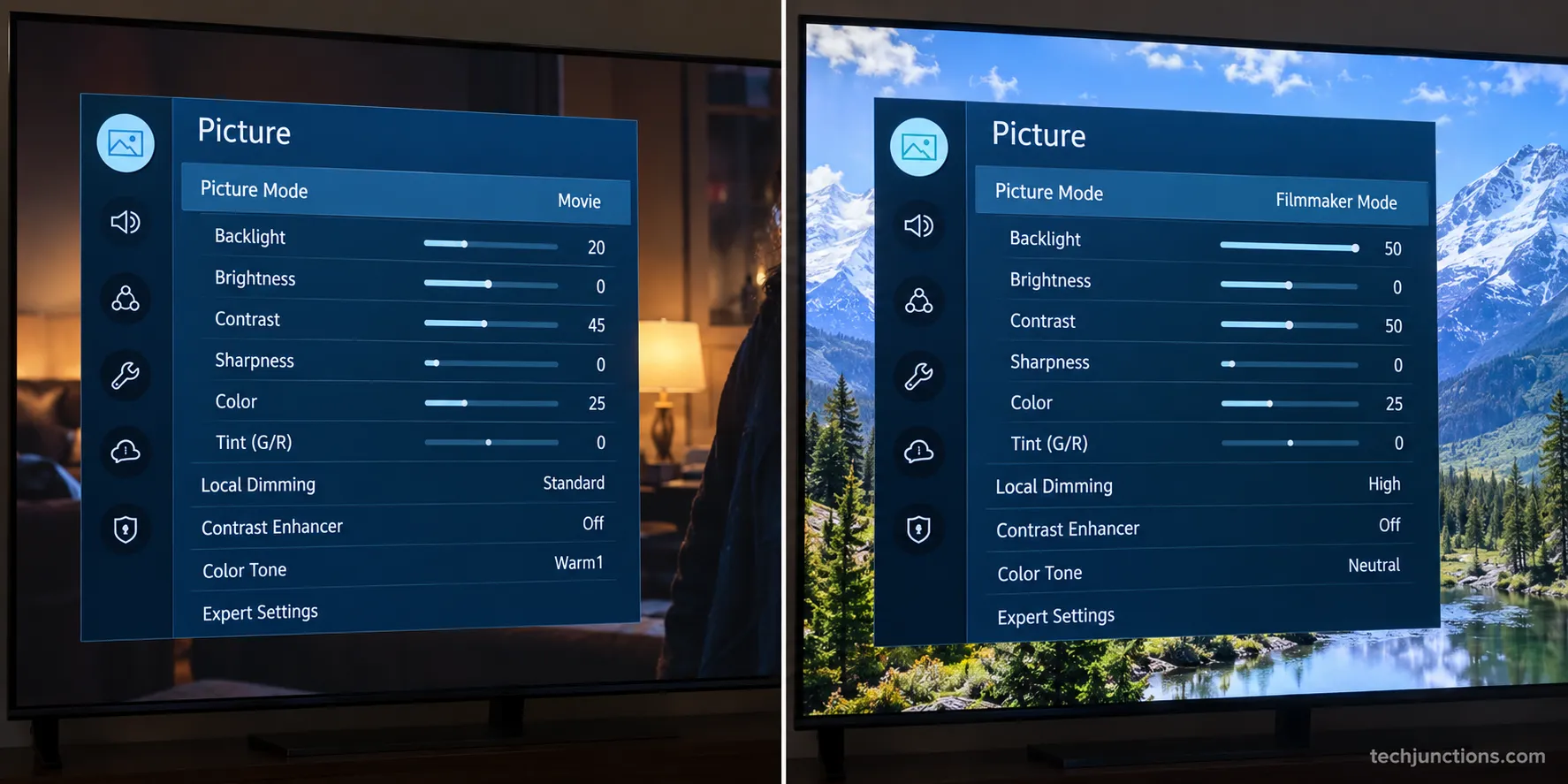
For sports, this is where you break the no-smoothing rule on purpose. Set Picture Clarity to Custom, nudge Blur Reduction to around 4 and keep Judder Reduction low, then raise Backlight so a bright afternoon field looks lively.
If channels are missing entirely before you can even test this, run a quick tune so the TV can find your local channels.
For gaming, turn on Game Mode, which strips latency-adding processing and enables features like ALLM and VRR on supported models. Keep Sharpness low and let the console output its own HDR.
PlayStation owners can match the handshake on each side with the PS5 picture guide. Xbox players get the equivalent in the Series X settings walkthrough.
What Each Setting Actually Does
Understanding the best picture settings for Samsung 4K TV means knowing why each one moves, not just what number to type.
Samsung's own control definitions explain the menu labels, and the accuracy-first logic behind the values is consistent: let the panel show the signal as mastered and stop "improving" it.
Sharpness at zero is the clearest example, because on a native 4K source the upscaler is already resolving detail, so added sharpness only paints halos.
Why is Warm2 the right color temperature, not "too yellow"?
Warm2 maps closest to the 6500K reference white, or D65, that film and TV are graded against.
Screens look blue by default because blue reads as brighter and sells in stores, and calibration guides at RTINGS confirm Warm2 as the accurate target rather than a stylistic warm cast.
What the key controls do:
Backlight or Brightness: Overall light output, the one value you truly set by room.
Contrast: The white ceiling; too high clips bright detail into flat white.
Sharpness: Artificial edge enhancement, best at zero on 4K sources.
Color Tone: The blue-to-warm white balance, where Warm2 is neutral.
Shadow Detail and Gamma: How dark tones ramp; leave near default to avoid crushing.
Digital Clean View: Noise reduction that also softens clean 4K grain.
On a clean 4K stream, turning Digital Clean View off restored fine film grain and skin texture that the "clean" setting had quietly smeared into wax.
It is a genuine improvement on old, noisy standard-definition channels and a downgrade on everything modern.

A few controls are situational rather than picture-quality settings, and they live in the same menus. If you run two sources at once through picture-in-picture, each window keeps its own mode.
Caption styling under your subtitle setup stays independent of picture mode. You can even push a tuned profile from your phone once you control it from SmartThings.
Why Your Samsung TV Looks "Washed Out" (and the Fix)
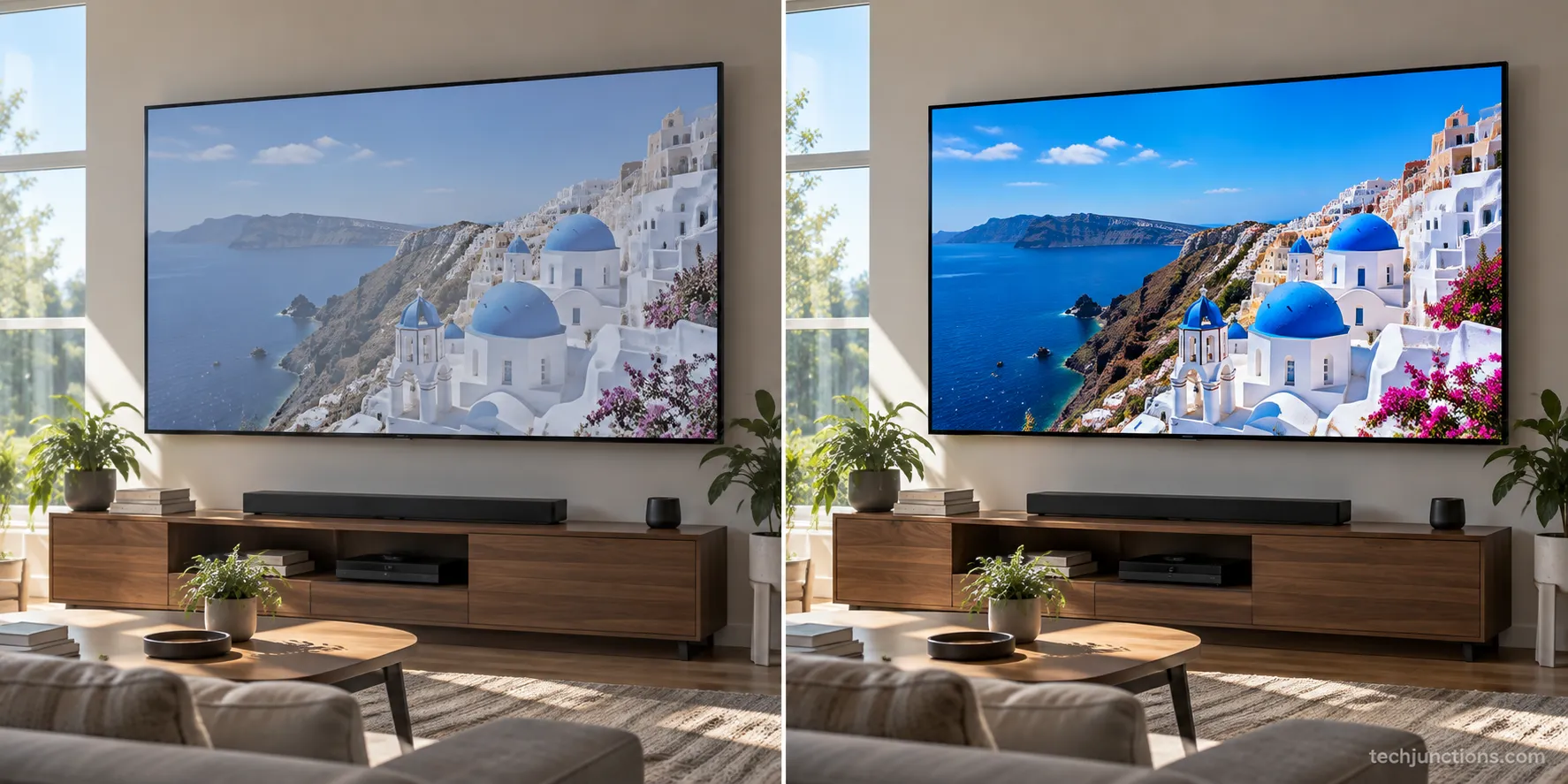
A washed out Samsung 4K TV is the single most common complaint on Samsung community forums, and it is almost never a broken panel.
In nearly every case the set is sitting in Dynamic or Standard mode with a low backlight fighting a bright room, or an energy-saving option is dimming the picture while a blue-heavy color temperature drains the contrast.
The fix is the baseline above: Movie or Filmmaker Mode, Warm2, Eco off, and a Backlight raised to suit the actual room.
How do I fix a washed out picture on a Samsung TV?
Switch to Movie or Filmmaker Mode, set Color Tone to Warm2, turn off all Eco and Ambient options, then raise Backlight until the image looks full in your room.
On the QLED in a bright afternoon room, moving Backlight from a timid 8 up to 22 turned a flat, grey, washed out picture into a punchy one in seconds, no service call required.
Two look-alike problems are not picture settings at all. If the image is stretched, cropped, or has black bars in the wrong places, that is aspect ratio, so fix the screen shape first before blaming color.
If a streaming app looks soft only sometimes, a weak connection can force lower-bitrate video, which a quick network tweak like DNS can help stabilize.
Reality check: If none of the settings restore the picture and you see lines, dead zones, or persistent discoloration, the panel itself may be at fault. It is worth a quick look at likely repair costs before you decide anything.
When the hardware rather than the settings is the clear problem, booking an official repair beats guessing.
When a Calibration Disc or Pro Calibration Is Worth It
Once the best picture settings for Samsung 4K TV are in place, a calibration disc or a professional calibration is the last five percent, and honestly most viewers do not need either.
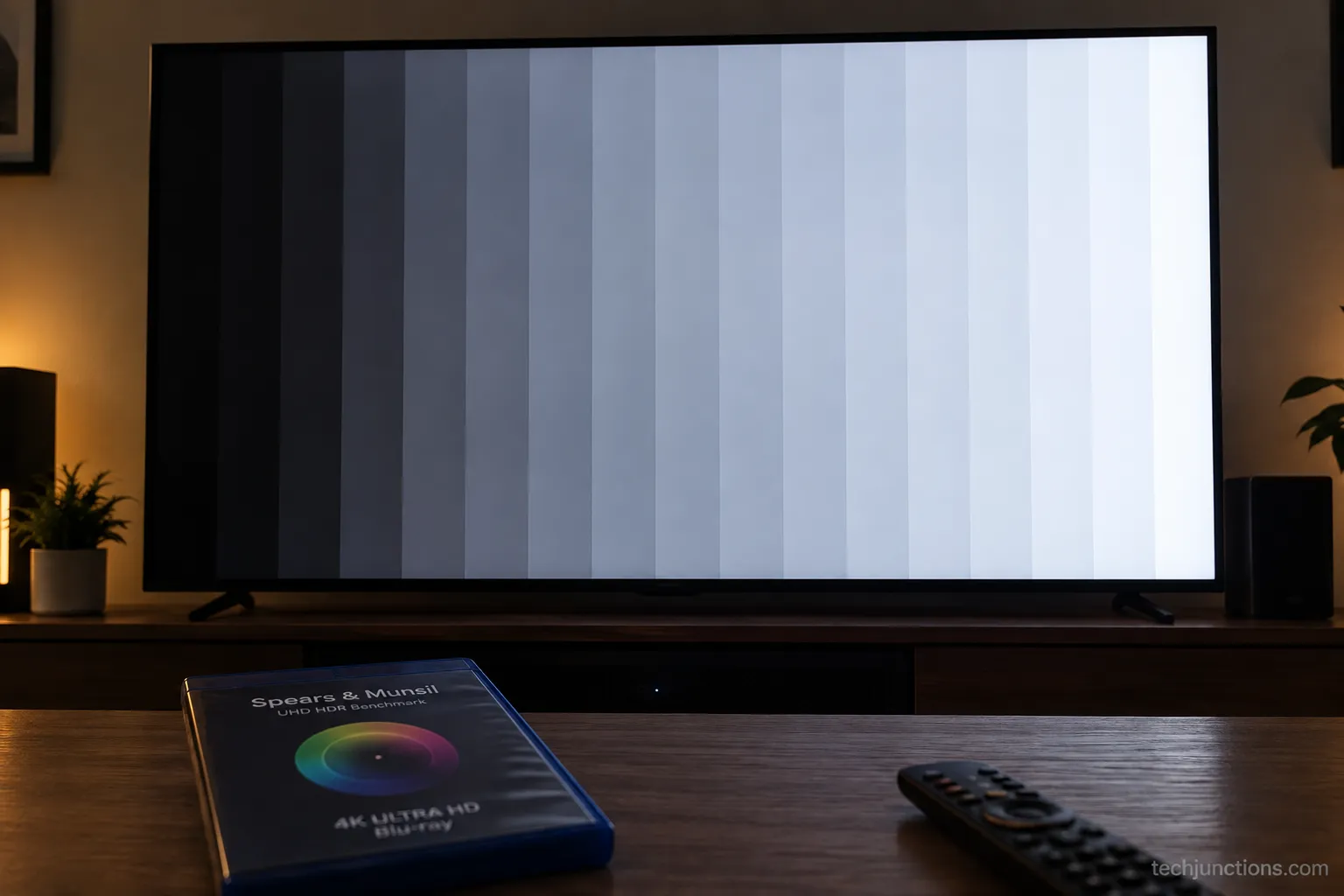
A disc like the Spears and Munsil UHD Benchmark gives you reference test patterns to fine-tune black level, sharpness, and color by eye, which matters far more on a capable panel than on a budget one.
Its documented pattern methodology is the same principle a technician follows with a meter.
Who actually benefits, by panel:
Panel | Disc worth it? | Pro calibration worth it? |
|---|---|---|
OLED (S90 / S95) | Yes, shadow tuning pays off | For enthusiasts, yes |
Neo QLED | Yes, helps local dimming | Optional |
QLED | Marginal | Rarely |
Crystal UHD / TU | Skip it | No |
On the OLED, running the disc's grayscale ramp let me lift near-black shadow detail that my eyeballed settings had left slightly crushed.
On the edge-lit Crystal set, the same disc changed almost nothing, because the panel simply cannot resolve those fine steps.
With the picture handled, a few finishing touches complete the setup. Audio deserves the same care, so run through the sound settings guide next.
Late-night viewers can pair headphones for the TV to keep the room quiet.
Being signed into a Samsung account keeps your tuned modes synced and apps updated.
If the original clicker dies, a GE universal remote is a cheap replacement.
A freshly wall-mounted set is also worth a pass to tidy the cable run so nothing tugs on the panel.
When a fault is clearly hardware rather than settings, this repair-or-replace guide lays out the math.
The bottom line: the best picture settings for Samsung 4K TV are accuracy-first values, tuned per panel and per content, with paid calibration reserved for OLED and Neo QLED owners who want the final polish.
Frequently Asked Questions
What is the best picture mode on a Samsung 4K TV?
Movie Mode or Filmmaker Mode is the best picture mode for most viewers, because both disable the extra sharpening and motion processing that Dynamic and Standard modes apply.
Samsung notes that Filmmaker Mode presents content as mastered, which can look darker at first but is more accurate.
Use Filmmaker for film and TV, and switch to Standard only for bright-room sports.
Should Sharpness be 0 on a Samsung TV?
Yes, set Sharpness to 0 for native 4K and high-quality HD content. The panel's upscaler already resolves fine detail, so added sharpness only introduces artificial halos around edges.
The only time a small amount helps is with soft, low-resolution sources.
Why does my Samsung TV look so dim in Movie mode?
Movie and Filmmaker modes start with a modest, accurate backlight rather than the showroom-bright default, so they can look dim in a bright room.
Raise Backlight or Brightness until the picture looks full for your lighting, and make sure Eco and Ambient Light Detection are off so the set stops auto-dimming.
Do Samsung picture settings save separately for each input?
Yes. Samsung TVs store picture settings per source and per mode, so an SDR profile and an HDR profile on the same input can hold different values.
Adjust each scenario while that content is actually playing, or the settings may not apply where you expect.
Is a calibration disc worth it for a Samsung 4K TV?
It is worth it on some panels and not others: worthwhile on OLED and Neo QLED, where fine shadow and local-dimming tuning are visible, and skippable on edge-lit Crystal UHD sets that cannot resolve the difference.
For most owners, the accuracy-first baseline gets you 95 percent of the way, and a disc closes the last small gap.
Summarize with AI
Keep reading
Related articles
 Picture & Sound Optimization
Hold Mute for 2 seconds to silence Voice Guide, or see how to turn off voice on Samsung TV by model year, plus Audio Description and Bixby fixes.
 Picture & Sound Optimization
Reboot a frozen LG TV in 15 seconds without losing apps. How to reboot LG TV three ways: soft reset, power drain, or factory reset by webOS year.
 Troubleshooting & Repair
Fix Samsung TV problems connecting to internet fast: read the Network Status test, match your symptom, then apply the DNS, date/time and router fixes.
 Display & TV Tech Explainers
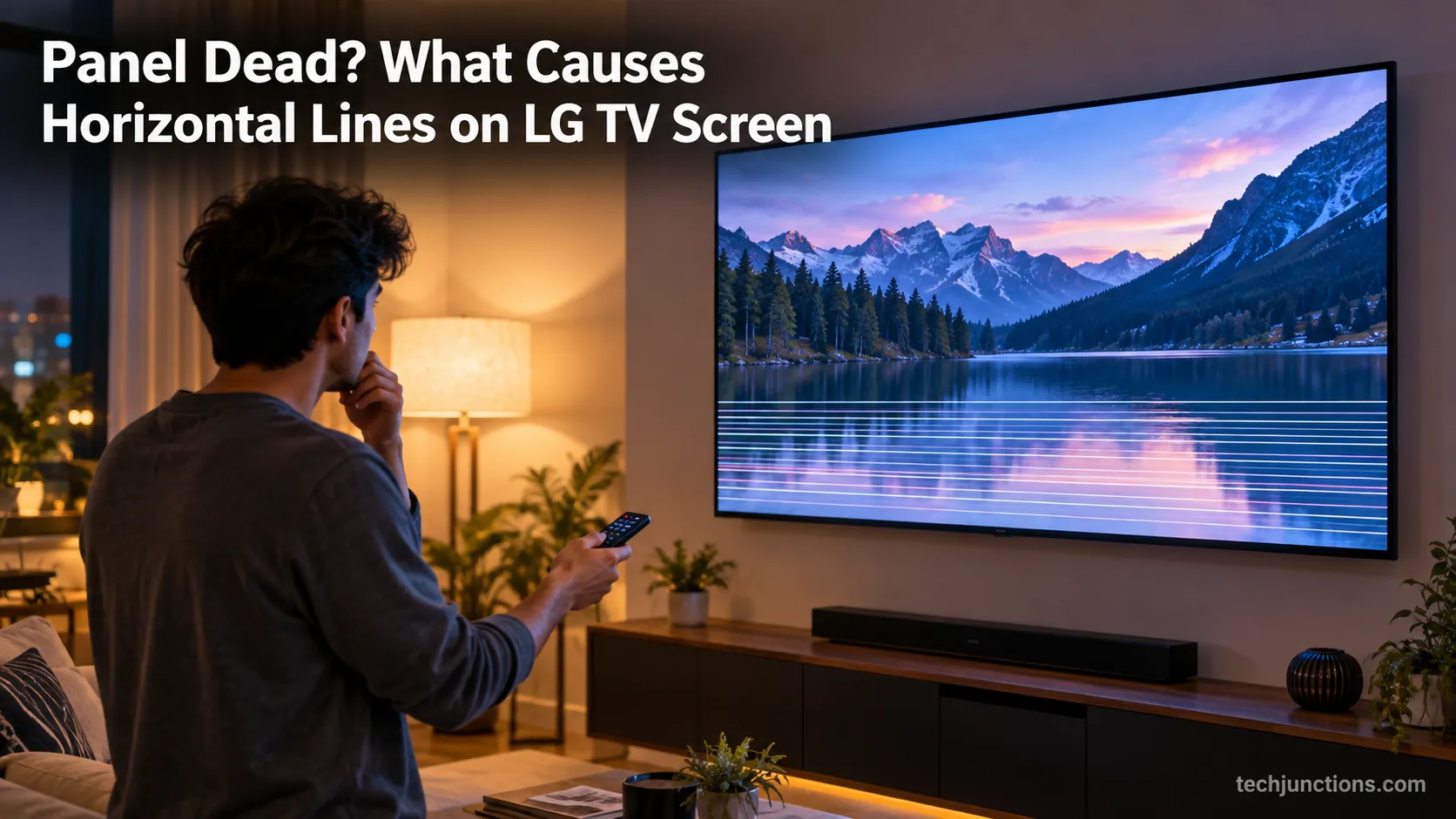
Diagnose what causes horizontal lines on LG TV screen in one Picture Test, tell a signal glitch from a dead panel, and see 2026 repair-vs-replace costs.
Comments
Moderated for quality. Share a correction, ask a follow-up, or tell us what worked for you - every comment is reviewed before it goes live.