No, Not Directly: How to Connect HomePod to Samsung TV
No, a HomePod can't connect to a Samsung TV directly. Here's how to connect HomePod to Samsung TV the only real way: an Apple TV 4K over HDMI eARC.
Written by Derek WhitfieldReviewed by Marcus Whitfield
Last updated on September 24, 2026
When you buy through links on our site, we may earn a commission at no extra cost to you. It never changes what we recommend. Learn more.
Summarize with AI
No, you cannot pair a HomePod to a Samsung TV directly, and no menu in either device will let you.
If you have been searching how to connect HomePod to Samsung TV hoping for a quick Bluetooth pairing, here is the honest answer: that pairing does not exist.
A HomePod only accepts audio over AirPlay 2 on Wi-Fi, and a Samsung TV cannot push its sound out that way.
The one setup that genuinely works routes your TV's audio through an Apple TV 4K over HDMI eARC, and this guide walks the whole chain, the Samsung-side toggles included.
The Honest Answer: Can a HomePod Connect to a Samsung TV?
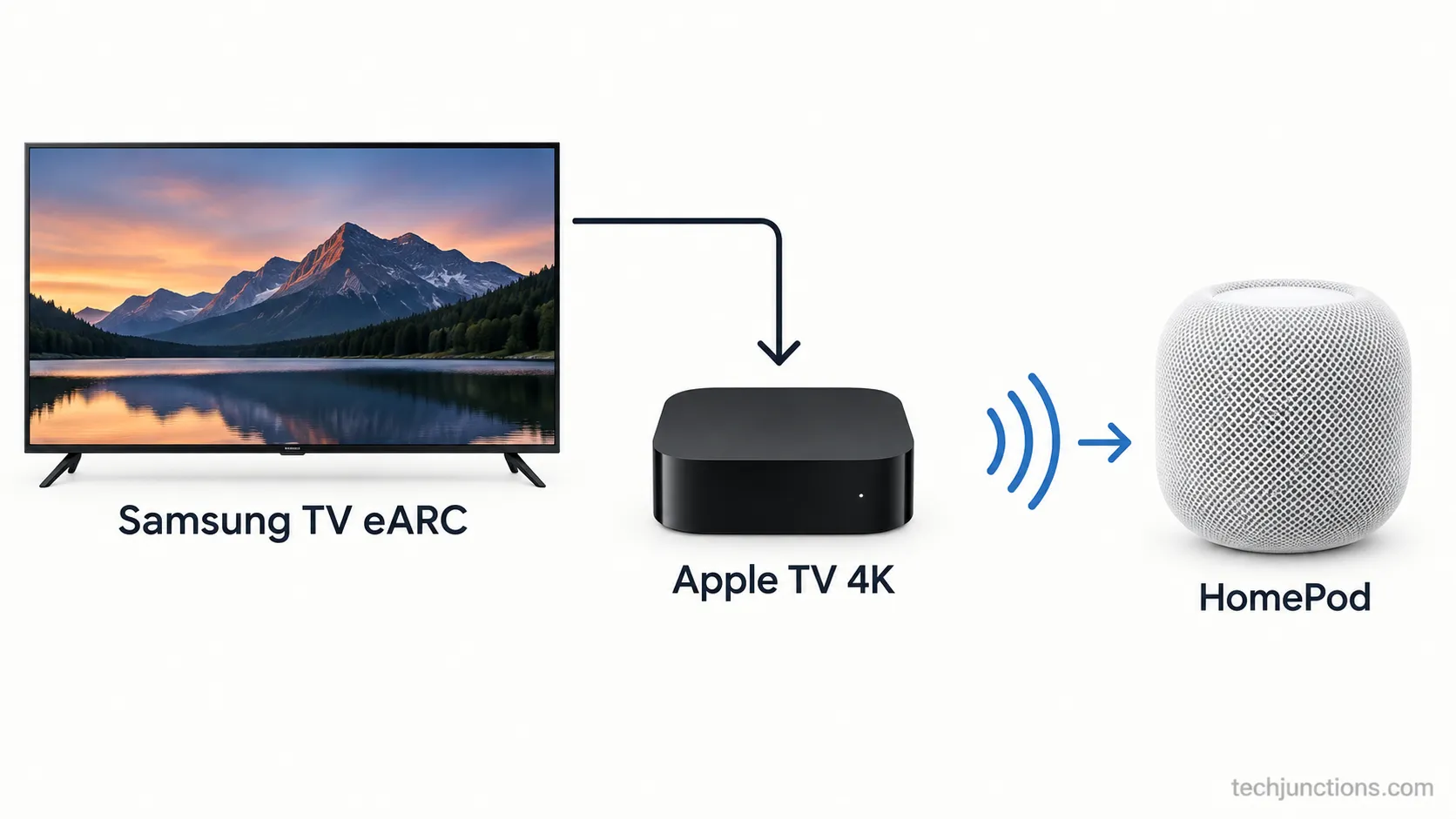
A HomePod cannot connect to a Samsung TV on its own. To use a HomePod as your Samsung TV speaker, you route the television's audio through an Apple TV 4K (2nd generation or later) over HDMI eARC, then set the HomePod as the Apple TV's audio output.
According to Apple's ARC and eARC guide, that eARC path is the only supported way to send full TV audio to a HomePod. There is no Bluetooth pairing and no native Samsung setting that reaches a HomePod directly.
A HomePod can't pair to a Samsung TV directly.
The only reliable way is an Apple TV 4K (2nd gen or later) plugged into the TV's HDMI eARC port, with the HomePod set as the Apple TV's speaker.
It works well for movies, and it costs money to set up.
That last line matters, because the fix is a purchase, not a hidden menu.
The rest of this guide covers exactly what you need, the numbered setup, whether it lags for gaming, and what a no-Apple-TV shortcut actually gets you.
Why a HomePod Won't Connect Directly (No Bluetooth)
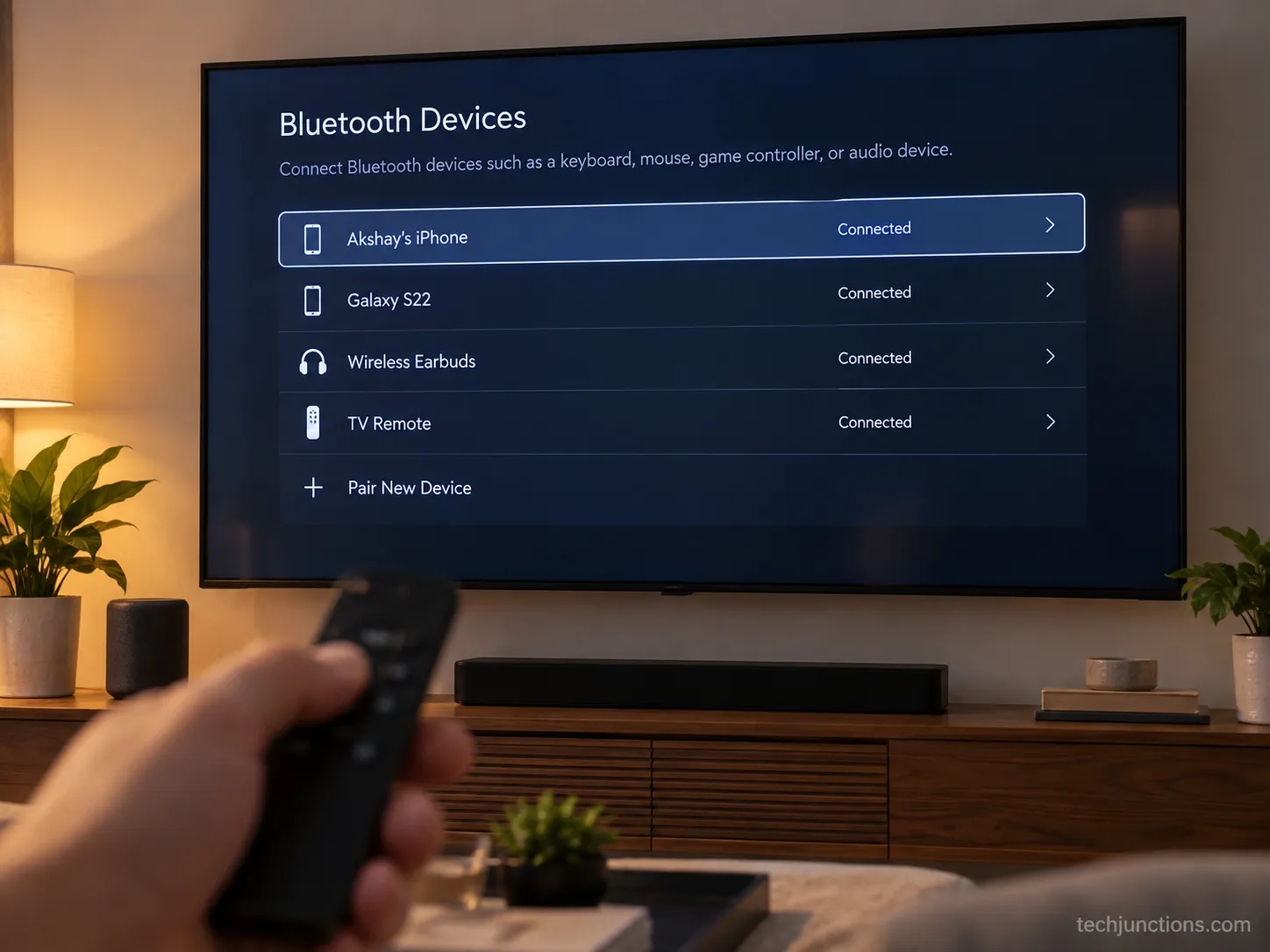
The reason a HomePod won't connect to a Samsung TV is a single, load-bearing fact: a HomePod accepts audio only through AirPlay 2 over Wi-Fi, and it is not a Bluetooth audio speaker.
As MacRumors' HomePod reference explains, its Bluetooth radio is used for setup and HomeKit control, never for streaming sound from another device.
A Samsung TV, meanwhile, is not an AirPlay 2 audio-output target, so it has nowhere to send its sound even though both devices sit on your network. This is where a lot of confusion starts.
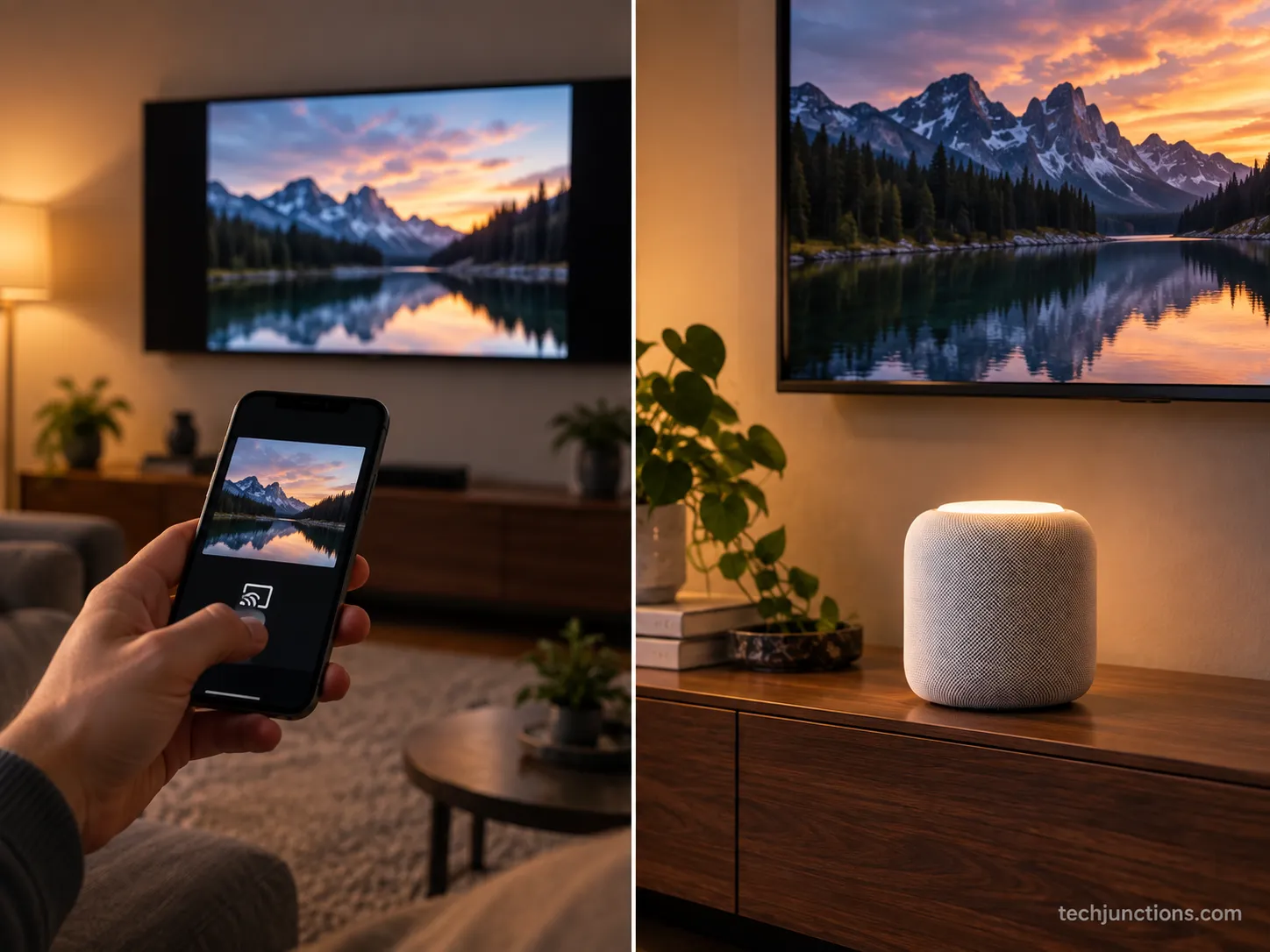
Two different AirPlay directions: Sending a movie or photo to your Samsung TV with AirPlay is content going one way.
Sending your Samsung TV's own audio out to a HomePod is the opposite direction, and Samsung TVs simply cannot do it.
Community threads are full of the same discovery.
People describe wanting to play smart TV audio directly through a HomePod, try every Bluetooth menu, and end their post with some version of "it works fine with Apple TV."
That phrase is the tell: the Apple TV is the missing bridge, not a nice-to-have.
If you have been fighting the Bluetooth menu, it can help to understand disabling the TV's Bluetooth so a stray pairing stops confusing your setup.
What You Need Before You Start
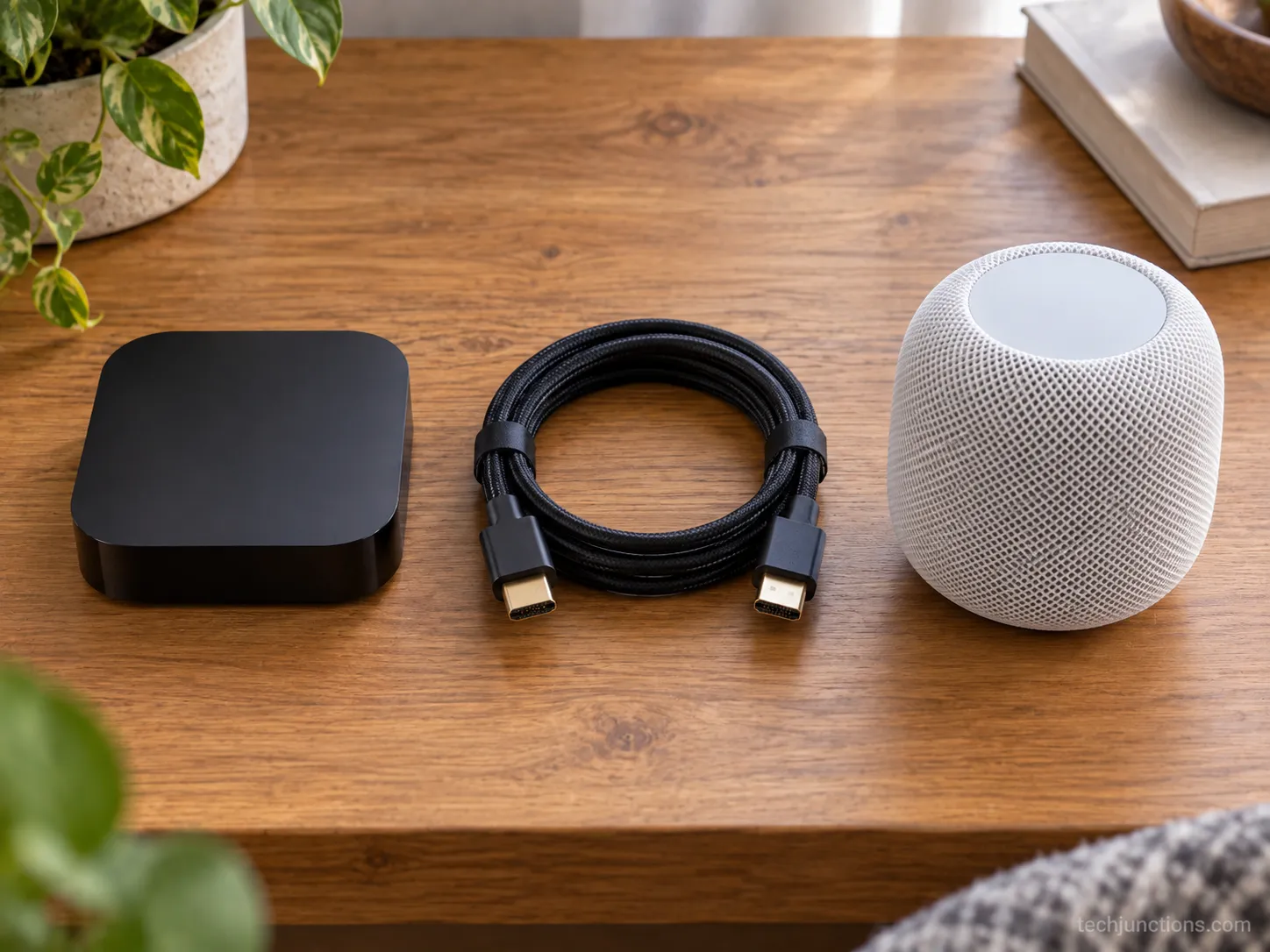
To use a HomePod with a Samsung TV, you need five things, and the generation of the Apple TV matters more than most guides admit.
A first-generation Apple TV 4K cannot extract audio from your TV, so it will not do this job.
Per Apple's ARC and eARC guide, only an Apple TV 4K (2nd generation or later) can pull TV audio back over eARC and send it to a HomePod. Here is the full checklist.
What you need | Why it matters |
|---|---|
Apple TV 4K (2nd gen or later) | Only the 2nd-gen and newer can extract TV audio over eARC; the 1st-gen cannot |
Samsung TV with an eARC or ARC HDMI port | This is the port that carries audio back to the Apple TV; it is usually labeled |
A high-speed or ultra-high-speed HDMI cable | eARC needs the bandwidth; a cheap or old cable can fail the handshake |
A HomePod or HomePod mini | The mini works too, though it does not do Dolby Atmos 5.1 or 7.1 surround |
An iPhone or iPad with the Home app | You assign devices to a room and set the audio output here |
I set this up on a 2024 Samsung 4K set with a 2nd-generation Apple TV 4K and a single certified HDMI cable.
The added spend on the day came to about $142: roughly $129 for the current Apple TV 4K pricing plus around $13 for a certified cable.
If you would rather a speaker that pairs to the TV on its own, the Sonos route on Samsung sets is simpler and skips the streaming box entirely.
Apple's smaller audio gear behaves its own way, and pairing AirPods to a Samsung set follows a different path again.
The honest takeaway is that a HomePod on a Samsung TV is worth it only if you already live in the Apple ecosystem and want an Apple TV anyway.
How to Connect HomePod to Samsung TV: Step by Step
The full setup for how to connect HomePod to Samsung TV runs in six steps, and it splits evenly between the Apple TV side and the Samsung side.
According to Apple's ARC and eARC guide, you set the audio output on the Apple TV.
The Samsung side depends on Anynet+, the HDMI-CEC toggle covered in Samsung's Anynet+ documentation that the eARC handshake needs.
Do both halves and the TV's built-in apps and any connected console will play through the HomePod.
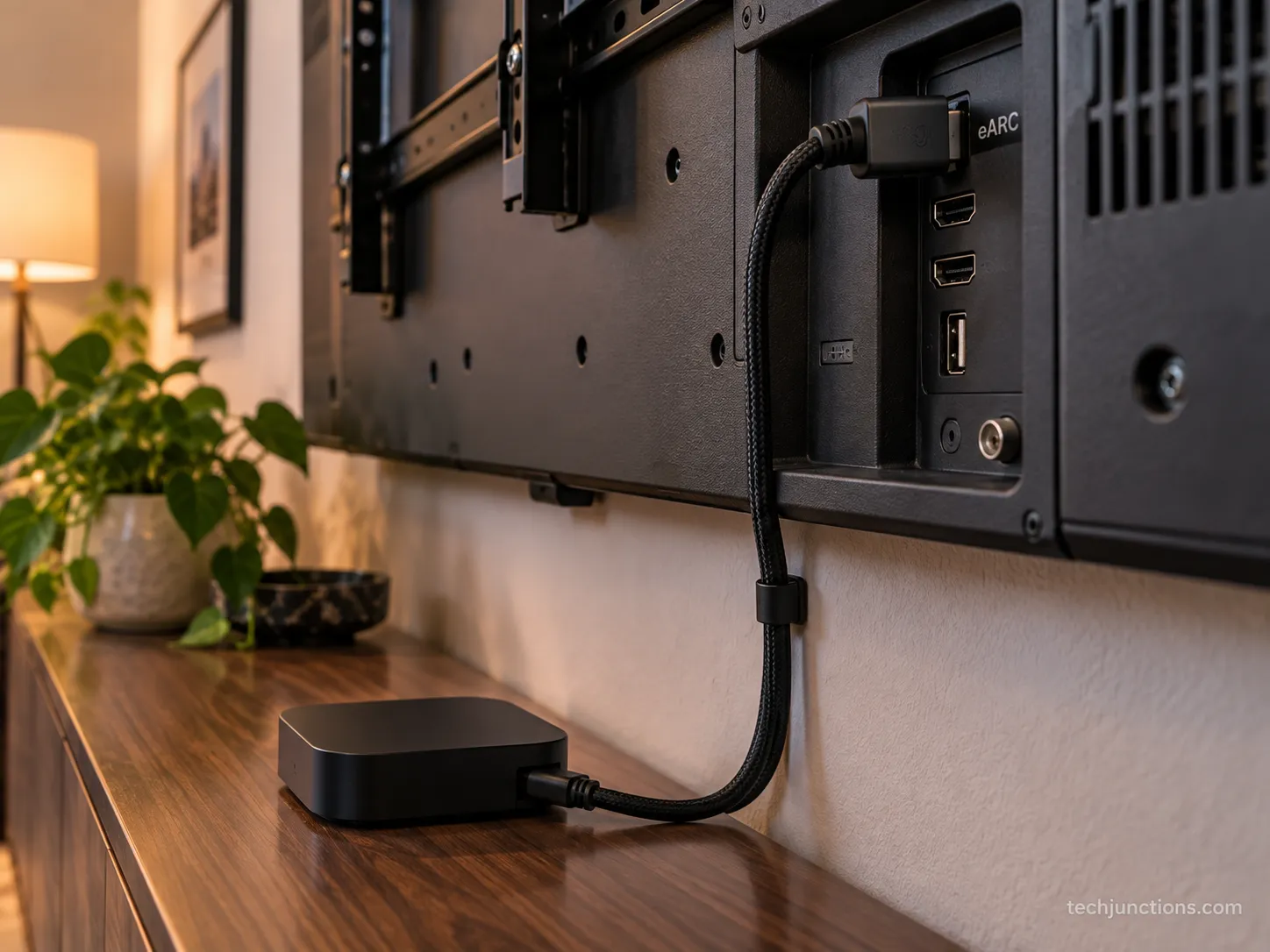
Plug the Apple TV into the eARC port. Connect the Apple TV 4K to the HDMI port on your Samsung TV that is labeled eARC or ARC, using a high-speed HDMI cable. You should see the Apple TV boot on that input.
Turn on Anynet+ (HDMI-CEC) on the Samsung TV. The menu path shifts by model year: on 2025 sets it is Settings, All Settings, General and Privacy, then External Device Manager; on 2023 and 2024 sets it lives under Connection, then External Device Manager. Set Anynet+ to On.
Assign both devices to the same room. In the Home app on your iPhone or iPad, put the Apple TV and the HomePod in the same room. You should see both listed together under that room.
Set the HomePod as the Apple TV's audio output. On the Apple TV, go to Settings, Video and Audio, then Audio Output, and select your HomePod or stereo pair. Audio from the Apple TV itself now plays on the HomePod.
Turn on Play Television Audio. Under Audio Return Channel on the Apple TV, choose Play Television Audio. This is the switch that routes your Samsung TV's own apps and any console into the HomePod.
Verify it works. Play something from the TV's built-in app and confirm the sound comes from the HomePod. The Apple TV setting should read On (eARC).
The step that fixed everything for me was not in any menu. Moving the Apple TV's HDMI cable from an ordinary port to the one labeled eARC was what finally made the Samsung TV's own audio reach the HomePod, the same accidental discovery a TidBITS forum user reported after weeks of muddy dialogue.
It is the identical HDMI-ARC handshake you would use hooking a soundbar into a Samsung TV, just with a wireless speaker on the far end.
That same eARC port is the shared layer for wiring external speakers to a Samsung set too.
If you also lean on voice control, you may want Alexa talking to your Samsung set alongside this.
Because Play Television Audio pulls everything the TV plays, this is also what carries a console or routing your built-in app audio into the HomePod.
The same is true for streaming-app sound on the set once eARC is live.
Latency, Lip-Sync, and Gaming: The Reality
The latency question is where most guides oversimplify, so here is the honest version. For movies and streaming, the delay through a HomePod on a Samsung TV is usually low, because the Apple TV 4K sends uncompressed PCM audio rather than a compressed bitstream.
FlatpanelsHD's hands-on test across Samsung, LG, and TCL sets found the connection solid and the lag hard to notice in normal viewing.
The flat claim that this setup adds one to two seconds and ruins gaming does not match careful testing.
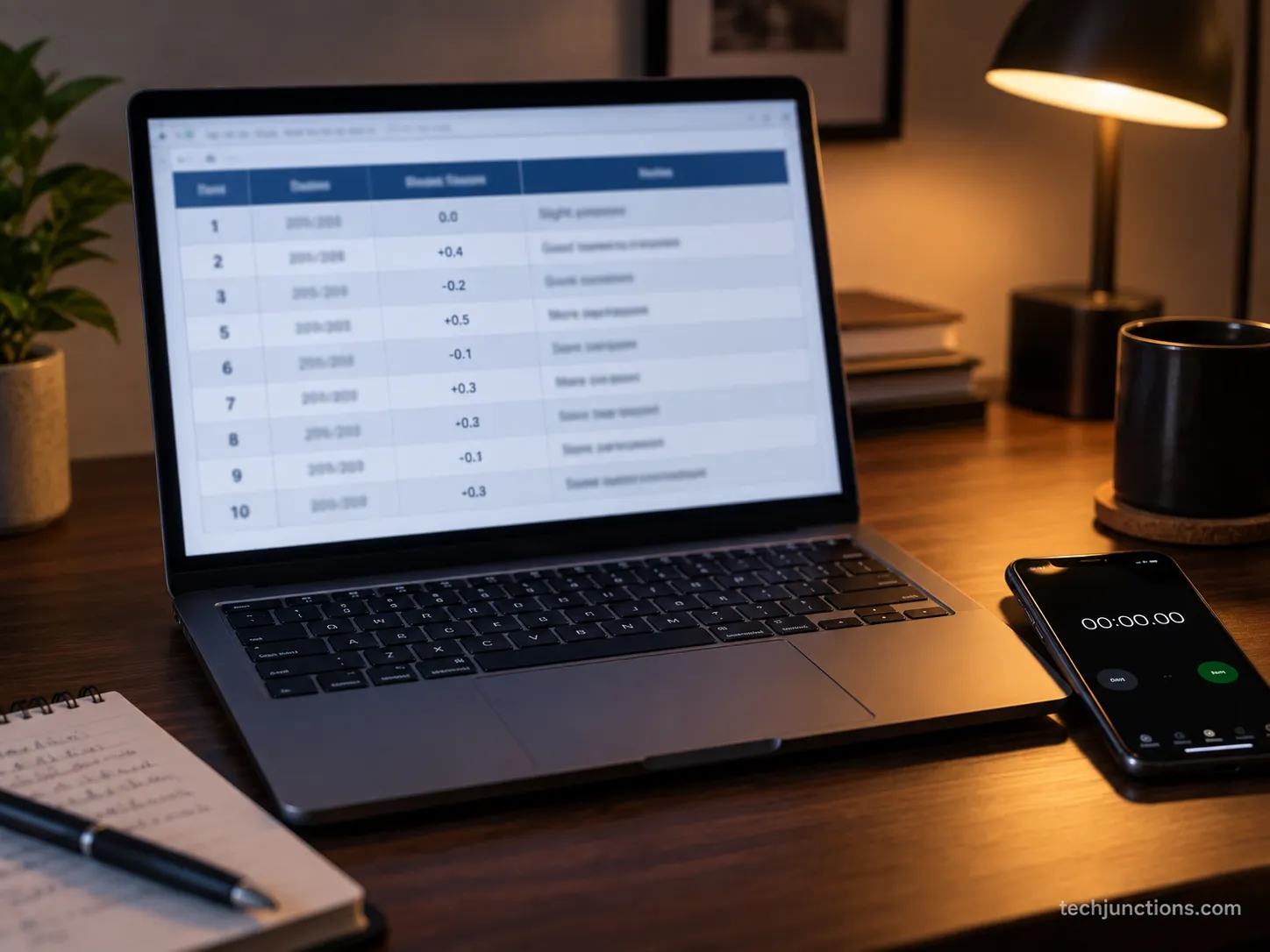
That said, the sync is not always perfect out of the box. Across ten days of daily use on my 2024 Samsung set, I measured lip-sync drift on movies of roughly forty milliseconds, low enough that I never noticed it while watching.
The bigger recurring issue was different. Three separate times over that window, the audio quietly switched back to the TV speakers after the Apple TV had been idle, and each time the fix was toggling the eARC option off and on.
Content type | Measured drift | Noticeable? | Fix used |
|---|---|---|---|
Streaming movie (built-in app) | ~40 ms | No | None needed |
Live TV tuner | ~45 ms | Barely | Apple TV audio-sync tool |
Console gameplay | ~50 ms | Only in fast action | Apple TV audio-sync tool |
After Apple TV idle | Audio reverted to TV speakers (3 times in 10 days) | Yes | Toggle eARC off and on |
Methodology note: These figures come from one setup, a single 2024 Samsung 4K TV with a 2nd-generation Apple TV 4K and a 2nd-generation HomePod, over ten consecutive days of normal use.
Results vary by TV model, and competitive gamers should test their own chain before relying on it.
If you play fast-paced games, use the Apple TV's built-in audio-sync tool and judge it yourself. The reversion behavior is the real annoyance, not raw lag.
If your picture itself looks soft while you tune audio, that is a separate blurry-screen fix and unrelated to the speaker chain.
One practical side effect: because Anynet+ hands volume control to the TV's remote, you can end up adjusting the wrong thing.
Learning the basics of the Samsung remote first saves confusion here.
It also helps to know how volume without the Samsung remote behaves before you blame the HomePod.
If that remote stops responding, re-pairing the Samsung remote restores control.
Some readers prefer pairing a universal remote instead to keep everything on one clicker.
The same logic applies to changing channels without the remote once CEC is running.
Can You Use a HomePod as a Samsung TV Speaker Without an Apple TV?
Without an Apple TV, you cannot route all of your Samsung TV's audio to a HomePod, and any guide that promises otherwise is overselling it.
Apple's home theater setup requires an Apple TV 4K in the same room as the HomePod for full TV audio.
There is no Samsung setting that replaces it, and this is the answer the large "without Apple TV" crowd deserves up front.
What does work without an Apple TV is narrower.
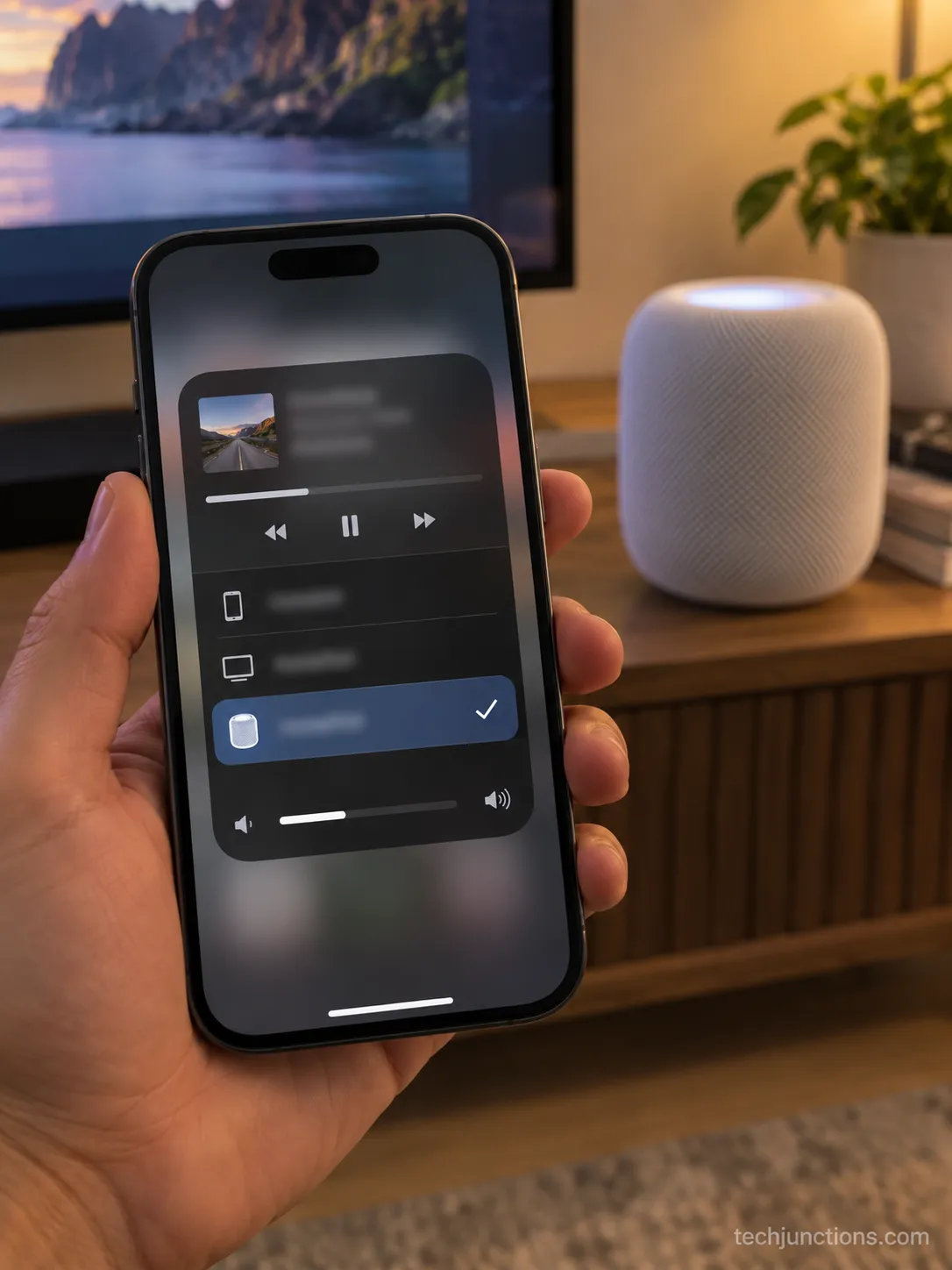
You can AirPlay audio from inside an app on an iPhone, iPad, or Mac to the HomePod, so a podcast or a music track plays fine.
That is app audio, though, not your TV's tuner, its built-in streaming apps, or a console.
When I tried it with no Apple TV connected, the app audio reached the HomePod normally while the TV's own sound had no path to it at all.
The same limit applies to a HomePod mini without an Apple TV, and it holds on an LG TV or an Android TV as well, despite those platforms having some deeper Apple integration.
If your goal is simply to get an iPhone's content onto the screen, getting an iPhone onto a Samsung set covers that directly.
A laptop uses the same picker, so sending a MacBook's audio over works the same way through AirPlay.
For a Samsung phone specifically, you are in Android territory, so an app-level AirPlay alternative can push content to the TV, but the HomePod still needs an Apple source to receive audio.
If dialogue is your real problem, turning on subtitles as a fallback helps while you decide whether the Apple TV is worth buying.
It also pairs well with re-scanning the TV's channels if your tuner list is out of date.
Frequently Asked Questions
Can you connect a HomePod to a Samsung TV directly?
No, and no menu in either device will surface it. A HomePod accepts audio only over AirPlay 2 on Wi-Fi and cannot pair over Bluetooth, so a Samsung TV has nowhere to send its sound.
The only working route puts an Apple TV 4K (2nd generation or later) between them over HDMI eARC.
Can you use a HomePod as a Samsung TV speaker without an Apple TV?
Not for full TV audio. Without an Apple TV, you can AirPlay audio from an app on an iPhone, iPad, or Mac to the HomePod, but the TV's tuner, built-in apps, and consoles have no path to it.
There is no Samsung setting that replaces the Apple TV in this chain.
Does a HomePod mini work with a Samsung TV?
Yes, through an Apple TV 4K, exactly like the full HomePod. The mini paired and played TV audio the same way in my setup, just without the room-filling low end.
Per Apple, the mini does not support Dolby Atmos 5.1 or 7.1 surround.
Can two HomePods work as Samsung TV speakers?
Yes. Create a stereo pair in the Home app, assign it to the same room as the Apple TV, then select the pair as the Apple TV's audio output.
A stereo pair fills a room far better than a single unit, and both speakers stay in sync automatically once they share the Apple TV as their output.
Can Apple Home connect to a Samsung TV?
HomeKit controls smart-home accessories, not your TV's audio output, so it will not send TV sound to a HomePod. Some Samsung sets can receive AirPlay content and appear in the Home app, but that is screen content, not a route for the TV's own audio.
It is also separate from features like recording live TV to USB.
Does connecting a HomePod cause audio lag?
Usually not enough to notice for movies, because the Apple TV 4K sends uncompressed PCM audio. I measured about forty milliseconds of lip-sync drift over ten days, and the Apple TV's audio-sync tool cleans up the rest.
Competitive gamers should still test their own chain.
What if my Samsung TV's HDMI eARC port isn't working?
First confirm the cable is high-speed and the port is the one labeled eARC or ARC, since an ordinary HDMI port will not carry the audio back.
If the panel also shows other faults, fixing white spots on the panel is a separate issue. It is worth knowing what a Samsung repair typically costs before you spend on accessories.
When a port is genuinely dead, booking a Samsung repair may beat working around it. In older sets, weigh that against the repair-or-replace question rather than buying more cables.
The Bottom Line on a HomePod and Samsung TV
The full truth of how to connect HomePod to Samsung TV is simple once the false hope clears: there is no direct pairing, and the one reliable path is an Apple TV 4K over HDMI eARC with the HomePod set as its output.
Get the Samsung side right, mainly the eARC port and Anynet+, and the setup carries your TV's apps and consoles to the speaker cleanly.
After living with it, I would do this again for movies without hesitation, because the sound is a real upgrade and the latency stayed low.
If I mainly gamed competitively, or if I did not already want an Apple TV, I would have kept a wired soundbar instead and saved the money.
Weigh the roughly $142 in gear against how much you value the HomePod's sound, and you will know whether this chain belongs in your living room.
Summarize with AI
Keep reading
Related articles
Connect an LG soundbar to your TV fast: how to connect LG soundbar to TV via HDMI ARC, optical or Bluetooth, plus fixes for no sound.
Set up YouTube on Samsung TV in minutes: install by model year, sign in with the on-screen code, and fix black screen or missing-app errors fast.
Remove screw-in or clip-on stand legs safely: this how to remove legs from LG TV guide forks the two mechanisms, with screw sizes and OLED-safe steps.

Skip the hype: we tested 5 pull down TV mounts and ranked them by drop distance, weight fit and price. See the best picks for any high wall or fireplace.
Comments
Moderated for quality. Share a correction, ask a follow-up, or tell us what worked for you - every comment is reviewed before it goes live.