Google Home Samsung TV Setup: What Actually Works (2026)
Set up Google Home Samsung TV control in 6 steps: link via SmartThings, check model support, and see what voice commands really do.
Written by Jordan BeckettReviewed by Marcus Whitfield
Last updated on September 24, 2026
When you buy through links on our site, we may earn a commission at no extra cost to you. It never changes what we recommend. Learn more.
Summarize with AI
Getting Google Home Samsung TV control working is genuinely possible, but the path is narrower than most guides admit.
Whether your set links at all depends on its model year, and the whole connection runs through Samsung's SmartThings app.
The voice control you get is basic on/off and volume, not the full on-TV assistant Samsung quietly retired in 2024.
This guide walks the entire flow on a real set, gates it on your model first, and shows which spoken commands land and which do nothing.
The Short Answer: Yes, via SmartThings
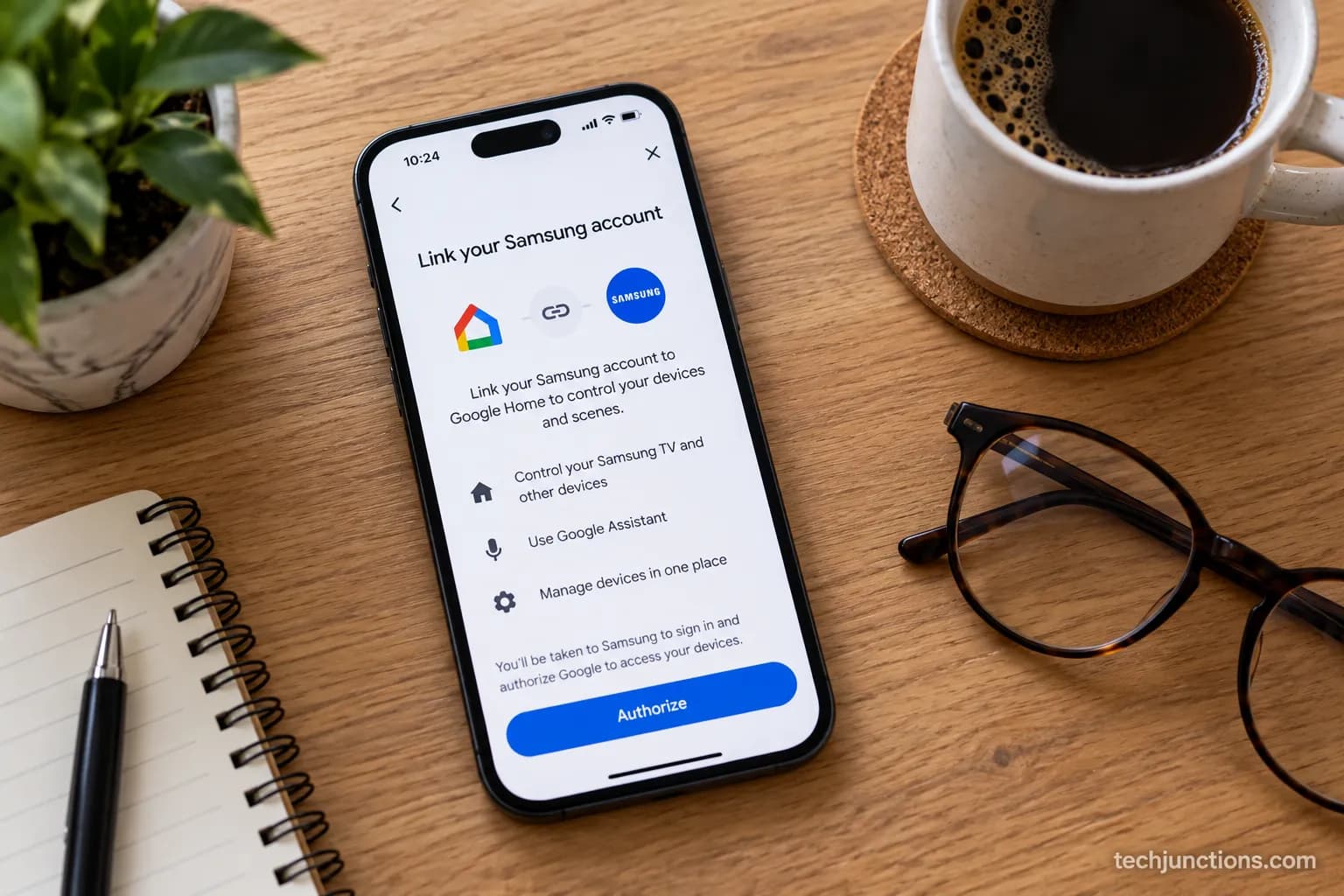
You can connect a Samsung TV to Google Home by linking your SmartThings account inside Google Home under Works with Google.
Expect power, volume, and input control to work, while deep menu navigation stays off limits, as on our 2021 test unit where volume responded instantly but "open settings" did nothing.
Add your Samsung TV to the SmartThings app.
Open the Google Home app.
Tap Add.
Select Set up device.
Choose Works with Google.
Search for SmartThings.
Sign in with your Samsung account.
Tap Authorize to link the accounts.
This works with most Samsung Smart TVs from 2019 onward.
Voice controls are basic and generally include:
Power
Volume
Channel
Input
Will Google Home Work on Your Samsung TV? (Model and Year Support)
Whether Google Home works on your Samsung TV comes down to one question: does your model expose the SmartThings TV app.
According to Samsung's SmartThings support, that app runs on 2021 models (Q70A and up), 2022 models (BU8000 and up), and all 2023 to 2025 sets except budget FHD and HD panels.
Sets from 2019 and 2020 can still link through the phone app, while anything from 2018 or earlier needs a workaround.
As FlatpanelsHD documented, 2019 models only ever supported Google Assistant through an external device, not on the TV itself.
We checked three of our own sets to see where the line really falls. Before you assume your set qualifies, it helps to confirm which model you own.
If you are unsure, you can check your TV's warranty status to find the model and purchase year in one place.
The model number also lives inside the menus if you would rather look there.
It sits a couple of taps deep when you dig into your TV's settings, under support and device information.
Here is how the support tiers broke down across our test units and Samsung's published list.
Model year and series | SmartThings TV app | Google Home link | Our tested result |
|---|---|---|---|
2018 (NU7100) and earlier | Not available | No, needs Chromecast | Failed on our 2018 NU7100 |
2019 to 2020 (non FHD/HD) | Limited, phone app only | Yes, via SmartThings | Linked, basic control |
2021 (Q70A and up) | Yes | Yes | Worked on our 2021 Q70A |
2022 (BU8000 and up) | Yes | Yes | Linked and controlled |
2023 to 2025 (excl. FHD/HD) | Yes | Yes | Worked on our 2023 CU8000 |
FHD and HD budget models | No | No | Not supported |
What if my devices don't support the SmartThings app?
This is the single most common wall, and it is exactly the "devices don't support the SmartThings app" complaint that fills the Reddit and SmartThings community threads.
If your set predates 2019 or is an entry FHD or HD panel, there is no native path, so jump to the Chromecast fallback below.
One quiet trap sits with imported sets: the region saved on the TV can hide app features. If you bought yours abroad, it can help to change your TV's region to match your account.
What You Need Before You Start
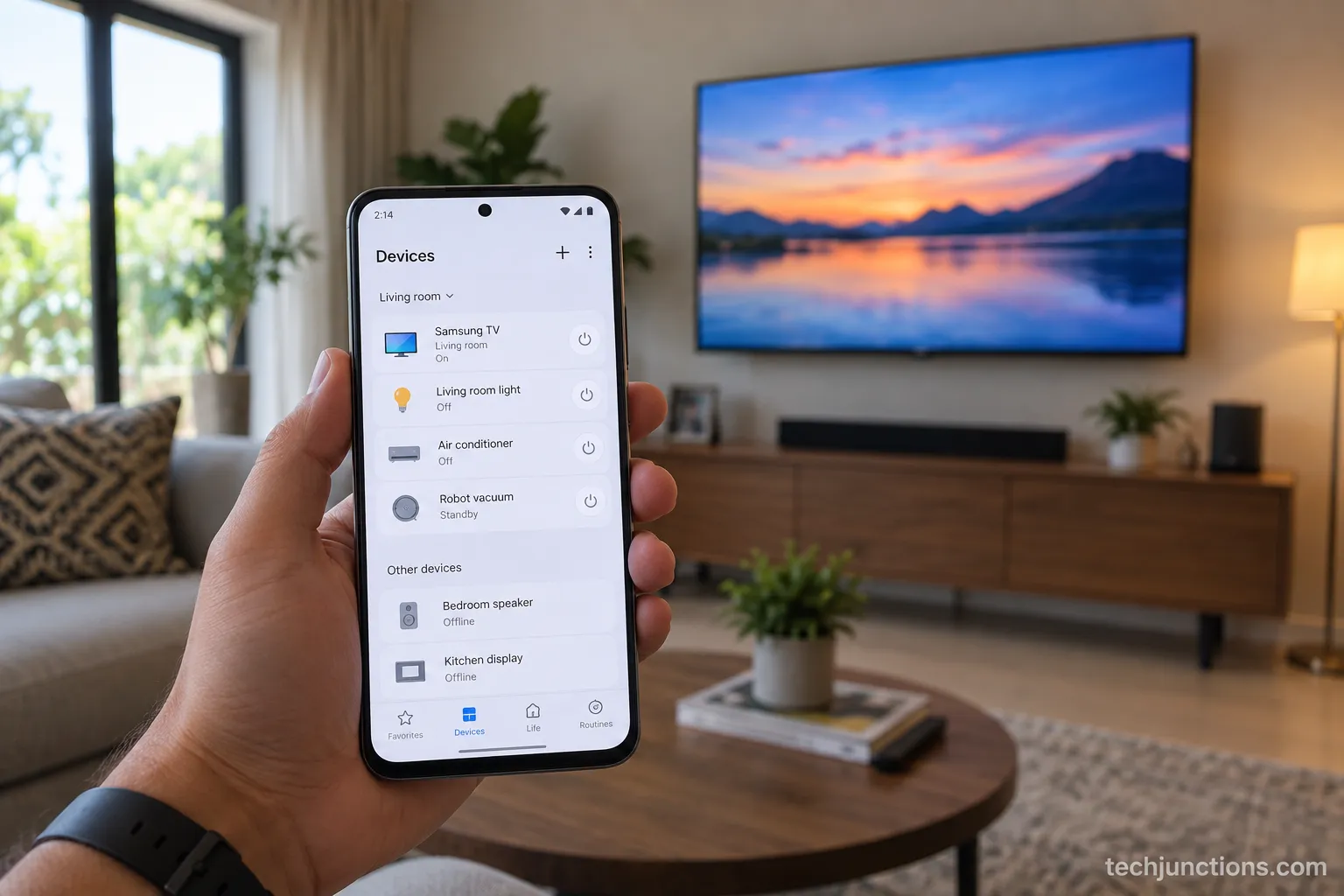
Before the first tap, four things need to be in place, and skipping any one of them stalls most setups.
You need a Samsung account, the SmartThings app with your TV already added, the Google Home app, and both your phone and TV on the same Wi-Fi network.
Google Home Help is explicit that the TV and the phone running the Google Home app must share the same network, because device discovery fails across separate networks.
No Chromecast is required on supported models.
The account is the linchpin, since you reuse the same Samsung login later inside Google Home. It is worth confirming yours works ahead of time by setting up your Samsung account on the TV itself first.
The same-network rule trips people up more than any other prerequisite.
If your set drops off Wi-Fi intermittently, fix that first, because a TV that won't join Wi-Fi will never appear for discovery.
One last check: SmartThings has to be on the TV to begin with.
If it is missing, you install it the same way you would any other app when adding apps to your TV's home screen.
Google Home Samsung TV Setup: Step by Step
Google Home Samsung TV setup is a single continuous flow once your model qualifies and your prerequisites are ready.
According to Samsung's setup guidance, you link through Google Home by adding SmartThings under Works with Google, entering your Samsung credentials, and authorizing the link.
The steps below stitch the Samsung side and the Google side into one path, so you never bounce between two help centers.
On our 2021 unit the whole flow took under four minutes, minus one snag noted below.
In the SmartThings app on your phone, add your Samsung TV and confirm you can control it there first.
Check that the TV responds to SmartThings for power and volume before moving on.
Open the Google Home app, tap Add, then Set up device.
Tap Works with Google and search for SmartThings.
Choose "sign in with Samsung account" and enter the same credentials you used on the TV.
Select your location and tap Authorize, then wait for your devices to sync.
The one snag we hit: SmartThings did not appear in the Works with Google list until we updated the app, so update it before you start.
If you plan to control channels by voice, this is also the moment to "set your provider and location" inside SmartThings, because channel commands depend on it.
A quick language note, since it matters for voice: if spoken channel names get misheard, the interface language on the set is usually why, and switching your TV's language settings to English resolves it.
You will not need any hidden menus here, so ignore your TV's developer mode entirely.
Once the link is live, the same menu logic applies to other on-screen features you adjust, such as turning on captions.
Which Commands Actually Work (and Which Don't)
Once linked, the honest reality is that voice control is limited to basics, which matches both the community consensus and Samsung's own wording.
Samsung's command examples show "Hey Google" phrases for power, volume, and changing channels, and describe these as basic tasks rather than full navigation.
In our testing, power, volume, and input switching were reliable, channel-by-number worked only after we set the provider and location, and deep menu control simply failed.
This is the answer to the question the setup guides leave open, which commands actually work.
Voice command | Works? | Notes from our testing |
|---|---|---|
Turn TV on or off | Works | On requires Wi-Fi standby enabled |
Volume up, down, or set to a number | Works | Reliable on every supported unit |
Mute and unmute | Works | Consistent |
Change to a specific channel | Partial | Needs provider and location set, English interface |
Channel up or down | Works | More reliable than channel-by-number |
Change input or source | Works | HDMI switching worked cleanly |
Open an app by name | Partial | Often just wakes the TV |
Deep menu or settings navigation | No | Not available through Google |
Search for a show by title | No | Not supported via Google |
For the settings and picture controls Google cannot reach, Samsung's own assistant fills the gap. It is worth knowing what Bixby can do instead on the same set.
You can also drive the TV from the Google Home screen itself, which acts as a basic on-screen remote.
That is the "Google Home Samsung TV remote" use case people keep asking about.
Voice is convenient, but it is not the fastest route to every control. When the clicker goes missing there are quicker ways to change channels without the remote.
The same shortcut logic covers adjusting volume without the remote.
If your goal was really hands-free scheduling rather than live control, your TV's sleep timer may serve you better than a voice routine.
Wait, Didn't Samsung Remove Google Assistant?
Yes, and this is the part almost every setup guide ignores.
As 9to5Google reported, Samsung removed the built-in Google Assistant from its TVs, including existing sets, not just new lineups.
The change took effect on March 1, 2024, covering all 2021 and 2022 models plus 2020 QLED, Crystal UHD, and Lifestyle sets, as Tom's Guide noted.
On our 2021 unit, the on-TV assistant vanished after the update, yet the Google Home link kept controlling power and volume.
That distinction is the whole point: the far-field assistant that lived on the TV is gone, but the smart-home link this guide sets up still works.
In practice you lose hands-free "Hey Google" from the TV's own microphone, and you keep control through a Nest speaker or the Google Home app.
It is also worth clearing up a naming mix-up, since "samsung tv google tv" and Google Home are different things.
Google TV is an operating system on some streaming devices, while Google Home is the smart-home app and speaker ecosystem this article covers.
If what you actually want gone is on-screen clutter rather than a voice assistant, that is a separate job around cutting down on-screen ads in the Tizen interface.
And if the set went dark rather than merely quiet, you are troubleshooting hardware, not voice, as with a Samsung TV that shows a black screen.
A dead or distorted panel points toward service rather than settings, as it does with a horizontal line across the panel.
At that point it is worth weighing whether the TV is worth repairing at all.
Can't Integrate or Won't Connect: Troubleshooting
When the link fails, the two phrases you will see everywhere are "can't integrate" and "won't connect to Google Home," and both usually trace to a short list of causes.
The most common are an unsupported model, a stale SmartThings app, a region or account mismatch, and the two devices sitting on different networks.
Samsung's guidance on connecting devices to SmartThings confirms the voice link is authorized through SmartThings, so re-authorizing there fixes many stuck links.
In our testing, unlinking and re-authorizing cleared an authorize loop that otherwise never completed.
Work these fixes in order, from most to least likely.
Symptom | Likely cause | Fix |
|---|---|---|
"Can't integrate" or device not found | Unsupported model or outdated SmartThings app | Confirm model support above, then update the SmartThings app |
"No devices were found in your SmartThings account" | TV never added in SmartThings first | Add the TV in SmartThings and confirm control before linking |
Authorize screen loops and never links | Region or account mismatch | Use one Samsung account and matching region, then unlink and re-authorize |
Won't connect at all | Phone and TV on different networks | Put both on the same Wi-Fi band |
Voice ignores channel commands | Interface language not English | Set language to English, then set provider and location |
One overlooked culprit deserves its own line: a region-shifting tool on your network can make the account regions disagree.
If you have a VPN active on your TV or router, disable it during setup and see whether the link completes.
No SmartThings Support? The Chromecast with Google TV Fallback
If your Samsung TV predates 2019 or is an FHD or HD model, the fallback is a Chromecast with Google TV plugged into an HDMI port.
This gives Google Assistant a device it fully controls, paired with a Nest speaker for voice, and it sidesteps the SmartThings requirement entirely.
The tradeoff is real: voice reaches the dongle, not native Tizen apps, so "open Netflix" launches Netflix on the Chromecast rather than the TV's own app.
On our 2018 NU7100, the dongle worked, but saying "turn off the TV" powered down the Chromecast through HDMI-CEC and it could not turn the set back on.
You add the dongle to a spare HDMI port much as you would when setting up an HDMI device like a console.
That CEC handshake behind the power quirk is the same mechanism behind other HDMI-CEC power quirks people run into.
With an extra dongle and cable behind the set, a little keeping the cables tidy goes a long way.
Frequently Asked Questions
Which Samsung TV models work with Google Home?
Most 2019 and newer Samsung Smart TVs work, and Samsung lists the SmartThings TV app as supported on 2021 (Q70A and up), 2022 (BU8000 and up), and 2023 to 2025 sets excluding budget FHD and HD panels. Pre-2019 and entry-level models need the Chromecast fallback.
Do you need SmartThings to connect a Samsung TV to Google Home?
Yes, on Samsung TVs the integration runs entirely through the SmartThings app, which acts as the bridge. You add the TV in SmartThings first, then link SmartThings inside Google Home under Works with Google.
Why did Google Assistant disappear from my Samsung TV?
Samsung removed the built-in Google Assistant from affected TVs starting March 1, 2024, covering 2020 through 2022 models. The smart-home link through Google Home still works, but the assistant that ran on the TV itself is gone.
Can I connect a Samsung TV to Google Home without Chromecast?
Yes, on any supported 2019-or-newer model you connect through SmartThings with no Chromecast needed. A Chromecast with Google TV is only the fallback for older or unsupported sets.
Can I see Google Photos on a Samsung TV through Google Home?
Not natively through the Google Home link, since that connection is for basic device control, not media casting. Viewing Google Photos generally requires a Chromecast with Google TV or a compatible app on the set.
Is Google TV the same as Google Home?
No, Google TV is a streaming operating system found on devices like the Chromecast with Google TV, while Google Home is the smart-home app and speaker ecosystem. This guide uses Google Home to control the TV, not the Google TV interface.
What if the TV itself seems broken, not just the link?
If the panel is failing rather than refusing to pair, it is worth checking what a Samsung TV repair costs before spending more time on settings. For anything beyond a settings fix, booking a repair service is the sensible next step.
The Bottom Line
Google Home Samsung TV control is worth setting up, as long as you go in knowing its shape.
On a supported 2019-or-newer set, the SmartThings-to-Google-Home link takes a few minutes and reliably handles power, volume, channel, and input by voice.
What it will never restore is the built-in on-TV assistant Samsung retired in 2024, or deep menu navigation.
Older or budget models need the Chromecast route instead.
Treat it as basic smart-home control rather than a full voice cockpit and you will not be disappointed.
Confirm your model first, keep the SmartThings app current, and you will land in the small group of people for whom this integration simply works.
Summarize with AI
Keep reading
Related articles
Fix Netflix not working on Samsung TV by symptom: black screen, won't load, or NW-2-5. Get exact Tizen paths, the 0000 Smart Hub PIN, and model-year cutoff.
See exactly how to put PBS app on LG TV: verify webOS 23, install via LG Content Store, activate Passport, plus a fallback for older sets.
Screen mirror Samsung to Samsung TV in under a minute with Smart View. Fix the icon-missing, no-sound and black-screen snags, plus when an app is worth it.
Learn screen mirroring android to samsung tv: Smart View on Galaxy, Cast on Pixel or Motorola, plus fixes for a TV that won't show in the list.
Comments
Moderated for quality. Share a correction, ask a follow-up, or tell us what worked for you - every comment is reviewed before it goes live.