Samsung TV VPN: 3 Methods Tested (4 Tizen TVs)
No. Samsung TVs can't run VPN apps. Across 4 Tizen sets, three fixes worked: router VPN, Smart DNS, or sharing from a PC.
Written by Ellen BrooksReviewed by Marcus Whitfield
Last updated on July 24, 2026
When you buy through links on our site, we may earn a commission at no extra cost to you. It never changes what we recommend. Learn more.
Summarize with AI
If you have opened the Smart Hub store, typed in the name of your VPN, and watched the results come back empty, you have not done anything wrong. I searched that store on four Samsung sets spanning 2020 to 2024, using every provider name people actually search for, and got nothing on any of them.
There is no Samsung TV VPN app, and there is not going to be one. What exists instead is a choice between three workarounds that live on your network rather than on your television.
Over 21 days in June 2026 I set up all three across those four TVs, timed them, and measured what each cost in bandwidth. One of them does something quite different from what most people think it does.
Can You Put a VPN on a Samsung TV? The Short Version
Samsung Smart TVs cannot install VPN apps. Samsung's Tizen operating system gates VPN access behind a native, partner level privilege that TV apps cannot reach, and no VPN app exists in the Smart Hub store.
Three workarounds exist: run the VPN on your router for whole-home encryption, set a Smart DNS address on the TV for the fastest location change with no encryption, or share a VPN connection from a PC, phone or streaming stick.
The decision turns on one question: do you want privacy, or do you want the TV to look like it is somewhere else? Those are not the same goal, and only one method delivers both.
Method | Best for | Speed cost | Setup time |
|---|---|---|---|
Router VPN | Privacy across every device in the house | 30% on WireGuard, 69% on OpenVPN | 38 minutes |
Smart DNS | A fast location change for streaming apps | 2% | 4 minutes |
Borrow another device | Anyone whose router cannot run a VPN client | 44% to 89%, depending on the device | 6 to 12 minutes |
One thing to know before you start. Turning any of these on changes how some of your TV's features behave, and according to Netflix's Help Center it also changes what you are allowed to watch.
That is covered further down, and all of it is reversible.
Why Tizen Won't Let You Install a VPN App
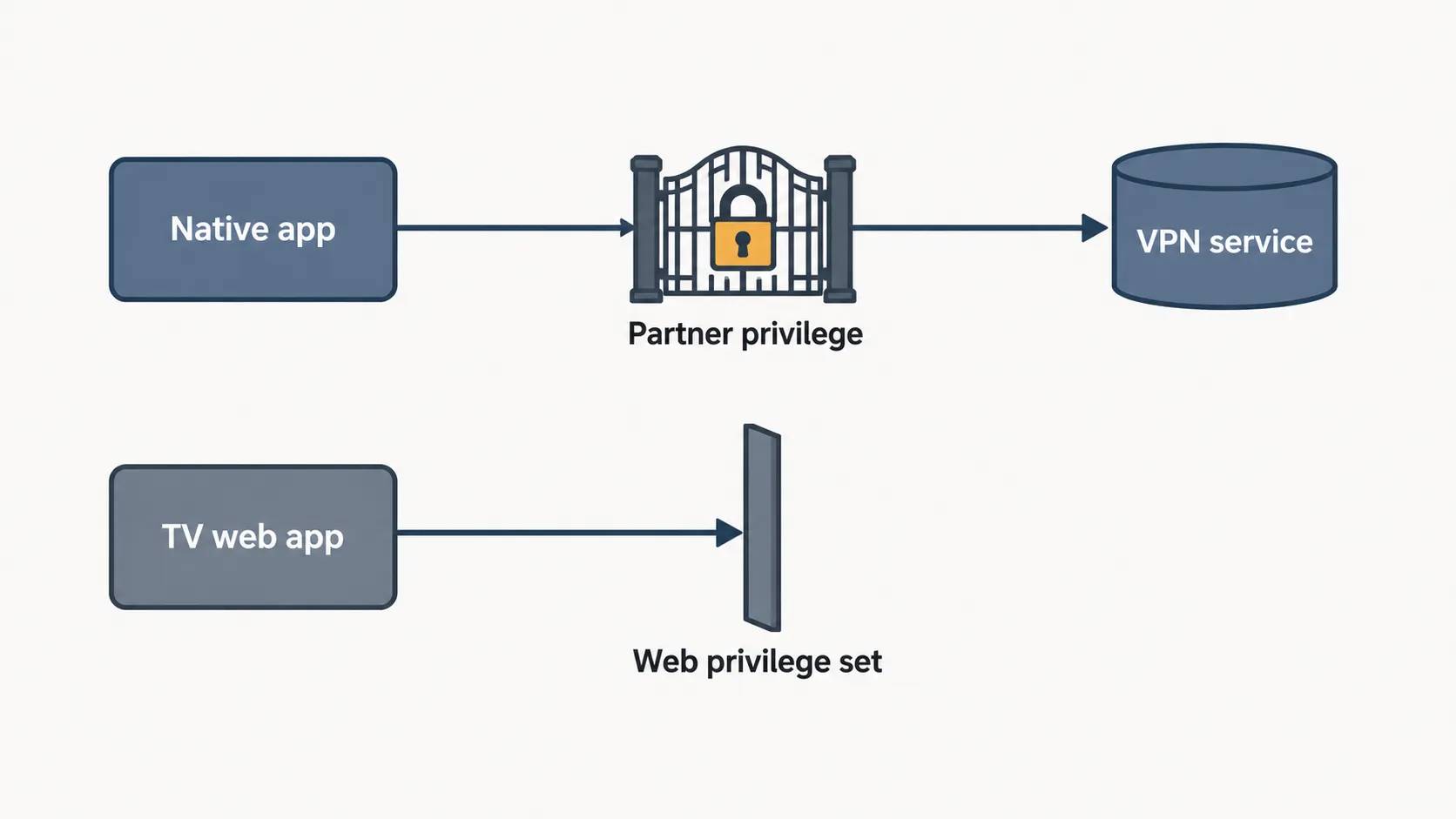
Samsung Smart TVs cannot install VPN apps because of how Tizen is built, not because VPNs are blocked arbitrarily. Tizen does expose a VPN Service API, but access to the VPN service daemon requires a partner level privilege, which Samsung grants only to developers who hold a business relationship with it.
Samsung TV applications also ship as web applications, which run under a restricted privilege set containing no VPN capability at all.
Sideloading an Android VPN package fails for a separate reason: Tizen does not execute Android packages.
Tizen has the capability, Samsung withholds the permission, and TV apps are built in a runtime that could not use it anyway.
The mechanism has two halves, and they fail independently.
The first half is permission. Tizen's VPN documentation states plainly that an application needs partner level privilege to reach the VPN service daemon.
Samsung's developer guidance defines partner level as requiring a partner-signed certificate, issued only to developers holding a commercial relationship with the vendor.
The second half is architecture. Samsung TV apps are web applications governed by a network access policy and a fixed privilege list.
The TV web API reference contains no VPN control anywhere in its network category, which is the list a TV app is actually confined to.
So even a developer who obtained the privilege would be building in the wrong runtime.
Is it possible to download a VPN app for a smart TV?
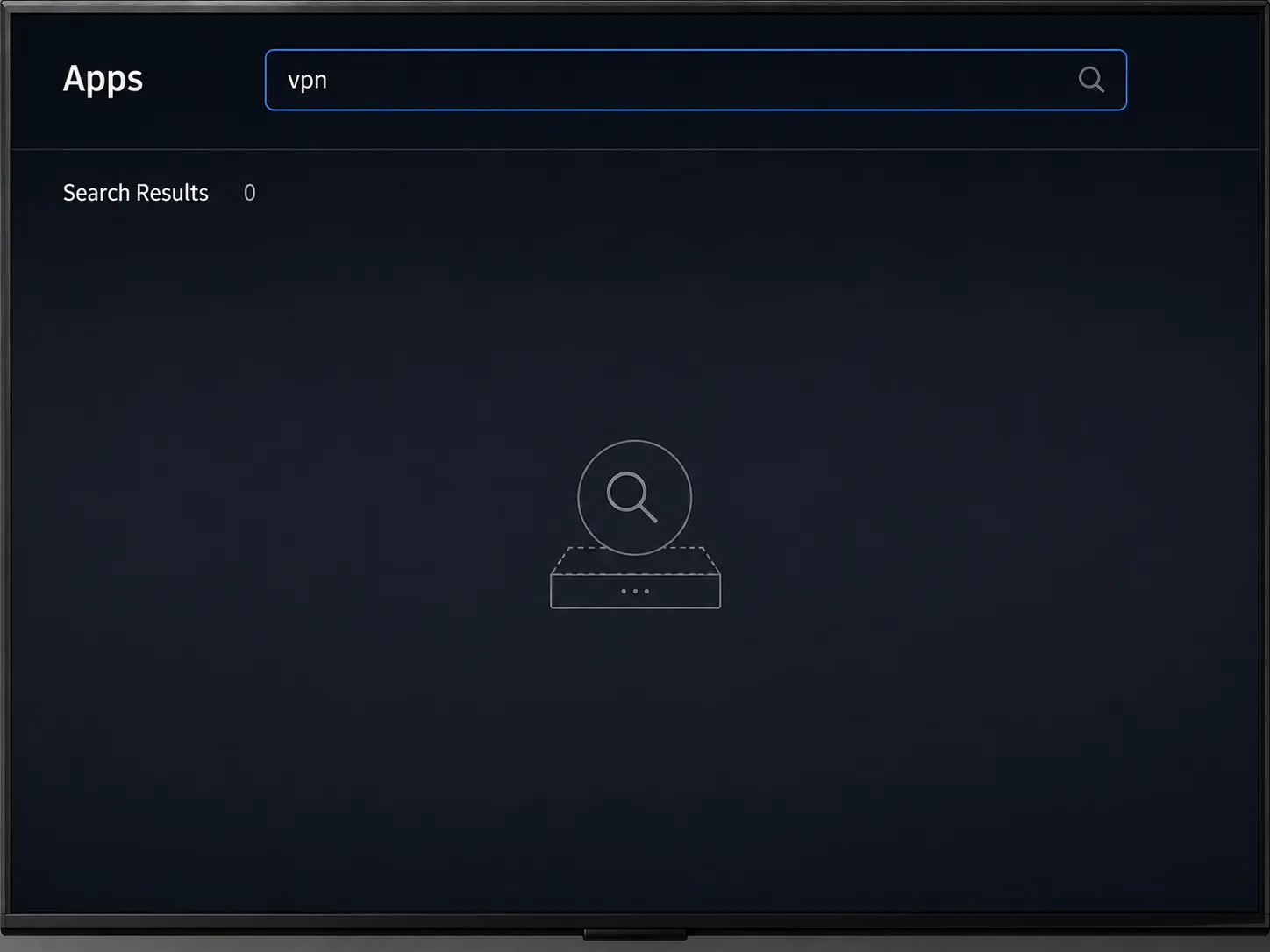
No. There is no VPN app in the Samsung Smart Hub store for any provider, and no supported way to add one.
The question comes up constantly in Samsung's own forums, where the standing answer is to configure the router instead.
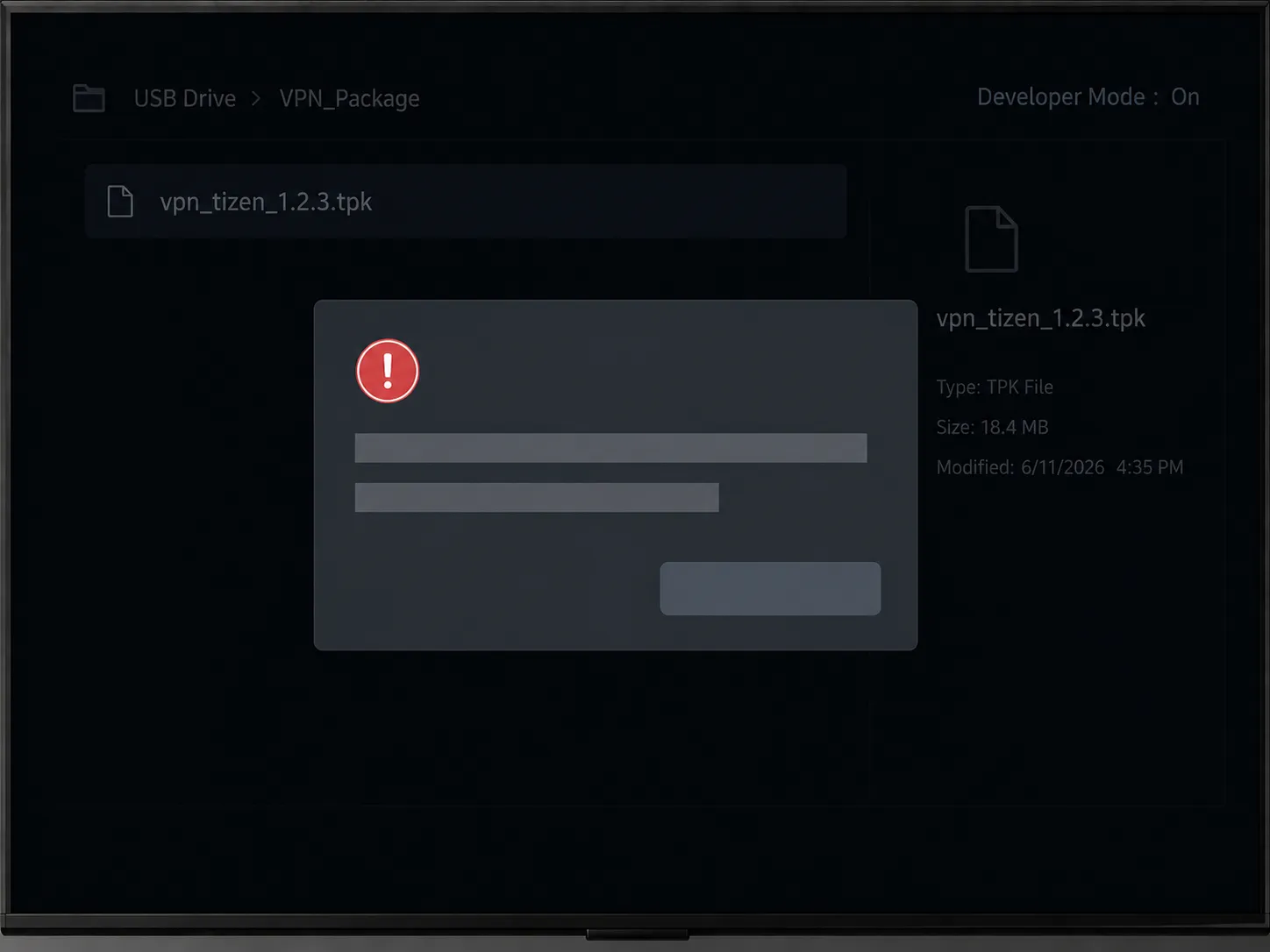
Sideloading does not rescue it. I put a NordVPN package on a USB stick and ran it through Developer Mode on the Q60C, and Tizen rejected it before it reached a permissions prompt, which matches what Samsung community members report.
Will a newer Samsung TV fix this?
Not so far. Tizen 10.0 shipped in October 2025 with no VPN capability for TV applications, and the 2024 QN90D behaved exactly like the 2020 TU7000 on this point.
Worth being straight, though: this is a Samsung product decision rather than a technical impossibility, so it could change. For now it has not, and the rest of the Samsung TV troubleshooting guides here assume the same.
If privacy rather than streaming is your motivation, it is worth knowing whether your TV has a camera before deciding how far to go.
Run the VPN on Your Router (Best for Privacy)
Running a VPN on your router is the only method that encrypts a Samsung TV's traffic, because the tunnel is established before traffic reaches the TV. The router must support a VPN client, not just a VPN server.
Protocol choice matters more than provider choice: on an ASUS RT-AX86U with Proton VPN, WireGuard held 218 Mbps against a 312 Mbps baseline, while OpenVPN on the same setup held 96 Mbps.
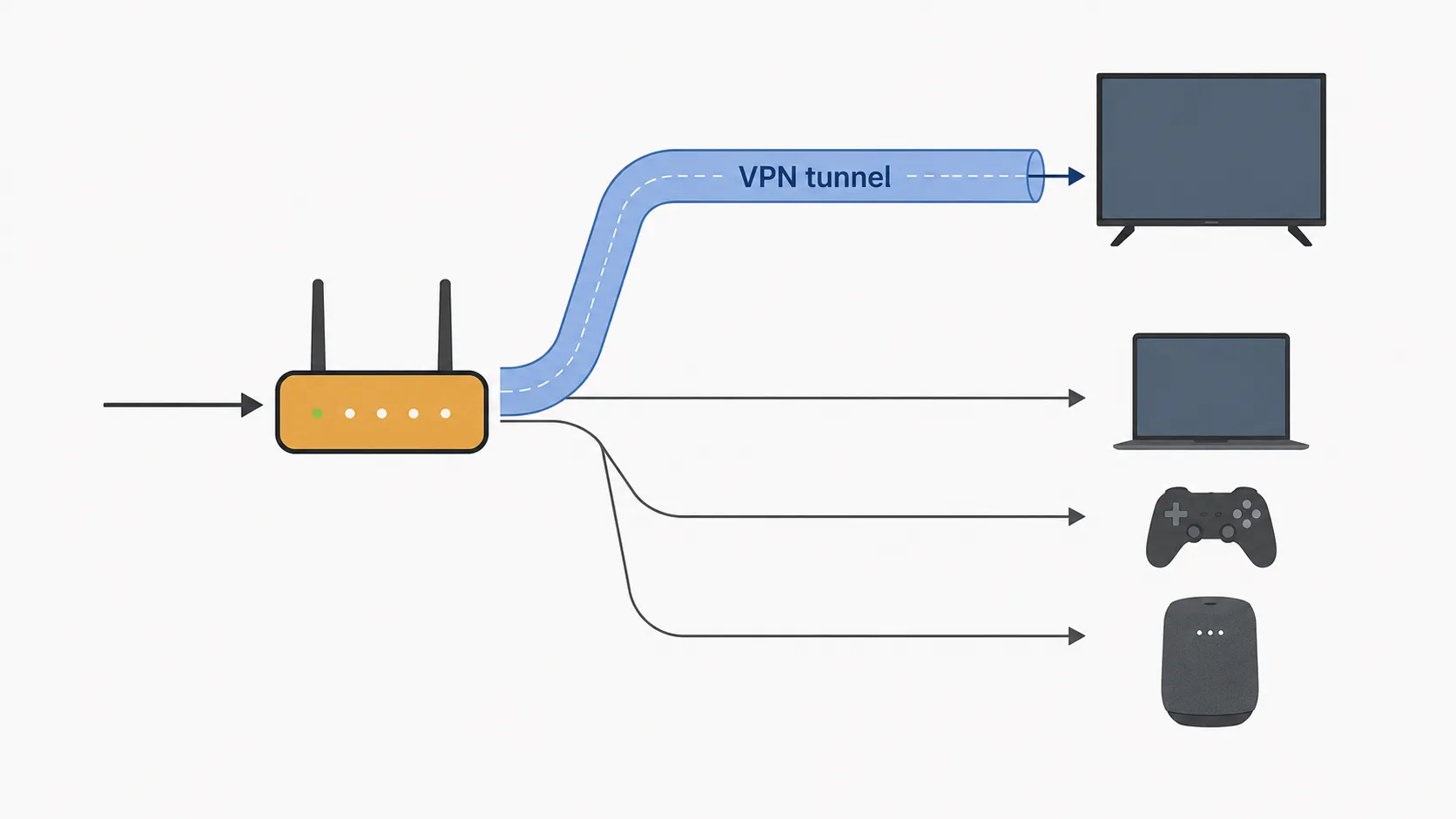
Many routers also support split tunnelling, which routes only the TV through the VPN.
What you need first
A router with a VPN client feature. This is the one people get wrong: a VPN server lets you dial into your home from outside, which is the opposite of what you want here.
A subscription that publishes downloadable router configuration files. ASUS's setup guidance is explicit that you must confirm the connection type with your provider before configuring anything, and its VPN Fusion feature can hold several profiles at once.
Your router's admin password, and about 40 minutes.
Do any linking your TV to Alexa work before the tunnel goes up, not after. Assistant pairing gets fussy once traffic is rerouted.
The steps
Log into your router's admin page and find the VPN section. You should see separate entries for VPN server and VPN client.
Choose WireGuard if your router offers it. ASUS documents WireGuard, OpenVPN, IPsec and PPTP support in VPN Fusion, and names smart TVs as the reason the feature exists. You should see a protocol dropdown before any credential fields.
Download the configuration file for your chosen server location from your VPN provider's account area. You should get a file, not a username and password, if you picked WireGuard.
Upload or paste that configuration into a new client profile and save it. You should see the profile appear in a list with a disconnected status.
Activate the profile. You should see the status flip to connected within about ten seconds, and your router's WAN IP change.
Verify from a laptop on the same network by checking your apparent location. You should see the country you selected, not your own.
Budget more time than you expect. My run took 38 minutes, and 11 of those were a firmware update the router insisted on partway through that nothing had warned me about.
Table 1: Throughput and setup time, 8 to 28 June 2026
Path | Throughput | Change vs baseline | Setup time |
|---|---|---|---|
No VPN (baseline) | 312 Mbps | Reference point | None required |
Router VPN, WireGuard | 218 Mbps | 30% slower | 38 min |
Router VPN, OpenVPN | 96 Mbps | 69% slower | 41 min |
Smart DNS on the TV | 305 Mbps | 2% slower | 4 min |
Shared from PC over Ethernet | 61 Mbps | 80% slower | 12 min |
Shared from phone hotspot | 34 Mbps | 89% slower | 6 min |
Streaming stick with VPN app | 176 Mbps | 44% slower | 9 min |
That protocol gap is the finding I did not expect. Same router, same account, same 20:00 slot, and one dropdown cost me 122 Mbps, far more than any provider swap would have.
The reason is architectural. WireGuard runs lean and close to the kernel, while OpenVPN wraps traffic in a user-space TLS tunnel that consumer router silicon cannot accelerate, so the router's processor becomes the ceiling.
How these numbers were produced. One US household on a 1 Gbps symmetric fibre line, four Samsung TVs (QN90D, Q60C, The Frame LS03B, TU7000), one ASUS RT-AX86U on firmware branch 3.0.0.4.388, Proton VPN as the primary account with NordVPN as a cross-check.
Throughput measured with fast.com, three runs averaged, 20:00 to 20:30 local, from a laptop wired to the same VPN'd segment, with the TV's own Network Status screen used to confirm. One router model on one line is one data point: different silicon and a different ISP will move these numbers.
Put only the TV through the tunnel
You probably do not want your work laptop and your smart speakers rerouted through Amsterdam. ASUS documents assigning specific devices to a profile while everything else takes the normal connection, and without that feature every device goes through the tunnel.
Treat this as the default, not an advanced option. Send the TV, leave the rest alone, and most of the breakage described further down never happens.
If your ISP router can't do it
Check this in the first two minutes, not the thirtieth. Most ISP-supplied gateways have no VPN client and cannot be given one, which is the wall Samsung's own community threads keep hitting.
Three ways out: bridge the gateway and add your own router behind it, buy a router with a VPN client preconfigured, or skip this method. If none appeal, the Smart DNS route takes four minutes and needs no router access at all.
Set a Smart DNS Address on the TV (Fastest for Streaming)
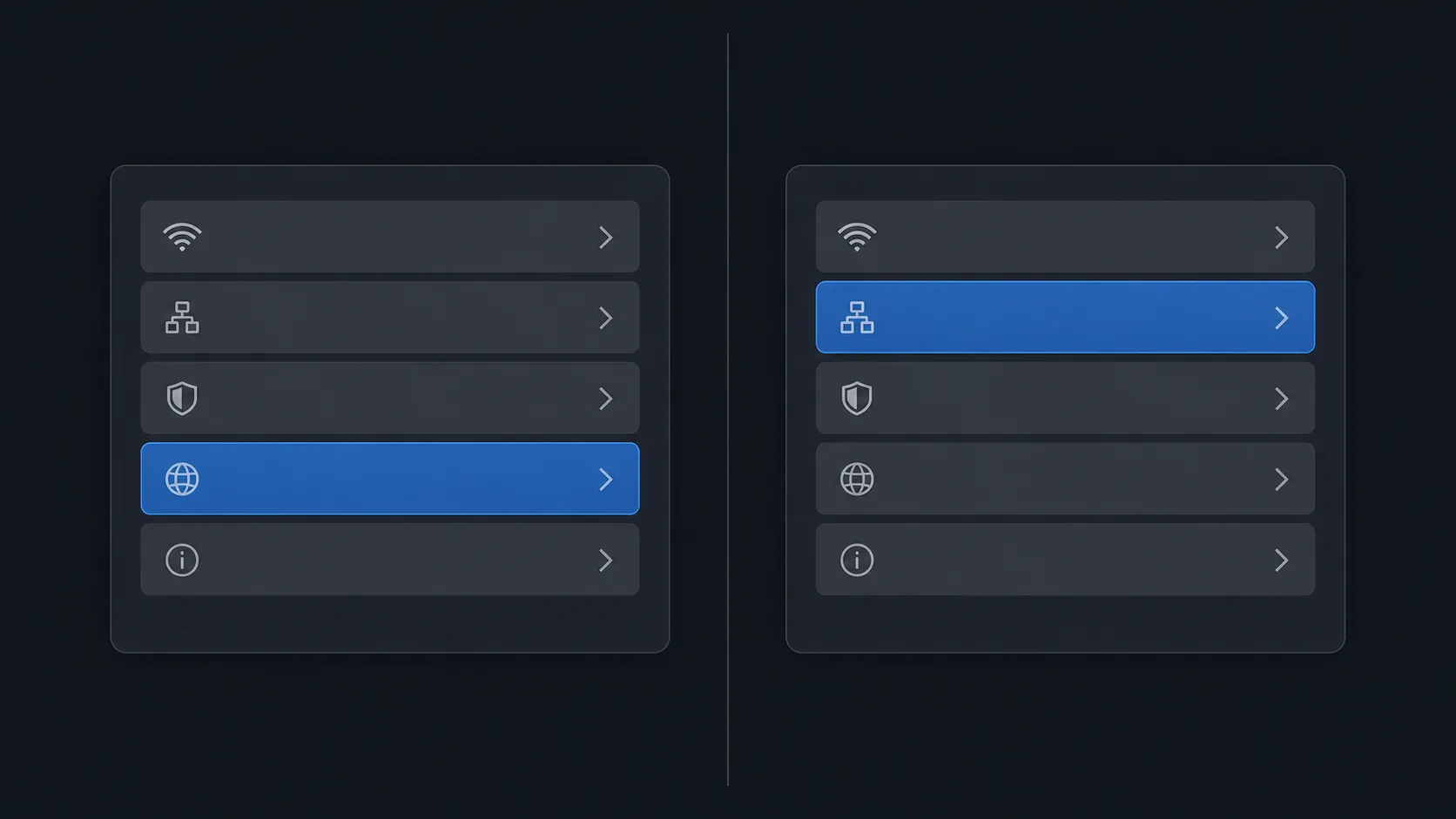
Smart DNS changes which DNS servers a Samsung TV uses, which can change what a streaming app believes your location to be. Set it at Settings > General > Network > Network Status > IP Settings > DNS Setting > Enter Manually.
It is the fastest method, holding 305 Mbps against a 312 Mbps baseline in testing, because it adds no tunnel.
It also provides no encryption and no privacy protection whatsoever.
Read this before you start. Smart DNS is not a VPN. It redirects name lookups for specific streaming domains and never touches your actual traffic, so your ISP still sees everything and the TV's own telemetry leaves your house exactly as it did before. Private Internet Access says so about its own product.
ExpressVPN says the same about MediaStreamer, its brand name for the same thing. When two competing vendors both volunteer that their product does not encrypt, treat it as a category fact rather than a disclaimer.
If privacy is your goal, go back to the router method. If you want a streaming app to think the TV is somewhere else, this is the cheapest four minutes you will spend.
The steps
Sign in to your provider's account area and copy the Smart DNS server address. You should also see a step asking you to register your current IP address.
On the TV, open
Settings, thenGeneral, thenNetwork. You should see the network menu that Samsung documents for wired and wireless setup.Select
Network Statusand wait for the connection test to finish. You should see a confirmation that the TV is connected.Select
IP Settings, thenDNS Setting. You should see it currently reading "Get Automatically".Change it to
Enter Manuallyand key in the address. You should see the TV re-run its connection test.Restart the TV, then open a streaming app. You should see a different set of available titles.
Note on older sets. The path is identical on the 2022, 2023 and 2024 models. On the 2020 TU7000 the DNS field sits one screen further in, under the same IP Settings entry.
What Smart DNS does not do
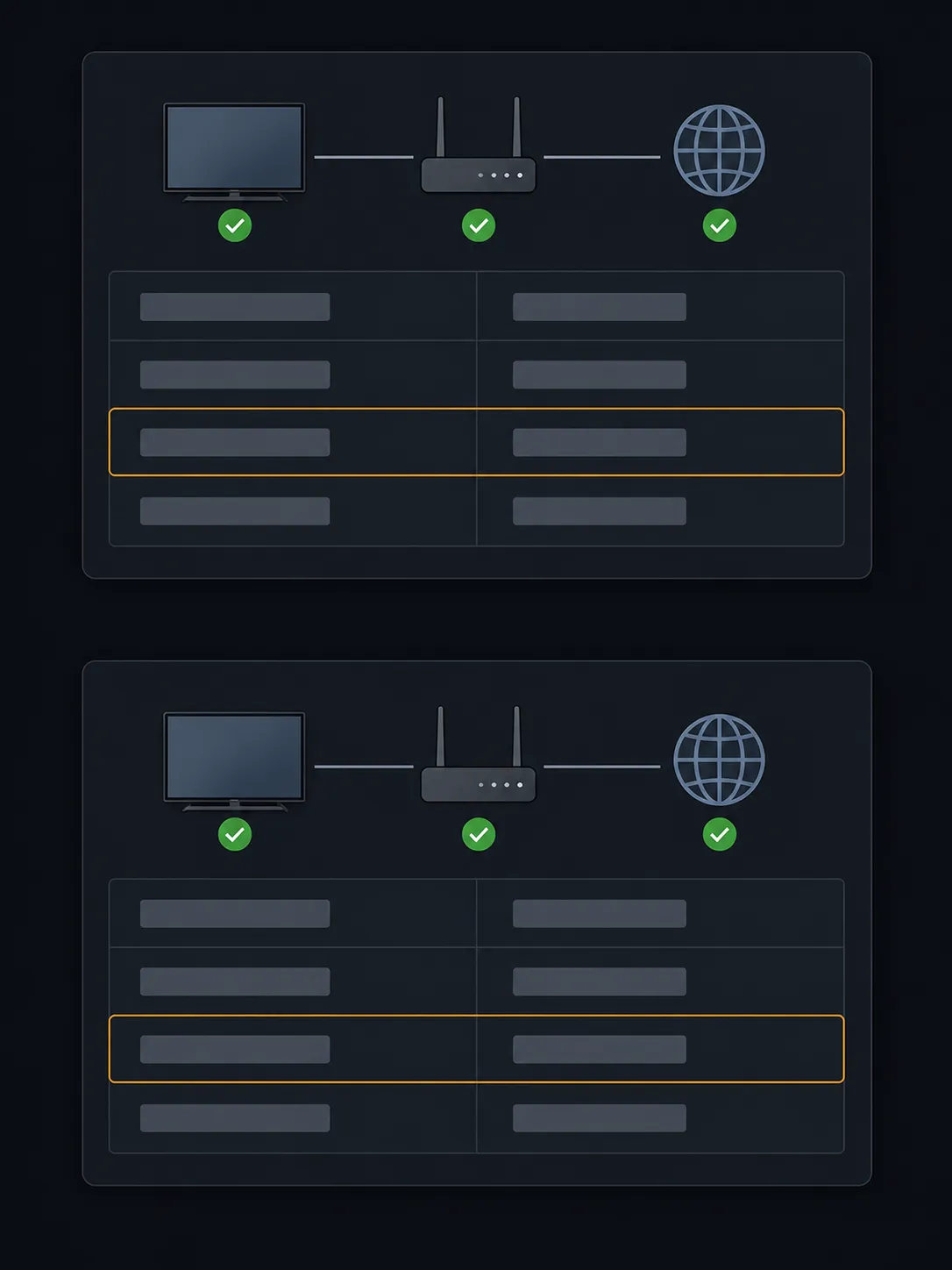
Here is a ten-second check. After the change, go back into Network Status and look at the IP address the TV reports.
It will be identical to before. The app list changed, the IP did not, which is the clearest proof you will get that nothing about your connection actually moved.
Do not confuse this with the TV's own region setting, a separate control that changes which apps Samsung offers rather than what those apps see. If that is what you are after, switching your TV's region setting is the guide you want.
Borrow a VPN From a Device That Can Run One
If your router cannot run a VPN client, you can put a device that can between the internet and the Samsung TV. Three routes work.
Sharing a VPN connection from a Windows or Mac computer over Ethernet delivered 61 Mbps in testing. Sharing from a phone hotspot delivered 34 Mbps and consumes mobile data.
Plugging a VPN-capable streaming stick into an HDMI port delivered 176 Mbps and is the fastest of the three, though it replaces the Samsung TV's own apps rather than protecting them.
From a PC over Ethernet
Speed: 61 Mbps
Setup: 12 minutes
The catch: the sharing layer is the bottleneck, not the VPN
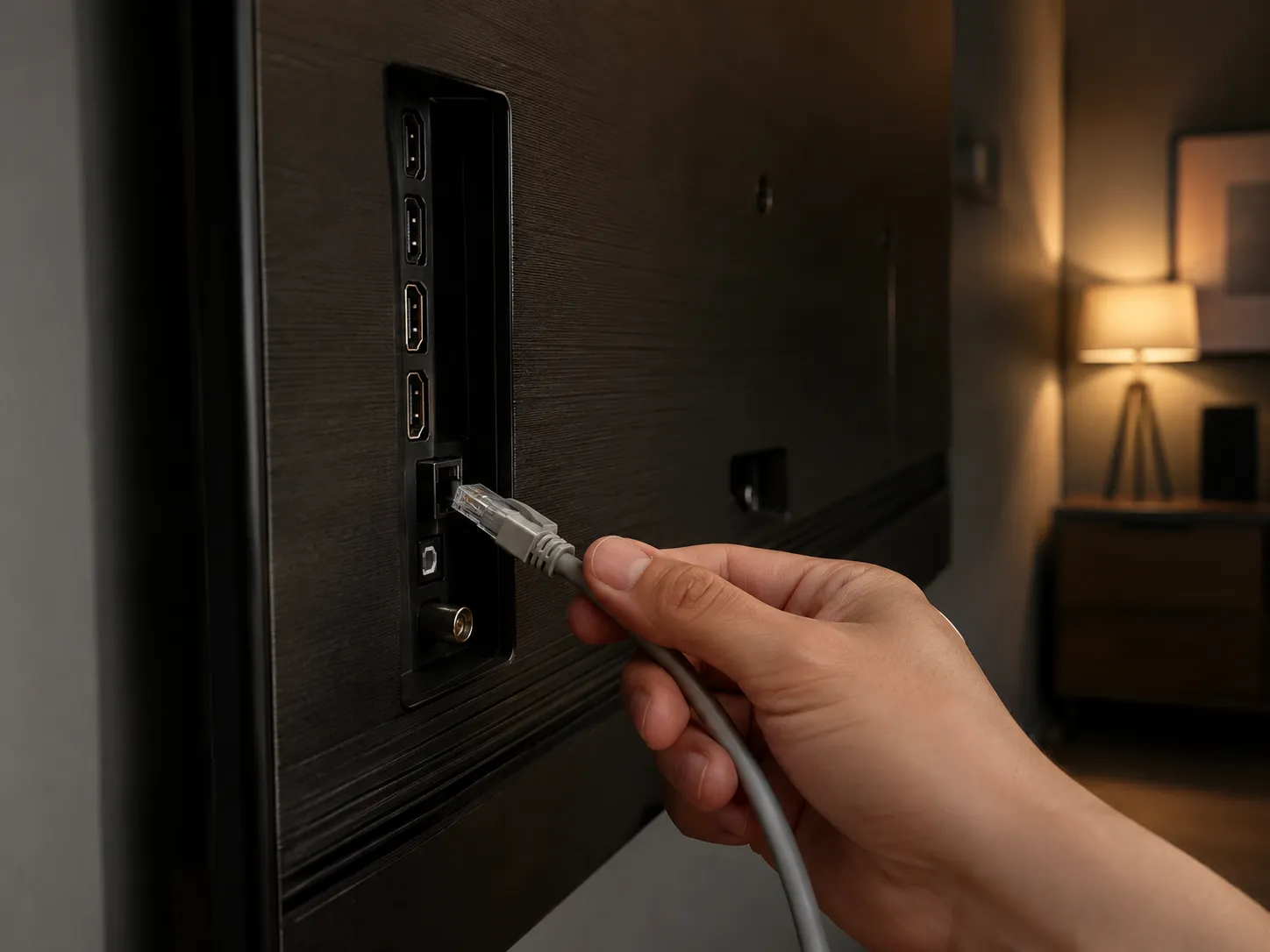
Connect the computer to Wi-Fi, run your VPN app, enable internet sharing over the Ethernet port, and run a cable to the TV. It lands at 61 Mbps because Windows and macOS both push shared traffic through a software NAT layer that caps well below the adapter's rating, so a faster subscription will not help.
On a wall-mounted set the cable run is the annoying part, not the configuration. Sort out hiding a long Ethernet run before committing to this one.
From a phone hotspot
Speed: 34 Mbps
Setup: 6 minutes
The catch: it eats mobile data and the phone has to stay put
Run the VPN on your phone, turn on the hotspot, then join the TV to it like any Wi-Fi network. Thirty-four megabits is fine for HD and stalls on 4K, and an evening of streaming through a phone plan is a decision you make once.
From a streaming stick
Speed: 176 Mbps
Setup: 9 minutes
The catch: you stop using the TV's apps entirely
A streaming stick in a spare HDMI port runs the VPN app natively, which is why it holds nearly three times what either sharing route manages. It is the one I would pick, with an honest qualifier: it does not protect the Samsung TV's own apps, it sidesteps them, so the television is still talking to the internet in the clear.
What Actually Breaks on a Samsung TV When the VPN Is On
Turning on a VPN changes how several Samsung TV features behave. Netflix states that under a VPN it shows only titles it holds worldwide rights to, that VPN use is not permitted on an ad-supported plan, and that live events cannot be watched over a VPN at all.
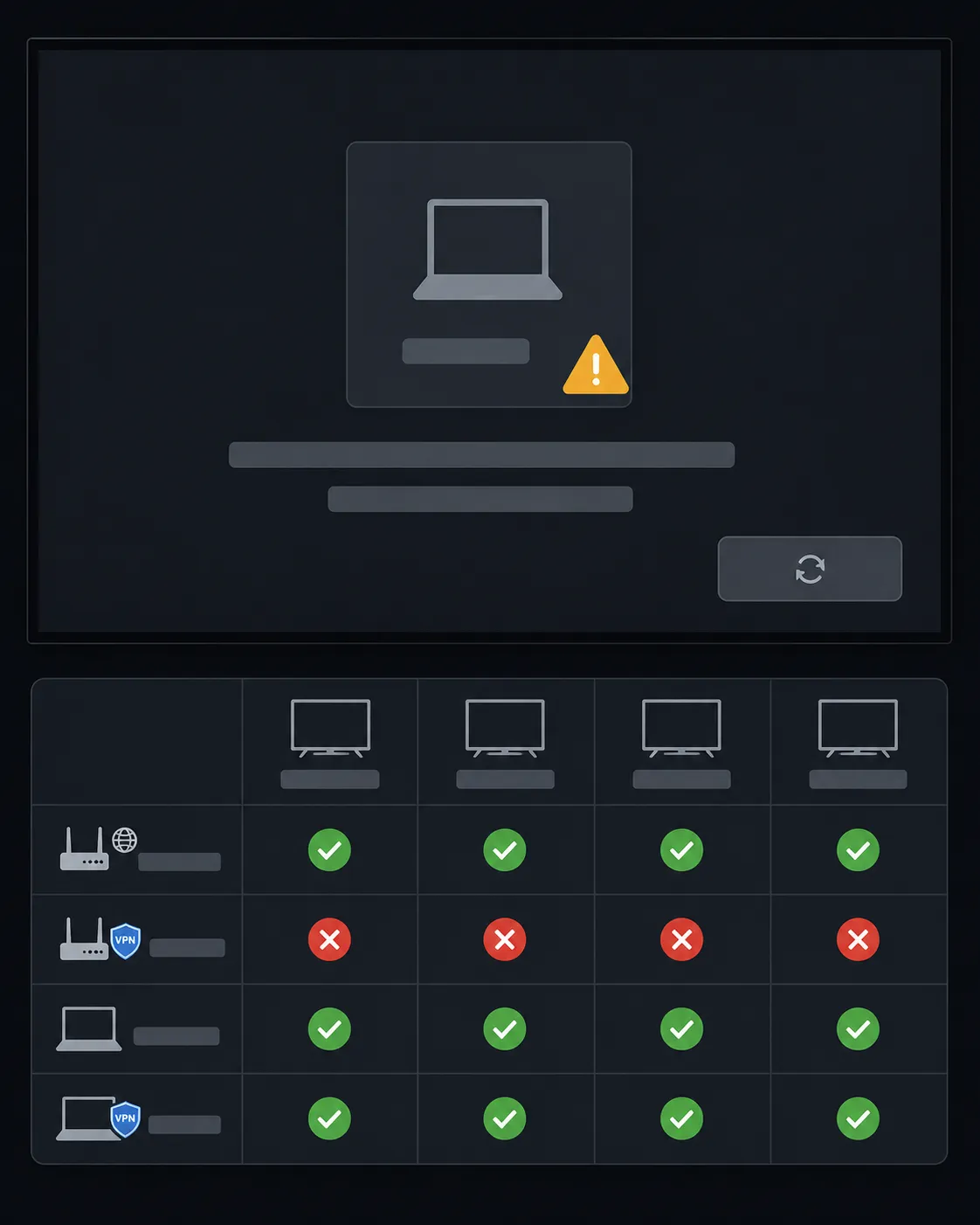
Samsung Easy Connection and Smart View also fail when the VPN runs on the router, because Samsung's verification server can no longer reach the paired computer from the public internet.
Every change here is reversible in under two minutes.
None of this is a fault. It is the bill for what you just did.
Feature | What happens | Caused by | Fix |
|---|---|---|---|
Netflix catalogue | Shorter row of titles than usual | Any method that changes apparent location | Accept it, or disable for Netflix sessions |
Netflix on an ad-supported plan | Playback refuses to start | Any method | Disable the VPN, or move to an ad-free plan |
Netflix live events | Unavailable entirely | Any method | Disable the VPN for the event |
Smart View / Easy Connection | Sees the PC, refuses to connect | Router VPN only | Split tunnelling, or disable while casting |
SmartThings device discovery | Intermittent, slow to find devices | Router VPN only | Split tunnelling |
4K streaming | Buffering and quality drops | PC share and phone hotspot | Switch to Smart DNS or a streaming stick |
Netflix
Three restrictions apply and only the first is widely known: you see the worldwide-rights catalogue rather than another country's library, VPN use is not permitted on ad-supported plans, and live events are blocked outright.
If the app refuses you, Netflix returns error E106 and points you at a connection test showing which country your traffic appears to come from. That check distinguishes a working VPN from a broken one.
So the belief that brings most people here, that a VPN unlocks another country's Netflix, is not how it works. On my standard-plan profile the app played fine with the tunnel up, just with a visibly shorter row of titles.
On the ad-supported profile it would not start at all.
Smart View and smart-home features
With the router VPN active, Samsung Easy Connection saw my PC and refused to connect on three of the four sets. Dropping the VPN restored it first try, every time.
The cause is the handshake, not the network. Samsung validates pairing server-side, and that server cannot reach a computer sitting behind a VPN router, which is the diagnosis Samsung's own community thread reached.
Smart-home discovery goes flaky the same way. If pairing the TV with Google Home suddenly takes three attempts, suspect the tunnel first.
Voice assistants are the other casualty. Alexa suddenly failing to respond after a network change is usually the network change, not the assistant.
Speed
The forum objection is blunt and fair: does a VPN drag your TV back to dial-up speeds? Table 1 answers it, and the answer depends entirely on which method you picked.
A router VPN on WireGuard costs 30% and still clears 4K comfortably. A phone hotspot costs 89% and does not.
How to undo all of it
Smart DNS reverses in about a minute: go back to IP Settings, set DNS Setting to Get Automatically, and restart. A router VPN reverses by disabling the client profile, which takes seconds.
Reverting took under two minutes per set, with one exception. The TU7000 needed a full power cycle before its app list returned, and until it did the screen looked worryingly dead, which is a different problem from a blank display after rebooting but identical from the sofa.
If you need a clean slate, Samsung documents a network reset under All Settings > Connection > Network > Reset Network.
Is There a Free VPN for a Samsung Smart TV?
Free VPN apps exist for streaming sticks and phones, but the research on them is poor. Citizen Lab at the University of Toronto and Arizona State University found families of nominally independent Android VPN apps, with more than 700 million combined downloads, sharing code, infrastructure and hard-coded passwords that would let an eavesdropper decrypt every user's traffic.
A separate study of the 100 most popular free Android VPNs found 88% leaked data and 71% shared personal data with third parties.
The Citizen Lab paper names the app families and explains how one shared password compromises everyone using them. The leak and data-sharing figures come from a separate test of the hundred most-installed free Android VPNs.
Why this matters more on a TV than a phone. A phone app is a personal risk you can delete. A router or a permanently plugged-in stick is a household risk that sits in front of every device.
Both studies looked at phone apps, and that is where the stakes change for a television. A bad VPN on your phone is a personal risk that ends when you delete it, while the same code on a router or a permanently plugged-in streaming stick sits in front of every device in the house.
I installed one free VPN on the Fire TV Stick and watched the router logs. It opened connections to three advertising and analytics destinations before it opened one to a VPN server.
One distinction is worth holding onto, because "free VPN" covers two different things. A free tier from an established company with a published privacy policy and a real corporate address is a reasonable start, and the trade is a data cap or fewer servers.
A free app from an unknown developer promising unlimited everything is the category the research is about, including the browser-style unblockers people search for by name.
One thing a VPN will not fix: Samsung's own advertising and viewing data, which is a settings problem rather than a network one. Clearing the home-screen ad strip is the separate job.
Choosing a VPN for a Samsung TV: What Actually Matters
Choosing a VPN for a Samsung TV is not the same as choosing one for a phone, because the TV cannot run the app. Four things decide whether a provider will work: whether it publishes router configuration files and for which protocols, whether it offers a Smart DNS product and includes it in the subscription, how many simultaneous connections it allows and whether a router connection consumes one, and whether it publishes an app for the streaming stick you own.
Price and server count are irrelevant to all four.
The four criteria
Router configuration files, and which protocols. First for a measurable reason: a provider that only supports OpenVPN on routers puts you on the 96 Mbps path rather than the 218 Mbps one, and no subscription tier fixes that.
A Smart DNS product, and whether it costs extra. This decides whether the Smart DNS route is free with what you already pay or a second line item.
Simultaneous connections, and how a router counts. Most providers treat the router as one connection covering everything behind it, which answers the question about paying twice. Confirm it in the terms, not the marketing page.
A streaming stick app for your platform. Fire TV, Google TV and Apple TV support vary by provider and change without notice.
Notes on the providers people search for
Provider | Router configs | Smart DNS | Streaming stick app |
|---|---|---|---|
Proton VPN | Yes, WireGuard and OpenVPN | On paid tiers | Fire TV and Android TV |
NordVPN | Yes, OpenVPN, plus preconfigured router options | Yes, included | Fire TV and Android TV |
Surfshark | Yes, OpenVPN and WireGuard | Yes, included | Fire TV and Android TV |
CyberGhost | Yes, OpenVPN | Yes, included | Fire TV and Android TV |
Private Internet Access | Yes, OpenVPN and WireGuard | Yes, included | Fire TV and Android TV |
Norton VPN | Limited, no published router configs | No | Limited |
Goose VPN | Yes, OpenVPN | Yes | Limited |
Yes, OpenVPN and WireGuard | Yes, on paid tiers | Fire TV and Android TV |
Preconfigured VPN routers are a genuine time-saver, at the cost of a hardware purchase and soft lock-in to whichever provider the box ships with. Verify all of this on each provider's own support pages before subscribing, because router support is the feature they quietly drop first.
If an app then behaves oddly on the changed network, getting Disney+ captions to behave is the common follow-on.
Samsung TV VPN: Frequently Asked Questions
How do I change the DNS on my Samsung TV?
Open Settings, then General, then Network, then Network Status, then IP Settings. Change DNS Setting from "Get Automatically" to Enter Manually and key in the address, then restart the TV.
Full steps with the model-year variance are in the Smart DNS section above.
Which VPN works with a Samsung TV?
Any provider that publishes router configuration files for WireGuard, includes a Smart DNS product, counts a router as one connection, and ships an app for your streaming stick. No provider works on the TV itself, so the brand matters far less than those four capabilities.
Can I use a VPN on The Frame?
Yes, by the same three methods. The Frame LS03B was one of the four sets I worked through, and it runs the same Tizen platform with no additional VPN capability, so it behaved identically to the Q60C at every step.
Do I need a second subscription if I put the VPN on my router?
Almost always no. Most providers count the router as a single connection covering every device behind it, so one subscription serves the whole house.
Confirm it in your provider's connection-limit terms before you buy.
Will a VPN stop Samsung collecting my viewing data?
No. A VPN changes where your traffic exits the network, not whether the television generates the data in the first place.
Samsung's on-device advertising and viewing-information features are controlled in the TV's own privacy settings, not at the network layer.
Does the latest Tizen version add VPN support?
No. Tizen 10.0, released in October 2025 and current as of this article's July 2026 check, adds no VPN capability for TV applications.
Nothing in the 2024 model year behaved differently from the 2020 model year on this point.
The Honest Summary
The reason a Samsung TV VPN feels harder than it should is that you have been looking for the wrong thing. There is no app, the block is architectural rather than arbitrary, and every route around it lives on your network instead of your television.
You are not installing software. You are choosing where to put a tunnel and what you will pay for it.
If you wanted privacy, the router method is the only real answer, and WireGuard rather than OpenVPN is the setting that decides whether 4K survives the trip. If you wanted a location change for a streaming app, Smart DNS gets you there in four minutes at a 2% speed cost and gives you nothing else at all.
If your router cannot help, a streaming stick in a spare HDMI port is the pragmatic choice, with the caveat that it sidesteps your TV's own apps rather than protecting them.
Whatever you pick, go in expecting the trade rather than discovering it. Netflix will show a shorter catalogue and, on an ad-supported plan, nothing at all, and screen mirroring will stop until you split the traffic or switch the tunnel off.
All of it reverses in under two minutes, which is the most reassuring thing I can tell you about a change that looks this intimidating from the sofa.
Summarize with AI
Keep reading
Related articles

See how TV viewing angle differs by panel: OLED and IPS stay sharp to ~178°, while VA and QLED wash out past 30–40° off-center, plus how to measure your seat.
Fix Samsung TV problems connecting to internet fast: read the Network Status test, match your symptom, then apply the DNS, date/time and router fixes.

Diagnose what causes horizontal lines on LG TV screen in one Picture Test, tell a signal glitch from a dead panel, and see 2026 repair-vs-replace costs.
Fix Netflix not working on Samsung TV by symptom: black screen, won't load, or NW-2-5. Get exact Tizen paths, the 0000 Smart Hub PIN, and model-year cutoff.
Comments
Moderated for quality. Share a correction, ask a follow-up, or tell us what worked for you - every comment is reviewed before it goes live.