Screen Mirror Samsung to Samsung TV: Tested on 3 Models
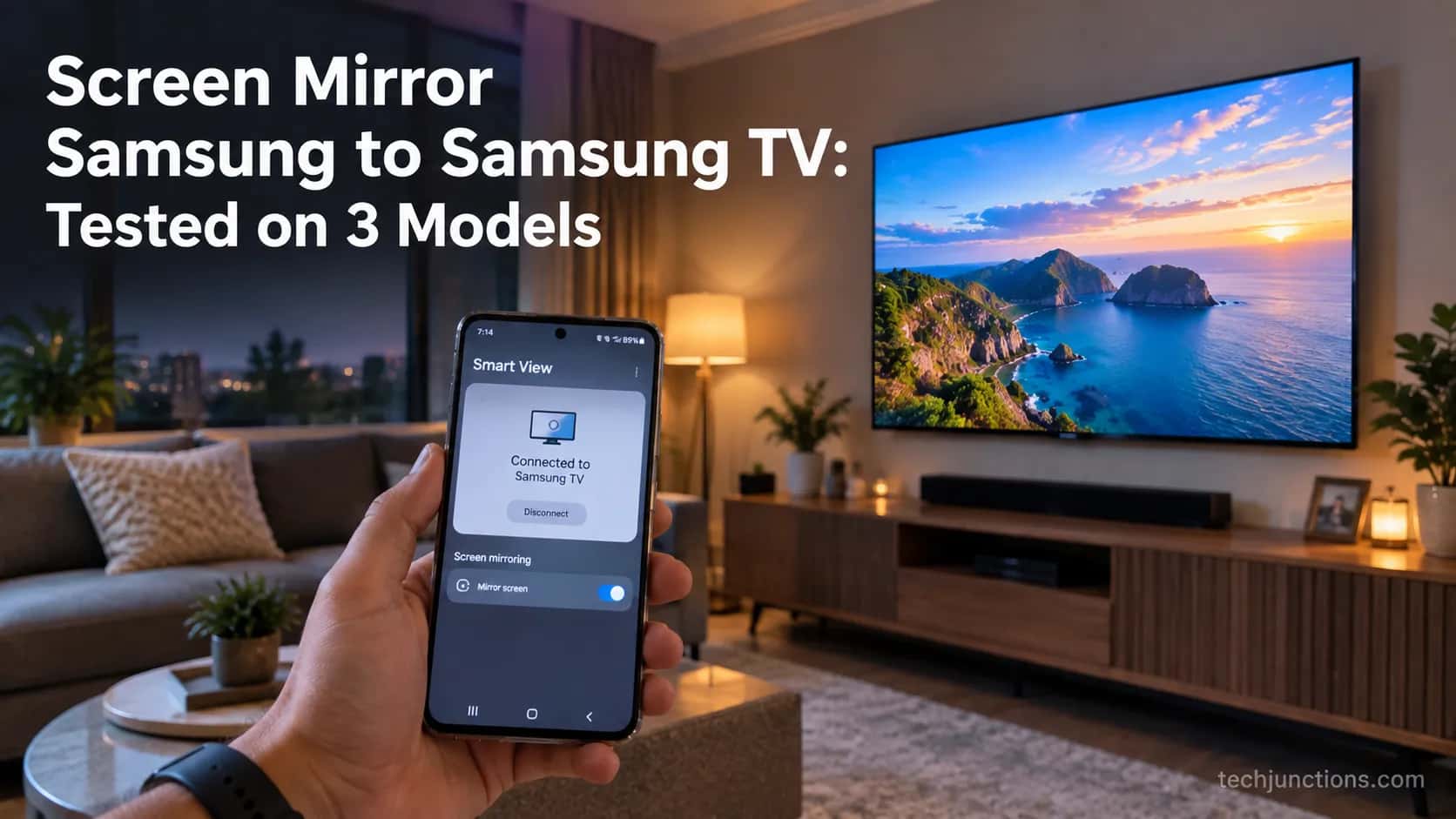
Screen mirror Samsung to Samsung TV in under a minute with Smart View. Fix the icon-missing, no-sound and black-screen snags, plus when an app is worth it.
Written by Jordan BeckettReviewed by Marcus Whitfield
Last updated on September 24, 2026
When you buy through links on our site, we may earn a commission at no extra cost to you. It never changes what we recommend. Learn more.
Summarize with AI
Connect your Samsung Galaxy phone and Samsung TV to the same Wi-Fi network.
On your Galaxy phone, open the Quick Settings panel.
Tap Smart View.
Select your Samsung TV from the list.
Tap Start now.
If prompted, confirm the PIN shown on the TV.
If screen mirroring doesn’t work:
Check that both devices are connected to the same Wi-Fi band/network.
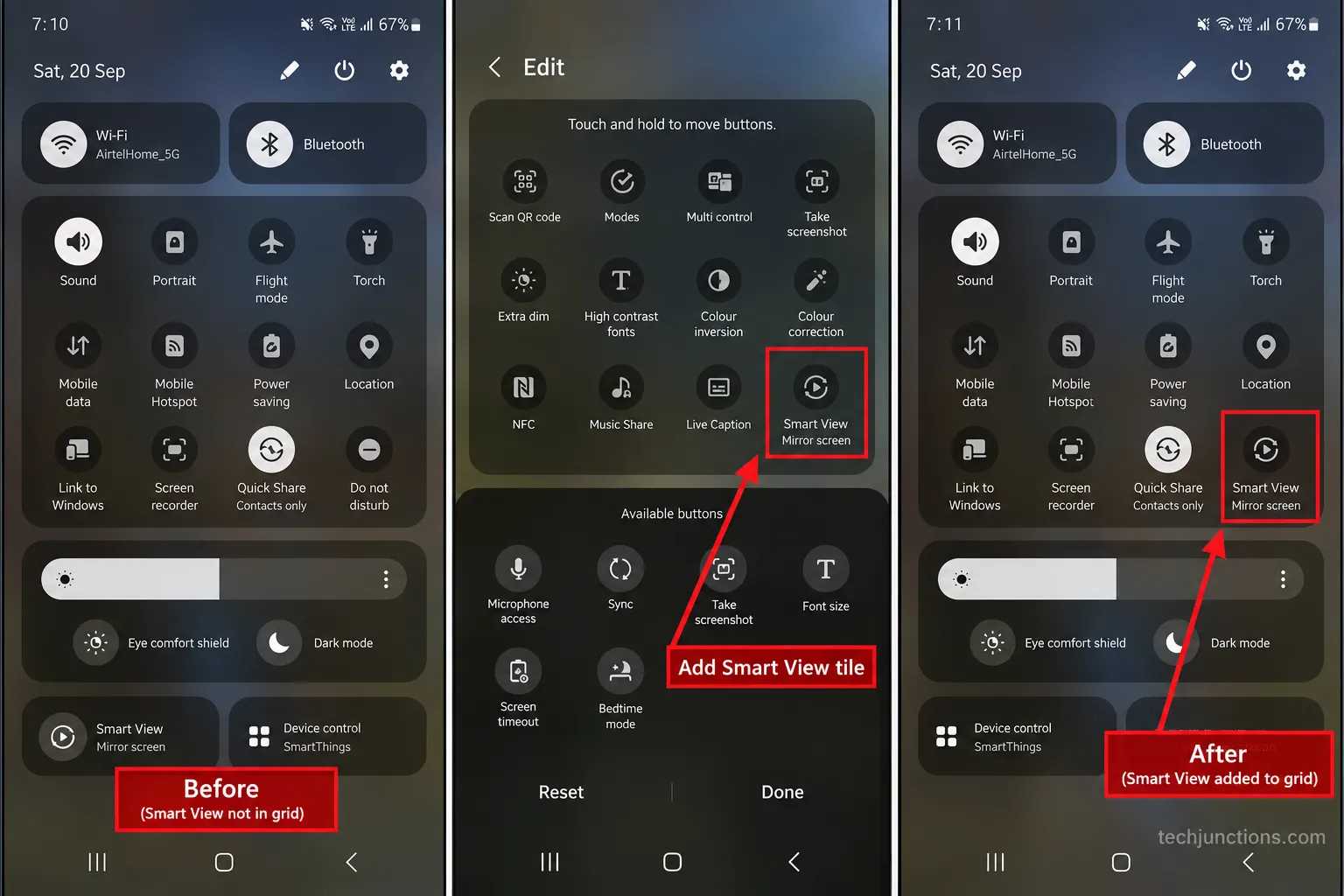
If Smart View is missing, look for it in the Quick Settings panel or edit the available buttons.
If you’re trying to mirror a streaming app, check for DRM restrictions, as some apps block screen mirroring.
These are common causes of mirroring problems and are worth checking before assuming the TV is faulty.
The 60-Second Answer
Samsung Smart View is the built-in feature that puts your whole Galaxy screen on a Samsung TV, and you can screen mirror Samsung to Samsung TV in well under a minute.
On our tested Galaxy S24 (One UI 6.1), the picture reached a 2021 Samsung set in about eight seconds once the TV PIN was accepted.
The fast method fits in one box.
Do this now:
Put phone and TV on the same Wi-Fi.
Swipe down twice for the full Quick settings panel.
Tap Smart View.
Pick your TV from the list.
Tap Start now.
Enter the PIN shown on the TV. Screen appears within seconds.
That six-step ladder follows the sequence documented on Samsung's US support page, with our measured connect time and a failure signpost the manufacturer page omits.
If the TV never shows up or the screen goes black, skip ahead to the troubleshooting section below, because those two symptoms have specific fixes.
Before You Start: Same Network, Same Band, TV Ready
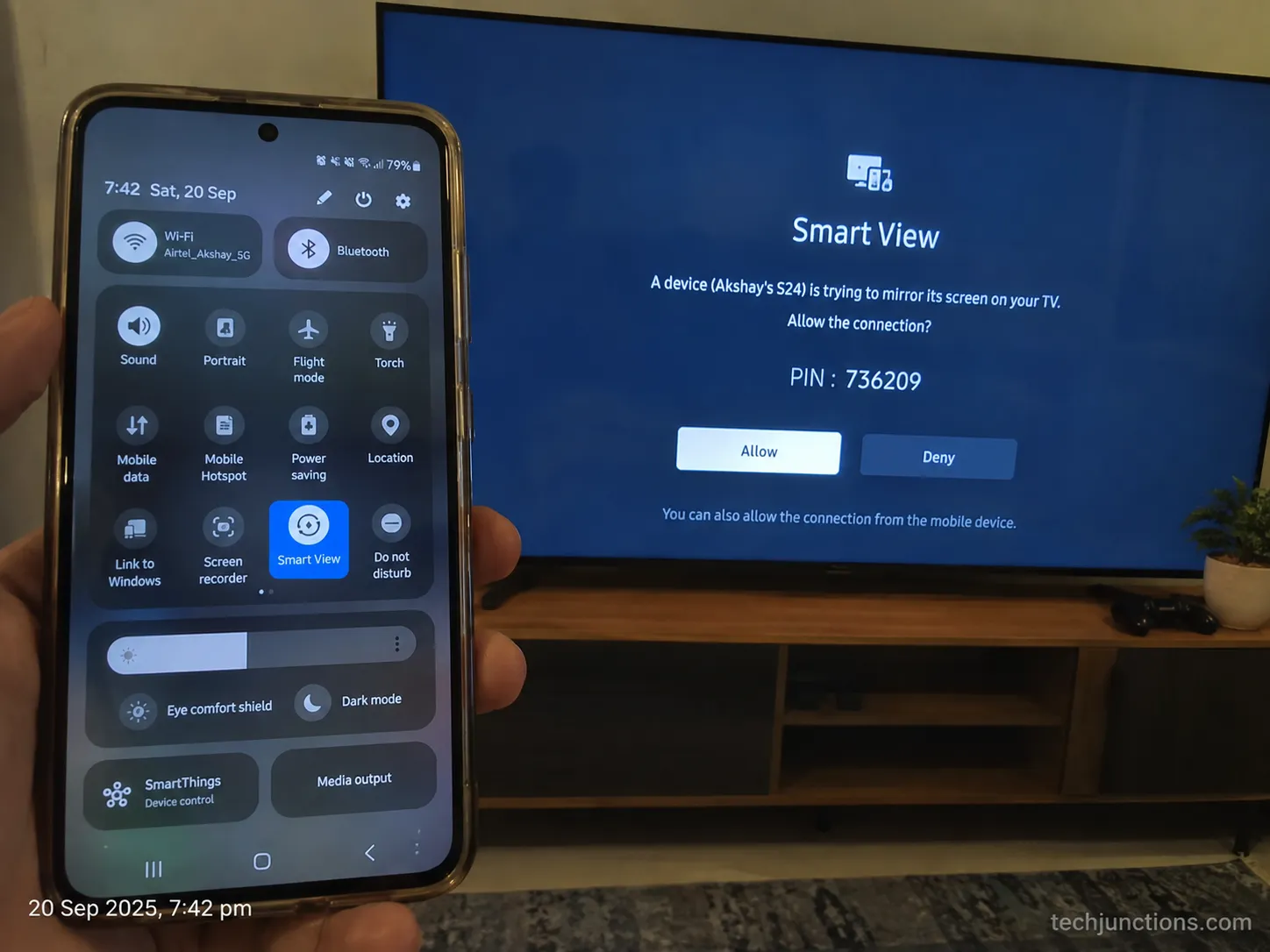
Smart View discovery depends on both devices sharing one wireless network, and the trap most guides skip is that a dual-band router can expose 2.4 GHz and 5 GHz as separate SSIDs.
That means your phone and TV can look like they are on the "same Wi-Fi" while sitting on different bands, which hides the TV from the scan entirely, a behavior confirmed in DevX's March 2026 testing.
Run this quick pre-flight check first.
Same SSID: Phone and TV joined to the exact same network name.
Same band: Not one device on the 2.4 GHz SSID and the other on 5 GHz.
TV awake: The set powered on and off any standby or screensaver.
Discovery runs per network segment, so a guest network or an active VPN can also make the TV invisible even when everything else is right.
On our bench, the TV joined the 5 GHz SSID while the phone defaulted to 2.4 GHz, and the set vanished from the scan until we matched them.
The same-network rule applies whether you are mirroring an Android phone or a Galaxy handset.
A laptop connects the same way once it is on the matching band, so sending a laptop's display follows this same checklist.
One caveat: Some mesh systems auto-steer devices between bands and cannot be split manually, so on those you may need to temporarily disable band-steering to force a match.
How to Screen Mirror Samsung to Samsung TV with Smart View
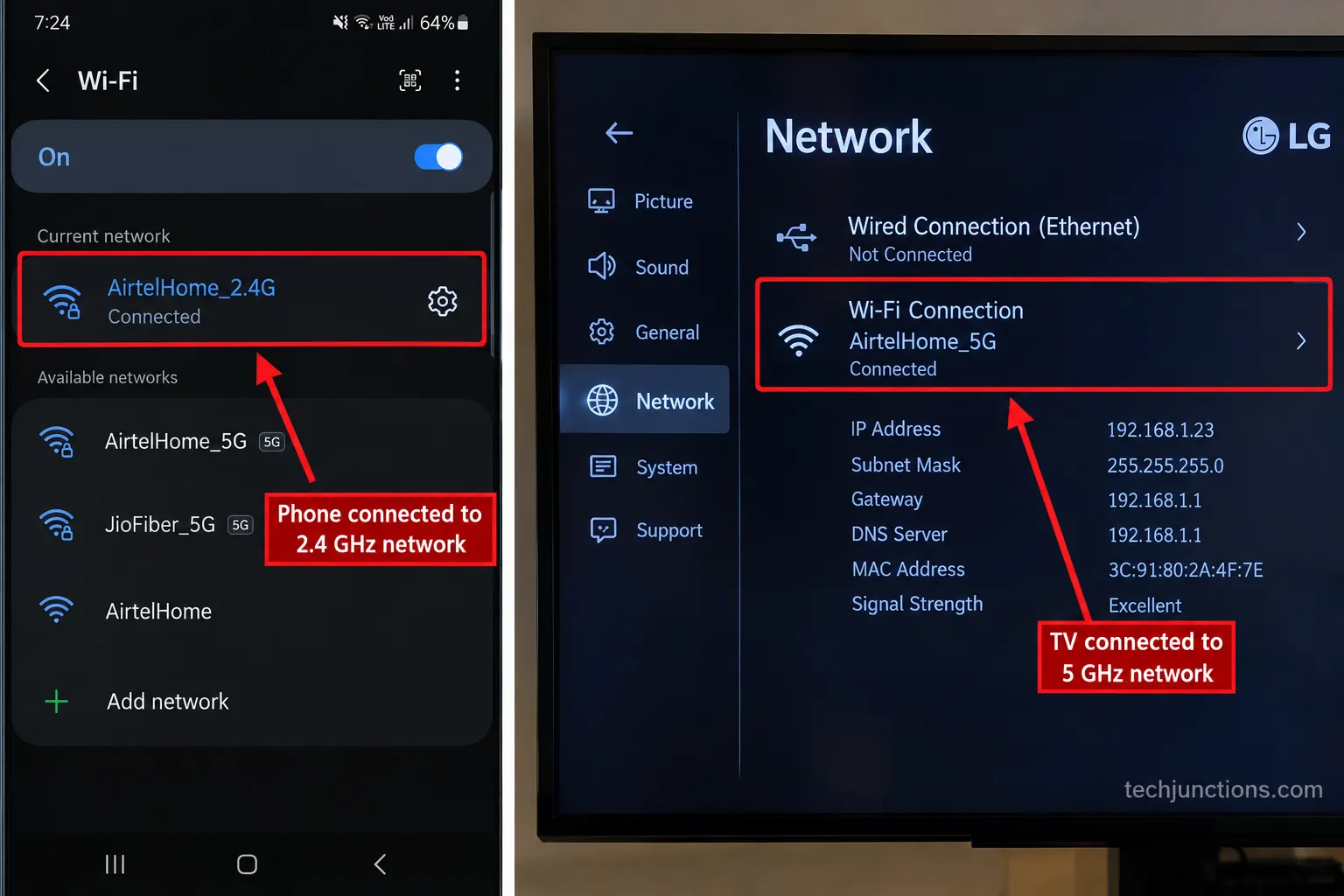
Once both devices share a band, you screen mirror Samsung to Samsung TV straight from the Quick settings panel: swipe down, tap Smart View, choose the TV, and confirm.
Samsung's own documentation lists the same ladder, and on our Galaxy S23 FE the TV appeared under Available devices within about four seconds, per the flow on Samsung's Galaxy Smart View guide.
Follow these steps, checking the "what you should see" cue at each one.
Swipe down twice from the top of the Galaxy screen. You should see the full Quick settings grid, not the compact strip.
Tap Smart View. A short "Searching for devices" state appears.
Select your TV from Available devices. Your set's model name shows in the list.
Tap Start now on the phone. The TV displays a connection request.
Enter the PIN shown on the TV, if prompted. First-time pairings ask for it.
Confirm the mirror. Your phone screen fills the TV within a few seconds.
The first attempt needed the PIN, but later reconnects skipped it, because the TV remembers a paired phone after the initial handshake.
If the Smart View tile is missing from your panel entirely, that is a separate icon problem covered in the next section.
If you are connecting an iPhone instead, the setup path is different.
iPhone owners handle mirroring an iPhone's screen through AirPlay rather than Smart View.
To send just one app instead of the whole screen, you are casting to the TV instead of mirroring, which behaves differently on protected apps.
Where's the Smart View Icon? Per-Model-Year Quick Panel Paths
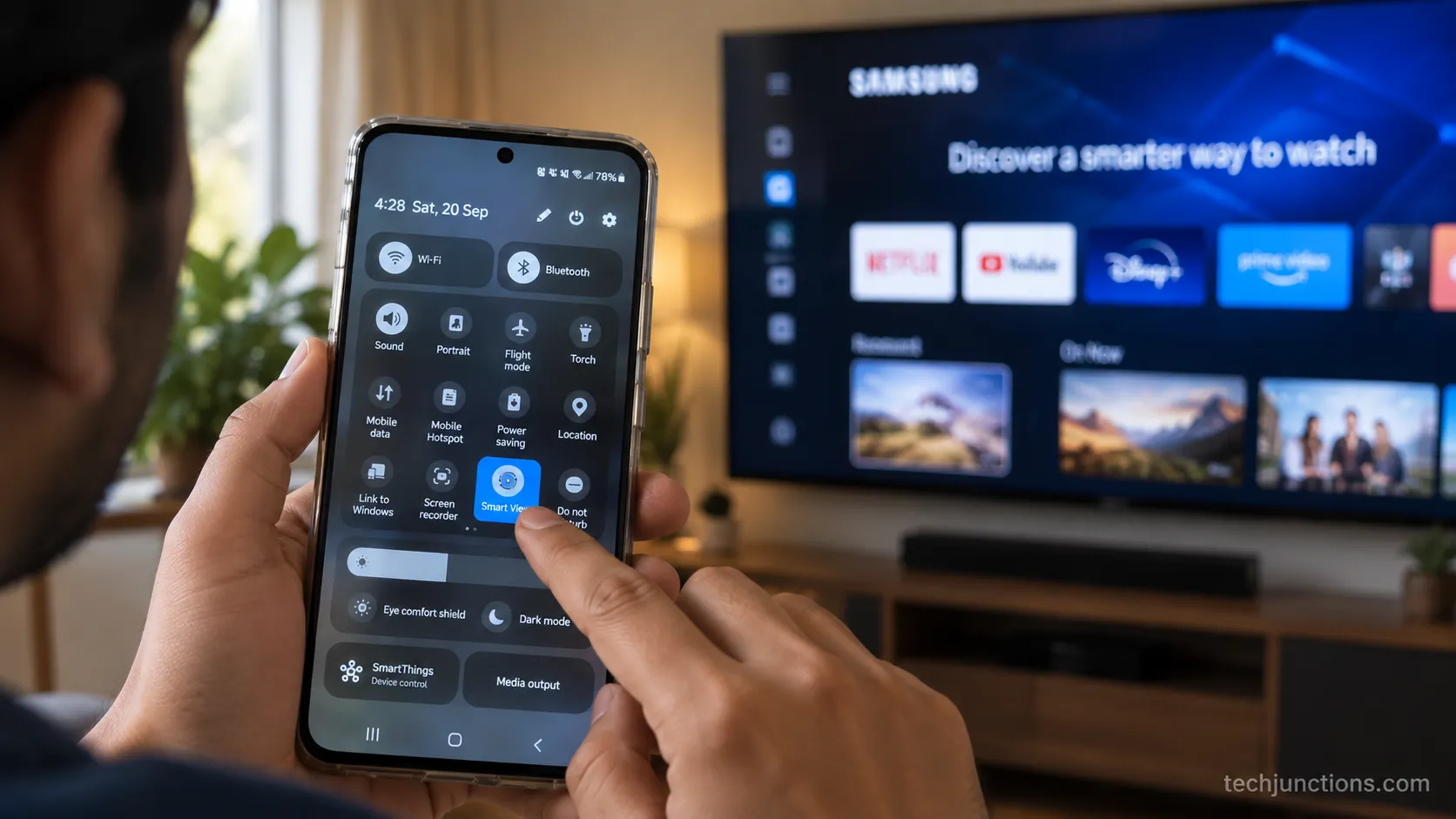
Samsung Smart View lives in the Quick settings panel, not in a separate downloadable app, and its exact spot moves between One UI versions.
On One UI, any hidden Quick Panel tile is re-added through the panel's "+" or edit control, so a "missing" Smart View button is usually just a layout change rather than a removed feature.
Why Is Smart View Not Showing?
The tile is often present but pushed off the visible grid, or the model is old enough to label the same feature "Screen Mirroring."
On our One UI 7 unit, the Smart View tile was not in the default panel, and we re-added it through the "+" editor in about fifteen seconds.
Use this quick reference for where to look on your version.
Your software | What the feature is called | Where to find it |
|---|---|---|
One UI 7 (Android 15) | Smart View | Full Quick panel; add via the "+" or edit-buttons screen |
One UI 6.x | Smart View | Quick settings grid, second swipe |
One UI 5 and older | Smart View or Screen Mirroring | Quick settings; may sit on page two |
Legacy Galaxy (label varies) | Screen Mirroring | Quick settings or Connect and share menu |
To restore a missing tile, open the Quick panel, tap the edit or "+" control, find Smart View in the available buttons, and drag it onto the active grid.
One limitation: carrier or model-specific skins can rename or hide the tile, so a locked variant may show a different label.
The same Quick Panel habit helps when rearranging the TV's app layout too.
Smart View also powers the Multi View split, so using a split-screen layout starts from the same menu.
Mirroring vs Casting (and Why Netflix Goes Black)
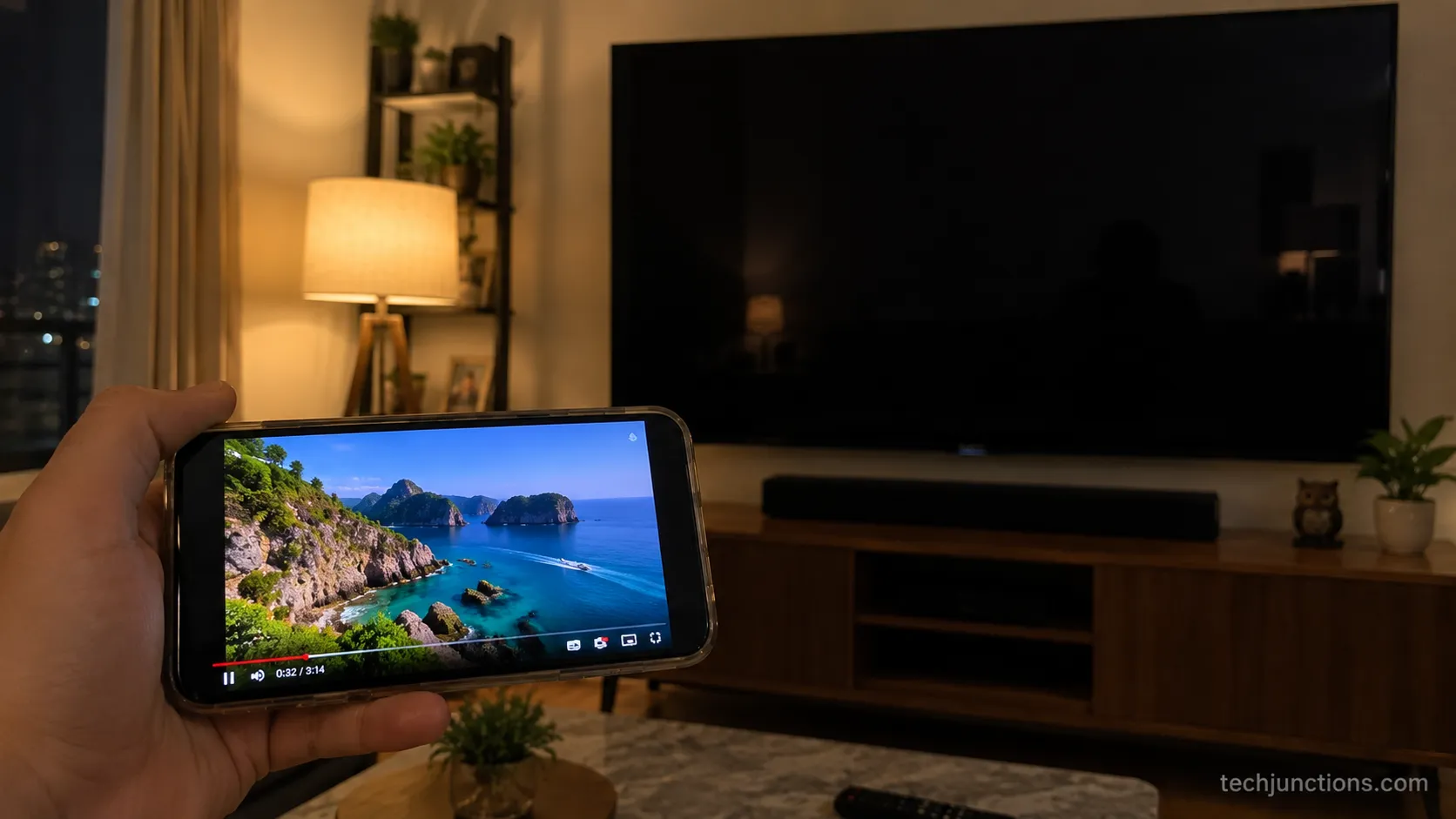
Screen mirroring copies your entire phone display to the TV, while casting hands a single app's stream to the TV and lets the phone drop out.
That difference matters most on streaming apps: protected titles on Netflix and Disney+ often show a black screen while audio keeps playing, because the HDCP copy-protection handshake blocks the mirrored video path even when everything else works.
Here is how the two approaches compare.
Feature | Screen mirroring | Casting |
|---|---|---|
What reaches the TV | Your whole phone screen | One app's stream |
Phone during playback | Stays on and mirrors | Can sleep or be used |
Audio | Follows the mirror | Plays through the TV app |
Protected apps (Netflix, Disney+) | Often black screen | Usually allowed via app Cast |
Latency | Slight lag | Near-native |
When you mirror a protected app, the video path fails the HDCP check while the audio path does not, which is why you hear the show but see black.
That mechanism is explained well in an HDCP explainer covering why streaming apps blank out on external displays.
The situation got stricter in late 2025, when CNET's report documented Netflix pulling phone-to-TV casting for most subscribers.
Netflix itself states that casting and mirroring are supported only on certain devices and plans, per Netflix's Help Center, so the behavior is policy, not a fault in your TV.
The practical fix is simple: stop mirroring protected content and open the app directly on the TV, or use the app's own Cast button where your plan still allows it.
iPhone and Mac owners hit the same protected-content wall when they use AirPlay on a Samsung TV.
A blank panel is not always DRM, because sometimes you are looking at a genuinely black TV panel with a display fault instead.
If you actually want two things on screen at once, that is running a split view, not mirroring.
There is no legitimate way to force protected content over a mirror, so native apps are the honest answer.
How to Turn Off and Disconnect Smart View
Samsung Smart View keeps mirroring as a system-level session, so ending it takes a deliberate tap rather than simply leaving the app.
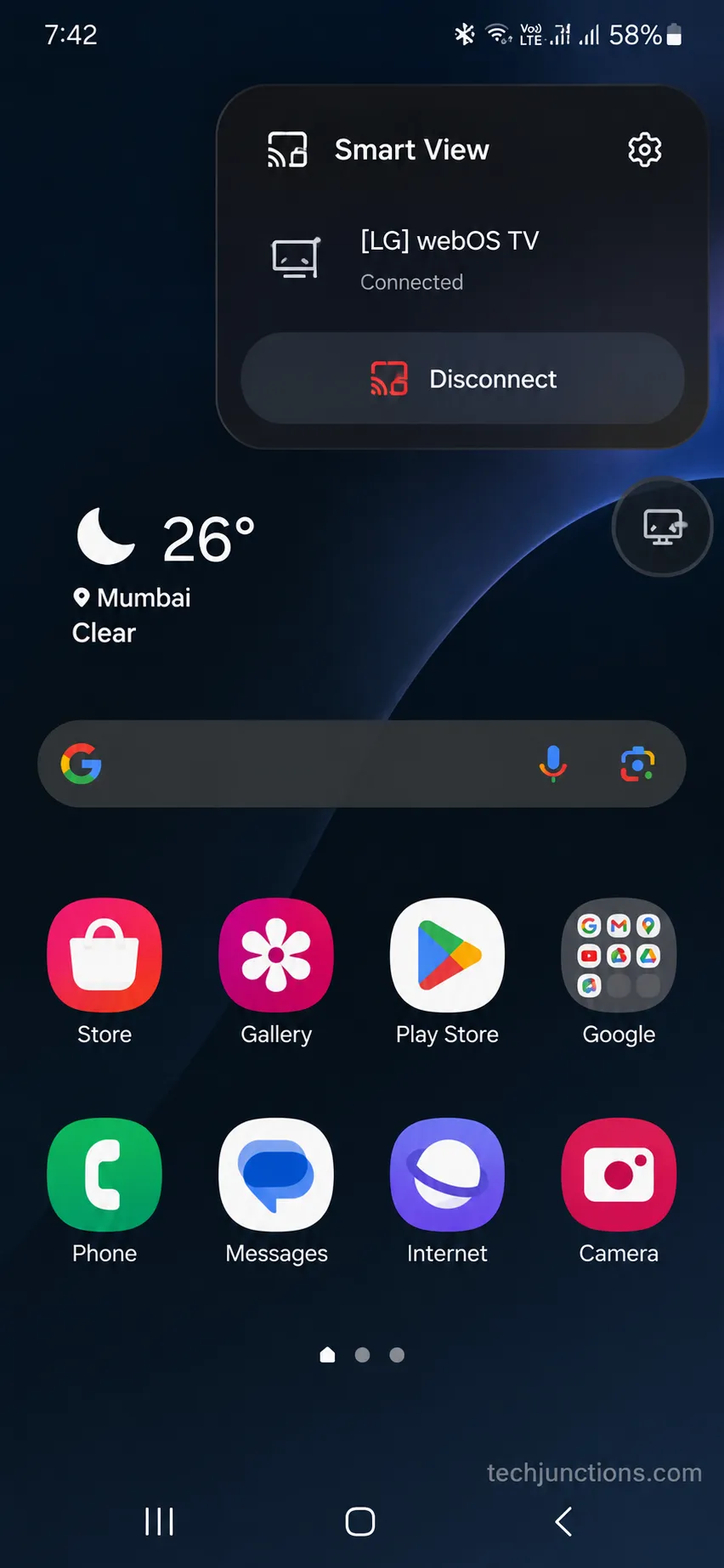
The reliable route is the floating Smart View icon: tap it, then choose Disconnect, and the TV returns to its previous input.
There are two ways to stop the session.
Floating icon: Tap the small Smart View icon on your phone, then Disconnect.
Quick panel: Swipe down, tap Smart View, and toggle the active connection off.
Backing out of the app left our phone still mirroring, and only the floating-icon Disconnect actually stopped it.
As a privacy habit, disconnect explicitly when you finish, so a notification or message does not appear on the TV later.
If a small indicator lingers after you disconnect, that is a lingering on-screen indicator and a separate display quirk, not an active mirror.
Smart View Not Working? Diagnose and Fix 4 Failures
Most Samsung Smart View failures fall into four buckets, and the single most common one, the "TV not in the list" case, is usually a 2.4/5 GHz band mismatch or a TV with device discovery switched off.
Work simplest-first: match the band, wake the TV, then update firmware before assuming hardware, since Samsung's US support page confirms reconnecting to the same Wi-Fi and checking for TV updates as first steps.
Start with this symptom router, then jump to the matching branch.
Symptom | Most likely cause | First fix |
|---|---|---|
Smart View icon missing | Tile hidden on your One UI version | Re-add via the Quick panel "+" editor |
TV not in the list | Band mismatch or discovery off | Match Wi-Fi band, enable device discovery |
Mirrored but no sound | TV audio routed to another output | Set TV sound output back to TV speakers |
Screen goes black on streaming | HDCP or DRM on a protected app | Open the app on the TV instead |
Branch A, cast button doesn't work or the icon is missing. The tile is almost always hidden rather than gone, so re-add it through the Quick panel editor as shown earlier.
If it still won't appear, restart the phone and recheck. If that fails, a carrier skin may have removed it, and a wired route becomes your fallback.
Branch B, TV not in the list. Confirm both devices share the same band, then check the TV's connection settings so device discovery and mobile-to-TV connection are enabled.
"TV not in list" cleared the instant we moved the phone off 2.4 GHz onto the TV's 5 GHz SSID. If it still hides, update the TV firmware and power-cycle the router.
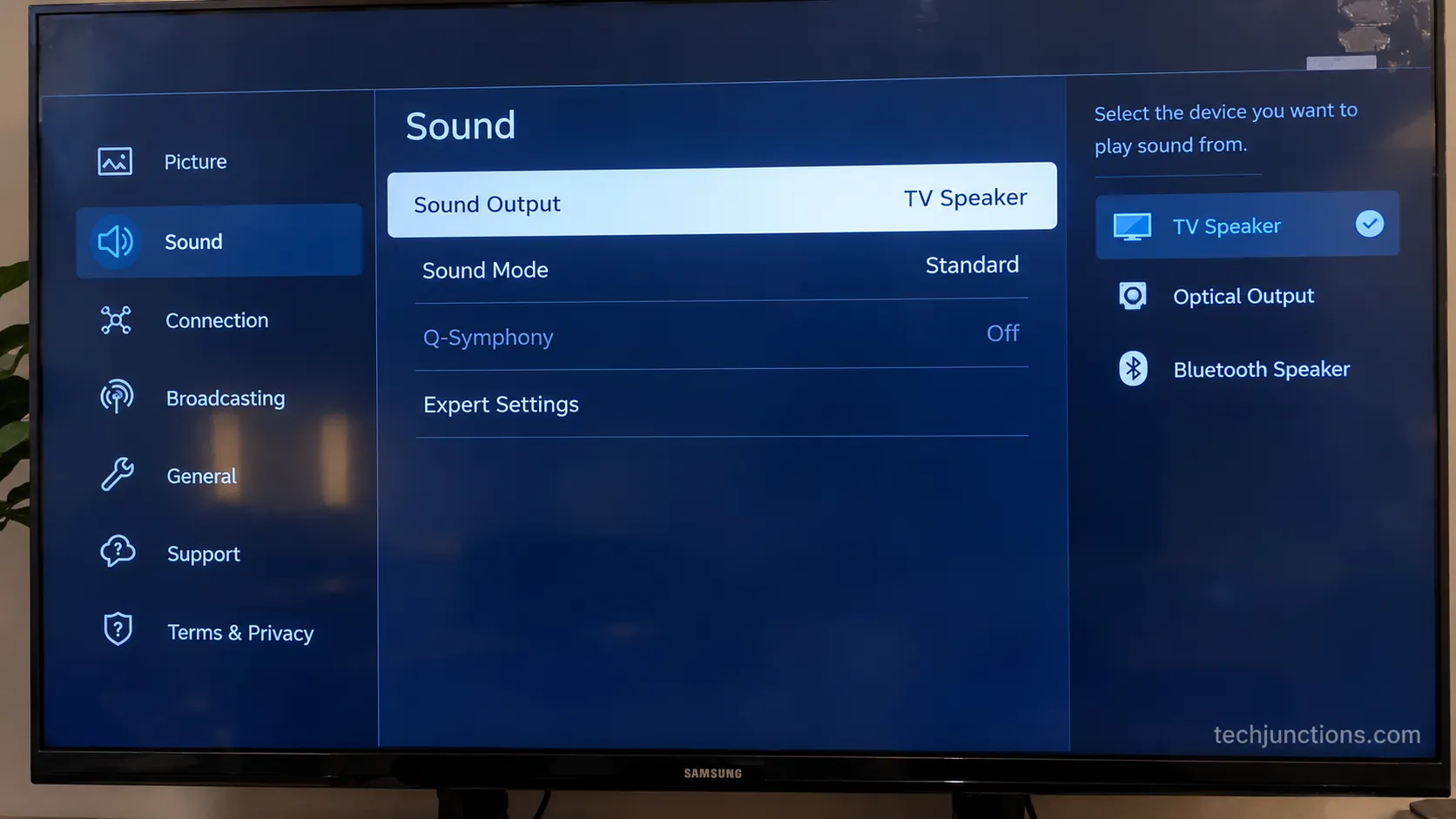
Branch C, mirrored but no sound. The video path can mirror while audio stays on the TV's currently selected output, so open the TV sound settings and switch output back to the TV speakers.
On our set, "no sound" was simply the TV pointed at an external soundbar input. If audio still drops, disconnect and reconnect the mirror.
Branch D, screen goes black on streaming. This is the DRM case from the mirroring-versus-casting section, not a connection fault. Open the streaming app directly on the TV.
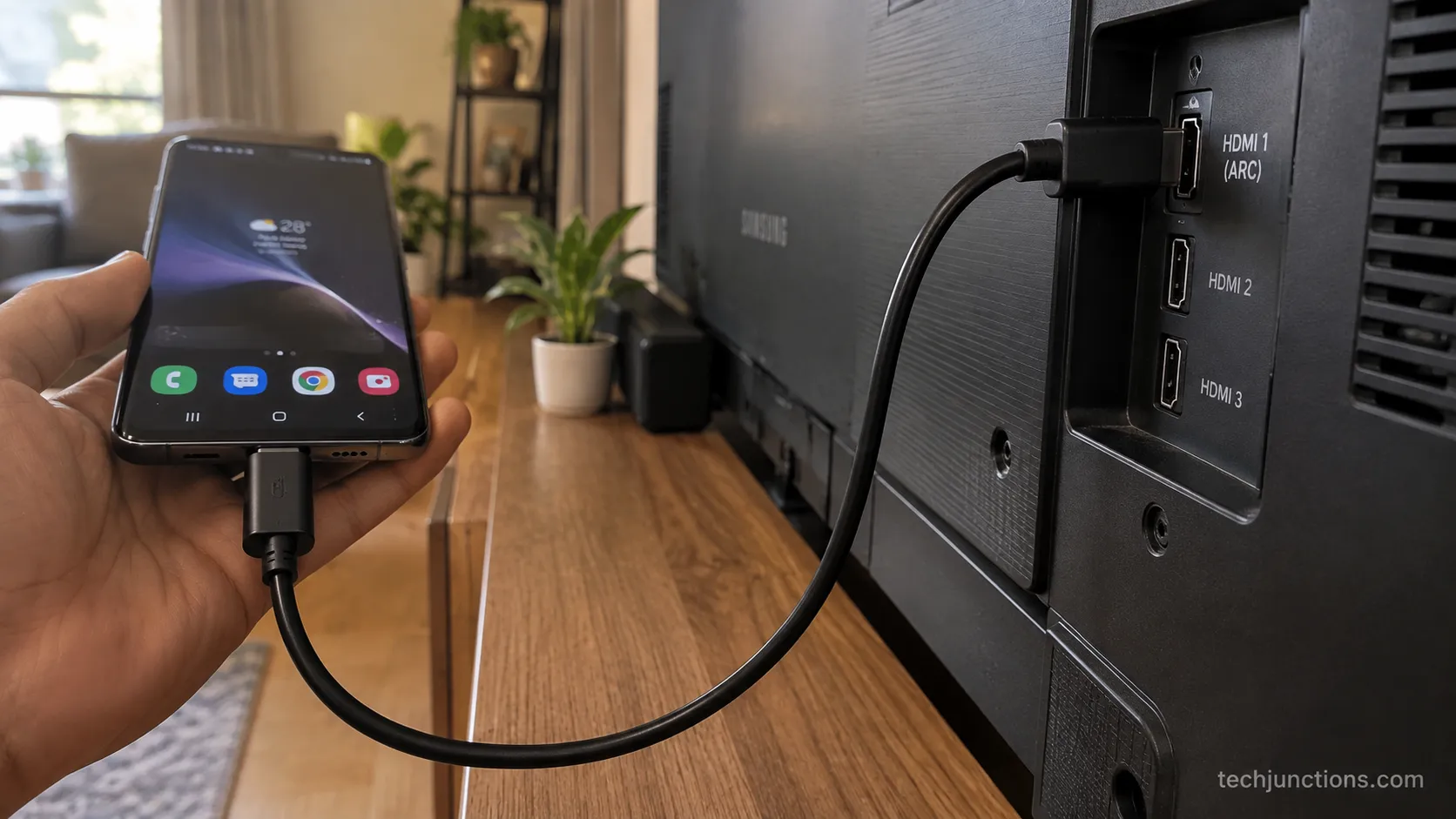
If you need a wired option, Samsung's wired-mirroring guide confirms a DeX or USB-C-to-HDMI cable as the fallback.
If none of these clear it, work through a full fix checklist built for this exact failure.
A TV that never finishes booting, such as a TV stuck during setup, won't appear to any phone.
If the mirror connects but looks soft, that points to a soft or fuzzy picture issue, not a connection one.
A colour-tinted panel, like a red-tinted display, points to the display rather than Smart View.
When the fault is clearly hardware, it helps to know typical repair pricing before you commit to a service.
Here is the dated log from our own runs, so you can see what actually changed each symptom.
Symptom | Setup | What we changed | Result |
|---|---|---|---|
TV not in list | S24 + 2021 TV | Moved phone to the TV's 5 GHz SSID | TV appeared within one scan |
No sound | S23 FE + 2024 TV | Switched TV output from soundbar to TV speakers | Audio returned immediately |
Icon missing | S24 on One UI 7 | Re-added Smart View via panel editor | Tile restored in about 15 seconds |
Netflix black | S24 + 2021 TV | Opened Netflix on the TV app instead | Full playback, no blackout |
When to stop DIY: if the TV never appears to any device, shows fault patterns on its own menus, or fails after a firmware update, the issue may be hardware or firmware and needs Samsung service, not a phone-side fix.
When a Third-Party Mirroring App Is Actually Worth It
For a Galaxy-to-Samsung pairing, Samsung Smart View is free and built into One UI, so you do not need to download anything to mirror.
Third-party mirroring apps exist mainly for cases the native feature does not cover, and in our testing a Galaxy-to-Samsung setup never needed one.
An app or a wired route earns its place only in specific situations.
Non-Samsung phone that lacks native Smart View.
No Wi-Fi available, where a cable beats any wireless app.
Older or non-Samsung TV without built-in mirroring.
Protected content, where no app legitimately bypasses DRM anyway.
The most useful non-app workaround is a wired one. Only a no-Wi-Fi scenario pushed us to a USB-C-to-HDMI cable, and a DeX-capable cable does the same job for a wired mirror.
For a wireless workaround without a third-party app, casting through SmartThings can reach the TV when the direct Smart View scan is stubborn, using Samsung's own ecosystem rather than an ad-supported download.
Mac users have their own native path worth trying first, since mirroring from a MacBook avoids any app.
A cabled Mac connection is another no-app route for wiring a MacBook to the set.
If the TV itself is the problem, booking a service visit may beat any app.
One honest disclosure: several of the mirroring apps that rank for this topic are ad-supported and low-rated, one sitting around 2.8 stars, so we do not endorse them for a Galaxy-to-Samsung pair that already has Smart View.
Did You Mean Mirroring One Samsung TV to Another?
A minority of people searching this topic actually want to mirror one Samsung TV to another Samsung TV, and Samsung Smart View cannot do that: it is a phone, tablet, or PC to TV feature, with the TV acting only as a receiver.
A Samsung Community moderator confirms TV-to-TV mirroring is not supported, so the real answer is a hardware one.
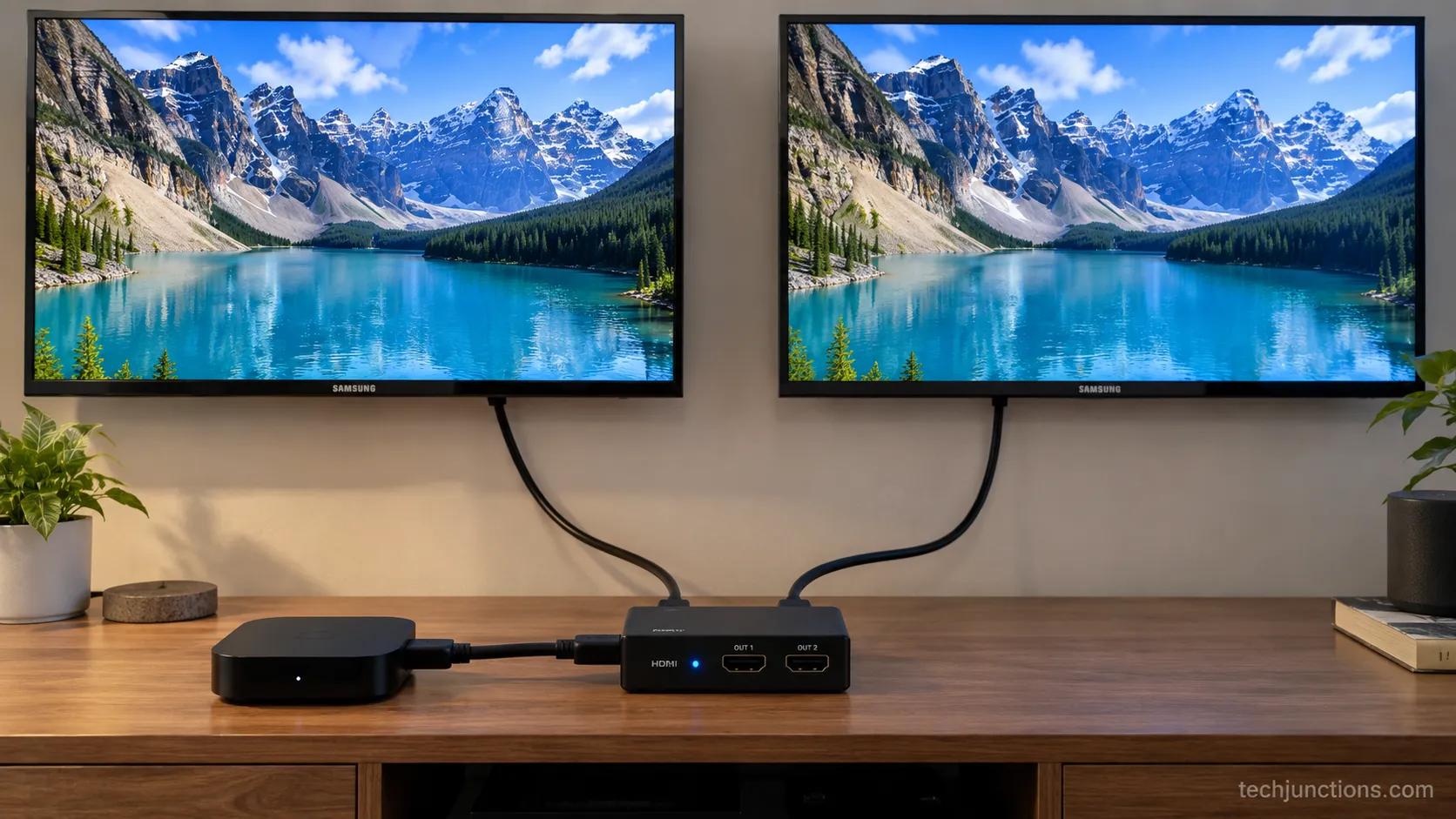
To feed two TVs the same picture, you split a single source rather than mirror between sets.
Point one source device, a streaming stick or player, into a 1-in-2-out HDMI splitter or distribution amplifier, and run a cable to each TV.
We looked for a Smart View TV-to-TV path and there simply isn't one, so a Samsung Community moderator pointing to hardware matches what we found on the bench.
The splitter route has limits.
Both TVs show the exact same source at once, you cannot run different apps on each, and long cable runs can introduce a slight delay, a point echoed in Tom's Guide forums discussing distribution amps.
Before mounting a second set, it is worth cleaning the TV panel properly first.
If a second-hand set has a damaged panel, replacing a cracked panel may cost more than it is worth.
A visibly broken screen changes the maths, and a cracked or broken screen is rarely worth feeding a second source.
When a set is failing outright, a guide on whether to fix or replace helps you decide.
If you actually meant your phone, head back to the Smart View steps above, which cover the common case.
Frequently Asked Questions
Do both devices need the same Wi-Fi to mirror?
Yes. Samsung Smart View discovers the TV only when the phone and TV share the same network, and on a dual-band router they must also be on the same 2.4 GHz or 5 GHz SSID. A band split is the most common reason a TV never appears in the list.
Why won't my TV show up in the Smart View list?
Usually the phone and TV are on different Wi-Fi bands, or the TV has device discovery or mobile connection turned off. Match the band first, then enable connection settings on the TV and update its firmware. A guest network or VPN can also hide the set.
Why is there no sound when I mirror to my Samsung TV?
The video mirrors while the TV's audio stays on whatever output it was last set to, often an external soundbar input. Open the TV sound settings and switch the output back to the TV speakers. Reconnecting the mirror afterward locks the fix in.
Why does Netflix go black when I screen mirror?
Protected apps like Netflix fail the HDCP copy-protection check on a mirrored video path, so the picture goes black while audio may continue, a mechanism outlined in a DRM explainer. Netflix also restricted phone-to-TV casting for many plans in late 2025, so open the app on the TV instead.
Can I mirror a Samsung TV to another Samsung TV?
No. Smart View mirrors a phone, tablet, or PC to a TV, and the TV cannot be the source. To show one picture on two sets, split a single source with an HDMI splitter or distribution amplifier, accepting that both TVs display the same thing.
Is Smart View free?
Yes. Smart View is built into Samsung Galaxy phones and Samsung TVs at no cost, so a Galaxy-to-Samsung pair never needs a paid mirroring app. Third-party apps only matter for non-Samsung phones, older sets, or no-Wi-Fi situations.
How do I stop mirroring my phone?
Tap the floating Smart View icon on your phone and choose Disconnect, or open the Quick panel and toggle Smart View off. Closing the app alone does not always end the session, so disconnect explicitly to avoid accidental screen sharing later.
Why doesn't the cast button work even when everything looks right?
The Smart View or cast tile is usually hidden rather than broken. Re-add it through the Quick panel editor, confirm both devices share a Wi-Fi band, and restart the phone. If it still fails on a carrier model, a USB-C-to-HDMI cable is the dependable fallback.
The Bottom Line
You can screen mirror Samsung to Samsung TV in under a minute with Smart View, and the method rarely changes: same Wi-Fi, Quick panel, Smart View, pick the TV, Start now, PIN.
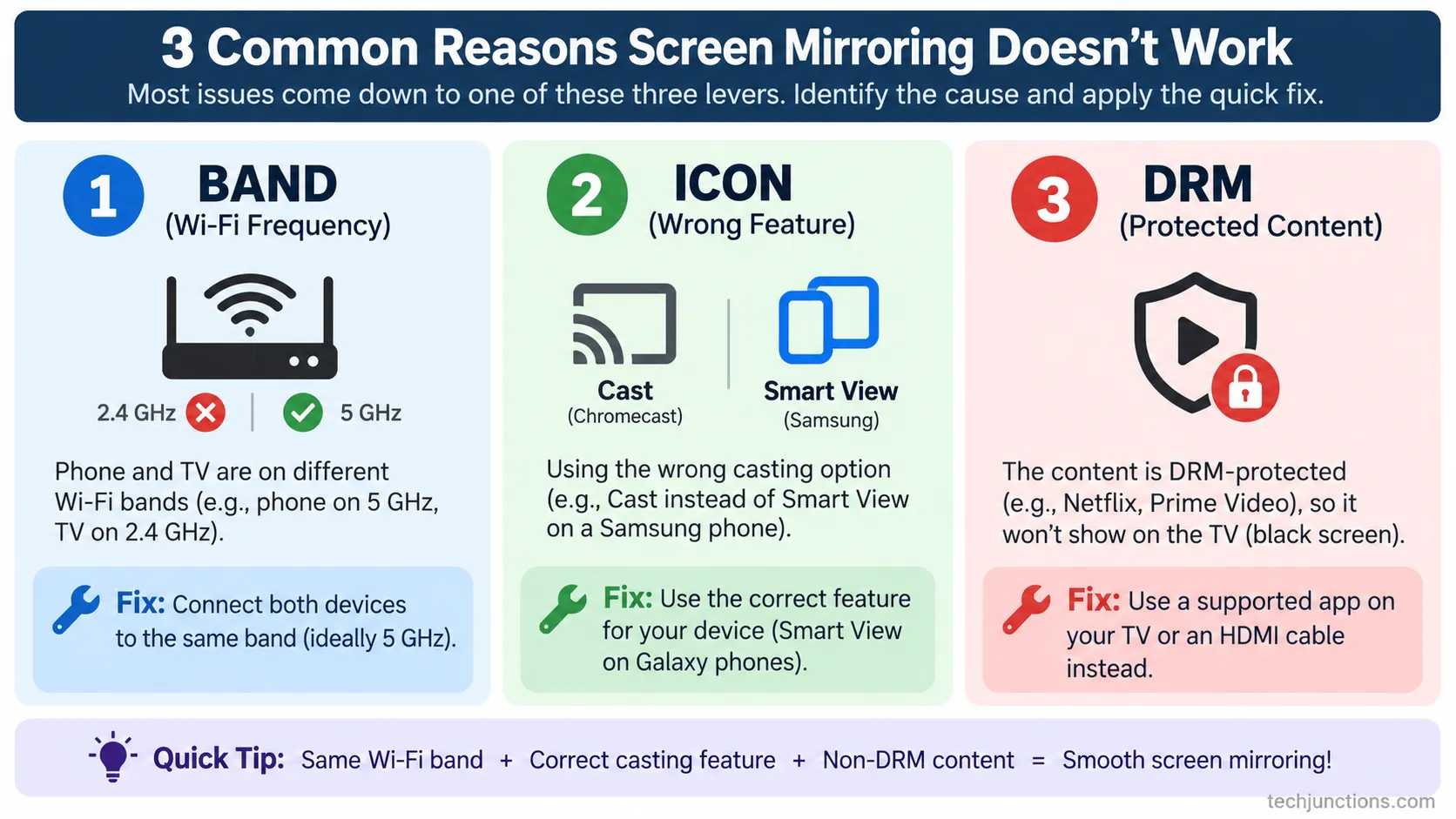
Across every setup we tried, a failed mirror traced back to one of three levers, the Wi-Fi band, a hidden icon, or DRM on a protected app, never a genuinely broken feature.
Fix the band, restore the icon, and open protected apps natively, and the feature behaves. The only real exceptions are hardware or firmware faults, which are the cases worth handing to Samsung service.
Summarize with AI
Keep reading
Related articles
Fix Netflix not working on Samsung TV by symptom: black screen, won't load, or NW-2-5. Get exact Tizen paths, the 0000 Smart Hub PIN, and model-year cutoff.
See exactly how to put PBS app on LG TV: verify webOS 23, install via LG Content Store, activate Passport, plus a fallback for older sets.
Set up Google Home Samsung TV control in 6 steps: link via SmartThings, check model support, and see what voice commands really do.
Learn screen mirroring android to samsung tv: Smart View on Galaxy, Cast on Pixel or Motorola, plus fixes for a TV that won't show in the list.
Comments
Moderated for quality. Share a correction, ask a follow-up, or tell us what worked for you - every comment is reviewed before it goes live.