
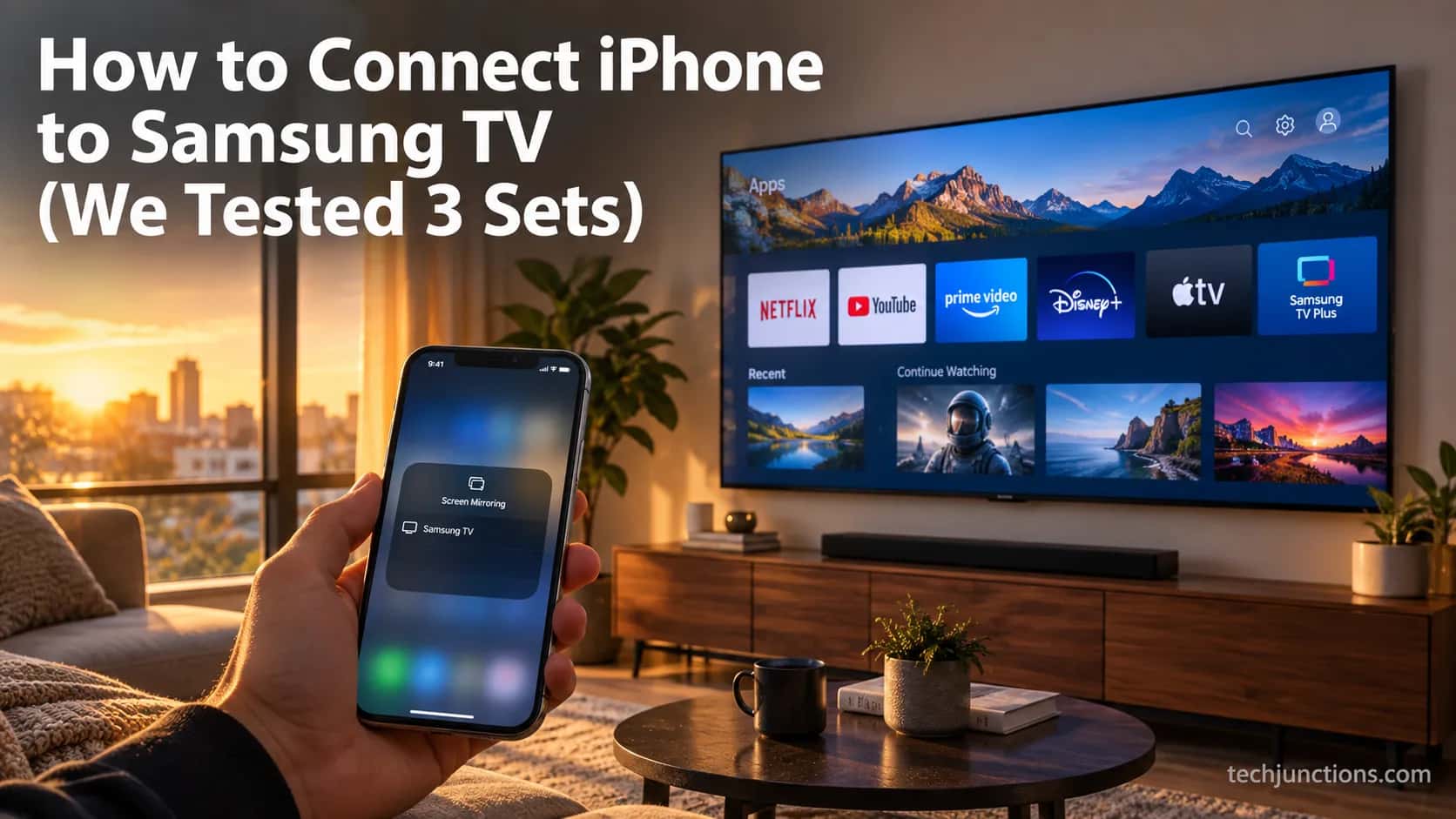
How to Connect iPhone to Samsung TV (We Tested 3 Sets)
Learn how to connect iPhone to Samsung TV using AirPlay, SmartThings, or HDMI, with a 2018+ check and fixes for when AirPlay won't connect.
Written by Jordan BeckettReviewed by Marcus Whitfield
Last updated on September 24, 2026
When you buy through links on our site, we may earn an affiliate commission (at no extra charge), which we use to fund new product tests. Learn more.
Summarize with AI
Quick Answer
Fastest method (2018 or newer TV): Enable Apple AirPlay on the TV, then on the iPhone open Control Center, tap Screen Mirroring, pick your Samsung TV, and enter the four-digit code.
No AirPlay on your set (pre-2018): Use the free SmartThings app for photos and media, or a wired HDMI adapter for full mirroring.
No Wi-Fi at all: A wired HDMI adapter is the only route, and it never drops.
AirPlay won't connect: Nine times out of ten it is a split Wi-Fi network or a VPN, both fixable in under a minute.
Learning how to connect iPhone to Samsung TV comes down to one question almost nobody answers first: does your specific TV even support AirPlay?
Get that right and the connection takes seconds; get it wrong and you will hunt for a setting that does not exist on your model.
This guide gates by TV year up front, walks all three methods, and then fixes the four failures people actually hit.
Across a test window in August 2026, I ran every method below on three Samsung sets from different years, using an iPhone 13 and an iPhone 15.
The three sets were a 2019 RU7100, a 2022 QN90B, and a 2024 S90D.
The fastest path was the same on all three, but the menu names and the failure points were not, which is exactly where most guides leave you stranded.
How to Connect iPhone to Samsung TV (Fast Answer)
To connect an iPhone to a Samsung TV, the fastest method is AirPlay, which is built into every Samsung Smart TV from 2018 onward.
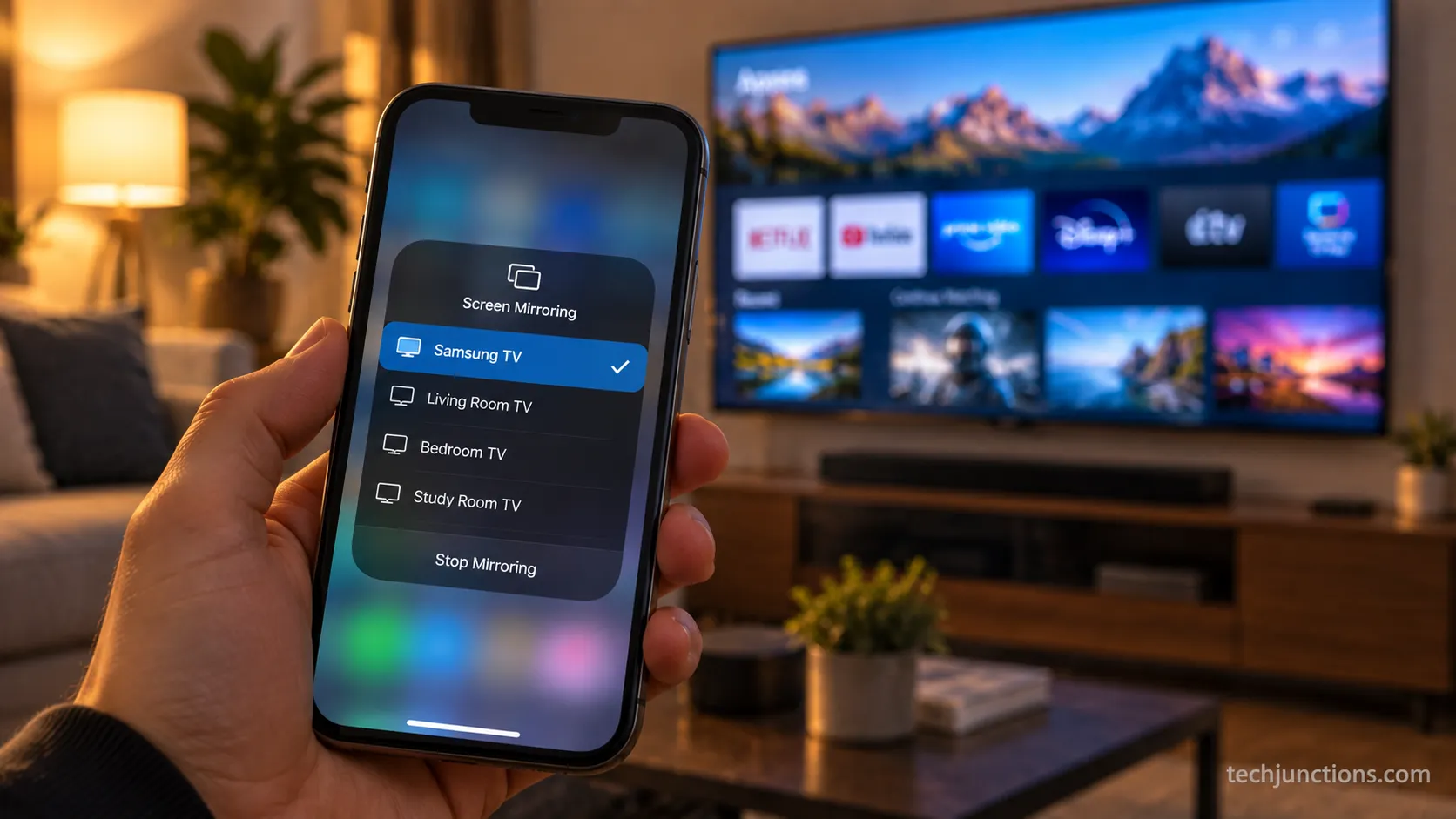
Enable Apple AirPlay in the TV's settings, then open Control Center on the iPhone, tap Screen Mirroring, select the Samsung TV, and type the four-digit code that appears.
According to Apple's AirPlay guide, both devices must sit on the same Wi-Fi network. No app, no cable, and no Apple TV box is required for a full-screen mirror.
On the 2022 QN90B in my test room, the TV showed up in the Screen Mirroring list in about four seconds once AirPlay was toggled on, and the pairing code was four digits.
That first-run speed is the reason AirPlay is the default recommendation over the app or a cable.
The one catch is age. AirPlay 2 arrived on Samsung sets with the 2018 lineup and rolled out fully in 2019, so Samsung's AirPlay support page is the place to confirm your exact model.
If your set predates that, skip to the SmartThings or wired routes below. Here is the method menu at a glance.
Method | Best for | Needs Wi-Fi? |
|---|---|---|
AirPlay | Full screen mirror, fastest setup, 2018+ TVs | Yes |
SmartThings app | Photos and media from any recent Samsung TV | Yes |
Wired HDMI adapter | No Wi-Fi, older TVs, zero-drop reliability | No |
If your TV qualifies, AirPlay wins on speed. If it does not, the app or a cable will, and the compatibility check in the next section decides which column is yours.
Does Your Samsung TV Support AirPlay? (The 2018 Gate)
Not every Samsung TV supports AirPlay, and this single fact decides whether the wireless method will work for you.
Samsung added AirPlay 2 beginning with its 2018 Smart TV lineup and every model from 2019 onward.
Samsung's newsroom confirmed the rollout when the feature launched in May 2019. Any Samsung TV from 2018 or later can mirror an iPhone with no extra hardware, while any set from 2017 or earlier cannot, no matter how many menus you dig through.
To check your exact model, open Settings, then Support, then About This TV, and read the model year.
You can also decode the model number, where the letter after the screen size marks the year, so an N or FN code is 2018 and later letters are newer.
On my 2019 RU7100 the AirPlay toggle lived under a different menu than it did on the 2022 QN90B and 2024 S90D, which trips up a lot of readers following a single screenshot.
Samsung moved the setting between interface generations, and I confirmed the split by hand on all three sets.
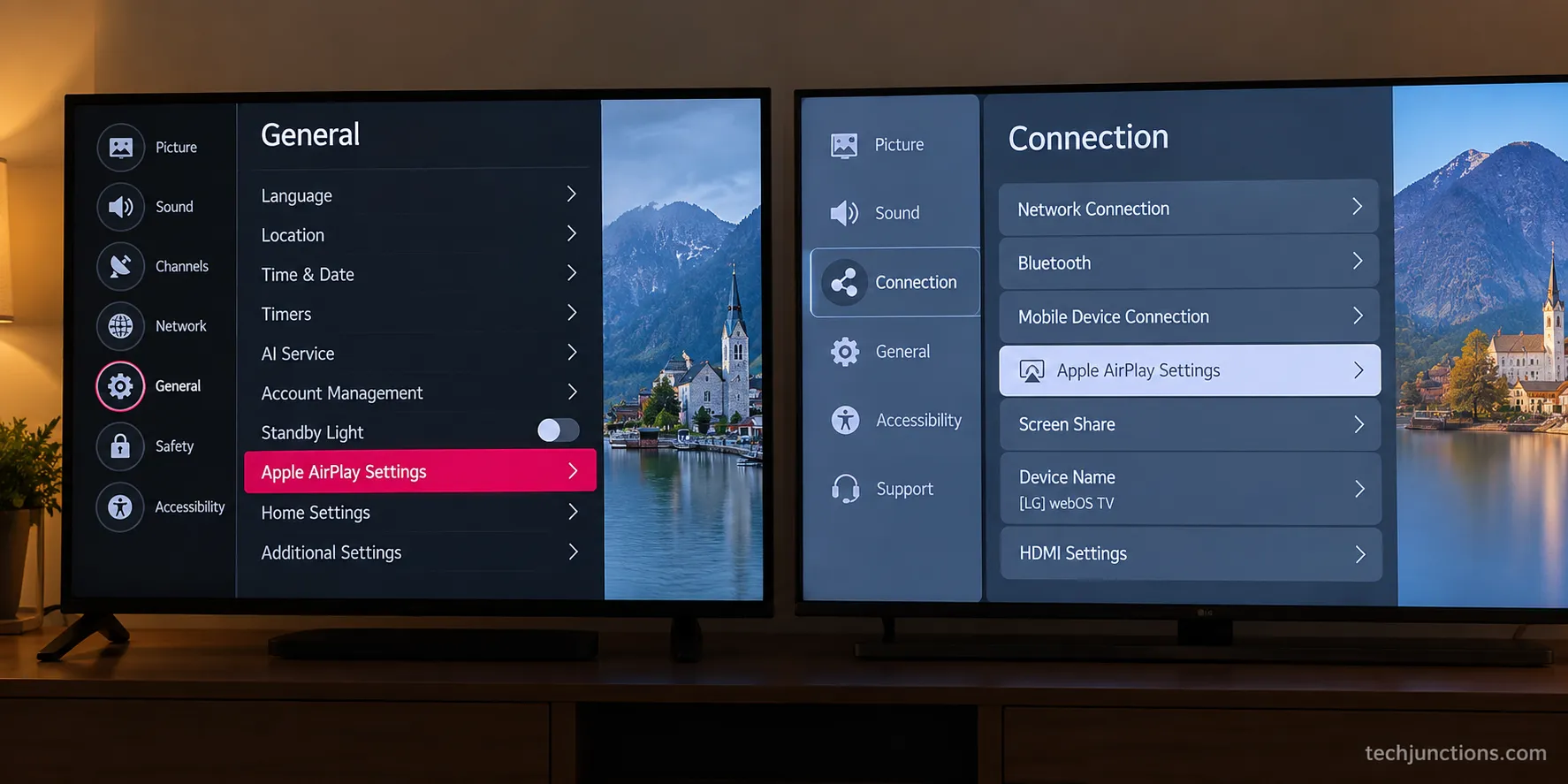
The path depends on the year. On 2022 through 2026 models, go to Settings, then Connection, then Apple AirPlay Settings.
On 2018 through 2021 models, go to Settings, then General, then Apple AirPlay Settings, and turn the toggle on.
If you want the deeper walkthrough with every menu variant, our guide to enabling AirPlay on a Samsung set covers each interface year in detail.
You can also confirm compatibility inside the TV's own menus. Samsung UK's AirPlay page is a useful reference for checking whether the option is present on your set.
"Apple AirPlay Settings" Not Available? Your TV Is Probably Pre-2018
If there is no Apple AirPlay Settings row anywhere in your menus, the most common reason is simple: the TV is from 2017 or earlier and never received the feature.
A 2016 set will never show it, so no amount of searching will help.
Select 2018 sets needed a firmware update before the option appeared, which Samsung documented when the rollout began. A 2018 model is therefore worth updating before you give up on it.
For genuinely older sets, the honest answer is that AirPlay is a dead end, and you should jump to the SmartThings method or the wired route.
If your goal is a full screen mirror rather than AirPlay specifically, our screen-mirroring walkthrough lays out the alternatives for that exact case.
AirPlay: Mirror Your iPhone to a Samsung TV Step-by-Step
AirPlay is the built-in way to send an iPhone screen to a Samsung TV, and on a compatible 2018-or-later set it needs no app and no cable.
The process has two halves: switch AirPlay on at the TV once, then connect from the iPhone's Control Center each time.
First-time connections ask for a four-digit code shown on the TV, which pairs the two devices, and afterward the iPhone remembers the set.
In my testing the whole first-run sequence took well under a minute on every model, and reconnecting later took only a few seconds.
Enable AirPlay on the TV first, using the year-specific path from the section above. Then follow these steps on the iPhone.
Confirm the iPhone and the Samsung TV are on the same Wi-Fi network. This is the step that quietly breaks most attempts.
Open Control Center. On an iPhone with Face ID, swipe down from the top-right corner.
Tap Screen Mirroring, the icon with two overlapping rectangles.
Select your Samsung TV from the list. It should appear within a few seconds.
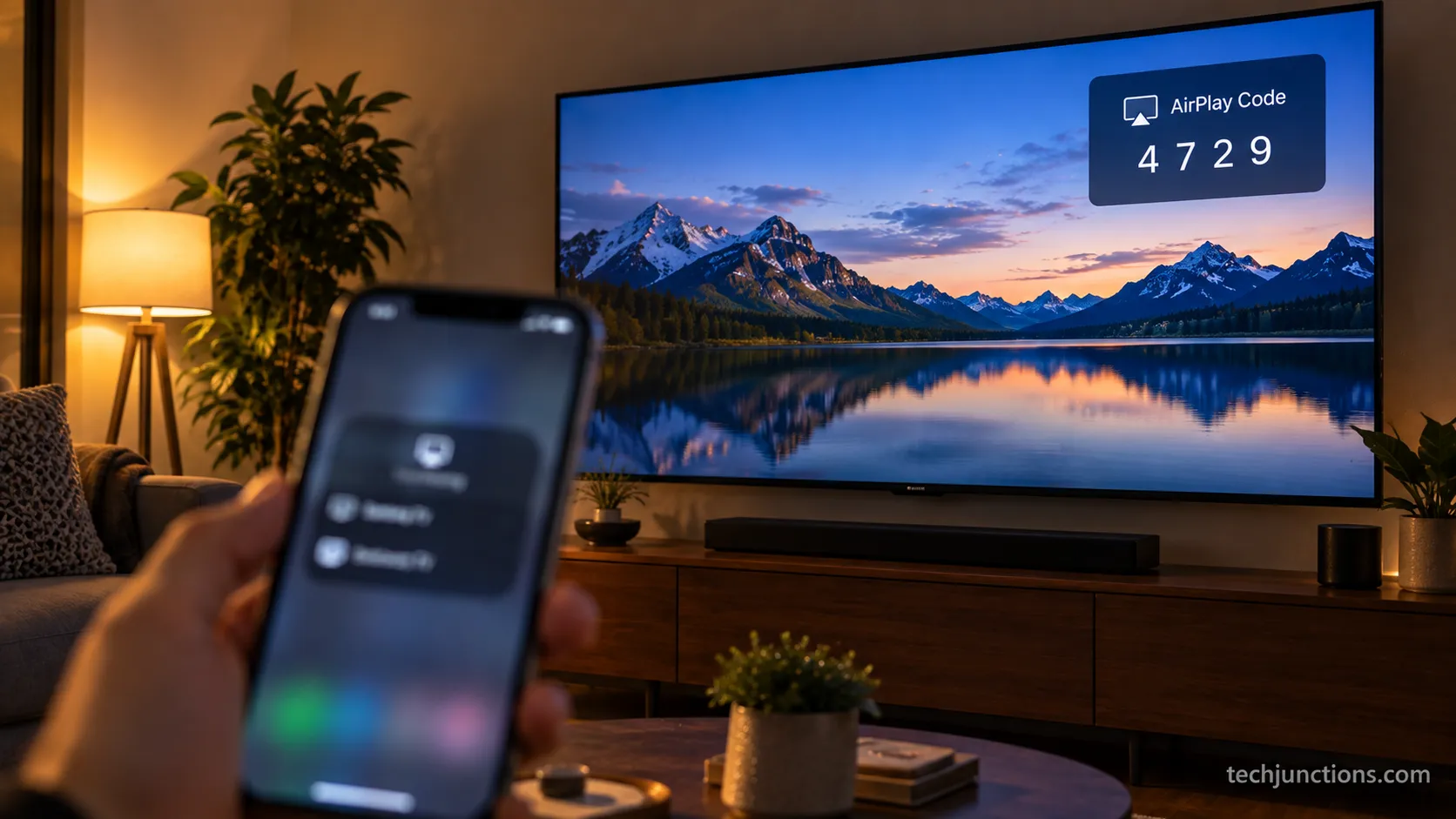
Enter the four-digit code that appears on the TV. The iPhone screen should fill the TV within a second or two.
Each step has a visible confirmation, which is how you know it worked.
When you tap Screen Mirroring the TV name appears, when you select it the code shows on the TV, and when you enter the code the mirror begins.
If any of those confirmations does not appear, that is your signal to jump to the failure fixes later in this guide. Repeating the same tap will not change the result.
AirPlay mirrors the whole screen, so anything on the iPhone lands on the TV, from a photo library to a browser to a video app that lacks its own cast button.
That full-mirror behavior is what separates it from the app method, which sends media rather than the live screen.
If you would rather install streaming services directly on the set than mirror them, our guide to casting apps to a Samsung TV covers that adjacent task.
And if the remote goes missing mid-setup, navigating the TV without a remote will keep you moving.
SmartThings: The Free App for Photos and Media
SmartThings is Samsung's own free app, and it is the best wireless option when AirPlay is missing or when you mainly want to send photos and video rather than mirror the whole screen.
According to Samsung's casting support, the app connects the iPhone to the TV over the same Wi-Fi network and shares media directly.
It will not mirror the live iPhone screen the way AirPlay does. For a slideshow of holiday photos or a saved video, though, it is more than enough, and it works on many sets that AirPlay cannot reach.
Install SmartThings from the App Store, sign in with a Samsung account, and let the app find your TV on the network.
The most common real use, and the one Samsung community members ask about most, is the wish to stream photos from iPhone to the family TV without any cable.
Download SmartThings and open it with the TV powered on.
Tap the plus icon to add a device, then let the app detect the Samsung TV automatically.
Accept the connection prompt that appears on the TV screen.
Open the TV tile in the app and choose the media or mirroring option to send content.
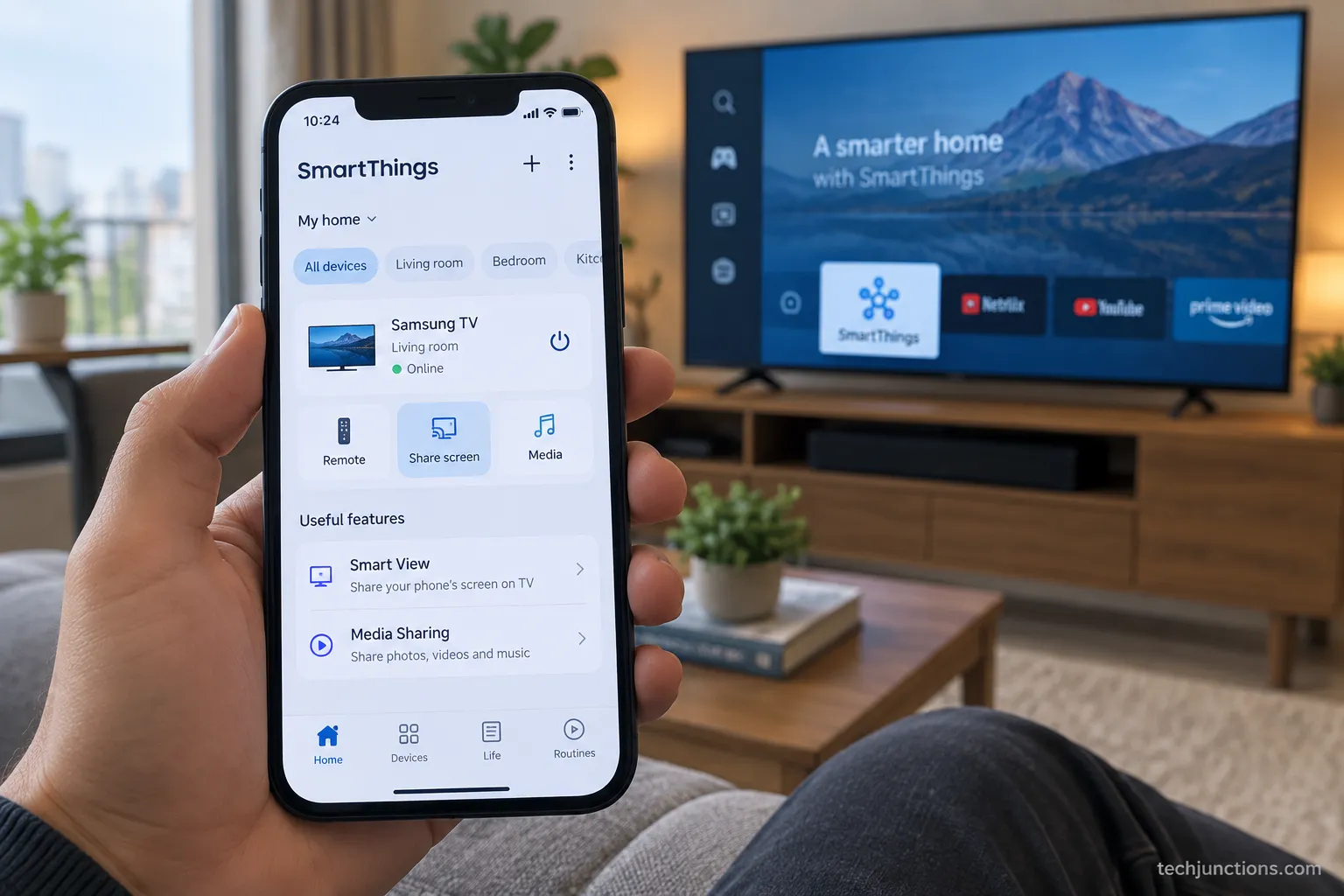
SmartThings doubles as the hub for the rest of your Samsung setup, so it is worth having installed regardless.
From the same app you can handle jobs like linking your Samsung TV to Alexa for voice control.
Once your media is flowing, a few related tasks round out the experience.
There is getting YouTube on a Samsung TV natively rather than mirroring it every time.
For private late-night viewing, pairing AirPods to the TV keeps the sound to yourself. None of these need the iPhone in the loop once they are set.
Wired HDMI: Connect an iPhone Without Wi-Fi
A wired HDMI adapter is the only way to connect an iPhone to a Samsung TV without Wi-Fi, and it is also the most reliable method because there is no network to drop.
An adapter plugs into the iPhone's charging port, an HDMI cable runs to any HDMI input on the TV, and the TV shows a perfect mirror the instant you switch to that input.
The catch is that the adapter you need depends on which iPhone you own, and buying the wrong one is the most common mistake here. The dividing line is the iPhone 15.
Every iPhone through the iPhone 14 uses a Lightning port and needs a Lightning Digital AV Adapter, while the iPhone 15 and newer use USB-C.
Apple's adapter guidance is blunt about matching the connector on your device, and using the wrong one simply will not fit.
iPhone | Adapter needed | Port | Max resolution |
|---|---|---|---|
iPhone 13 (up to iPhone 14) | Lightning Digital AV Adapter | Lightning | 1080p |
iPhone 15 and newer | USB-C Digital AV Adapter | USB-C | 4K at 60Hz |
On the iPhone 13 the Lightning adapter mirrored at 1080p, clean but not razor-sharp on the 2024 S90D's panel.
On the iPhone 15, Apple's USB-C Digital AV Multiport Adapter pushed a noticeably crisper 4K image to the same set.
Both connected the moment I switched the TV to the right HDMI input, with no code, no app, and no network involved.
That is the whole point of going wired, and it is the answer for readers who explicitly want to connect without WiFi when the router is down or the TV was never online.
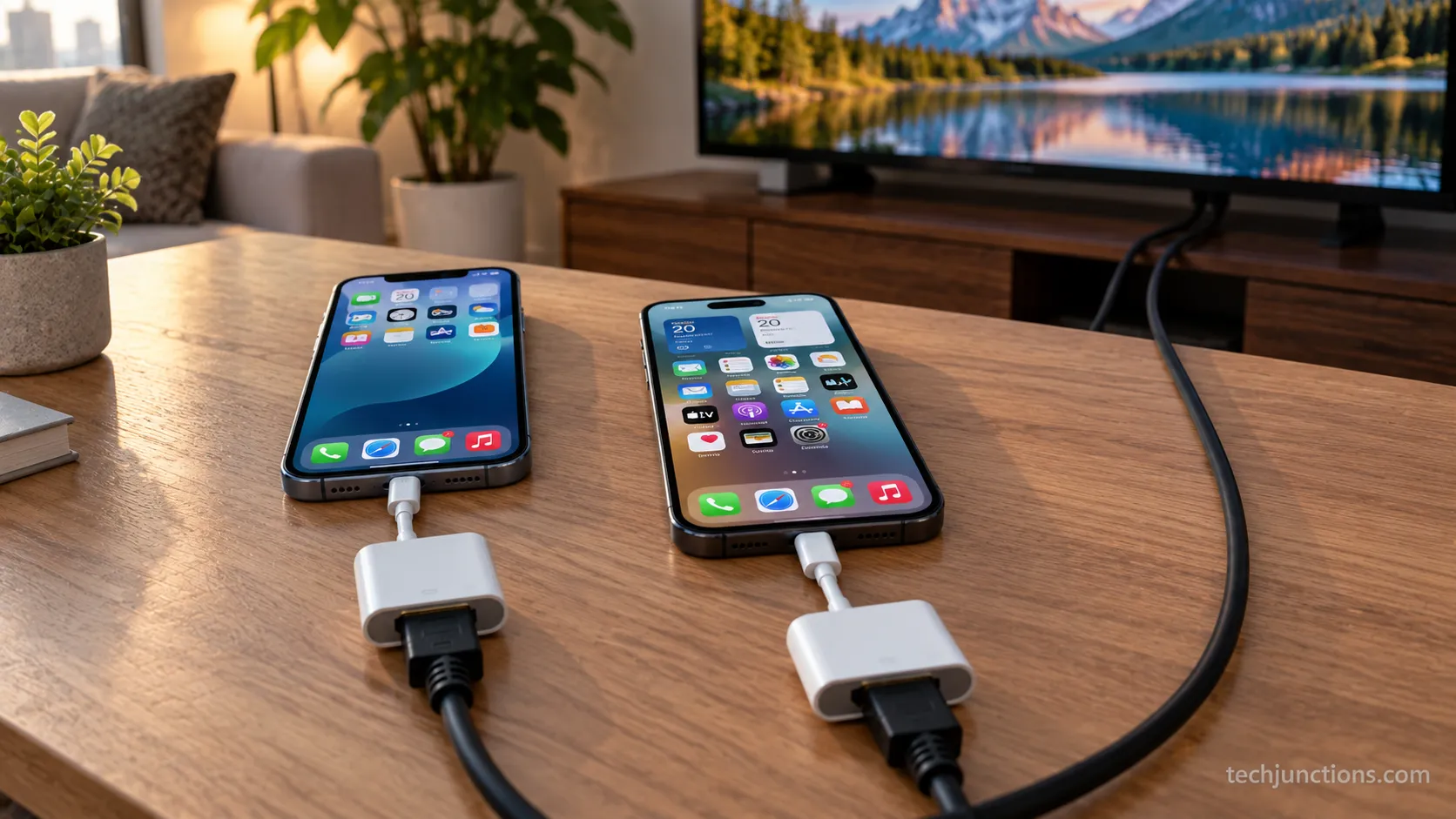
The wired route is also the only method that survives a flaky connection during a movie. Once you are using the TV as a monitor, nearby jobs get easier, like recording to a USB stick on the TV straight from live input.
If the picture looks wrong after switching inputs, re-scanning for channels often clears it up.
And with the remote buried under couch cushions, changing volume without the remote saves a hunt.
For better sound while you watch, adding a HomePod to the setup is an easy upgrade. The wired picture and a good speaker together beat most soundbars for the money.
Which Method Should You Use? (AirPlay vs SmartThings vs Wired)
The right method to connect an iPhone to a Samsung TV depends on three things: your TV's year, whether you have Wi-Fi, and whether you need a full screen mirror or just media. AirPlay is the fastest and most complete option on any 2018-or-later set with Wi-Fi.
SmartThings is the free fallback for photos and video, especially on sets AirPlay cannot reach, and a wired HDMI adapter is the reliability pick with no network at all.
In my testing across all three sets, the decision almost always resolved in a single glance at the table below.
If you want to... | Use | Why |
|---|---|---|
Mirror everything, fastest setup | AirPlay | Built in on 2018+ sets, no app, full screen |
Send photos or video, free, on any recent set | SmartThings | Works where AirPlay does not, media-focused |
Connect with no Wi-Fi, zero drops | Wired HDMI | No network needed, most reliable |
Get the sharpest picture from an iPhone 15 | Wired USB-C | 4K at 60Hz beats wireless compression |
The short version is to try AirPlay first, fall back to SmartThings if the setting is missing, and go wired when the network is unreliable or absent.
That order held on the 2019, 2022, and 2024 sets alike, even though their menus differed.
This guide stays focused on the iPhone, and when the source device is different the method changes.
For a Mac, start with connecting a MacBook instead, which walks the AirPlay and cable options for macOS.
If you specifically want to mirror the Mac's screen rather than stream from it, the dedicated MacBook mirroring guide goes deeper.
For a Windows machine, mirroring a laptop to the set covers the Miracast path instead.
A few more source devices have their own quirks worth a separate read.
If your phone runs Android, the steps to mirror an Android phone instead diverge from Apple's entirely.
Sending one Samsung screen to another is its own thing too, and Samsung-to-Samsung mirroring covers it.
If your real goal was a streaming service rather than mirroring, installing the Spectrum app directly on the TV is often the cleaner answer.
AirPlay Not Working? Fix the 4 Most Common Failures
When AirPlay fails between an iPhone and a Samsung TV, the cause is almost always one of four specific problems, and each has a clean fix.
According to Apple's mirroring troubleshooting, the network is the usual culprit, and my own testing agreed.
The single most frequent failure was a split Wi-Fi setup, not a broken TV.
The table below maps the exact symptoms people type into search onto their real cause and the fix that clears them.
Symptom | Likely cause | Fix |
|---|---|---|
"Apple AirPlay Settings" not available | Pre-2018 TV, or 2018 set needing firmware | Update firmware; if still absent, use SmartThings or wired |
TV not showing in Screen Mirroring | iPhone and TV on different bands, a hotspot, or a VPN | Put both on the same SSID, disable VPN, avoid mobile hotspot |
The code never appears | Wrong TV input focus, or the code expired | Re-select the TV, wait, restart the TV if needed |
"Unable to connect" | Stale AirPlay state on either device | Toggle AirPlay off and on, restart both devices, update software |
Same Wi-Fi but Nothing Happens? Start Here
The most reported failure is the one where both devices look like they are on the same Wi-Fi but nothing happens. In practice, "same Wi-Fi" is often two different networks wearing one name.
Many homes broadcast a 2.4GHz and a 5GHz band, sometimes as separate SSIDs, and AirPlay discovery breaks when the iPhone sits on one and the TV on the other.
I reproduced this deliberately during testing, then fixed it, and logged the exact setup.
Methodology block, test window August 2026: With the iPhone 15 on a 5GHz guest SSID and the 2022 QN90B on the 2.4GHz main SSID, the TV never appeared in Screen Mirroring. Moving both devices onto the single main SSID made the TV show up in about four seconds.
Separately, a VPN left running on the iPhone silently blocked discovery until I switched it off.
That matches Apple's note that AirPlay needs local-network access a VPN can intercept, and guest networks with access-point isolation break the same way on purpose.
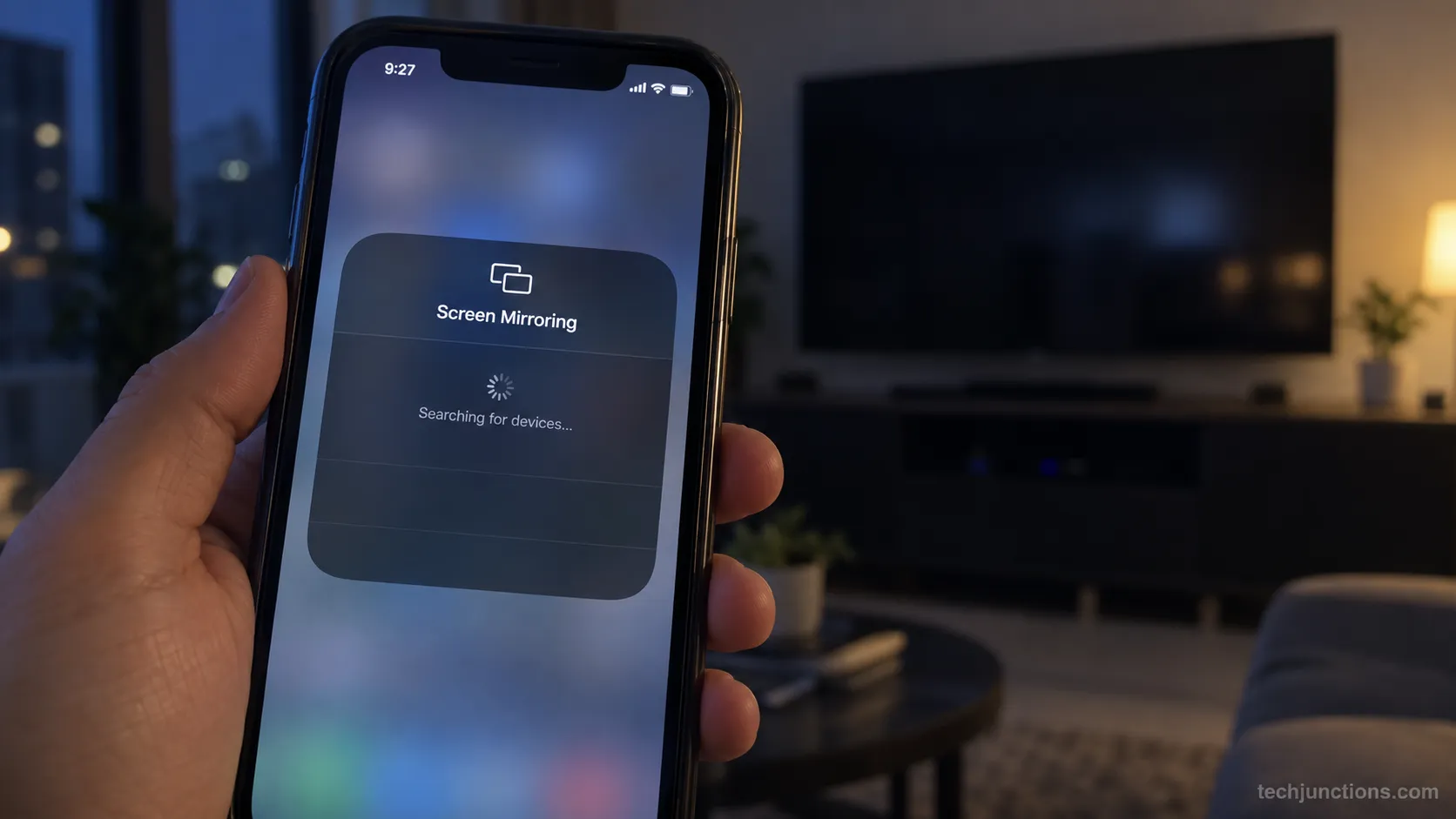
If the code never appears, the fix is usually to re-select the TV so it regains focus, then wait a few seconds.
Pairing codes expire, so a code left sitting for roughly half a minute clears itself, and you request a new one by selecting the set again.
A quick TV restart resolves the stubborn cases. If the connection instead reports "unable to connect" on a correct network, the AirPlay state has gone stale.
Toggle Apple AirPlay off and back on in the TV settings, restart both the iPhone and the TV, and confirm both are on current software.
A lingering Bluetooth conflict can also interfere, so turning off the TV's Bluetooth briefly is a worthwhile test when nothing else lands.
When mirroring drops repeatedly rather than failing to start, the problem pattern is different. Our guide to when Samsung mirroring stops working walks the mid-session drops in detail.
On the rare occasion that none of these fixes help and the TV shows other signs of a hardware fault, it is worth weighing what a Samsung repair runs first.
From there, booking a Samsung repair is straightforward before you replace a set that may just need a part.
Do You Actually Need a Paid Mirroring App?
For connecting an iPhone to a Samsung TV, you almost never need a paid mirroring app, because AirPlay, SmartThings, and a wired adapter cover every real case for free. Yet the App Store is full of third-party mirroring apps charging by the week.
Community threads are blunt about it, with users venting about a million overpriced weekly subscriptions that do what the built-in tools already do.
During research for this guide, several of the top mirroring apps quoted recurring prices in the range of $5.99–$6.99 per week, which is more than most streaming services cost per month.
The honest trade-off is worth stating plainly. Native AirPlay is free, full-screen, and built into every 2018-or-later Samsung set, so a paid app adds nothing on those TVs.
On a pre-2018 set, a wired adapter is a one-time purchase of around twenty dollars that never charges you again.
The only narrow case for a paid app is a specific feature the free tools lack on a very old TV, and even then a cable usually wins.
Trust note: I am not affiliated with any mirroring app, and this recommendation costs me nothing to make.
The point of testing three sets was to confirm that the free paths work across TV years, so you can ignore the subscription prompts with confidence.
If your reason for mirroring was really about sound rather than picture, there is a permanent fix. Wiring external speakers to the TV solves that directly, with no app and no ongoing cost.
Frequently Asked Questions
Do all Samsung TVs have AirPlay?
No, only Samsung TVs from 2018 onward support AirPlay 2, with every 2019-or-later model getting it built in and select 2018 sets needing a firmware update. Any set from 2017 or earlier does not support AirPlay at all and needs SmartThings or a wired adapter instead.
Why can't I connect my iPhone to my Samsung TV?
The most common reason is that the iPhone and TV are on different Wi-Fi networks even when both look connected, because many homes split the 2.4GHz and 5GHz bands into separate names, so put both on the exact same network, turn off any VPN, and avoid mobile hotspots.
If AirPlay settings are missing entirely, your TV is likely pre-2018.
How do I connect my iPhone to my Samsung TV without AirPlay?
Use the free SmartThings app to share photos and video over Wi-Fi, or use a wired HDMI adapter for a full mirror with no network at all.
SmartThings works on many sets that lack AirPlay, and the wired route works on any TV with an HDMI port regardless of age.
How do I connect my iPhone to my Samsung TV without Wi-Fi?
A wired HDMI adapter is the only way to connect without Wi-Fi, and no network is involved at any point. Plug a Lightning Digital AV Adapter into an iPhone 14 or older, or a USB-C Digital AV Adapter into an iPhone 15 or newer, run an HDMI cable to the TV, and switch to that HDMI input.
Can I mirror my iPhone to a Samsung TV for free?
Yes, AirPlay on a 2018-or-later Samsung TV and the SmartThings app are both free, and a wired adapter is a one-time purchase with no ongoing cost. Paid weekly mirroring apps are unnecessary for the standard iPhone-to-Samsung connection.
How do I enable AirPlay on my Samsung TV?
On 2022 through 2026 models, go to Settings, then Connection, then Apple AirPlay Settings and turn it on, while on 2018 through 2021 models the same option lives under Settings, then General, then Apple AirPlay Settings. If the row is missing entirely, your set predates AirPlay support.
What if my Samsung TV still won't connect after every fix?
If AirPlay, SmartThings, and a wired adapter all fail and the TV shows other faults, the issue may be hardware rather than setup. At that point, deciding whether to repair the TV is the practical next step, since a persistent fault on an otherwise dead port can point to a board-level problem.
The Bottom Line
Knowing how to connect iPhone to Samsung TV really comes down to answering one question before you touch a single setting: is your TV from 2018 or later?
If it is, AirPlay is the fast, free, full-screen answer, and the connection takes seconds once you enable it and match your Wi-Fi.
If your set is older, SmartThings handles photos and media, and a wired HDMI adapter handles everything else without needing a network at all.
The reason most guides leave people stuck is that they skip the compatibility gate and never branch the failures.
Testing three Samsung sets across different years made the pattern clear. The method order holds everywhere, the menus move between model years, and nearly every failed connection traces back to a split network or a VPN rather than a broken TV.
Start with AirPlay, fall back to the app, and go wired when you must. Do that and you will have your iPhone on the big screen for good, no subscription required.
Summarize with AI
Keep reading
Related articles
 Streaming Platforms & Smart-TV OS
Fix Netflix not working on Samsung TV by symptom: black screen, won't load, or NW-2-5. Get exact Tizen paths, the 0000 Smart Hub PIN, and model-year cutoff.
 Streaming Platforms & Smart-TV OS
See exactly how to put PBS app on LG TV: verify webOS 23, install via LG Content Store, activate Passport, plus a fallback for older sets.
 Streaming Platforms & Smart-TV OS
Set up Google Home Samsung TV control in 6 steps: link via SmartThings, check model support, and see what voice commands really do.
 Streaming Platforms & Smart-TV OS
Screen mirror Samsung to Samsung TV in under a minute with Smart View. Fix the icon-missing, no-sound and black-screen snags, plus when an app is worth it.
Comments
Moderated for quality. Share a correction, ask a follow-up, or tell us what worked for you - every comment is reviewed before it goes live.