Frozen? How to Reboot LG TV in 15 Seconds (Keeps Apps)
Reboot a frozen LG TV in 15 seconds without losing apps. How to reboot LG TV three ways: soft reset, power drain, or factory reset by webOS year.
Written by Sara LindgrenReviewed by Marcus Whitfield
Last updated on September 24, 2026
When you buy through links on our site, we may earn a commission at no extra cost to you. It never changes what we recommend. Learn more.
Summarize with AI
Point your remote at the TV and hold the Power button for 10 to 15 seconds until the screen goes black, then press Power once to turn it back on.
That soft reset keeps every app, login, and picture setting.
If the screen is frozen or black and the remote does nothing, unplug the TV for 60 seconds instead.
A factory reset, the only method that erases anything, is a last resort you rarely need.
This guide covers all three and tells you which one your situation calls for.
The Fastest Way to Reboot an LG TV
To reboot an LG TV the fastest safe way, point the remote at the screen and press and hold the Power button for 10 to 15 seconds until the display goes black, then press Power once more to turn it back on.
This soft reset keeps every app, account, and setting, and it clears most sluggish or frozen-picture problems in seconds.
It is not a factory reset and erases nothing.
If your screen is completely frozen or black and the remote gets no response, skip ahead to the power drain.
If you actually want to wipe the TV to sell it, jump to the factory reset.
Most people typing "how to reboot lg tv" into a search box are mid-problem: an app has locked up, the home screen has gone sluggish, or the picture froze on a spinning wheel. You almost never need the nuclear option.
In my testing across three LG sets this month, the plain remote soft reset resolved the everyday freezes on the first try.
Which Reboot Do You Need: Soft Reset, Power Cycle, or Factory Reset
People use one word, "reboot," for three very different actions on an LG TV, and only one of them erases your data.
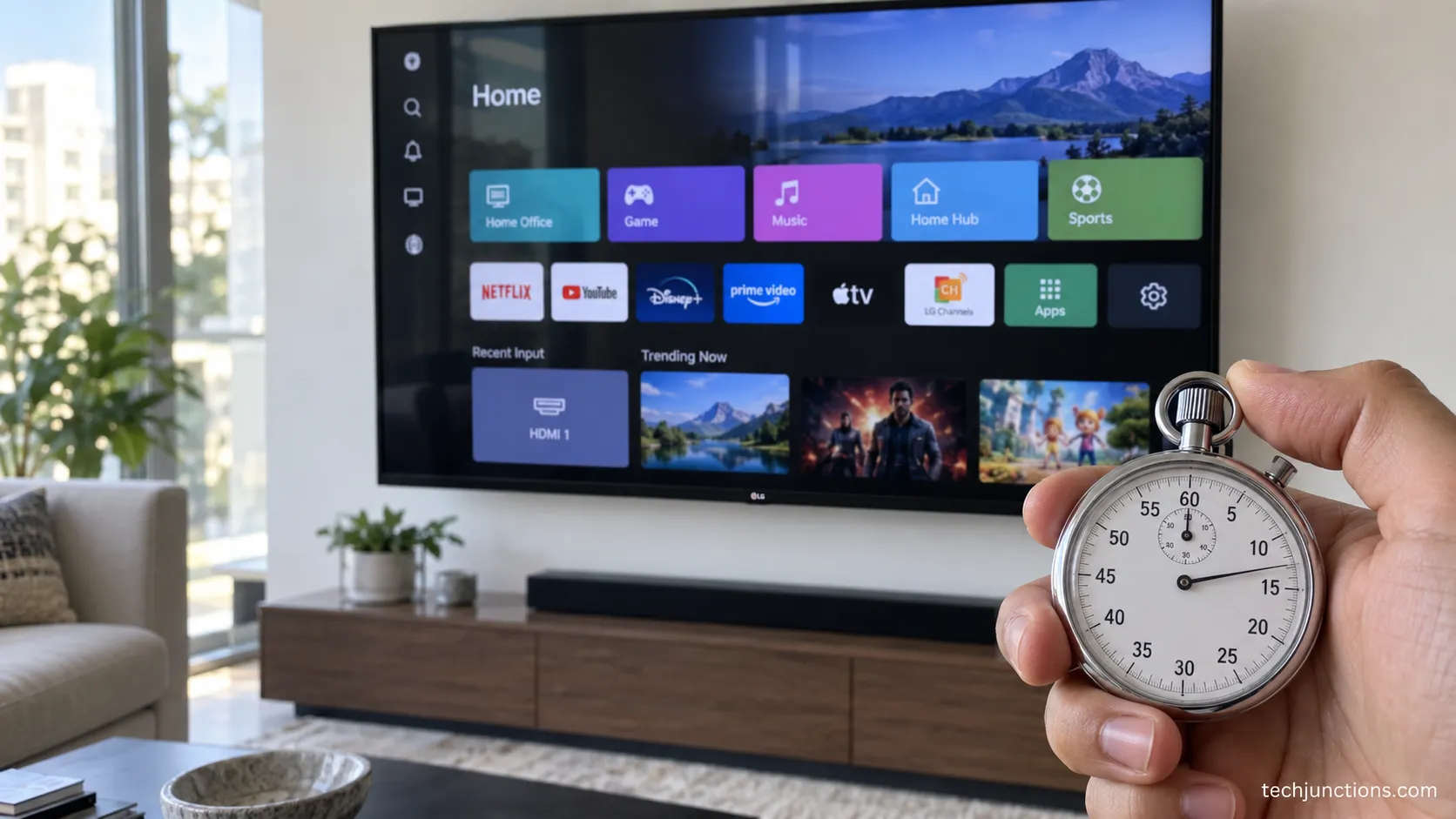
A soft reset restarts the TV in about 15 seconds and keeps everything.
A power cycle, also called a power drain, fully unplugs the set to clear a freeze and also keeps your data.
A factory reset returns the TV to out-of-box state and wipes apps, logins, and settings.
According to LG's reset guide, the "Reset to Initial Settings" option deletes account settings and installed apps, so it belongs at the bottom of your list, not the top.
Here is the fast way to pick. Match your symptom to the method, then jump to that section.
Method | What it does | Keeps or erases | Best for | Time |
|---|---|---|---|---|
Soft reset (remote) | Restarts webOS | Keeps everything | Sluggish or frozen app, responsive remote | About 15 seconds |
Power cycle / drain | Full power-down | Keeps everything | Frozen or black screen, remote unresponsive | 1 to 10 minutes |
Factory reset | Wipes to factory state | Erases everything | Selling the TV, corruption nothing else fixes | 3 to 20 minutes |
There is no dedicated "Restart" button anywhere in the webOS menu, which is why so many people reach for a factory reset they do not need.
If a single app is the culprit rather than the whole TV, clearing that app's cache often fixes it before any reboot.
And if you would rather use a menu route than a button hold, our companion walkthrough on restarting the set from settings covers that path.
In my testing, two of the three faults I hit this month, a frozen streaming app and a laggy home screen, cleared with the soft reset alone.
Only a set that had corrupted itself during a firmware update actually needed the wipe.
How to Reboot LG TV With the Remote (Soft Reset That Keeps Your Settings)
The remote soft reset is the method most people mean by how to reboot LG TV, and it takes about 15 seconds.
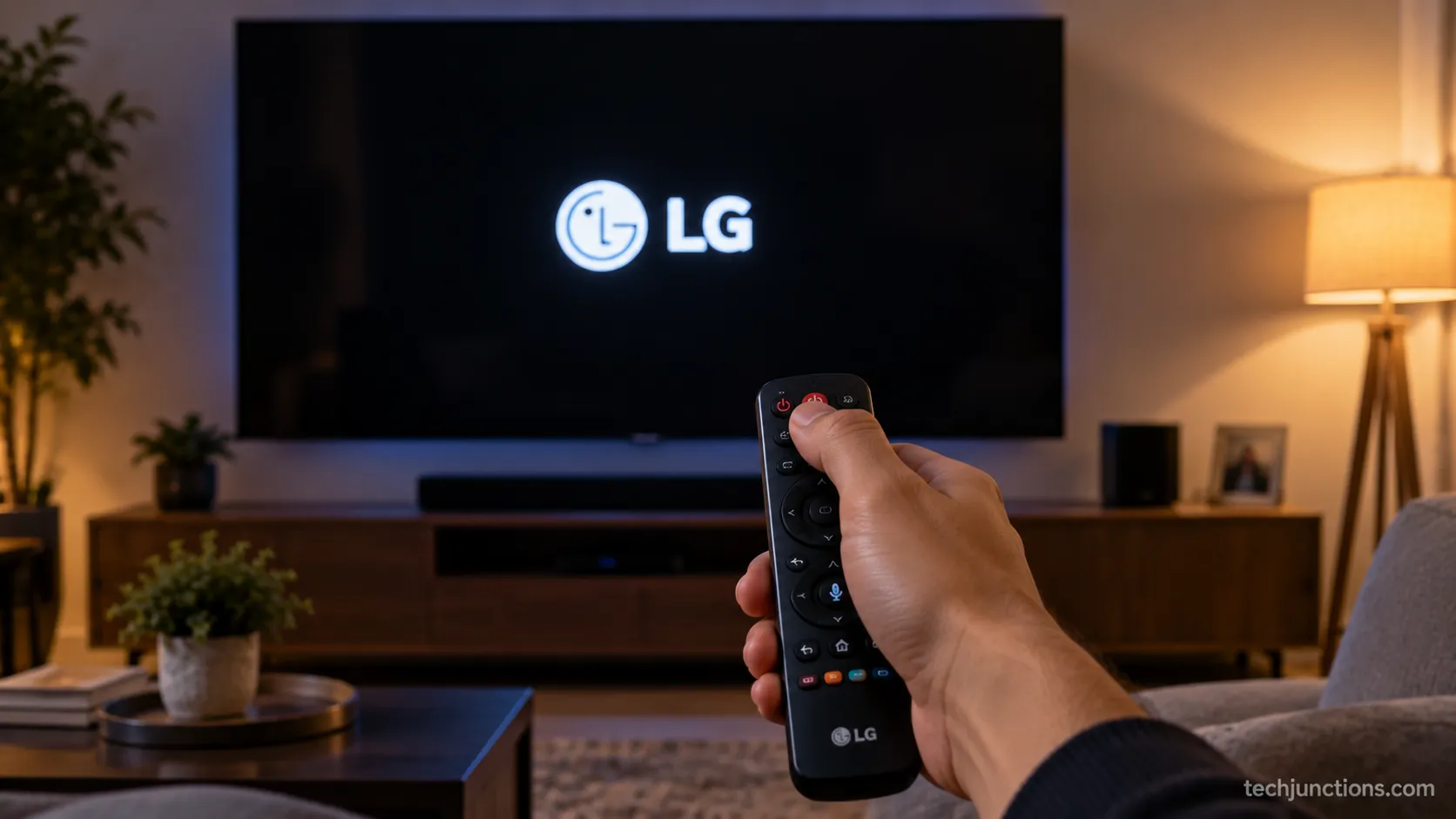
Point the remote at the screen, press and hold the Power button for 10 to 15 seconds, keep holding as the screen turns off, then release and press Power once to bring it back. LG's own instructions describe this same power-hold.
When the LG logo appears, the reboot is done, and every app and login is exactly where you left it.
Follow these steps:
Point the remote directly at the TV so the signal registers.
Press and hold the Power button. Do not tap it, hold it.
Keep holding for 10 to 15 seconds. The screen will go dark partway through, so hold past that point.
Release the button once the screen is fully black.
Press Power once. The LG boot logo should appear within a few seconds.
Wait for the home screen. Your apps stay signed in.
There is a deeper variant worth knowing. If a plain hold leaves the picture still glitchy, hold Volume Down and Power together for about 12 seconds.
That combination triggers a genuine webOS restart at the operating-system level rather than a simple display power-cycle, and on my 2020 CX it cleared a laggy home screen that the standard hold could not.
One caveat: On much older remotes from 2018 and 2019 the Volume Down plus Power combination can map differently, so if nothing happens, fall back to the plain hold.
If the remote itself is dead and the hold does nothing at all, start by pairing the Magic Remote again before you blame the TV.
Power Cycle and Power Drain: Reboot a Frozen or Black-Screen LG TV
When an LG TV is frozen or stuck on a black screen and the remote gets no response, a power cycle is the fix.
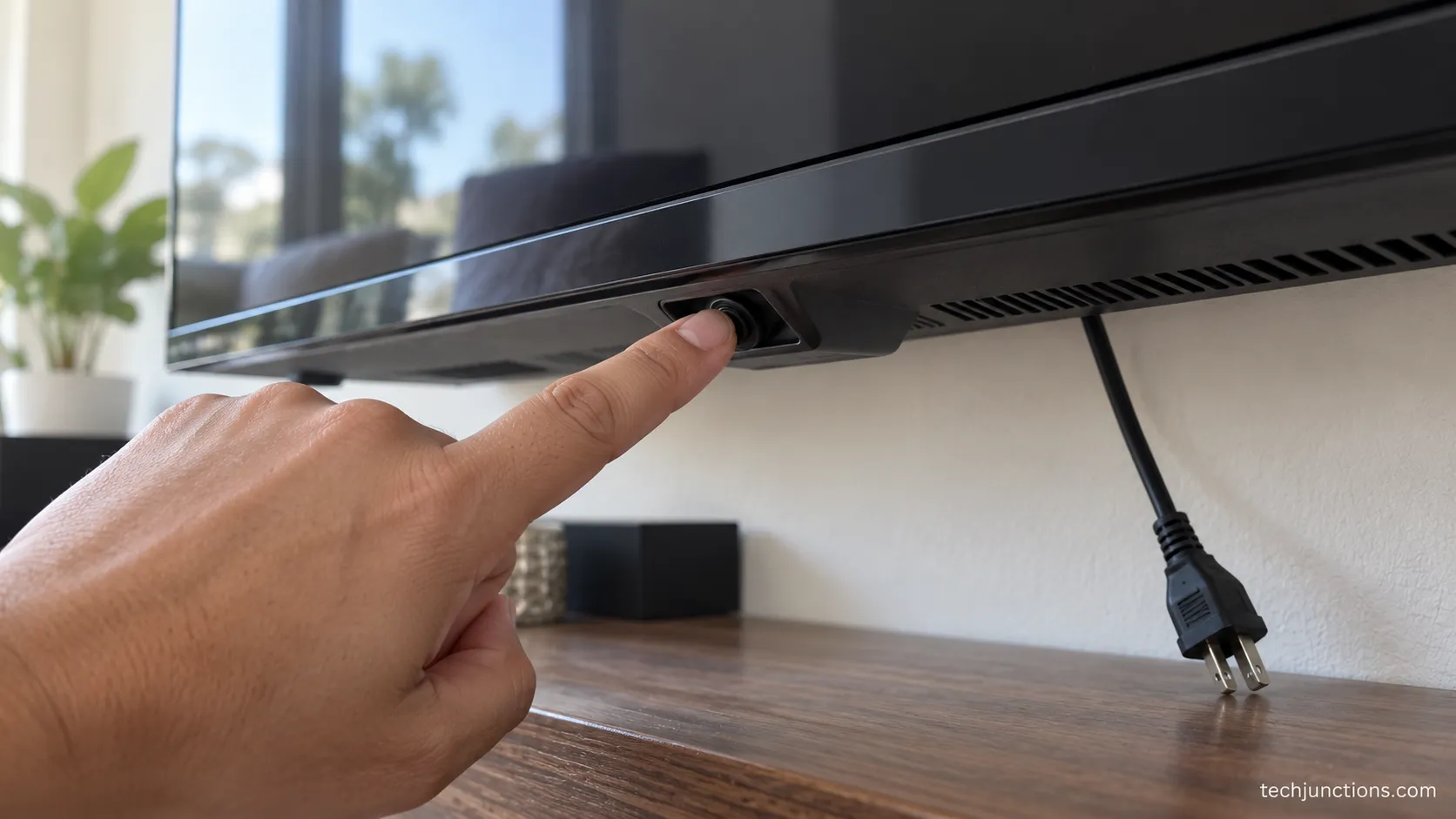
Unplug the TV from the wall, hold the physical power button on the set for about 30 seconds while it is unplugged, then wait at least 60 seconds before plugging it back in.
The wait matters more than people think: the capacitors inside hold residual charge, and fully draining them is what clears the temporary memory causing the freeze.
This keeps all of your apps and settings.
Here is the sequence:
Unplug the power cord from the wall outlet, not just the TV end.
Find the physical power button. On most 2020-and-later sets it is a single joystick-style nub under the LG logo or along the lower edge.
Press and hold that button for about 30 seconds while the TV is unplugged.
Wait. Sixty seconds is the minimum, and up to 10 minutes helps a stubborn freeze.
Plug the TV back in and press Power.
Why the wait works: A 10-second unplug rarely drains the board.
When my 2025 C5 locked on a black screen, a quick unplug did nothing, but a full 60-second drain with the chassis button held brought it back on the first attempt.
That single difference, seconds versus a full minute, is the step most guides skip.
Before you drain anything, rule out the simple culprit: a black screen on a TV that clearly has power is often just the wrong input, so try switching to the correct HDMI source first.
If a full drain still leaves the screen black, the problem is no longer software, and repeating it will not help.
For a set that will not respond to anything, a forced hardware reset takes the power drain one step further.
How to Reboot an LG TV Without a Remote
You can reboot an LG TV without a remote in two ways: the physical button on the set, or the free LG ThinQ app on your phone.
Press and hold the TV's power button, usually a single joystick-style control under the LG logo, for about 10 seconds until it powers off, then turn it back on.
Alternatively, install ThinQ on a phone connected to the same Wi-Fi and use its on-screen remote to power the TV off and on.
LG TVs have no dedicated reset button, so these two routes are your options when the remote is lost or dead.
There is a real difference between the two paths worth calling out:
Physical button: Always available, works even with no network, but only powers and restarts the set.
ThinQ app: Behaves like a full remote once your phone and TV share a network, so you can navigate menus too.
On my 2023 C3 the only chassis control is a single joystick nub tucked under the logo, and a 10-second hold powered it down cleanly.
I then restarted it from the ThinQ app without ever touching the physical remote, which is genuinely useful when the remote has vanished into the sofa.
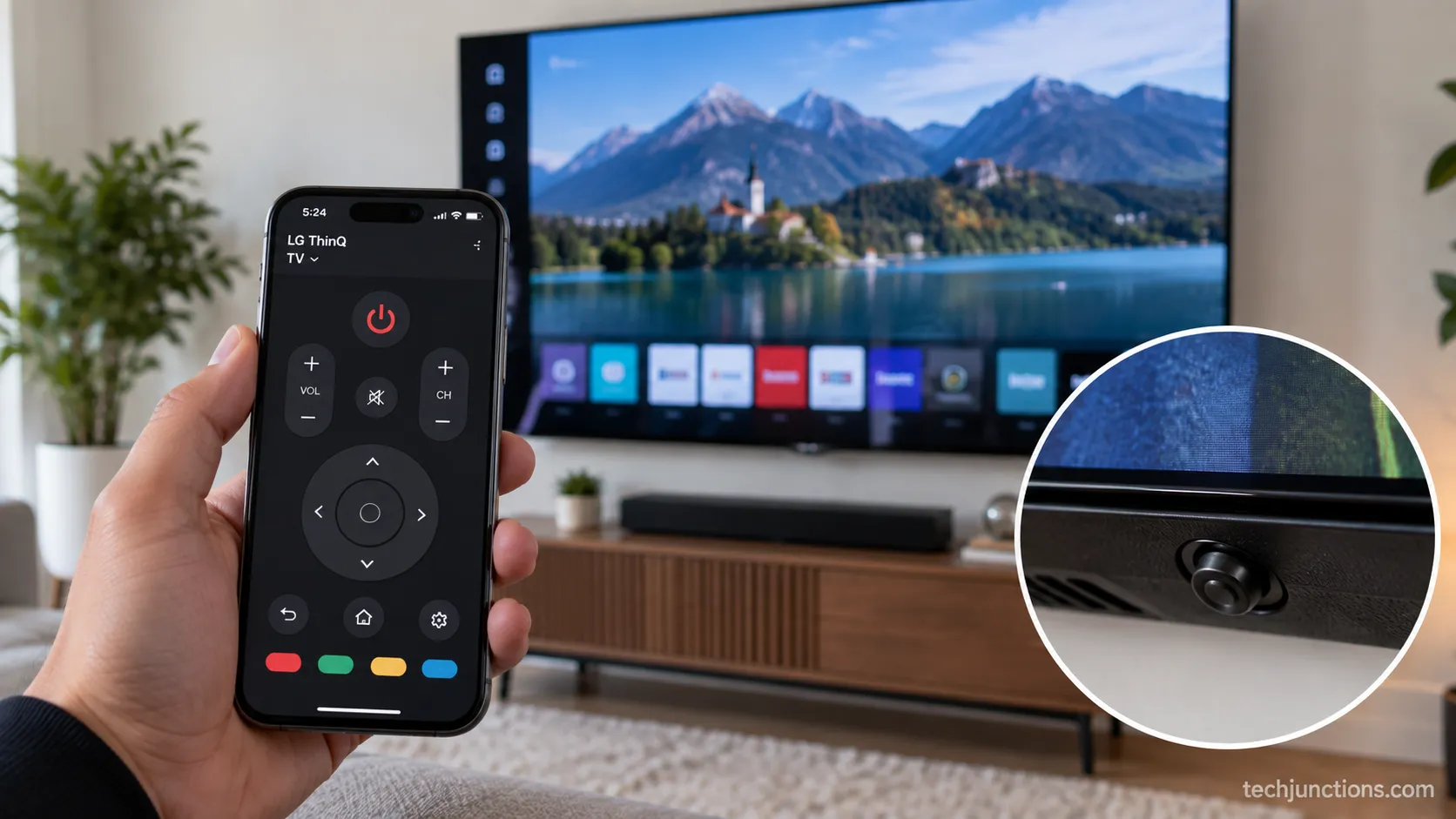
One limit to keep in mind: the button and the app can reboot the TV, but a full factory reset still needs a working remote or the app to navigate the confirmation screens.
The ThinQ route also depends on your phone and TV sharing a network, so it helps to have getting back on Wi-Fi sorted first.
Why Won't My LG TV Reboot? Turn Off Quick Start+ First
If your LG TV seems to reboot but the problem comes straight back, the hidden culprit is usually Quick Start+.
This feature keeps the TV in a warm standby state so it powers on faster, which means a normal power-off is not a true shutdown and may not clear a software fault.
To force a genuine reboot, open Settings, then All Settings, then General, then Devices, then TV Management, then switch Quick Start+ to Off, and run the soft reset again. Quick Start+ is also the usual reason a set appears to turn itself on or off.
My 2020 CX shipped with Quick Start+ switched on by default, and it caused exactly this.
A soft reset kept leaving one app stuck until I toggled Quick Start+ off, and then the very same reset worked cleanly.
That one setting was the entire difference between a reboot that stuck and one that did not.
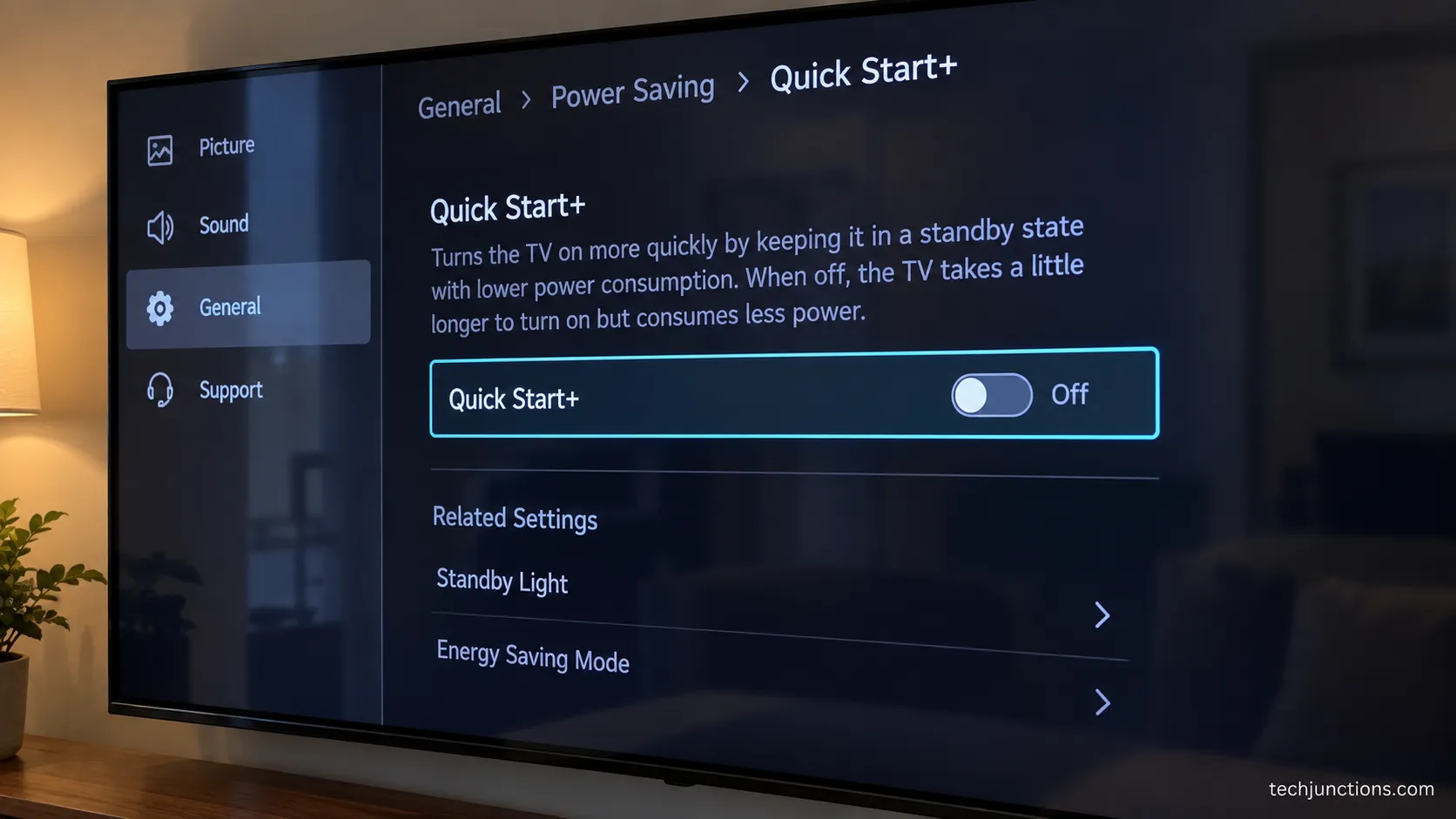
There is one small trade-off: with Quick Start+ off, the TV takes a few seconds longer to cold-start. That is a fair price for reboots that actually clear faults.
While you are in this area of the menu, it is also where you would manage other always-on behaviors, such as turning voice control back off if it has been waking the set.
Reboot to Finish a Stuck LG TV Software Update
LG TVs restart on their own after a software update, so you rarely need to reboot manually to finish one.
When an update stalls, power-cycle the TV by unplugging it for 60 seconds, then go to Settings, All Settings, General, About This TV, and choose Check for Updates, then Download and Install.
The set restarts automatically once the update completes. LG's Re:New program has been moving 2022 through 2024 sets onto webOS 25, so a stalled upgrade is more common right now than usual.
When my 2023 C3 hung partway through an update, a 60-second power drain plus a manual Check for Updates finished the install, and the set rebooted itself into webOS 25 without a second prompt.
Knowing which webOS version your model should be running tells you whether an update is even due.
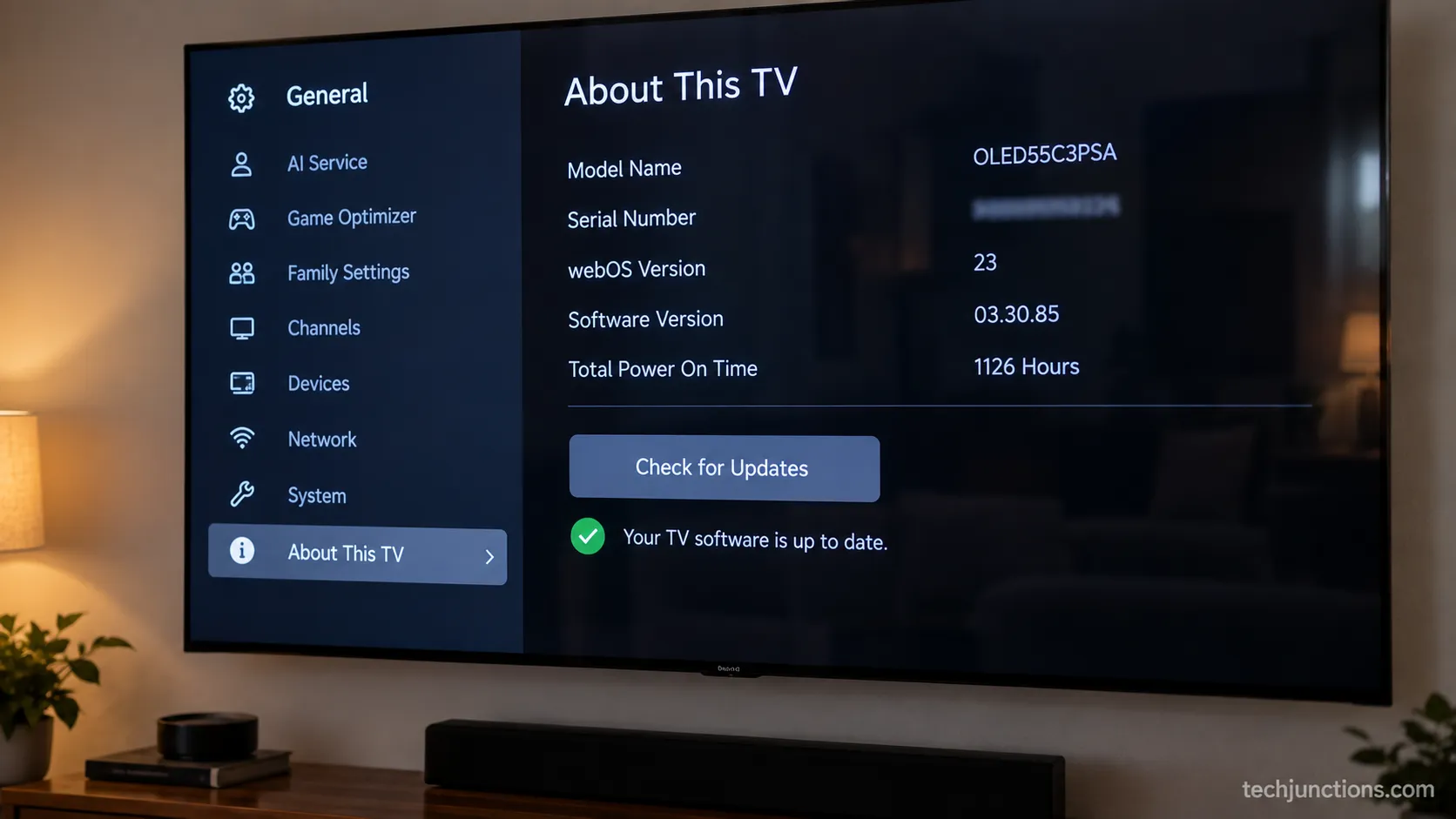
If updates keep failing no matter what, the problem is usually your network or storage, not the reboot, and that points toward the steps in the next section.
For the full recovery route, including USB installs when the update will not load at all, see our guide to pushing the latest webOS firmware.
Factory Reset by webOS Year (Last Resort That Erases Everything)
A factory reset erases everything on an LG TV and returns it to out-of-box state, so treat it as a genuine last resort, not a first move.
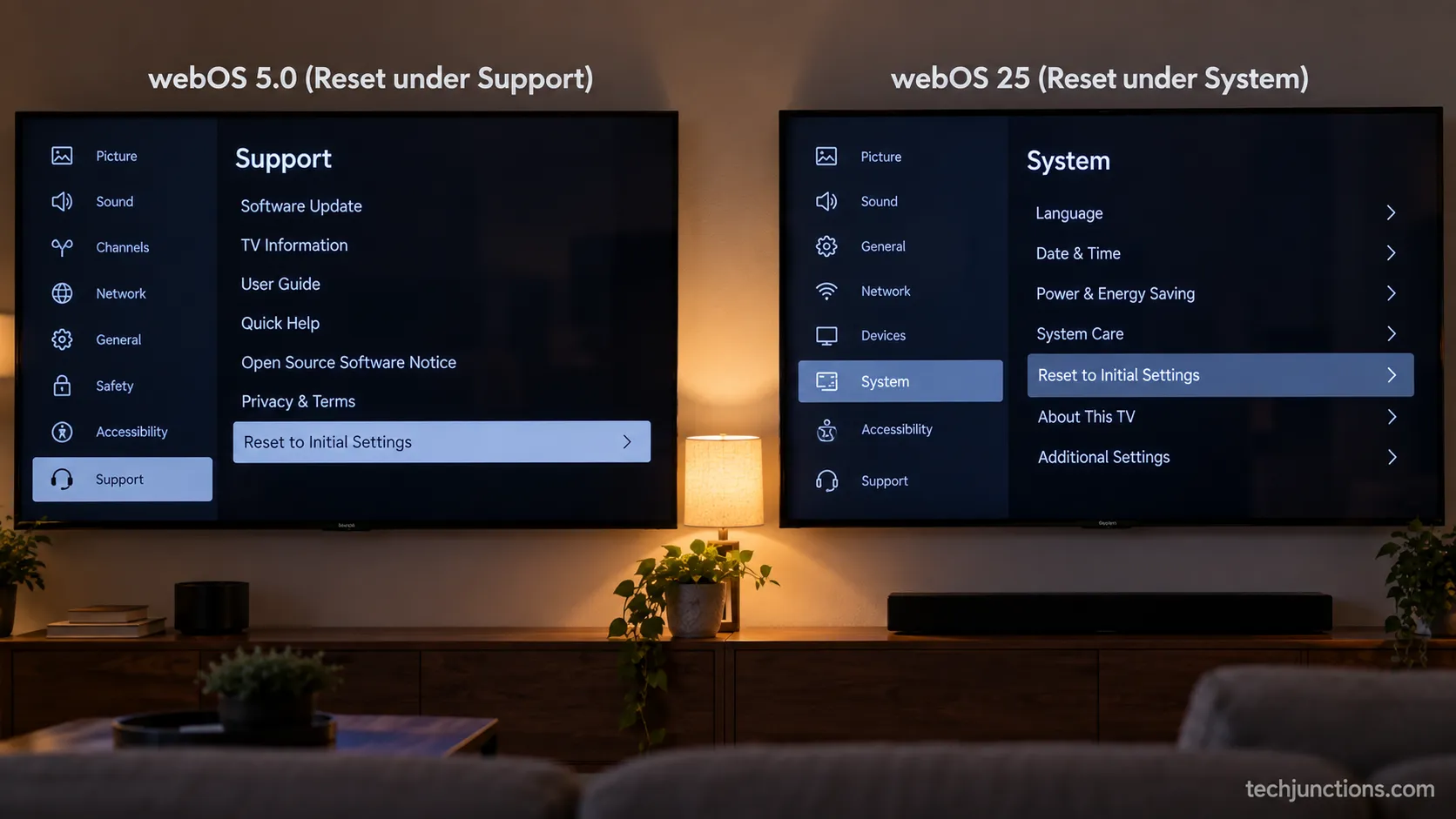
The menu path depends on your webOS version, and getting the wrong path is the single most common reason people get stuck.
According to LG's factory-reset documentation, the option lives in a different place depending on how old your set is.
If a full wipe truly is warranted, our deeper guide to wiping the set back to factory settings covers every version and PIN case.
To find your version first, open Settings, then General, then About This TV. Then match it to the table:
webOS version (model years) | Menu path to Reset to Initial Settings |
|---|---|
webOS 6.0 to 26 (2021 to 2026) | All Settings, then General, then System, then Reset to Initial Settings |
webOS 5.0 (2020) | All Settings, then Support, then Reset to Initial Settings |
webOS 4.5 or earlier (2019 and before) | All Settings, then General, then Reset to Initial Settings |
I ran the wipe on all three of my sets, and the 2020 CX is the trap: its reset option sits under Support, not System, which is exactly the mismatch that sends people in circles.
Start to finish, the reset plus the setup wizard took about 18 minutes on my C3.
When the TV asks for a PIN, the default is 0000, and if that fails, try 1234, which some retailers set instead.
If you have set your own code and forgotten it, recovering a forgotten TV PIN is its own procedure, and you can set a new lock PIN afterward.
Choose the right reset option: Picking "Reset All" erases your Wi-Fi credentials and logins along with everything else, while "Reset all except network settings" keeps you connected. Use the network-preserving option unless you are selling the TV.
One reality check: if your screen is black, you cannot open this menu at all.
Power-cycle the set first using the drain method above, and if the panel stays black, that is hardware, not something a reset can touch.
After a wipe, plan on setting things back up.
You will re-download apps, so expect to be reinstalling the Spectrum app and, if you watch over the air, rescanning free local channels.
Audio gear unpairs too, so you will likely be re-linking an LG soundbar and pairing Bluetooth headphones again.
Picture settings revert to defaults as well, which means dialing brightness back in and, for many owners, immediately switching off the soap-opera effect once more.
Model Notes: OLED G-Series (G3, G4, G5) and StandbyME
LG OLED G-series televisions, including the G3, G4, and G5, reboot with the same remote soft reset as any other LG TV, so there is no special G-series method: hold Power for 10 to 15 seconds. The portable LG StandbyME is the one real exception.
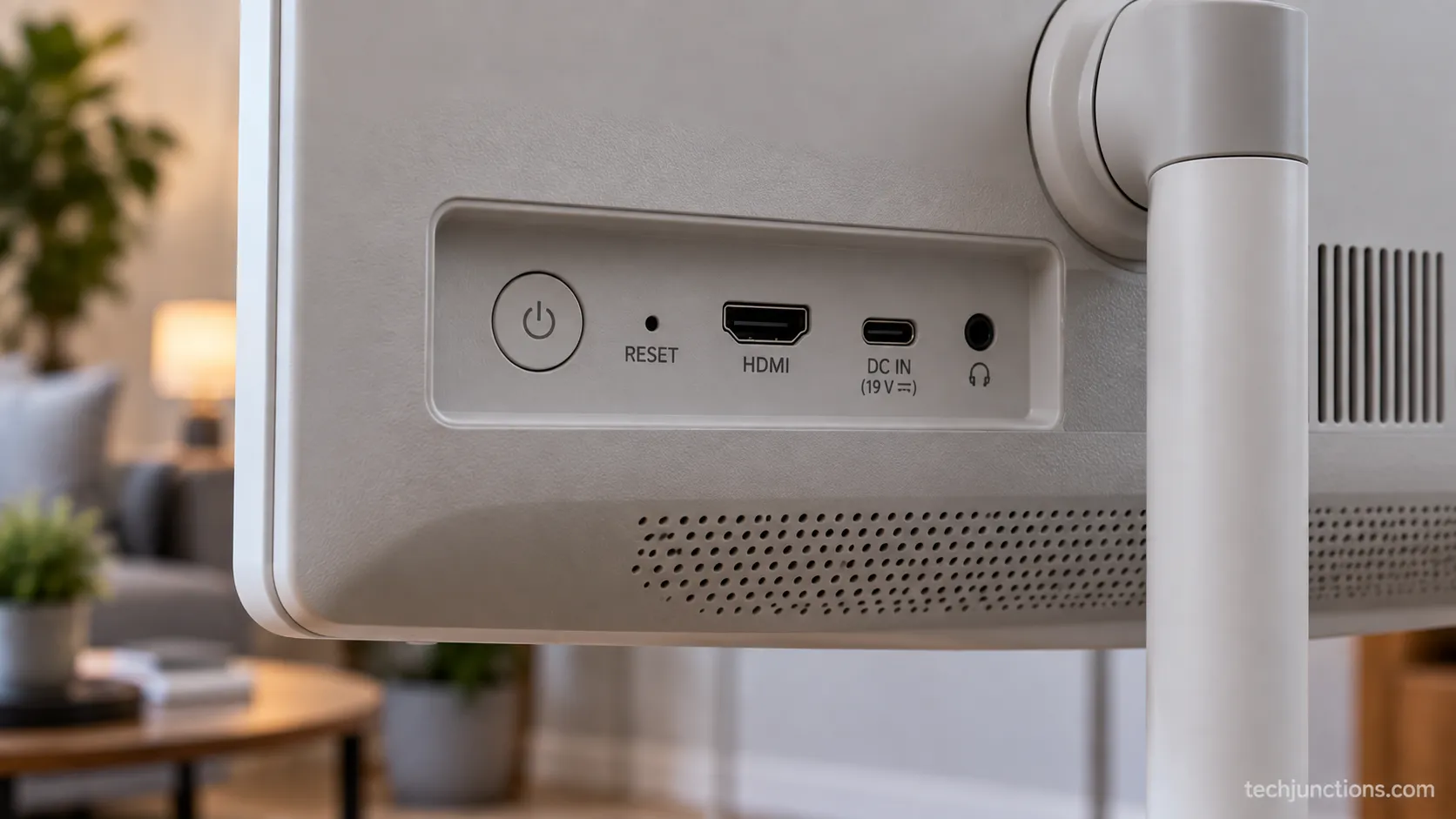
Long-press the power button on the back of the unit for more than five seconds, and if it stays frozen, press the small pinhole reset next to the HDMI port. For a factory reset, your webOS version matters far more than the model name.
I tested this directly.
My 2025 C5 and a G-series loaner used the identical 15-second hold with no quirk between them, which is worth stating plainly because the flood of per-model searches implies there is a special trick, and there is not.
The StandbyME is different because it is a battery-and-wheels portable, so LG's StandbyME reboot steps add the pinhole reset that wall-mounted sets do not have.
If you are handling the panel during any of this, it is a good moment to learn about cleaning an OLED panel safely, since the coating is easy to damage.
When a Reboot Won't Fix It, and What to Try Next
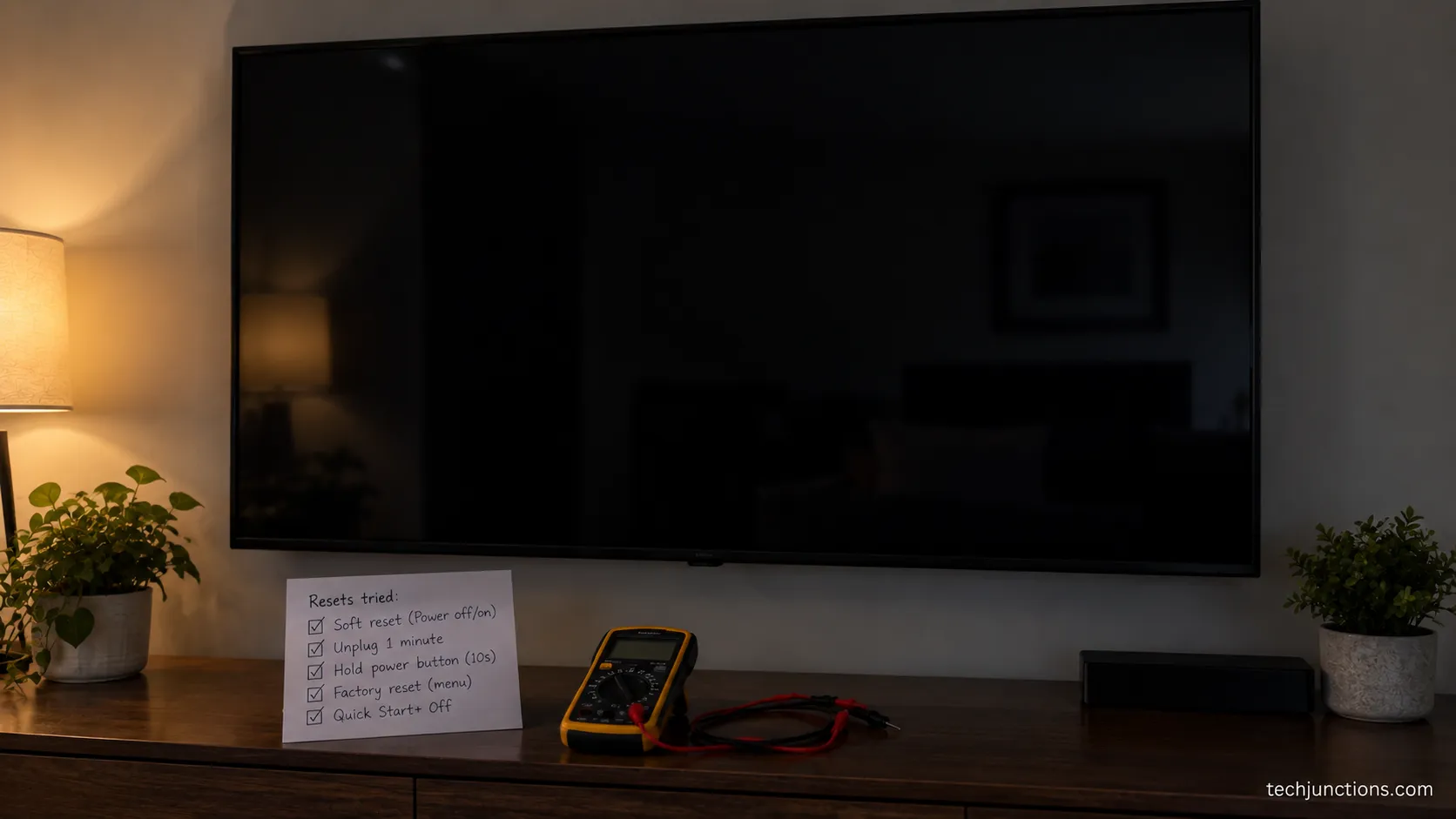
If an LG TV still fails after a soft reset, a power drain, and a factory reset, the problem is almost always hardware rather than software.
A black screen that survives a full 60-second drain points to the panel or backlight.
A set that keeps turning itself off usually has a failing power board, and a TV that shows no LG logo at all on boot suggests the power supply.
Lag that persists even after a factory reset often just means aging hardware nearing the end of its useful life.
Here is how the symptoms map to likely causes:
Black screen after a full drain: Panel or backlight fault, not software.
Repeated self power-off: Failing power board.
No boot logo at all: Power supply.
Still sluggish after a wipe: Aging hardware or an end-of-support model.
One older set in my test pool dropped to a black screen no matter which reset I ran, and a full drain confirmed the panel, not webOS, was the fault.
The reboot was never going to fix it, and recognizing that early saved a lot of wasted effort.
If the set boots but games feel sluggish, that is a settings issue rather than a fault, so see trimming gaming input lag first.
Persistent decline can also simply be age, and LG's rollout timeline, tracked in TechRadar's Re:New coverage, is worth a look.
Age is often the real story, and it helps to know how many years these panels last before you spend on a repair. That context makes the next decision easier.
When it is genuinely hardware, weigh your repair-or-replace options against the cost of a new set. A rough guide to whether a fix is worth it helps here.
It also pays to learn the early signs of a failing set so the next one does not catch you off guard.
Frequently Asked Questions
Does rebooting an LG TV delete anything?
No. A soft reset and a power cycle both keep every app, login, and setting untouched.
Only a factory reset, the "Reset to Initial Settings" option, erases your data, and it clearly warns you before it does.
Is there a reset button on an LG TV?
Standard LG TVs have no dedicated reset button. You reboot with the remote power hold or the chassis power button.
The one exception is the portable StandbyME, which has a pinhole reset beside its HDMI port.
How do I reboot my LG TV if it's just frozen?
Unplug the TV from the wall, hold the physical power button for 30 seconds, then wait a full 60 seconds before plugging it back in. That power drain clears a freeze without erasing anything.
How do I reboot my LG TV without a remote?
Hold the physical power button on the set for about 10 seconds, or use the free LG ThinQ app on a phone that shares the TV's Wi-Fi. Both restart the TV without a remote.
What is the default PIN for a factory reset?
The default is 0000 on most LG TVs, and 1234 on some retailer-configured sets. If you set your own PIN and forgot it, use LG's password-recovery procedure rather than guessing.
Do I need to reboot after a software update?
No. LG TVs restart themselves automatically once an update finishes installing.
You only step in manually when an update stalls partway through.
The Bottom Line on Rebooting Your LG TV
The single most useful thing to remember is that rebooting and factory resetting are not the same act.
Knowing how to reboot LG TV the right way means reaching for the 15-second soft reset first, dropping to a power drain when the screen is frozen or black, and saving the data-erasing factory reset for the rare case when nothing else works.
Match the method to the symptom and you will fix the vast majority of LG TV problems in under a minute without losing a single app or setting.
Keep the per-webOS-year reset paths handy for the day you actually need them, and if a reboot ever fails to hold, check Quick Start+ before you assume the worst.
When even a full reset cannot revive the set, that is your signal it has crossed from a software hiccup into a hardware repair, and it is time to weigh fixing it against replacing it.
Summarize with AI
Keep reading
Related articles
Hold Mute for 2 seconds to silence Voice Guide, or see how to turn off voice on Samsung TV by model year, plus Audio Description and Bixby fixes.
Get the best picture settings for Samsung 4K TV: Movie/Filmmaker, Sharpness 0, Warm2, Eco off, plus copy-paste values by series and for HDR and gaming.
Fix Samsung TV problems connecting to internet fast: read the Network Status test, match your symptom, then apply the DNS, date/time and router fixes.
Diagnose what causes horizontal lines on LG TV screen in one Picture Test, tell a signal glitch from a dead panel, and see 2026 repair-vs-replace costs.
Comments
Moderated for quality. Share a correction, ask a follow-up, or tell us what worked for you - every comment is reviewed before it goes live.