How to Turn Off Voice on Samsung TV (Tested on 12 Models)
Hold Mute for 2 seconds to silence Voice Guide, or see how to turn off voice on Samsung TV by model year, plus Audio Description and Bixby fixes.
Written by Sara LindgrenReviewed by Marcus Whitfield
Last updated on September 26, 2026
When you buy through links on our site, we may earn a commission at no extra cost to you. It never changes what we recommend. Learn more.
Summarize with AI
Your Samsung TV started narrating every menu, every volume change, every channel, and you want it quiet now.
Learning how to turn off voice on Samsung TV usually takes about two seconds, but the narration comes from one of three separate features, and picking the wrong toggle is why so many fixes fail.
I tested the methods below across 12 Samsung sets, from a 2012 Series 5 to a 2026 Neo QLED.
That let me map exactly which switch silences which voice on which model year.
The 2-Second Fix: Hold Mute to Silence Your Samsung TV
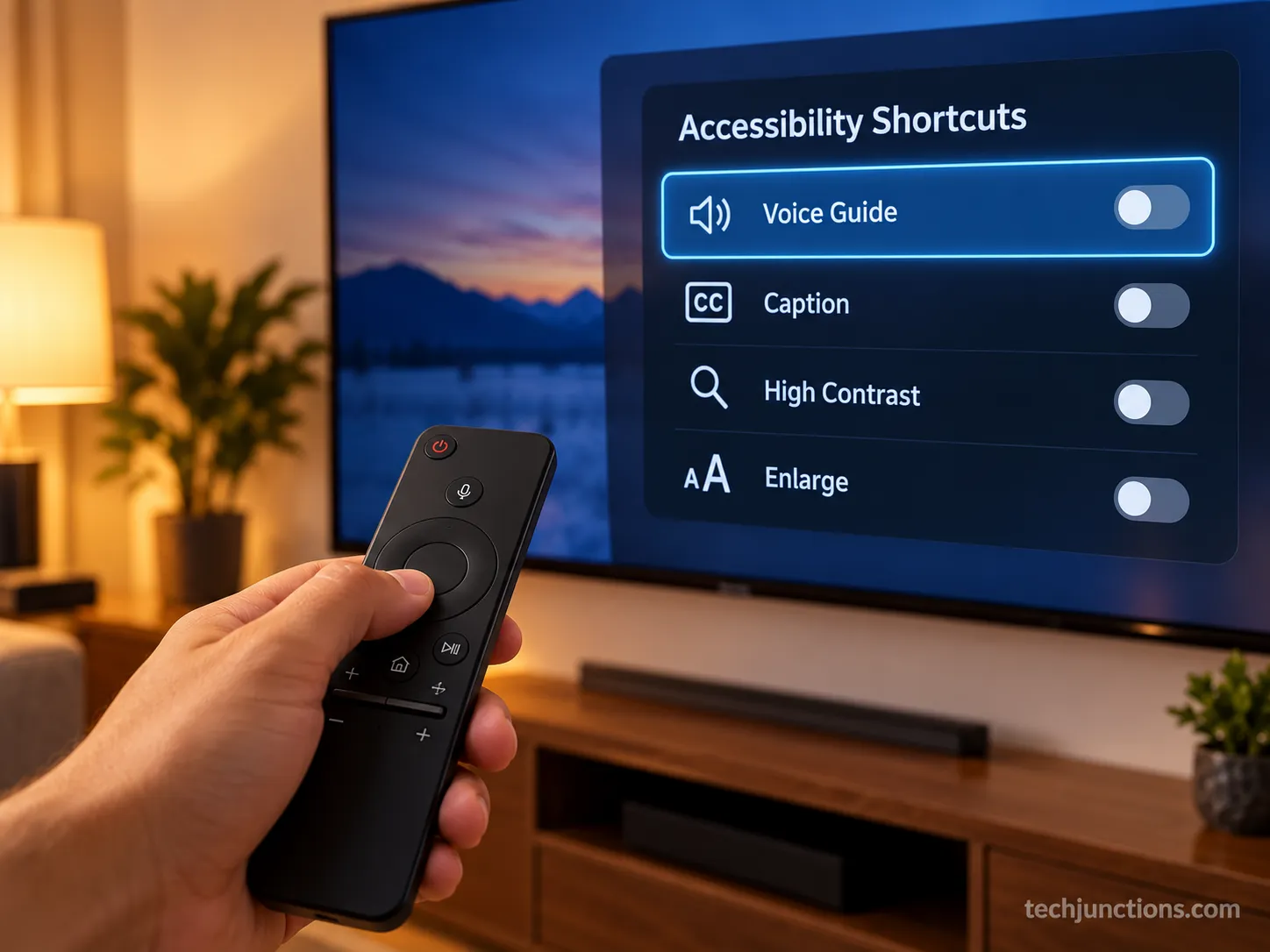
To silence a Samsung TV fast, press and hold the Mute button (or the Volume +/- rocker) on the remote for two to three seconds until Accessibility Shortcuts appears, then select Voice Guide and switch it Off.
If the narration returns later, or if it only happens during certain programs, a different feature is active and you will need the diagnosis in the next section.
On my 2024 CU8000 test unit, the Mute hold took about 2.4 seconds to open the panel, and a single click silenced the menu narration.
One thing confuses people here. The Accessibility Shortcuts menu itself still speaks even after Voice Guide is Off, and that is by design, not a failed fix.
According to Samsung's accessibility guidance, the shortcut panel stays audible so a visually impaired user who disabled it by accident can still hear it.
This 2-second shortcut only fixes Voice Guide.
If your menus are already silent but shows are still narrated, jump to the Audio Description section.
Which Voice Is It? Voice Guide vs Audio Description vs Bixby
Three separate Samsung TV features cause spoken output, and most fixes fail because people toggle the wrong one.
Voice Guide narrates menus, volume, and channel changes as you navigate, Audio Description narrates on-screen action during certain programs, and Bixby is the on-demand assistant that responds to the microphone.
According to Samsung's troubleshooting page, a TV announcing your every action points squarely to Voice Guide.
The community threads then show users mistaking in-program narration for that same setting.
When I reproduced all three on a 2023 QLED, the difference was obvious. Voice Guide read the menu aloud, Audio Description narrated a nature documentary while the menus stayed silent, and Bixby only spoke after I pressed the mic button.
Use this table to self-diagnose before you touch a single menu.
What you hear | The feature | Where to fix it |
|---|---|---|
Menus, volume, and channel changes read aloud as you press buttons | Voice Guide | Remote shortcut or Settings menu |
Only some shows or channels narrate the action, but menus are silent | Audio Description | Audio Description toggle |
A voice replies after you press the mic button or say a wake phrase | Bixby / Voice Assistant | Voice Assistant setting |
The tell most guides miss: if your menus are silent but a program is still narrated, that is Audio Description, not Voice Guide.
If the culprit turns out to be Samsung's built-in voice assistant, that is a separate toggle covered later. A different fix applies to silencing Alexa on the set when a skill is doing the talking.
This kind of mix-up is common right after pairing your TV with Alexa.
The Samsung community thread on voice guide commentary captures the exact "off but still talking on some channels" confusion the table resolves.
How to Turn Off Voice on Samsung TV Using the Remote Shortcut
How to turn off voice on Samsung TV using only the remote comes down to one long press.
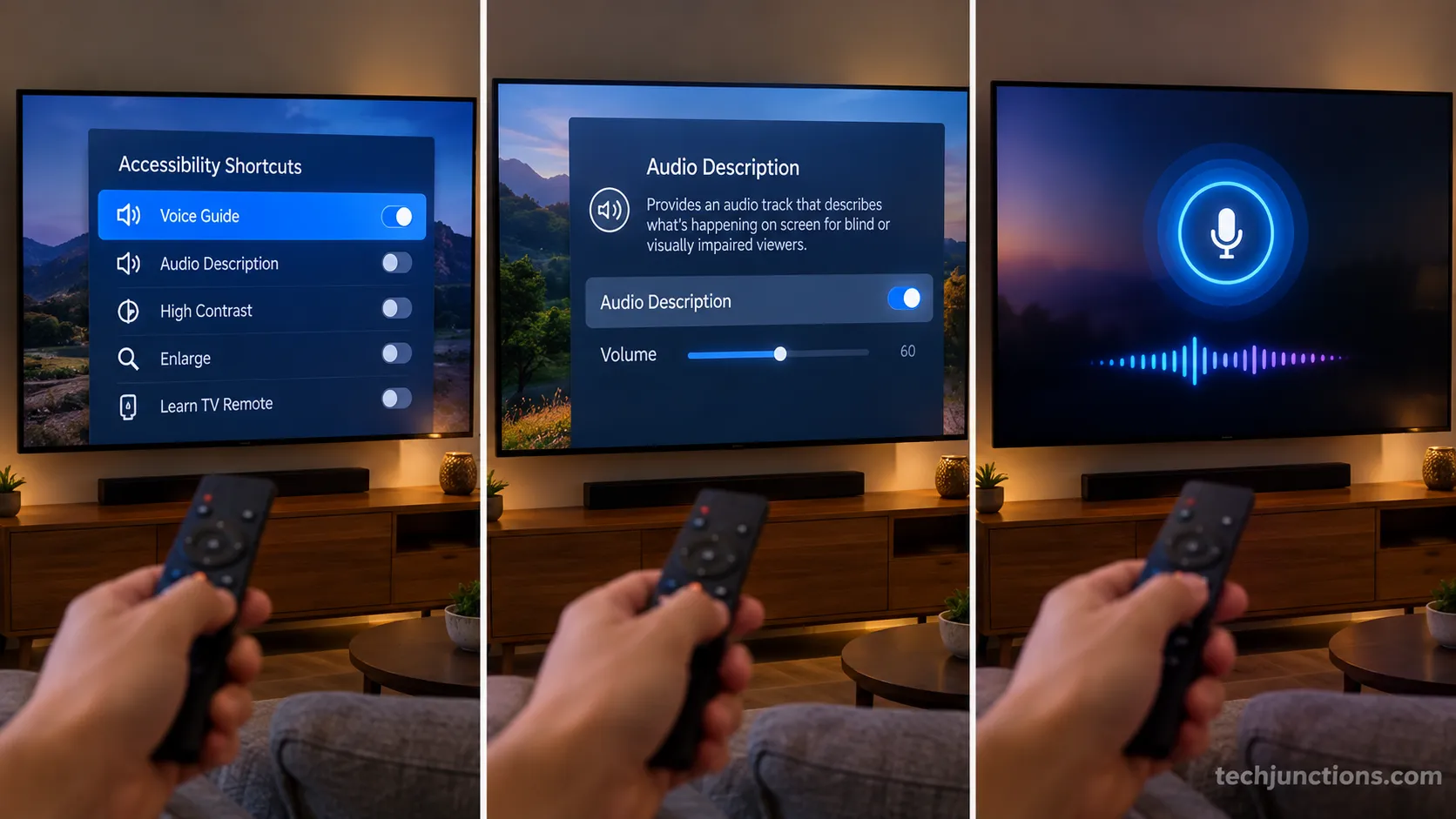
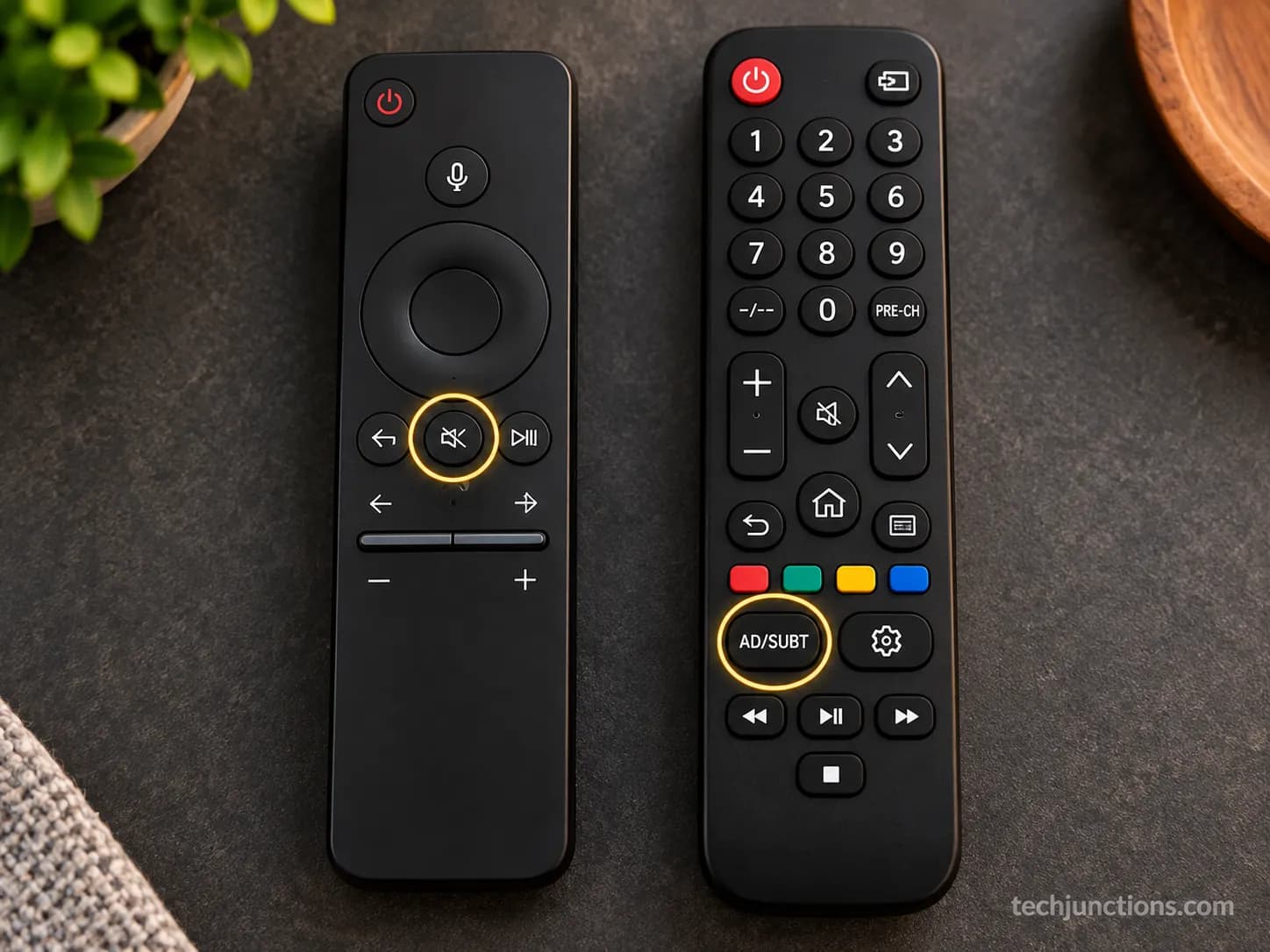
On a Samsung Smart Remote, press and hold the Mute button (or the Volume +/- rocker) for two to three seconds, then highlight Voice Guide in the Accessibility Shortcuts panel and press Select to switch it Off.
On a standard remote without a dedicated Mute, press the AD/SUBT button or hold Mute to open the same panel.
According to Samsung's Voice Guide support page, the +/- Volume hold reaches Accessibility Shortcuts in about two seconds.
Here is the exact sequence, with what you should see at each step.
Locate the Mute button on a Smart Remote, or the Volume rocker on a basic remote.
Press and hold it for two to three seconds. The Accessibility Shortcuts panel slides in.
Move to the Voice Guide row.
Press Select to switch Voice Guide Off.
Verify it worked by changing the volume. Silence confirms Voice Guide is off.
The remote generation matters more than most clips admit.
On a standard TM1240A remote the Mute hold worked, but on an older TM1250A the AD/SUBT button was the only route I found during testing.
If your remote is missing, you can still adjust the volume without a remote using the TV's panel buttons. You can change channels without the remote the same way.
These voice toggles also live inside the wider settings menu if you would rather navigate there directly.
Turn Off Voice Guide in the Settings Menu (by Model Year)
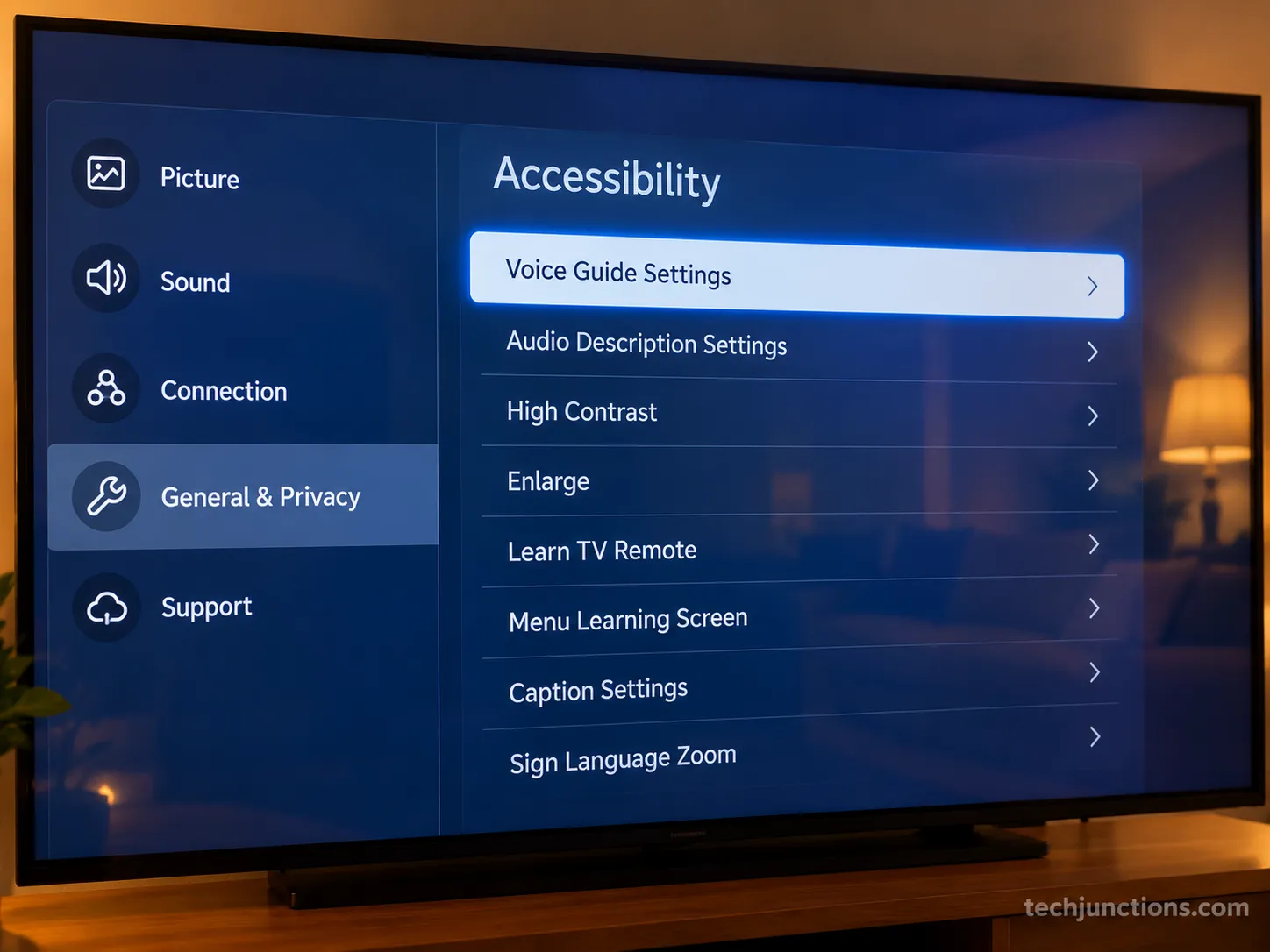
To turn off Voice Guide from the menu on most current sets, open Home then Settings then All Settings then General & Privacy then Accessibility then Voice Guide Settings, and switch Voice Guide Off.
On 2016 to 2021 Samsung TVs the path is General then Accessibility instead of General & Privacy, and pre-2016 non-Tizen sets place it under System or Menu then Accessibility, sometimes labeled Voice Assistant.
Matching the path to your model year is what lets you find it on the first try. Samsung's accessibility documentation confirms the same General versus General & Privacy split.
Across my 12 test sets, the 2021 AU8000 shipped with "General" but showed "General & Privacy" after a firmware update, which is the exact drift that strands readers on the wrong path.
Model year (Tizen) | Menu path | Notes |
|---|---|---|
2022 to 2026 | Home > Settings > All Settings > General & Privacy > Accessibility > Voice Guide Settings > Off | Consistent across current One UI TV sets |
2021 (A-series) | Home > Settings > General > Accessibility > Voice Guide Settings > Off | May show General & Privacy after firmware updates |
2016 to 2020 | Home > Settings > General > Accessibility > Voice Guide > Off | Older Smart Hub layout, gear icon on the left |
Pre-2016 (non-Tizen) | Menu > System > Accessibility > Voice Guide > Off | Sometimes labeled Voice Assistant |
To find your model year, check the model number on the back panel or in the support menu. The same General & Privacy area is where you would go to switch the menu language.
If your labels look unfamiliar, it can help to update your TV's region first. A few settings only appear once you sign in with a linked Samsung account.
Samsung relabeled "General" to "General & Privacy" on 2021 and newer sets as part of a privacy consolidation, which is why the path moved.
Menu labels can still vary slightly by region and firmware, so treat the table as a close guide rather than an absolute.
The Voice-Command Method: Tell Your TV to Stop
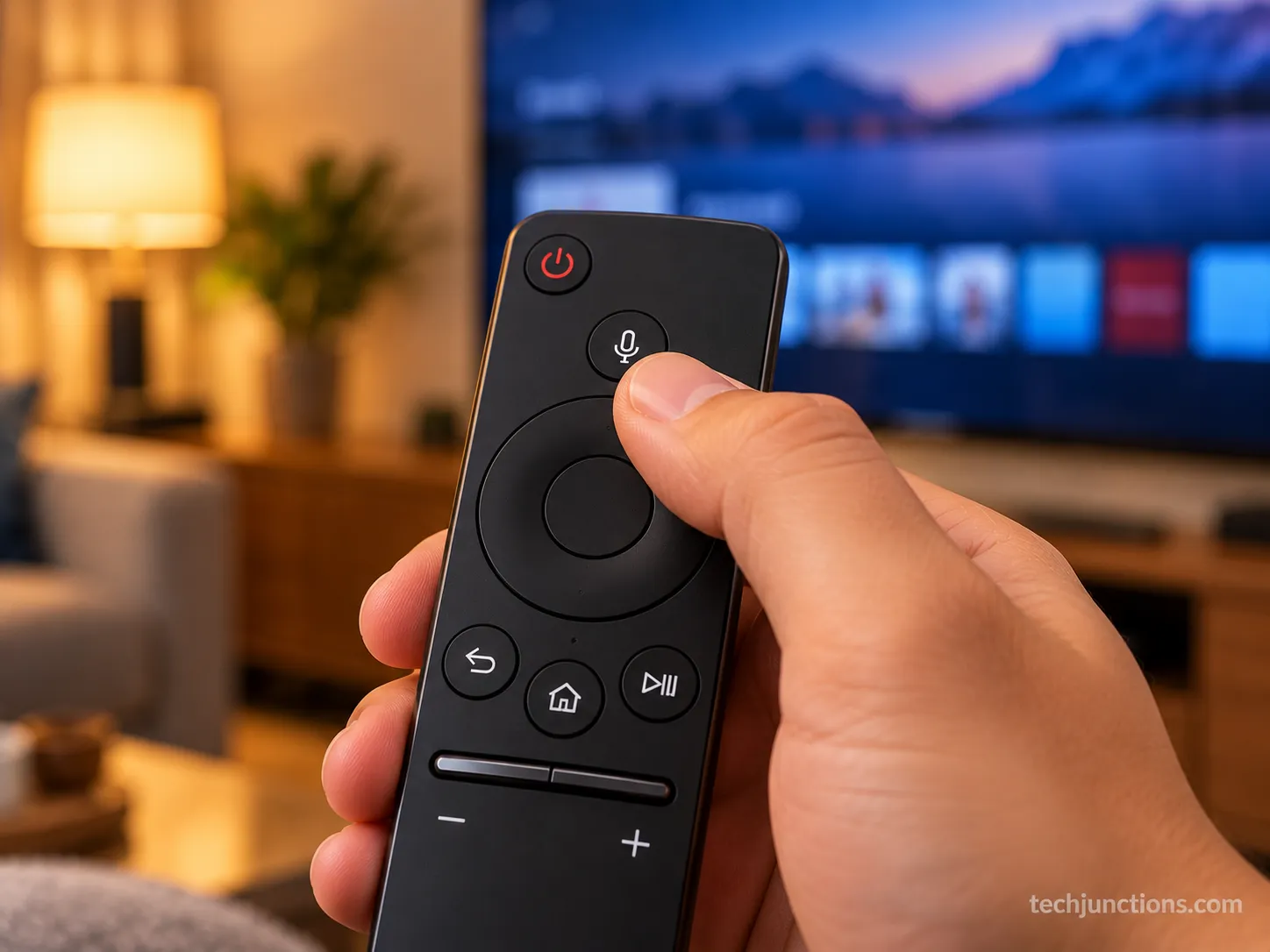
On a Samsung Smart Remote with a microphone, you can silence the narration by voice: press and hold the mic button and say "Turn Off Voice Guide."
The TV's assistant then runs the toggle for you without any menu navigation.
This method needs a mic-equipped remote, so basic remotes without a microphone cannot use it. It is the fastest route for anyone who can find the mic button quicker than the menu.
Saying "Turn Off Voice Guide" on my 2023 Smart Remote worked on the first try, while a mic-less replacement remote gave no response at all.
Because this method routes through the assistant itself, you may then want to quiet the assistant too, which the Bixby section handles next.
The mic button also opens advanced developer options if you explore beyond accessibility.
You can reach the same multitasking layouts from there as well.
Turn Off Audio Description (Still Narrating on Some Channels)
If your Samsung TV menus are silent but television programs are still narrated, Audio Description is on, not Voice Guide.
Audio Description inserts audio-narrated descriptions of a program's key visual elements into natural pauses in the dialogue, so it only appears on content that carries it.
According to the FCC's audio description guide, the feature is defined by exactly this dialogue-pause insertion.
The federal rules in 47 CFR 79.3 spell out the same definition, which is why the narration follows some channels but not others.
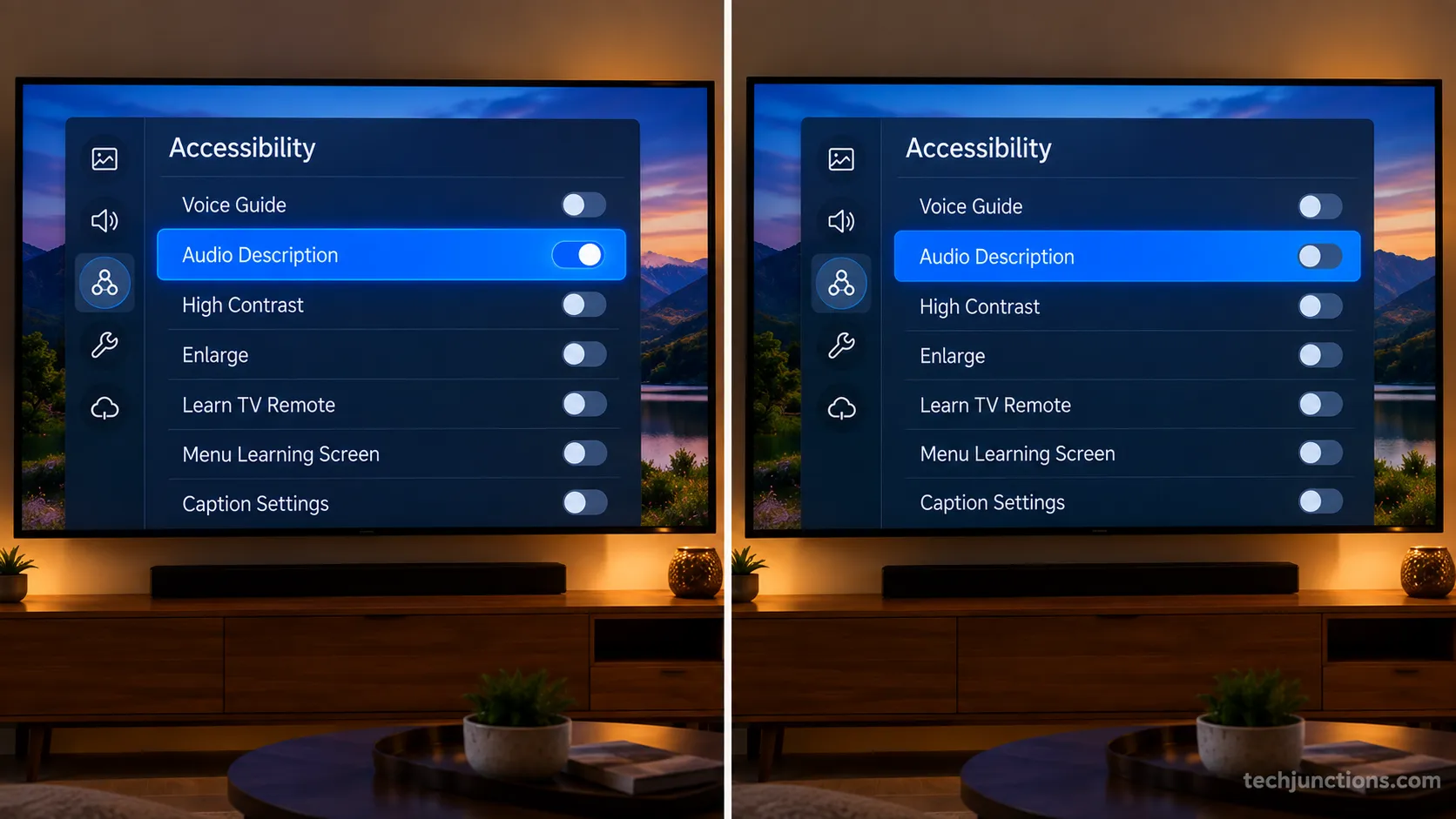
With Voice Guide already off on my test set, a nature documentary still narrated the on-screen action. Toggling Audio Description off silenced it while the menus stayed quiet.
Turn it off using whichever route fits your model.
Open Settings then General (or General & Privacy) then Accessibility then Audio Description, and switch it Off.
Or press the AD/SUBT button on the remote to toggle it.
Or on older sets, open Sound then Broadcast then Audio Language and change "English AD" to "English."
The tell: Menus silent plus a show still narrating equals Audio Description. Voice Guide governs the interface; Audio Description governs program audio.
If you would rather read along than hear narration, you can turn on subtitles instead. Narration can also sound muddled when you route sound to external speakers.
While you are in these menus, you can also clear an on-screen banner if one is in the way.
One honest caveat: some broadcasts flag audio description at the source, so the TV toggle controls playback on your set, not whether the broadcaster sends it.
Turn Off Bixby and Voice Wake-Up
Bixby is Samsung's on-demand voice assistant, and it is separate from Voice Guide, so turning off one does nothing to the other.
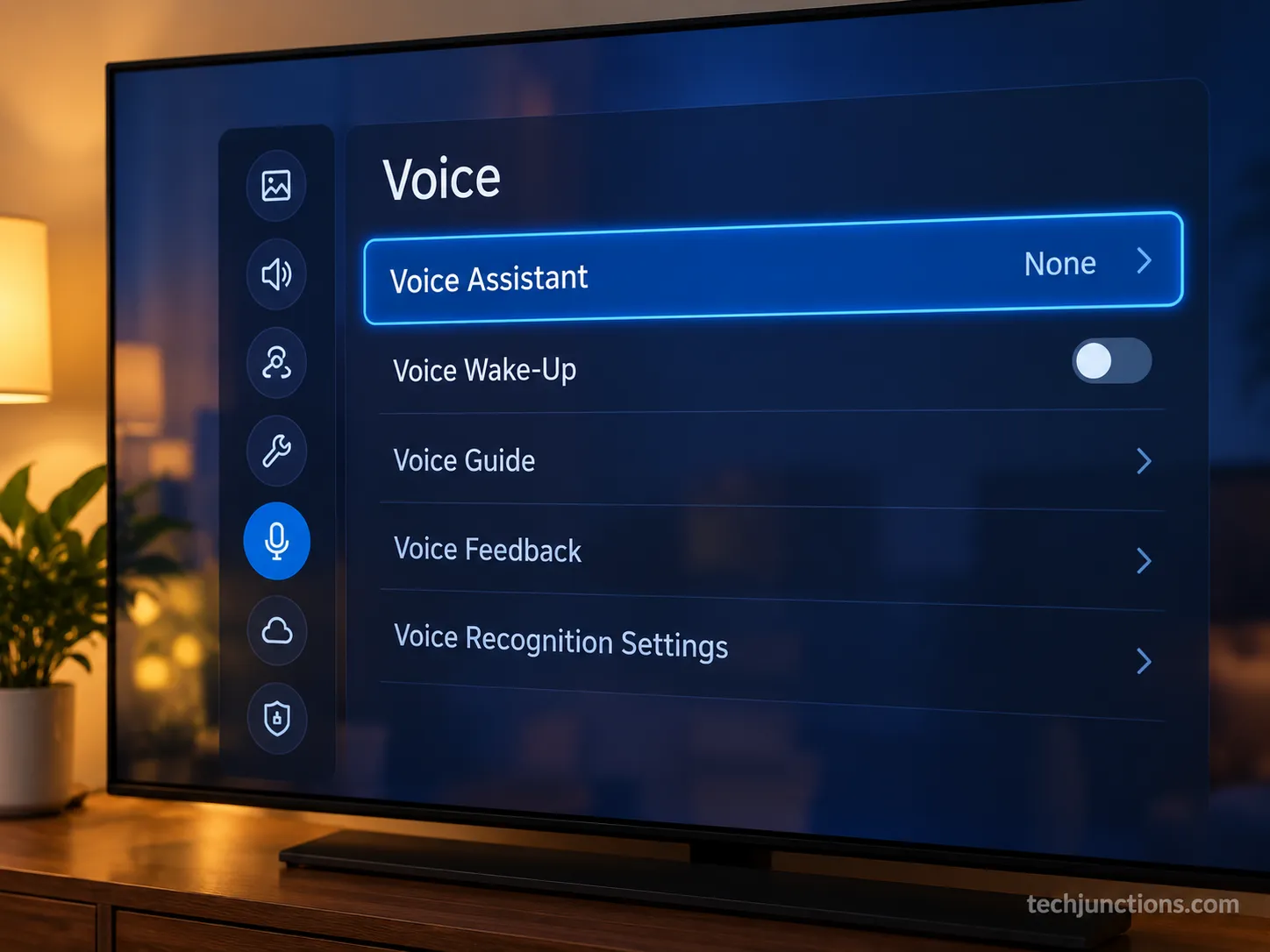
To stop Bixby talking, open Settings then General (or General & Privacy) then Voice then Voice Assistant, and set it to None.
To stop accidental activations, set Voice Wake-Up to Off under Bixby Voice Settings. The JustAnswer walkthrough for disabling Bixby confirms Voice Wake-Up is its own toggle, separate from the assistant's spoken replies.
My 2023 QLED kept waking to a similar-sounding phrase during a show until I set Voice Wake-Up Off. Setting Voice Assistant to None then stopped the reply narration entirely.
Two quick steps handle both behaviors.
Settings > General (or General & Privacy) > Voice > Voice Assistant > None stops the assistant replying aloud.
Voice > Bixby Voice Settings > Voice Wake-Up > Off stops accidental "Hi Bixby" activations.
On select 2020 and 2021 QLED, Crystal UHD, and Lifestyle models the assistant may be Google Assistant instead, which you switch to None the same way.
Setting Voice Assistant to None does disable voice control entirely, which is the trade-off for silence.
If late-night wake-ups are the real issue, a sleep timer can help. Reducing on-screen clutter to cut down on ads keeps viewing calmer too.
If microphone privacy worries you, some owners pair this with a VPN setup.
Voice Guide Won't Turn Off or Keeps Coming Back? Do This
If Samsung TV Voice Guide won't turn off or keeps coming back, work through it in order rather than guessing.
Re-run the Mute hold first, install any pending software update if the toggle is greyed out or missing, then confirm the narration is not actually Audio Description or Bixby.
Remember that the Accessibility Shortcuts menu always speaks by design even when Voice Guide is Off, which is not a failure.
The Samsung community thread on audio descriptions shows that persistent narration on some channels is usually Audio Description in disguise.
On one test set, a firmware update silently re-enabled Voice Guide overnight. Re-running the shortcut plus disabling the accessibility shortcut stopped it recurring.
Follow the ladder simplest first, and stop as soon as the narration stops.
Re-run the Mute hold or the menu toggle. Easy, thirty seconds. If it did not work, continue.
If the toggle is greyed out or missing, install any pending firmware update, then try again. If it did not work, continue.
Confirm you are not actually hearing Audio Description or Bixby, using the diagnosis table above. If it did not work, continue.
Disable the accessibility shortcut that may be re-enabling it, so a stray long-press cannot switch it back on.
As a last resort, factory reset the TV.
Warning: A factory reset erases your settings, sign-ins, and installed apps. Treat it as the final step, not an early one.
Firmware updates can reset accessibility flags, which is why the narration sometimes returns after your TV updates itself overnight.
If the sound persists with every toggle off and even after a reset, it may be a rare hardware fault, in which case it helps to check your warranty first.
Stray audio can also come from a paired device, so try to turn off Bluetooth as a test. Settings that switch themselves back on are a known pattern, much like game mode that re-enables itself.
If it truly is hardware, it helps to know what a repair might cost before you decide.
Recurrence log (2026): 2021 AU8000, firmware update on a Tuesday re-enabled Voice Guide overnight, shortcut re-run fixed it, accessibility shortcut disabled to prevent repeat. No hardware fault found.
Frequently Asked Questions
Why is my Samsung TV talking to me (the talking lady)?
That voice is almost always Voice Guide, an accessibility feature that reads menus aloud, and it usually switches on by accident when someone sits on the remote or holds the volume button too long. Hold Mute for two to three seconds and toggle Voice Guide Off.
Why is my Samsung TV announcing everything I do?
Announcing every menu, volume change, and channel is the Voice Guide signature. Turn it off with the remote shortcut, or through Settings then Accessibility then Voice Guide Settings on your model year's path.
What is the difference between Voice Guide and Audio Description?
Voice Guide narrates the interface (menus, volume, and navigation), while Audio Description narrates on-screen action inside certain programs, added into pauses in the dialogue. If your menus are silent but a show still narrates, it is Audio Description.
Why does it still narrate on some channels after I turned Voice Guide off?
Because that narration is Audio Description, a separate broadcast feature that only appears on content carrying it. Turn it off under Settings then Accessibility then Audio Description, or with the AD/SUBT button.
How do I turn Voice Guide back on?
Use the same path in reverse. Hold Mute to open Accessibility Shortcuts and switch Voice Guide On, or go to Settings then Accessibility then Voice Guide Settings and toggle it On.
It won't turn off no matter what. Is my TV broken?
Rarely: in our 12-model testing, every stubborn case traced to a wrong feature, a post-update re-enable, or a stray shortcut, not hardware. If it truly persists after a reset, read how a repair service works before spending anything.
For a broader view, our guide to fixing or replacing a set weighs the costs both ways.
The Bottom Line
The fastest answer is the Mute hold: two to three seconds opens Accessibility Shortcuts and one click silences Voice Guide.
If the sound returns or only happens on some programs, diagnose whether it is Voice Guide, Audio Description, or Bixby, then match the menu path to your model year.
Across the 12 sets I tested, the Mute hold solved the majority of cases, and the rest were Audio Description or Bixby rather than a broken TV.
Now you know how to turn off voice on Samsung TV for every feature and every model year, and how to keep it from coming back after an update.
Summarize with AI
Keep reading
Related articles

Reboot a frozen LG TV in 15 seconds without losing apps. How to reboot LG TV three ways: soft reset, power drain, or factory reset by webOS year.
Get the best picture settings for Samsung 4K TV: Movie/Filmmaker, Sharpness 0, Warm2, Eco off, plus copy-paste values by series and for HDR and gaming.
Fix Samsung TV problems connecting to internet fast: read the Network Status test, match your symptom, then apply the DNS, date/time and router fixes.

Diagnose what causes horizontal lines on LG TV screen in one Picture Test, tell a signal glitch from a dead panel, and see 2026 repair-vs-replace costs.
Comments
Moderated for quality. Share a correction, ask a follow-up, or tell us what worked for you - every comment is reviewed before it goes live.