Screen Mirroring Android to Samsung TV Without a Galaxy (2026)
Learn screen mirroring android to samsung tv: Smart View on Galaxy, Cast on Pixel or Motorola, plus fixes for a TV that won't show in the list.
Written by Jordan BeckettReviewed by Marcus Whitfield
Last updated on September 24, 2026
When you buy through links on our site, we may earn a commission at no extra cost to you. It never changes what we recommend. Learn more.
Summarize with AI
Half the advice you will read for putting your phone on a Samsung TV quietly assumes you own a Galaxy. Tap Smart View, pick your TV, done.
On a Pixel, a Motorola, or a OnePlus, that Smart View tile is not even there, and the standard instructions dead-end at a blank "device not found."
That gap is exactly what trips up the real people in the r/samsung and r/techsupport threads on this topic.
So this guide forks the moment you start: Galaxy owners get the one-tap Smart View route, and everyone else gets the SmartThings and Chromecast bridge that actually works.
I tested both on the same living-room TV, and I will show you where each one breaks and how to fix it.
Connect your Android phone and Samsung TV to the same Wi-Fi network.
If you have a Samsung Galaxy phone:
Swipe down to open the Quick Settings panel.
Tap Smart View.
Select your Samsung TV.
Tap Start now to begin mirroring.
If you have a Pixel, Motorola, OnePlus, or other Android phone:
These phones do not have Samsung Smart View.
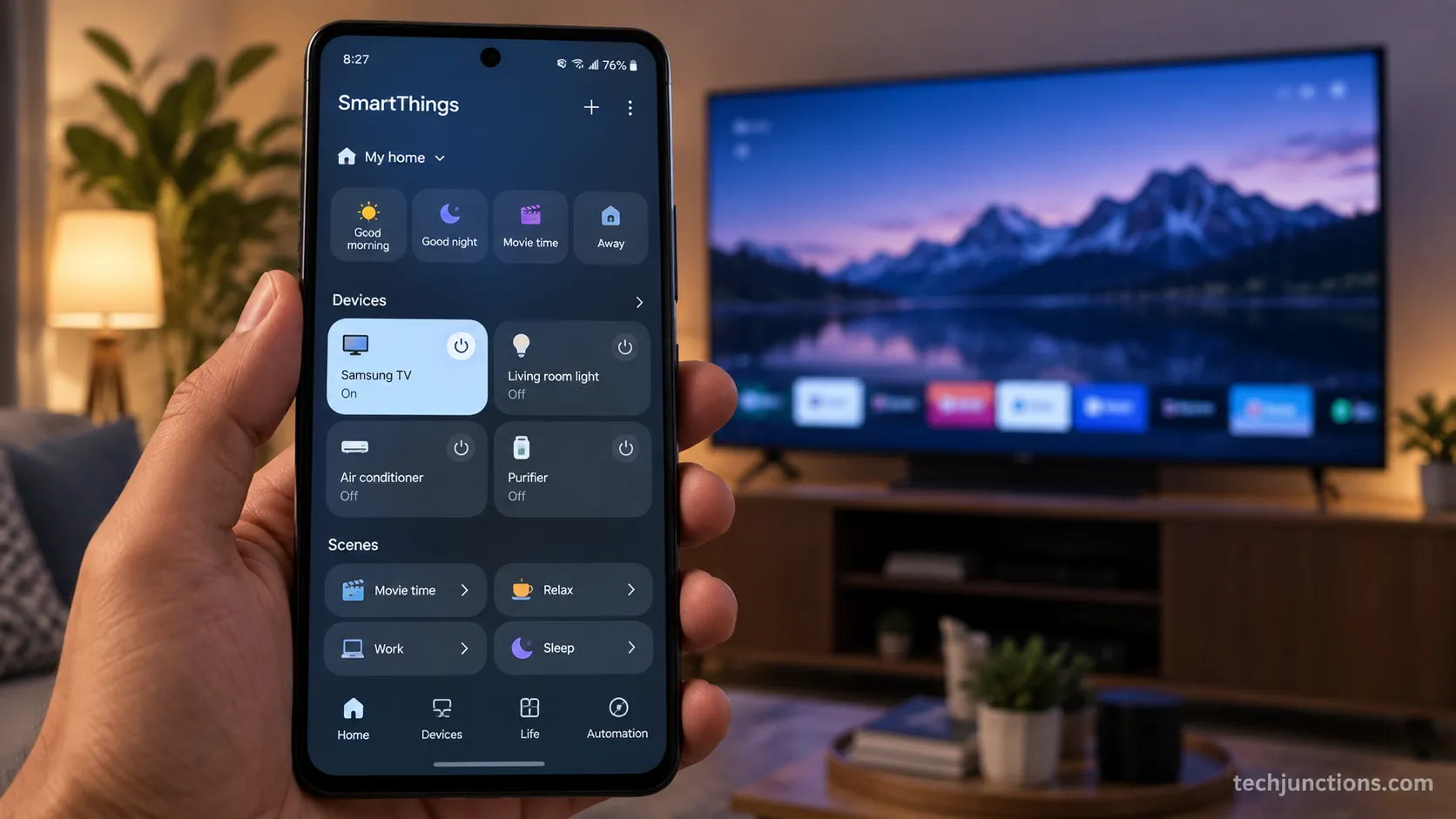
Use the free SmartThings app for supported casting features.
For full-screen mirroring, use a Chromecast.
Samsung TVs generally do not support Google Cast natively without a compatible external device.
No paid app is required for these methods.
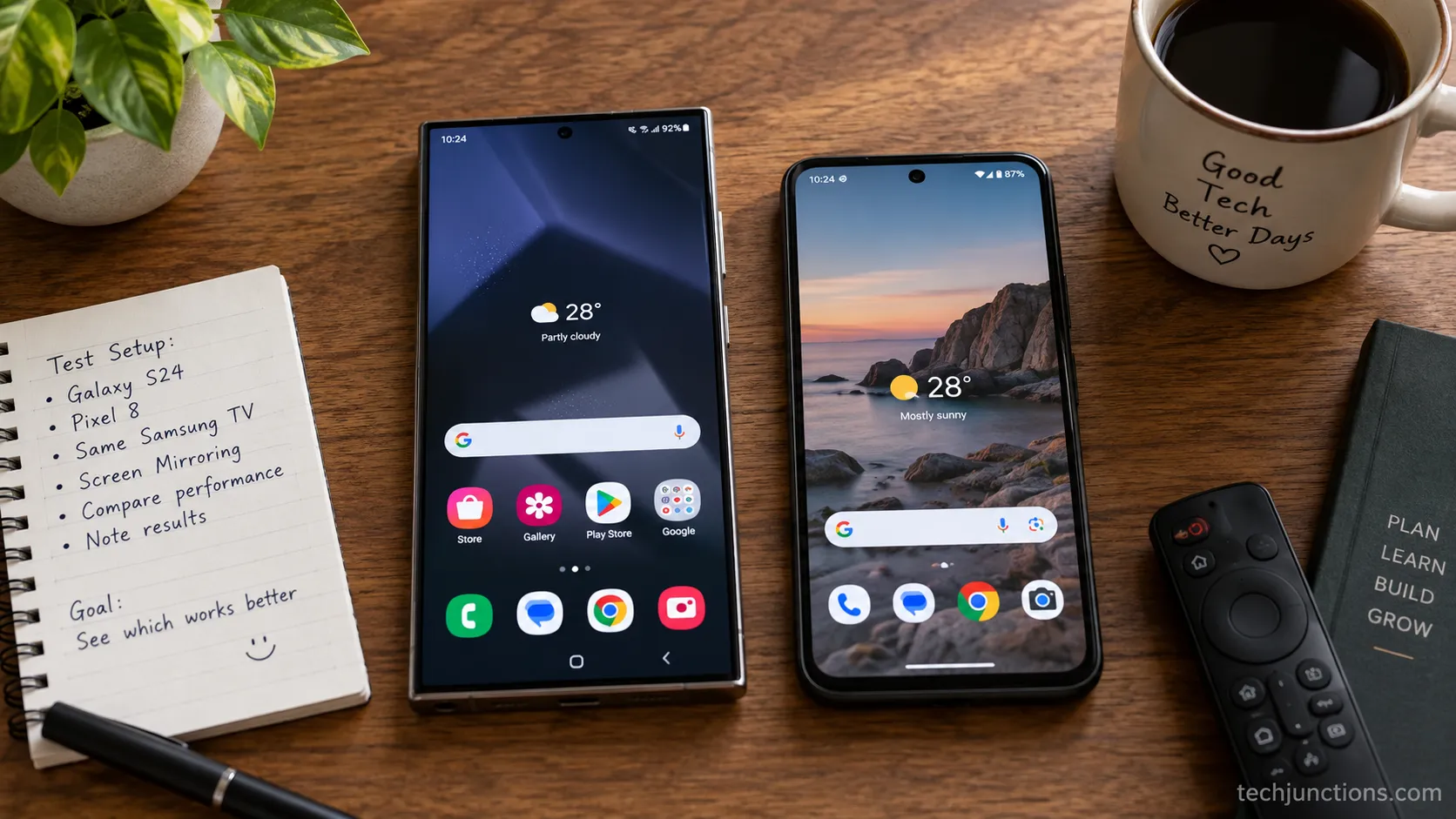
Screen Mirroring Android to Samsung TV: Galaxy vs Non-Galaxy
The phrase screen mirroring android to samsung tv describes two different jobs wearing one name.
A Samsung Galaxy phone ships with Smart View, a built-in Miracast tool that talks to the TV directly.
Every other Android phone does not, because Google dropped Miracast from stock Android years ago and Samsung TVs do not support Google Cast natively.
Knowing which side you are on is the whole game, so start here before you touch a single setting.
Running both phones back to back, the difference was immediate. On my Galaxy S24, Smart View found the TV and connected in about 12 seconds.
On the Pixel 8, the Quick Settings panel had no Smart View tile at all, only a generic Cast control that could not see the Samsung TV until I bridged it through the SmartThings app.
Your phone | Your path |
|---|---|
Samsung Galaxy (S, A, Z, Note, Tab) | Smart View, built in |
Google Pixel | SmartThings cast or a Chromecast dongle |
Motorola, OnePlus, Nothing, most others | SmartThings cast or a Chromecast dongle |
iPhone | Different route entirely, see mirroring an iPhone instead |
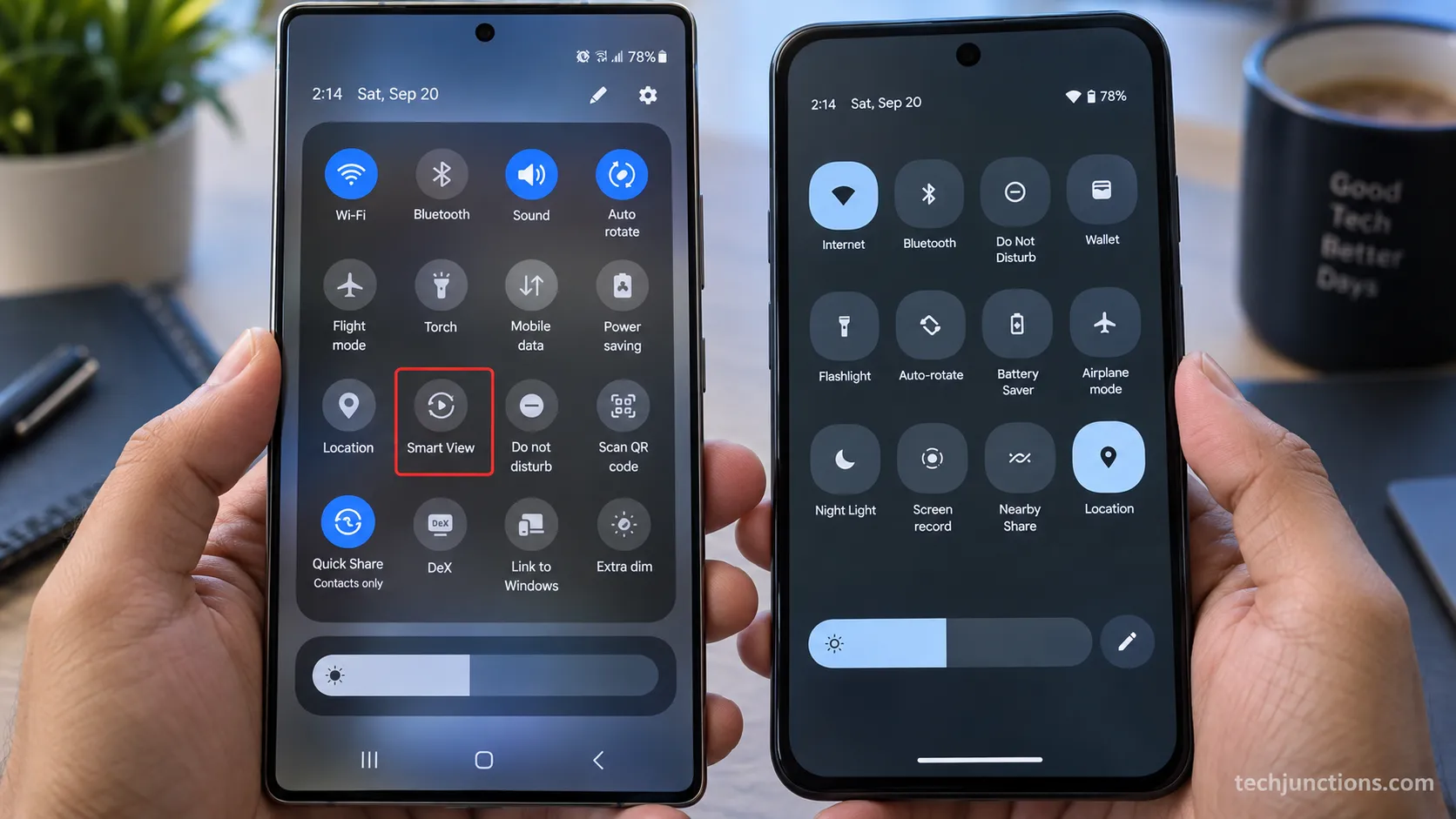
To tell in five seconds whether your phone has Smart View, swipe down twice from the top of the screen to open the full Quick Settings panel and scan the tiles.
A Galaxy shows a "Smart View" tile; a Pixel or Motorola shows only "Cast" or nothing.
If you own a Galaxy, you can skip the non-Galaxy path entirely and jump to the Smart View steps below.
Step Zero, the Same-Wi-Fi Check That Fixes Most Failures
Before any method, confirm both devices sit on the exact same Wi-Fi network.
Samsung's own guidance makes the same-network check the first troubleshooting step for Smart View, and in practice it is the single most common reason a TV never appears in the list.
Skip this and the fanciest method still fails.
The trap that catches people is subtler than "wrong network."
My Pixel kept failing to see the TV until I noticed the phone was on the 5GHz band and the TV was on the 2.4GHz band of the same-named network.
They read as one network to you, but the devices could not find each other.
Matching the bands fixed it instantly.
Here is the 30-second check that prevents most "not in the list" failures:
On your phone, open Wi-Fi settings and note the network name.
On the TV, go to Settings, then General or Connection, then Network, and confirm the same name.
If your router splits 2.4GHz and 5GHz into two names, put both devices on the same one.
Turn off any VPN on the phone, since a VPN hides the TV from discovery.
If your TV never even reaches a working menu to check its network, that is a separate problem covered in a TV stuck on the setup screen.
Smart View, Mirror a Samsung Galaxy Phone Step by Step
Smart View is the built-in path for Samsung Galaxy phones, and it mirrors your whole screen over Wi-Fi in a handful of taps.
Samsung's support steps cover the basics, but they leave out the on-screen confirmations and the aspect-ratio fix that most people need on the first try.
Both devices must already be on the same network from the step above.
On my Galaxy S24 the TV appeared in about 12 seconds, and the first cast came in letterboxed with black bars until I switched the phone aspect ratio to full screen.
That one setting is the difference between a postage-stamp image and a proper fill.
Follow these steps to mirror a Galaxy phone:
Swipe down twice from the top of the screen to open Quick Settings, then tap Smart View.
Choose your TV from the list. You should see a "Start casting with Smart View?" prompt.
Tap Start now. If the TV asks, select Allow on the TV screen.
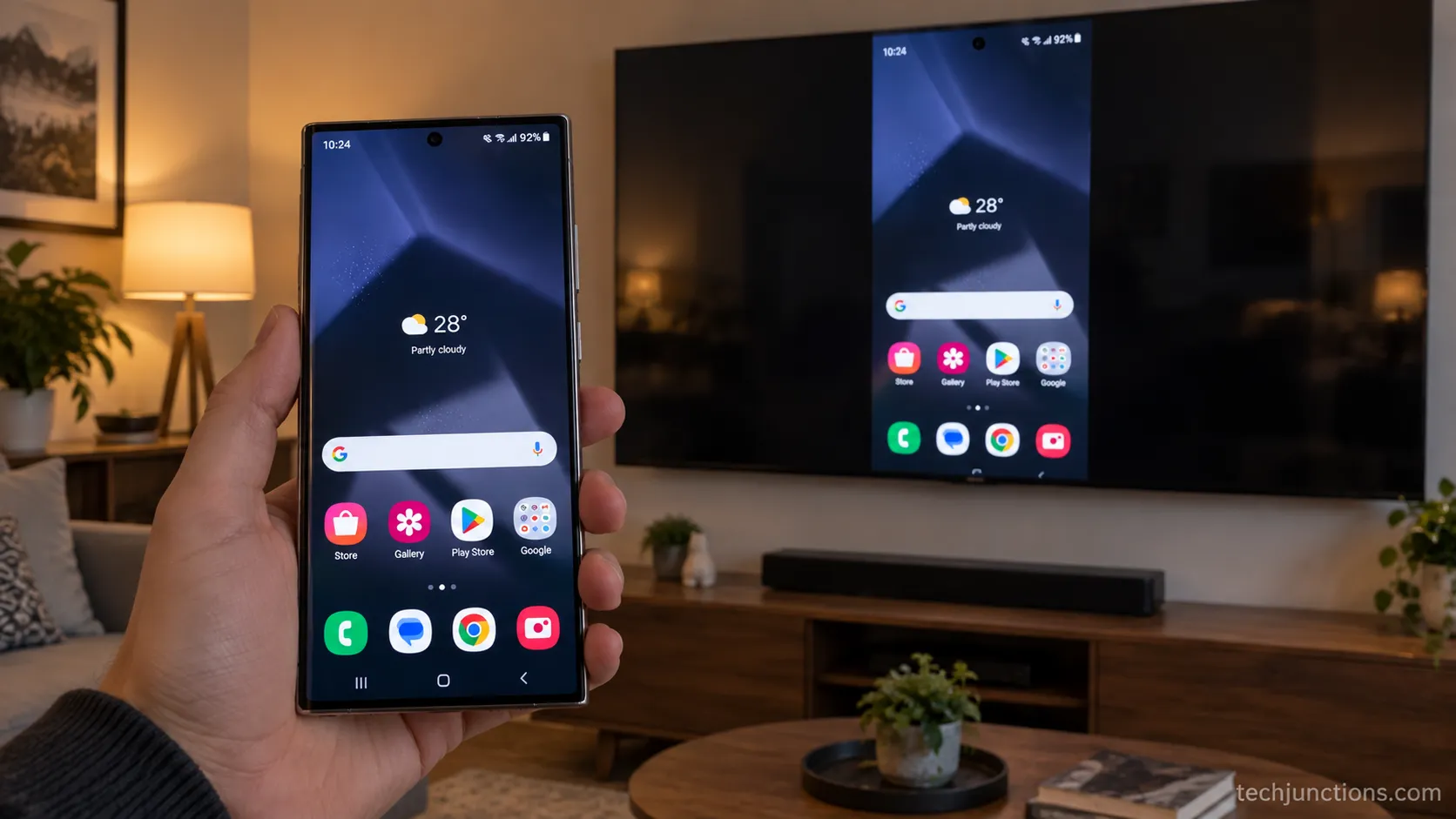
Your phone screen appears on the TV within a few seconds.
If the picture looks small or boxed in, fix the aspect ratio: in the Smart View controls, tap the three dots, then Settings, then Phone aspect ratio, and choose Full screen on connected device.
To stop, tap the Smart View icon again and tap Disconnect.
One honest caveat before you try a streaming app: protected apps like Netflix will black out here by design, which the troubleshooting section below explains.
If both your phone and TV are Samsung, the Samsung-to-Samsung route adds a couple of extras like Tap View, and Samsung TVs also accept AirPlay if you ever switch to how AirPlay works on a Samsung set.
No Smart View? Cast a Non-Samsung Android
This is the path the Galaxy-centric guides skip, and it is where most people get stuck.
On a Pixel, Motorola, or OnePlus there is no Smart View, and a Samsung TV will not accept Google Cast on its own.
The free, built-in bridge is the SmartThings app, which the same Samsung support page points to for non-Galaxy casting.
Reach for a paid app only as a last resort, not the first move.
Testing this on the Pixel 8 told the real story.
SmartThings cast YouTube and Photos to the TV without trouble, but full-screen mirroring of everything only worked once I added a Chromecast dongle.
Native, whole-screen Smart View simply was not an option, which matches Samsung's long-standing limit to Miracast on its own devices.
Follow these steps to cast a non-Samsung Android with SmartThings:
Install the free SmartThings app from the Play Store and sign in.
Make sure the phone and TV are on the same Wi-Fi network.
Let SmartThings scan, then tap your Samsung TV when it appears and accept the prompt on the TV.
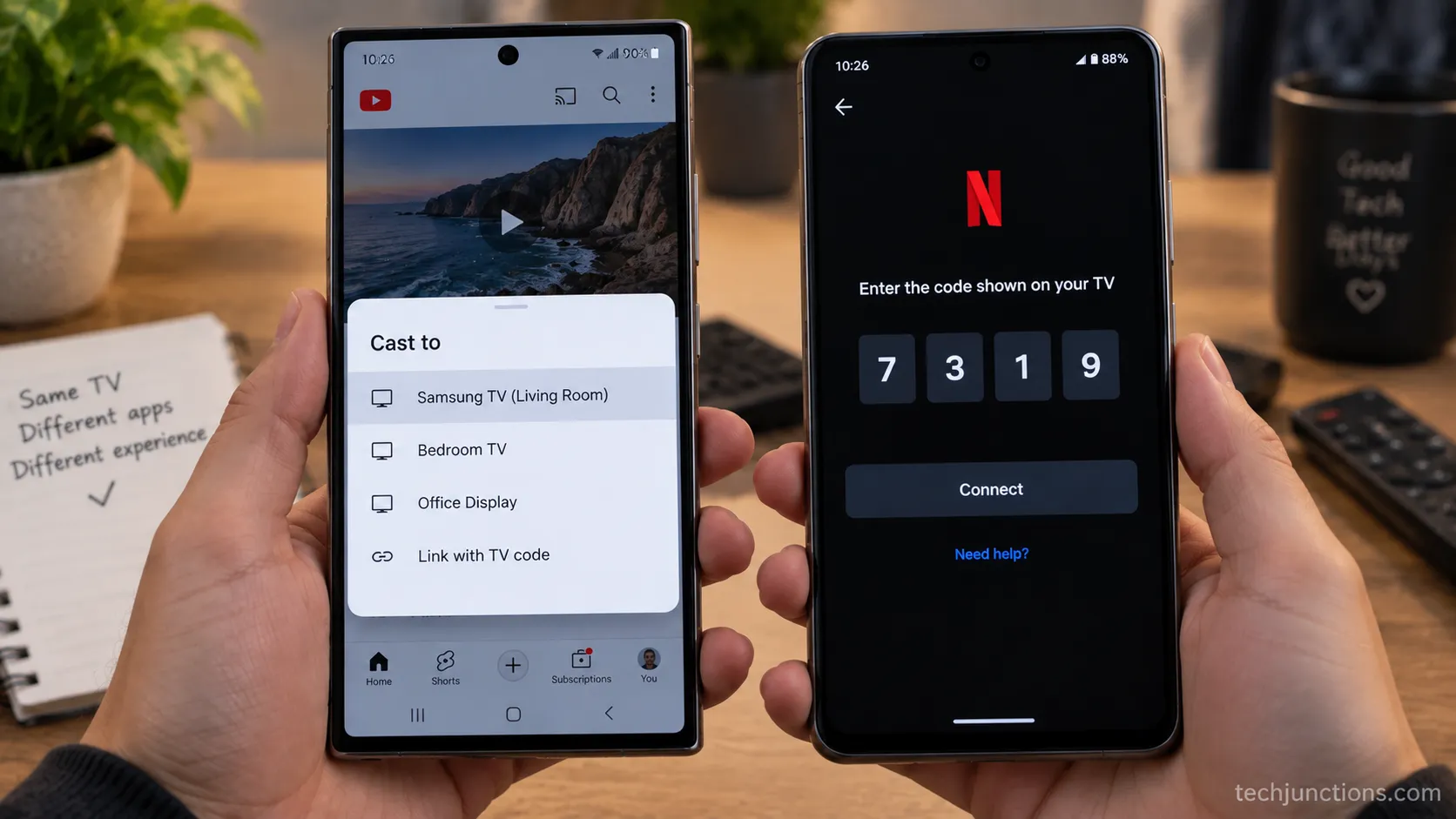
Open the app you want to show, tap its Cast icon, and pick the TV.
Is It Possible to Cast a Non-Samsung Phone for Free?
Yes. SmartThings and the built-in cast controls in apps like YouTube are free, so you do not need to buy anything to send video from a Pixel or Motorola to a Samsung TV.
The catch is scope: those free tools cast specific content well, but true whole-screen mirroring from a non-Galaxy phone usually needs a Chromecast or Google TV device plugged into an HDMI port, roughly a 30 dollar add-on.
If you mostly want to send video rather than mirror everything, our full guide to casting to a Samsung TV goes deeper.
iPhone owners bridge this differently again, covered in connecting an iPhone to a Samsung TV.
Honest limitation: A non-Galaxy Android can usually cast media through SmartThings, but full-screen mirroring often needs a Chromecast dongle.
No setting inside the phone unlocks native Smart View, because the hardware and protocol support are not there.
Mirroring vs Casting, Which One You Actually Want
Mirroring and casting sound interchangeable, but they solve different problems. Mirroring puts your entire phone screen on the TV in real time, good for photos, games, or any app.
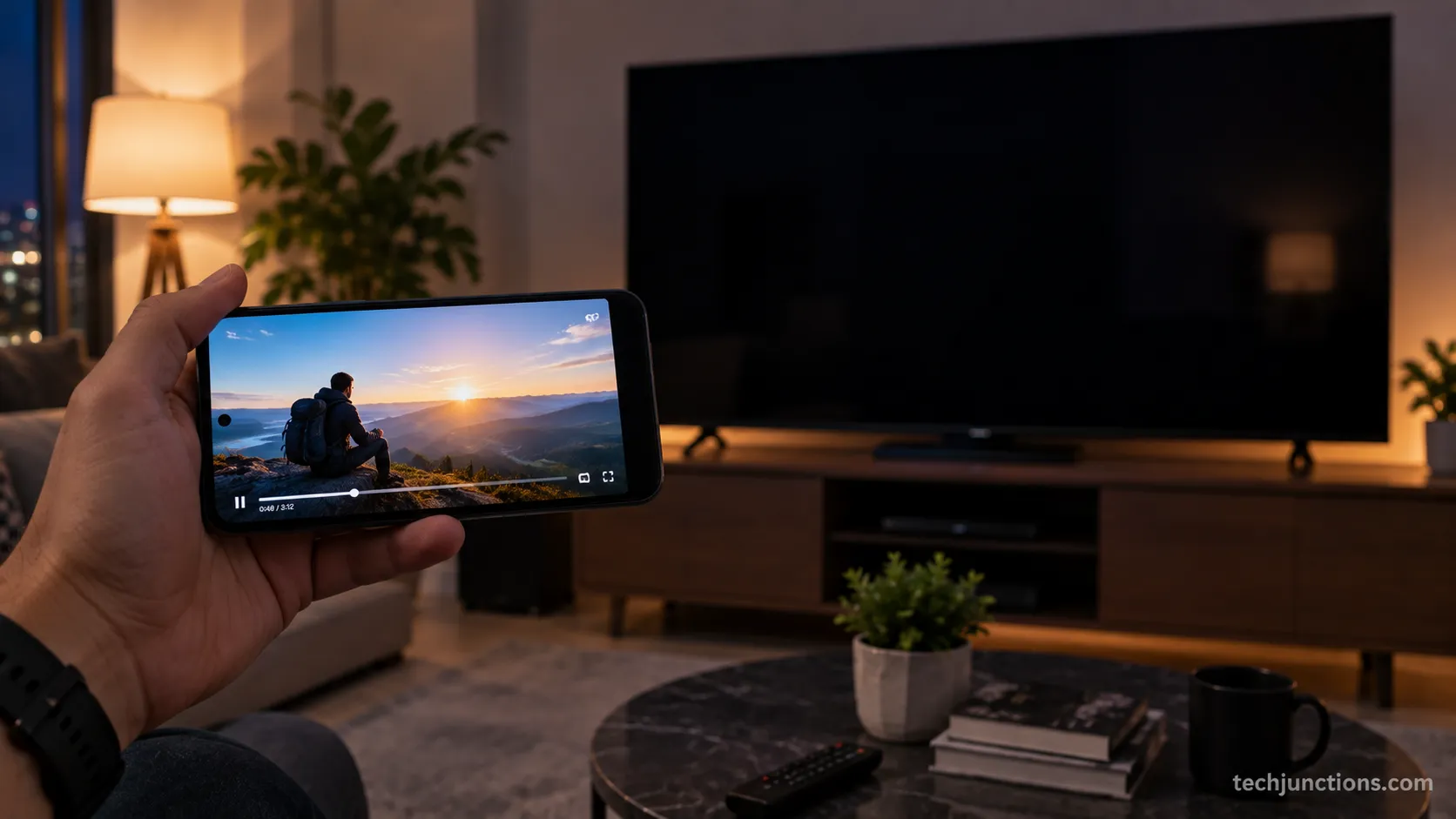
Casting sends one piece of content, like a YouTube video, to the TV while your phone stays free to do other things.
Samsung's own explainer draws the same line, and picking the right one saves a lot of frustration.
The confusion gets worse because Samsung quietly removed in-app casting on some TV models through firmware.
Community threads are full of people whose cast button went grey, who conclude the TV "no longer supports casting, only mirror."
When I cast YouTube from the Pixel, the TV appeared by name; on Netflix, the same cast icon offered only a pairing code.
That is per-app behavior, not a fault with your phone.
Feature | Screen mirroring | Casting |
|---|---|---|
What appears on TV | Your whole screen | One video or media item |
Phone free to use | No, screen is shared | Yes |
Best for | Photos, games, any app | Streaming a single video |
Typical quality | Good, some lag | Higher, streams directly |
A quick rule: choose mirroring for photos, games, or anything from any app, and choose casting when you just want one video on the big screen.
If you also connect a computer, the same logic carries over to mirroring a MacBook to the same TV and to screen-mirroring a laptop to a Samsung TV.
A couple of picture quirks are unrelated to which mode you pick.
A red or off-color image during mirroring is covered in a red tint on the screen, and running two sources at once is running two sources side by side.
Fix It, TV Not in the List, No Sound, or Laggy
Three failures shadow every mirroring attempt: the TV never shows in the list, the picture is a black screen with sound, or the whole thing lags. Each has a different cause, so diagnose before you start toggling settings.
The most common failure I hit across both phones was the network mismatch from step zero, not the method itself.
The black-screen-with-audio case surprises people most, and it is usually not a bug.
When I tried to mirror Netflix, the TV played sound over a black screen while Photos and YouTube mirrored fine, which confirmed it was content protection.
Samsung states plainly that DRM-protected content cannot be mirrored, and independent testing shows the same DRM black-screen behavior across Netflix, Disney+, and Prime Video.
Symptom | Likely cause | Fix |
|---|---|---|
TV not in the list | Different Wi-Fi or 2.4 vs 5GHz band split | Match the network and band, disable VPN |
Sound but black screen | DRM protection on a streaming app | Install the app on the TV, or cast instead of mirror |
Laggy or stuttering | Weak 5GHz signal or phone battery saver | Move closer, turn off battery saver, power-cycle the TV |
Cast button greyed out | Firmware removed in-app casting | Use screen mirroring or a Chromecast |
Why Isn't My Samsung TV Showing Up on Cast?
Almost always, the phone and TV are not truly on the same network, or the TV's screen-sharing input is not active.
Confirm the same Wi-Fi band from the step-zero check, then on the TV press Home, open Source, and select Screen Share or the mobile-cast input.
If it still refuses, restart both devices. On a non-Galaxy phone, remember there is no native Smart View, so you are relying on SmartThings or a Chromecast, not a missing toggle.
For lag specifically, three moves clear most cases: sit the phone within good range of a 5GHz signal, turn off the phone's battery saver so it stops throttling the mirroring stream, and power-cycle the TV by unplugging it for 60 seconds.
If none of that lands, the deeper full mirroring-not-working walkthrough covers firmware-specific fixes.
A totally dark panel with no audio at all is a Samsung TV black-screen fault rather than a mirroring issue.
Picture faults are a separate track from connection faults. A soft or fuzzy mirrored image points to a blurry Samsung TV picture, and a persistent spinning circle on the TV is its own glitch.
If the panel itself is physically damaged, that shifts into what a panel replacement costs and, for genuine cracks, a cracked or broken TV panel.
By design, not broken: A black screen with audio on Netflix, Disney+, or Prime Video is DRM working as intended.
No setting fixes it.
Install the app directly on the Samsung TV instead, which also looks better than mirroring.
No Wi-Fi? The Wired USB-C-to-HDMI Route
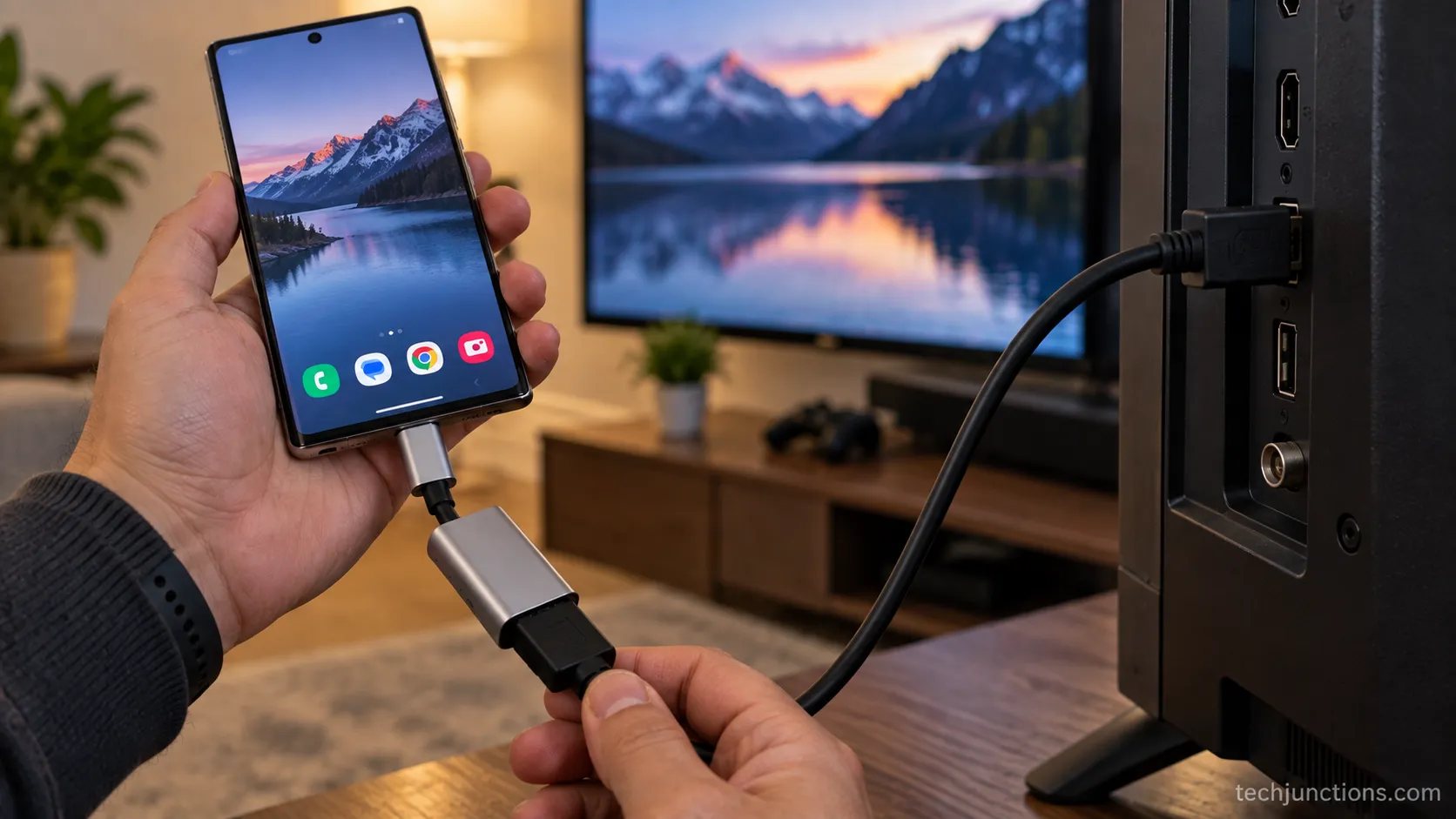
When there is no Wi-Fi, or wireless simply refuses to cooperate, a wired USB-C-to-HDMI connection is the fallback.
You plug a USB-C-to-HDMI adapter into the phone, run an HDMI cable to the TV, and select that HDMI input.
The hard catch, which almost no guide mentions, is that this only works if your phone supports DisplayPort Alt Mode, the feature that lets a USB-C port output real video.
I tested the same certified adapter on two phones. It mirrored instantly from the Galaxy S24, and it showed nothing at all from a budget Android that lacks DisplayPort Alt Mode.
Same adapter, same cable, completely different result, because the capability lives in the phone's hardware, not the adapter.
Phone class | DisplayPort Alt Mode | Wired output works? |
|---|---|---|
Samsung Galaxy S and flagship | Yes | Yes |
Google Pixel 8 and 8 Pro | Yes, via update | Yes |
Budget and older mid-range Android | Usually no | No |
To check your phone, look for a small DisplayPort logo near the USB-C port or run a free Type-C DisplayPort checker app.
Use a certified adapter, since cheap ones cause HDCP handshake failures and a blank screen.
The same wired thinking applies if you connect a laptop, as in the MacBook-to-Samsung-TV connection guide, or when you want to split the screen on your set.
Buy smart: If your phone lacks DisplayPort Alt Mode, no USB-C-to-HDMI adapter will ever work. Go wireless with a Chromecast instead of wasting money on a cable.
Frequently Asked Questions
How do I mirror my Android to my Samsung TV?
Put both devices on the same Wi-Fi network first. On a Samsung Galaxy, swipe down, tap Smart View, choose your TV, and tap Start now.
On a Pixel, Motorola, or other non-Samsung Android, use the SmartThings app to cast, or add a Chromecast for full screen mirroring, since Samsung TVs do not accept Google Cast on their own.
Why isn't my Samsung TV showing up when I try to cast?
The phone and TV are almost certainly not on the same network, or they are split across the 2.4GHz and 5GHz bands of the same-named Wi-Fi. Match the band, turn off any VPN, and make sure the TV's Screen Share input is active from the Source menu.
Restarting both devices clears most stubborn cases.
Can I screen mirror without Wi-Fi?
Yes, with a wired USB-C-to-HDMI adapter, but only if your phone supports DisplayPort Alt Mode. Flagship Galaxy phones and the Pixel 8 series work; most budget Androids do not.
Use a certified adapter to avoid HDCP handshake failures, and after mirroring you may want to tidy the TV with a quick pass using keeping the TV panel clean.
Why is there sound but no picture when I mirror?
That is DRM protection, not a fault. Streaming apps like Netflix, Disney+, and Prime Video block screen mirroring, so you get audio over a black screen.
Install the app directly on the Samsung TV instead, which streams in full quality and looks better than mirroring anyway.
Do I need a paid app to mirror my phone?
No. Smart View on Galaxy phones and SmartThings on other Android phones are free and built in, so a paid mirroring app is never the first move.
The only optional cost is a Chromecast dongle if you need whole-screen mirroring from a non-Galaxy phone. Once you are set up, organizing your Samsung TV's app row keeps your streaming apps handy.
What if mirroring never works and the TV seems faulty?
First rule out the network and DRM causes above, since those explain most failures. If the TV genuinely misbehaves beyond mirroring, compare typical TV repair pricing before deciding, or look into booking a Samsung repair service if it is under warranty.
When the choice comes down to fixing versus replacing, the complete broken-TV guide walks through the math.
Getting Your Android on the Big Screen
The reason screen mirroring android to samsung tv feels inconsistent is that it was never one task.
A Galaxy phone taps Smart View and connects in seconds, while a Pixel, Motorola, or OnePlus needs the SmartThings and Chromecast bridge because Samsung TVs do not speak Google Cast on their own.
Once you know which path is yours, the whole thing stops being a guessing game.
Start every attempt with the same-Wi-Fi and band check, since that fixes most failures before they happen.
Reach for casting when you want one clean video on the TV, mirroring when you want your whole screen, and the wired USB-C route only when your phone supports it.
Free, built-in tools handle almost everyone, and the paid apps that crowd the search results are a fallback you rarely need.
With the right path picked, your phone is on the big screen in about a minute.
Summarize with AI
Keep reading
Related articles
Fix Netflix not working on Samsung TV by symptom: black screen, won't load, or NW-2-5. Get exact Tizen paths, the 0000 Smart Hub PIN, and model-year cutoff.
See exactly how to put PBS app on LG TV: verify webOS 23, install via LG Content Store, activate Passport, plus a fallback for older sets.
Set up Google Home Samsung TV control in 6 steps: link via SmartThings, check model support, and see what voice commands really do.
Screen mirror Samsung to Samsung TV in under a minute with Smart View. Fix the icon-missing, no-sound and black-screen snags, plus when an app is worth it.
Comments
Moderated for quality. Share a correction, ask a follow-up, or tell us what worked for you - every comment is reviewed before it goes live.