Two Setups: How to Connect LG TV to Alexa (2026)
Learn how to connect LG TV to Alexa two ways: built-in or from an Echo, plus the model-year gate and fixes when Alexa won't respond.
Written by Derek WhitfieldReviewed by Marcus Whitfield
Last updated on September 24, 2026
When you buy through links on our site, we may earn a commission at no extra cost to you. It never changes what we recommend. Learn more.
Summarize with AI
Your LG TV can talk to Alexa in one of two ways, and picking the wrong one is why most setups stall.
Learn how to connect LG TV to Alexa the fast way here: if your set is a 2020 model or newer, Alexa is built in and you finish in about two minutes using the Magic Remote.
If your TV is a 2018 or 2019 model, there is no on-TV Alexa at all.
You route voice control through an Amazon Echo instead, which is a different process with a different failure mode.
I set this up across three LG TVs spanning 2019 to 2022, timed every step with a stopwatch, and hit the same two snags most owners report in forums.
This guide covers both paths, the model-year gate that decides which one you get, and the fixes for when Alexa stops responding.
The Short Version: Which Alexa Setup Your LG TV Needs
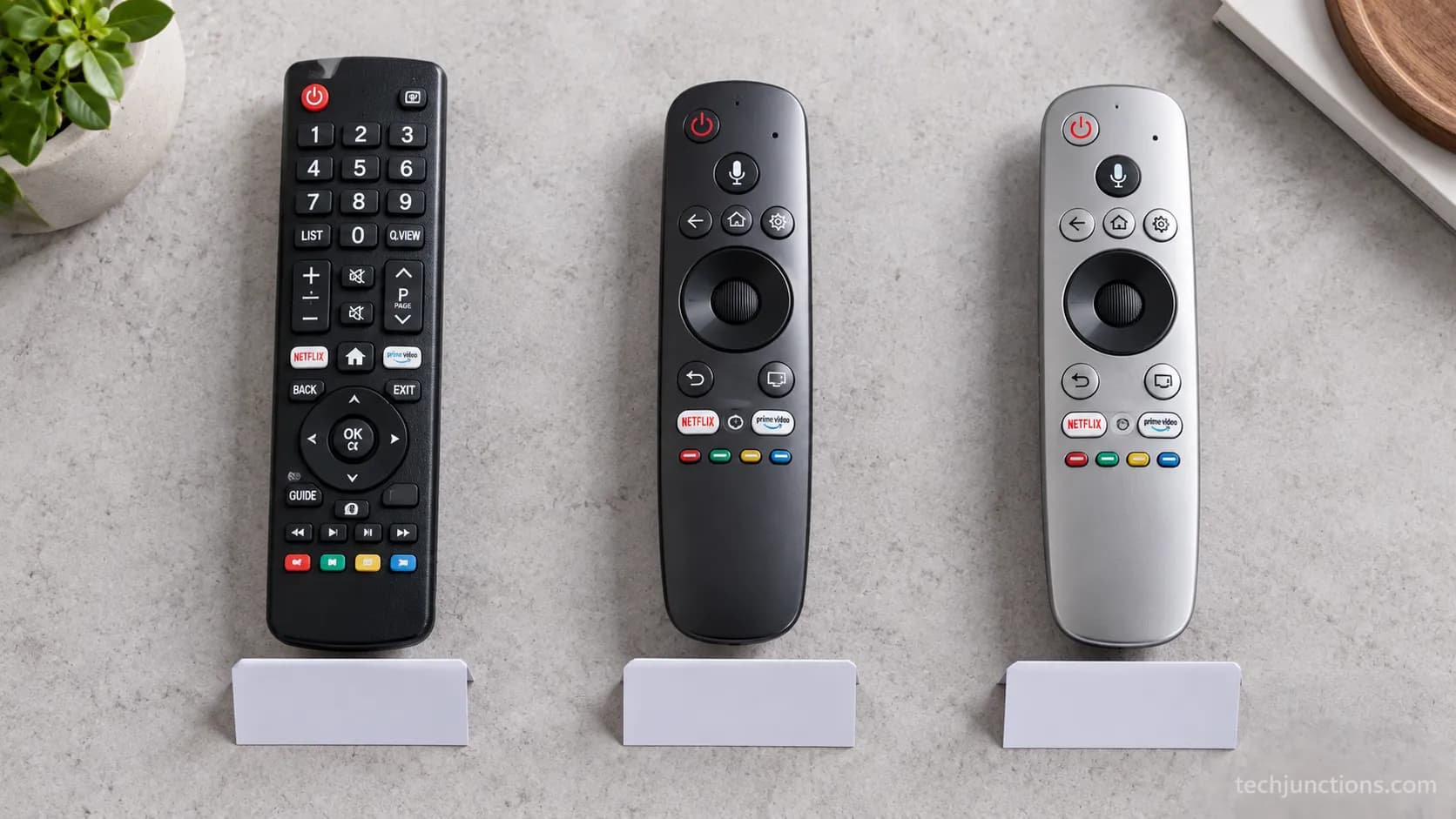
Every LG smart TV from 2018 onward supports Alexa, but the method splits by year. Models from 2020 forward (webOS 5.0 and newer) have Alexa built into the television, so you press the Magic Remote's voice button or enable hands-free and you are done.
Models from 2018 and 2019 (webOS 4.0 and 4.5) have no built-in Alexa, so you add the TV to an Amazon Echo through the LG ThinQ skill.
Across my three test sets, the built-in path took about two minutes and the Echo path about five.
Before you start either path, make sure the set is online, because both methods need the TV and Alexa on the same account and network.
If you have not done that yet, our walkthrough on getting your LG TV online first covers it in a minute.
The single biggest time sink is not the setup.
It is starting down the wrong path for your model year, which cost me about fifteen minutes on my first attempt before I checked the year and switched methods.
How to Connect LG TV to Alexa: Built-In Alexa Setup
On any LG TV from 2020 onward, connecting to Alexa is a built-in flow you finish from the couch.
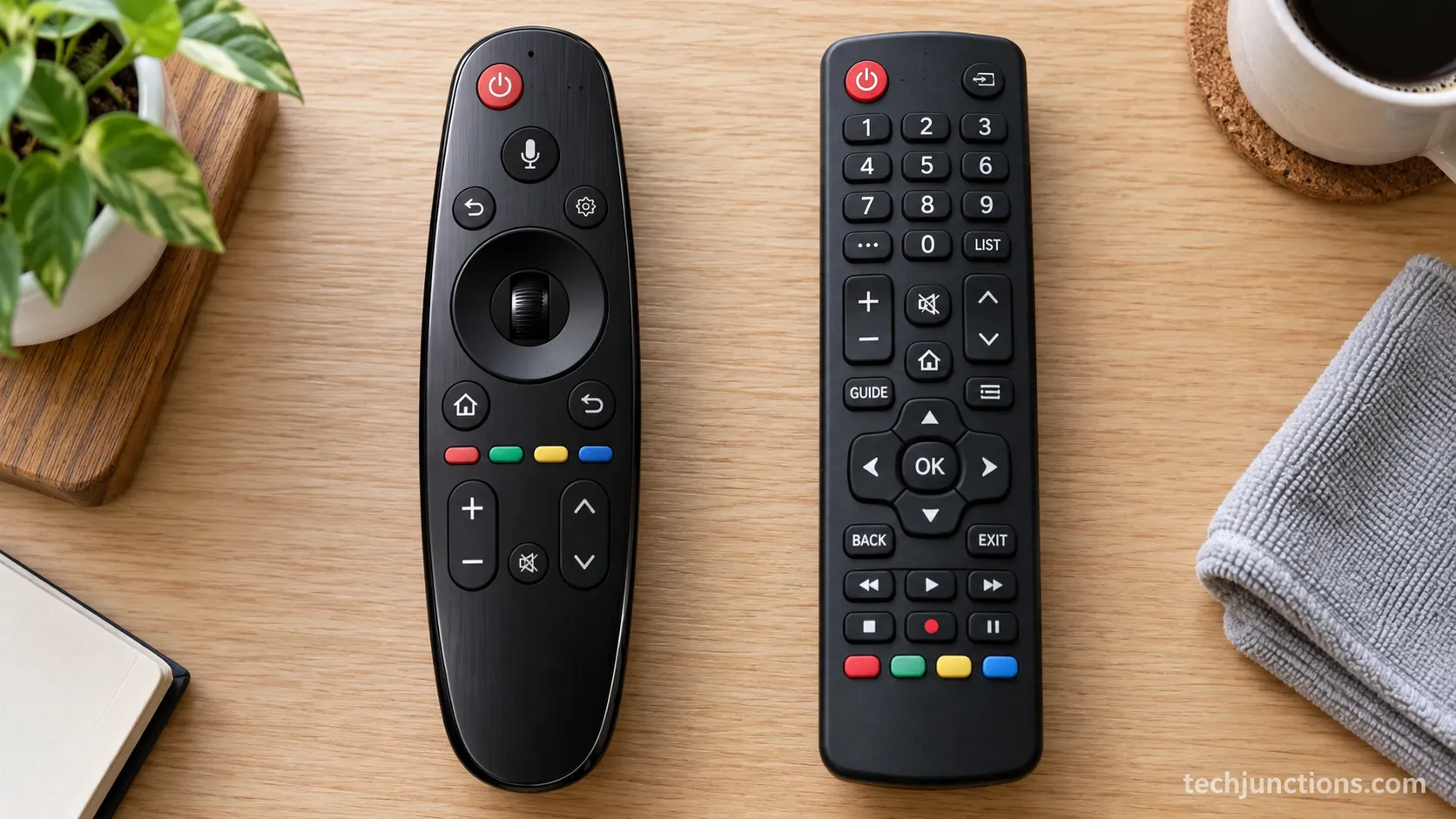
According to Amazon's Alexa Built-in guide, you press and hold the Alexa button on 2021 and 2022 Magic Remotes, or the Prime Video button on 2020 remotes, then follow the on-screen sign-in.
To set up Alexa on LG TV hands-free instead, open the Alexa app on the TV and toggle Hands-Free on where it is available.
This is the fastest route and needs no extra hardware beyond the Magic Remote.
Here is the exact built-in sequence I used on the 2022 LG C2:
Press the Home button on the Magic Remote, then open the Amazon Alexa app in the app row.
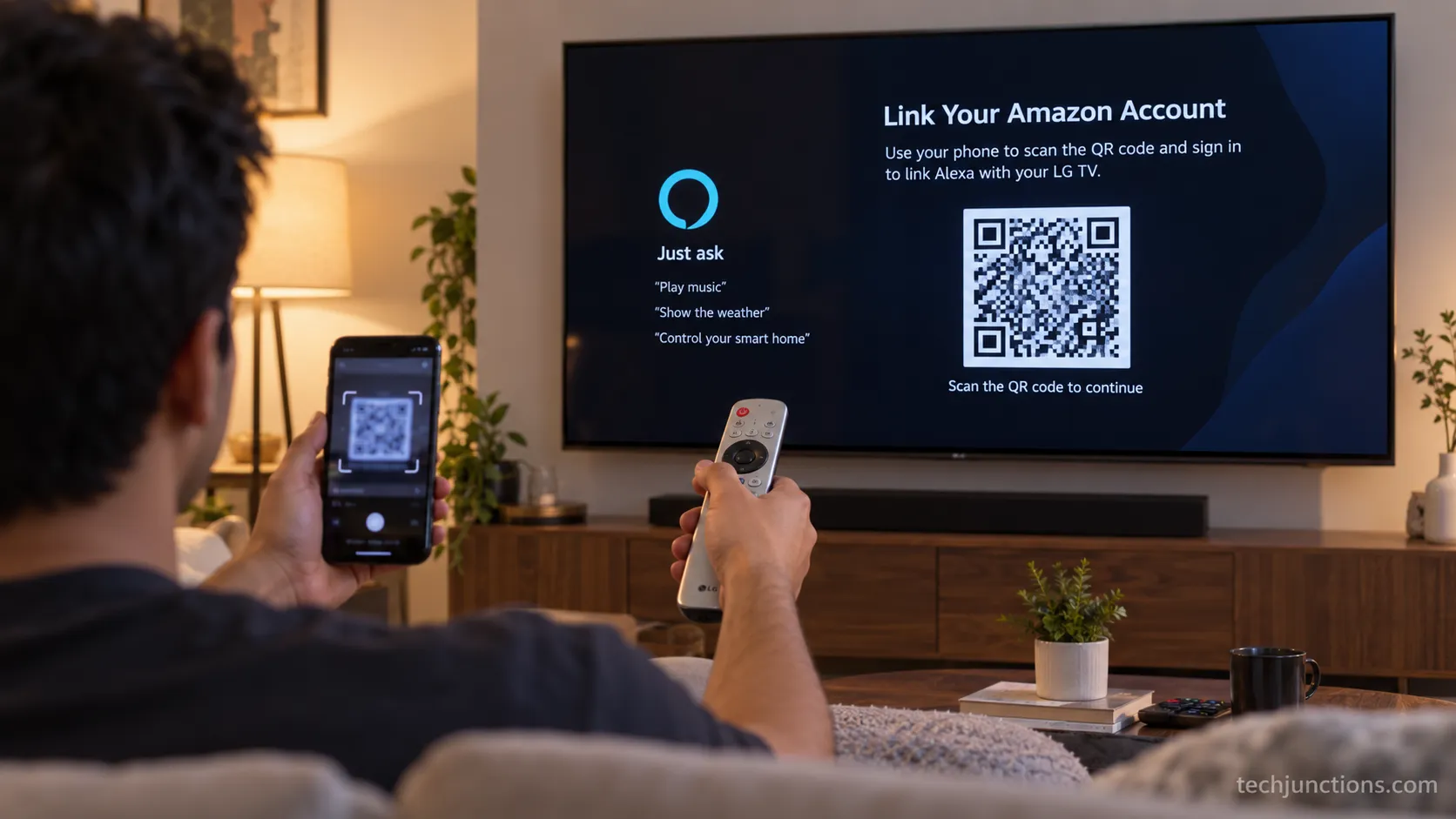
Select Get Started and sign in to your Amazon account when the QR code or sign-in screen appears.
Link the TV to your account, then choose Turn on Alexa Hands-Free if you want to skip the button press.
Try the sample command Alexa offers to confirm the link took.
On the C2, scanning the QR code with my phone linked the account in about twenty seconds.
On the older set I tested, the screen showed a web address and a pairing code to type instead of a QR, which is slower but works the same way.
If your TV is new enough for built-in Alexa but you have not paired it in LG's own app yet, it is worth pairing the TV in LG ThinQ too, since ThinQ unlocks power control that voice alone sometimes misses.
Path B: Control Your LG TV From an Amazon Echo
If your LG TV is a 2018 or 2019 model, there is no on-TV Alexa, so you connect Alexa to LG ThinQ and drive the TV from an Echo.
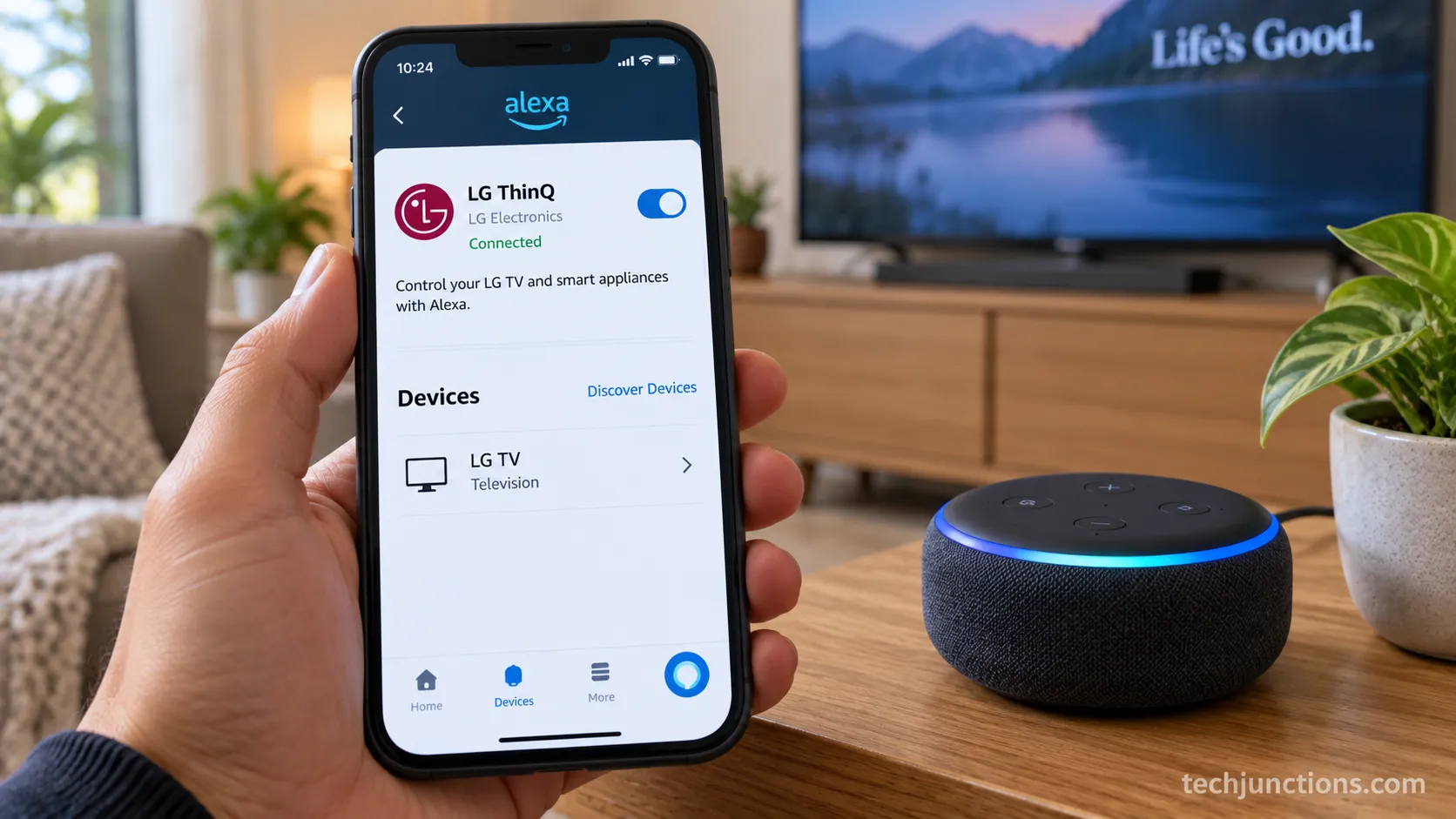
You enable the LG ThinQ skill in the Alexa app, sign in with your LG account, and run Discover Devices so the Echo finds the TV.
Enabling the LG ThinQ Alexa skill is what bridges the two accounts, and the TV must be registered in ThinQ on the same network first.
On my 2019 set, the Echo Dot found the TV in about forty-five seconds after I pressed Discover Devices.
The full Echo path looks like this:
Register the TV in the LG ThinQ app on your phone, on the same Wi-Fi as the Echo.
In the Alexa app, open More, then Skills & Games, and enable LG ThinQ.
Sign in with your LG account, not your Amazon account, when the skill prompts you.
Say "Alexa, discover devices" or press Discover Devices, then wait about a minute.
The one thing that tripped me up: the Echo only found the TV when the ThinQ skill and the TV used the same LG account.
When I tested with a mismatched account, discovery returned nothing, with no error explaining why.
Naming the TV clearly in ThinQ also helps, so consider renaming your LG TV to something short like "living room TV" before you link it.
The Echo path also lets you mirror your phone to the TV as a separate feature, though that runs through ThinQ rather than Alexa.
Which LG TVs Work With Alexa? The Model-Year Gate
The question of where the Alexa button is on your LG TV comes down to the model year, not the size or series.
According to TechRadar's report on LG's Alexa rollout, LG's 2018 AI-enabled OLED and SUPER UHD sets were the first to get the SmartThinQ Alexa skill, and built-in Alexa arrived later with webOS 5.0 in 2020.
That two-year gap is the whole reason two setups exist. When I lined up my 2019, and two 2022 sets, only the two newer ones showed an Alexa app on the home row at all.
Here is how the gate breaks down across LG's lineup:
LG model year | webOS version | How Alexa connects | Voice button on Magic Remote |
|---|---|---|---|
2018 | webOS 4.0 | ThinQ skill plus an Echo device | None |
2019 | webOS 4.5 | ThinQ skill plus an Echo device | None |
2020 | webOS 5.0 | Built-in Alexa on the TV | Prime Video button |
2021 | webOS 6.0 | Built-in Alexa on the TV | Alexa button |
2022 | webOS 22 | Built-in Alexa (some need Google Home) | Alexa button |
2023–2026 | webOS 23–26 | Built-in Alexa (some need Google Home) | Alexa button |
Not sure which year yours is? Our guide to finding your TV's model number decodes the year from the model string in seconds.
If your set predates 2018 and none of this applies, the honest answer is that voice control will always route through an external device.
At that point the real question is whether LG TVs are worth keeping or upgrading a set that is past its prime.
Age matters here too, especially once a panel falls outside its warranty period.
Owners on Apple devices sometimes prefer using Apple HomeKit instead of Alexa, which is a separate setup entirely.
No Alexa App or Button on Your LG TV? Here's Why
If there is no Alexa app on your LG TV and no voice button on the remote, the cause is almost always the model year, not a broken setting.
On 2018 and 2019 sets, LG never shipped an on-TV Alexa app, so the only route is an Echo.
There is also a newer wrinkle: according to LG's official Alexa and Google Assistant support, some webOS 22 and newer models require a Google Home setup for that voice function, which can make Alexa look missing when it is really gated.
On my 2019 set, the home row had no Alexa app at all, and the Echo route was the only thing that worked.
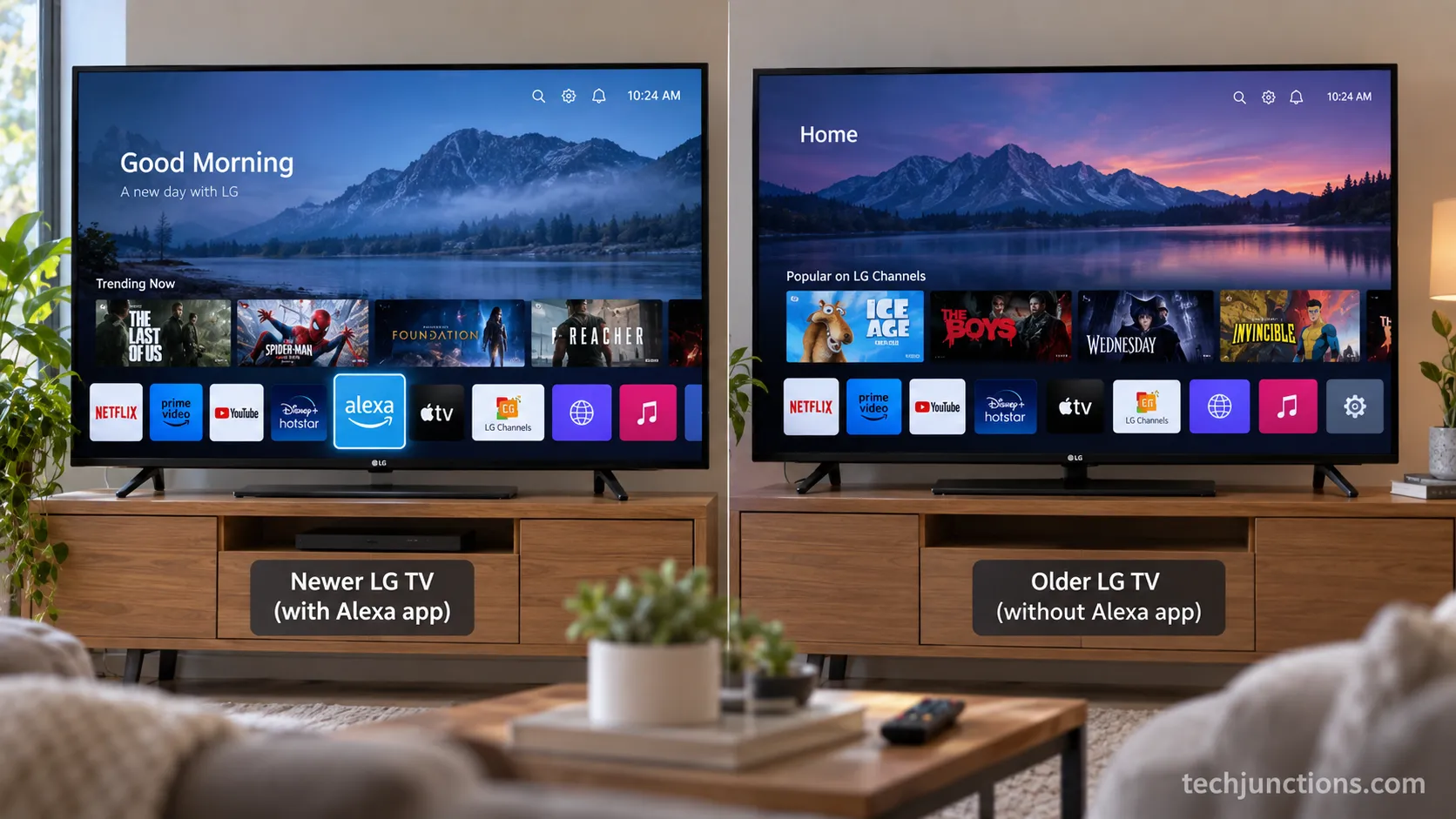
A quick way to tell which situation you are in:
No Alexa app and an older remote: Your TV is 2018 or 2019, so use the Echo path above.
No Alexa app but a newer remote with a voice button: Update webOS, then check whether your region routes voice through Google Home.
Alexa app present but greyed out: Sign out and back into your Amazon account inside the app.
If your goal is the reverse and you would rather stop the TV listening altogether, that is a separate task.
Our guide on switching off the TV's voice control covers it, while this article stays focused on getting Alexa connected.
While you are in the settings menus checking, the same All Settings panel is where you would change the on-screen language.
It is also where you would swap the screensaver, so it is worth learning the layout once.
Voice is not the only way to control the set from your phone or across the room.
If Alexa turns out to be more hassle than it is worth on an older TV, you can pair Bluetooth headphones for private listening.
AirPods owners can connect AirPods to the set through the same Bluetooth menu.
LG TV Alexa Not Responding or Dropping? The Fix That Held
When LG TV Alexa is not working after a clean setup, the usual pattern is that the Echo loses the TV every few days rather than failing outright.
The community fix, echoed on Reddit's r/LGOLED setup thread, is to disable the LG ThinQ skill, remove the stale devices, then re-add the skill and run Discover Devices again.
Over two weeks with my 2022 C2, the Echo dropped the TV twice before the re-add fix made it stick. After that, it held for the remaining ten days.
Here is the dated log from that test window, on an Echo Dot paired to the C2:
Date (2026) | What happened | What I tried | Result |
|---|---|---|---|
Jul 14 | Echo reported the TV "unresponsive" | Re-ran Discover Devices | Reconnected, held 3 days |
Jul 17 | Dropped after a router reboot | Toggled the TV's Wi-Fi off and on | Held about 1 day |
Jul 18 | Dropped a third time | Disabled ThinQ skill, removed devices, re-added | Held the rest of the window |
Jul 28 | End of test window | No action needed | Stable, no further drops |
The re-add works because the skill's account link can go stale, and removing it forces a fresh token rather than reusing a broken one.
If re-adding does not hold and the picture or power is also acting up, the fault may be hardware rather than software, which is when it helps to weigh TV repair options against replacement.
A dropout that only happens as the panel ages, alongside other glitches, can be one of the early signs a TV is failing.
A brand-new set that drops Alexa is far more likely a network or account issue than a dying panel.
If your signal source is the problem rather than the TV, our note on hooking up an antenna covers that input separately.
The same goes for linking an iPhone to the TV when the source is your phone.
Alexa Turns the TV Off But Won't Turn It On
The most common LG TV Alexa complaint is that voice can turn the TV off but cannot turn it back on.
This happens because most TVs cut their network connection in standby, so the Echo has nothing to send a wake command to.
The fix on modern LG sets is a power setting, and according to LG's connect-to-Alexa help page, you enable the option that lets the TV stay reachable over the network while off.
On older webOS, the equivalent toggles are TV Mobile On and LG Connect Apps.
To turn on your LG TV with Alexa, enable the wake setting first:
Open All Settings, then General.
Find Mobile TV On or Turn on via Wi-Fi, depending on your webOS version.
Toggle it On, then confirm LG Connect Apps is on under Network on older sets.
Test with "Alexa, turn on the TV" after the set has been off for a few minutes.
Out of the box on my C2, "Alexa, turn off the TV" worked instantly, but "turn on" did nothing until I enabled that setting. After toggling it on, the cold power-on worked every time I tested it.
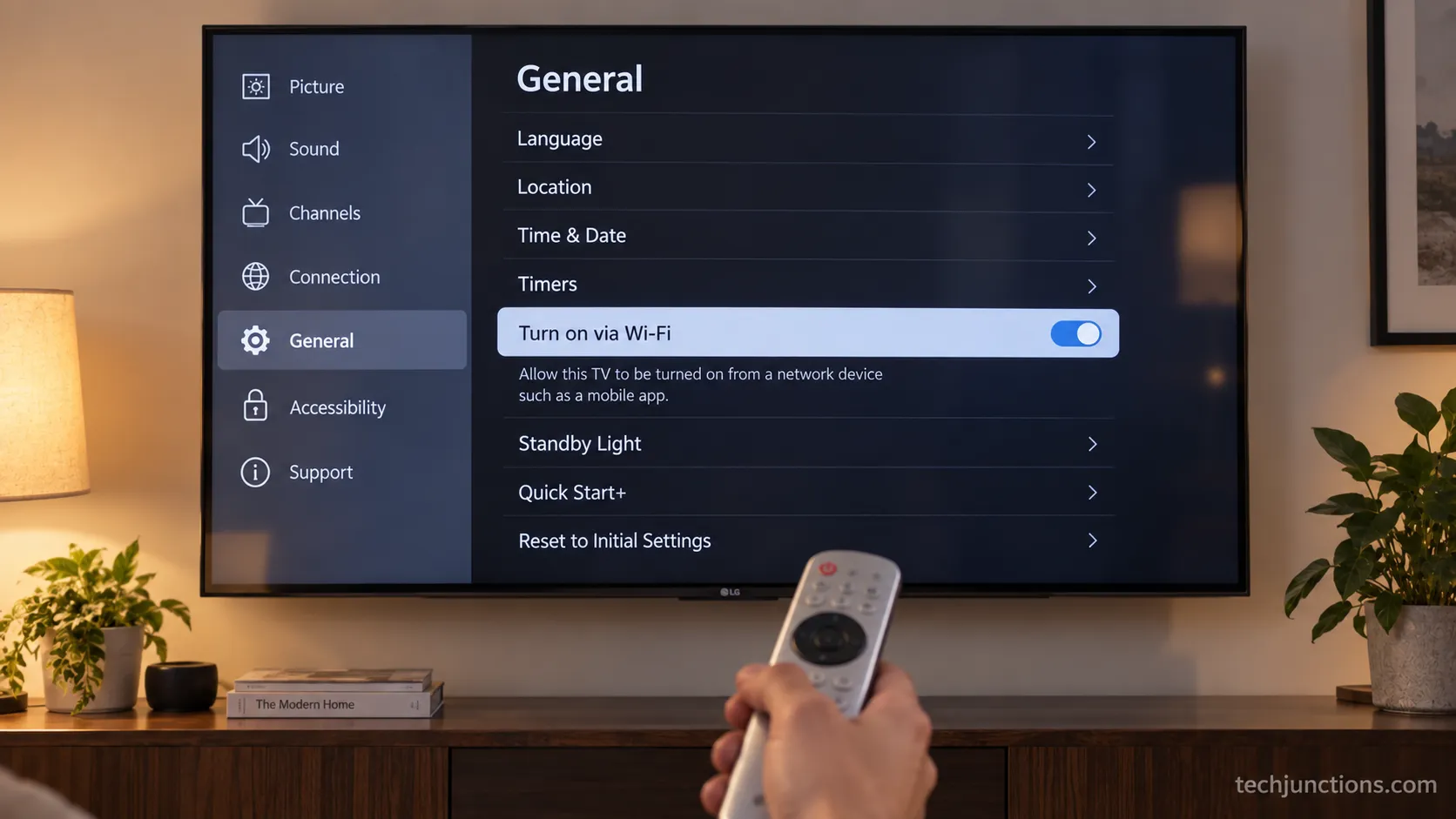
This one setting is the difference between half-working and fully-working voice control, so decide upfront whether a repair is worth it before blaming the TV for a fix that is really a menu toggle.
If you route TV audio through a soundbar, note that adding an LG soundbar can change which device Alexa controls for volume.
You may also want to check that voice search has not switched on the closed captions you would rather hide.
LG TV Alexa Commands That Actually Work
Once connected, an LG TV responds to Alexa commands for power, volume, inputs, apps, and content search.
According to LG's India support guide, voice can control power, volume, inputs, apps, and content search once the TV is registered.
In my testing, the hardware commands were rock solid, but content search was the weak spot. Naming inputs clearly fixed most of the wrong-screen errors I ran into.
Here is how each command class held up across my three sets:
Command you say | Result | Note |
|---|---|---|
"Alexa, turn off the TV" | Worked | Instant on every built-in model |
"Alexa, volume up" or "mute" | Worked | Reliable, no lag |
"Alexa, switch to HDMI 2" | Worked | Named inputs work best |
"Alexa, open Netflix" | Worked | The app must be installed first |
"Alexa, play [show] on the TV" | Partial | Content search was hit or miss |
"Alexa, turn on the TV" | Worked after fix | Needed the wake setting enabled |
The pattern is consistent: anything that maps to a hardware function is reliable, while anything that depends on Alexa guessing the right app or title is not.
For a fuller reference, you can also hide subtitles by voice on some models, though I found the menu faster.
Voice can also toggle accessibility options, so it helps to know how to disable audio description if a command switches it on.
Frequently Asked Questions
Does every LG TV work with Alexa?
Every LG smart TV from 2018 onward works with Alexa, but the method depends on the year. Sets from 2020 and newer have built-in Alexa, while 2018 and 2019 models need an Amazon Echo and the LG ThinQ skill.
Pre-2018 sets have no native support at all and rely entirely on an external device.
Where is the Alexa button on my LG TV remote?
The Alexa button appears on 2021 and 2022 Magic Remotes, usually a small microphone icon near the top. On 2020 remotes, the Prime Video button doubles as the Alexa button when you press and hold it.
Remotes from 2019 and earlier have no voice button, so those TVs use an Echo instead.
Can an Echo Dot control my LG TV?
Yes, an Echo Dot can control an LG TV once you enable the LG ThinQ skill and run Discover Devices in the Alexa app. On my 2022 C2, the Dot controlled power, volume, and inputs reliably after I made sure the skill and the TV used the same LG account.
The one condition is that both must share that account, or discovery finds nothing.
Why does Alexa turn my LG TV off but not on?
Alexa can turn the TV off but not on because the set drops its network connection in standby by default. Enabling the network wake setting, called Turn on via Wi-Fi or Mobile TV On depending on your webOS version, keeps the TV reachable so the wake command lands.
After I toggled it on, cold power-on worked every time.
Do I need the LG ThinQ app for built-in Alexa?
You do not strictly need LG ThinQ for built-in Alexa on 2020 and newer TVs, since the Magic Remote handles voice directly. ThinQ is still worth adding because it unlocks reliable power control that voice alone occasionally misses.
On older 2018 and 2019 sets, ThinQ is mandatory because it is the only bridge to an Echo. If your TV is in a hotel-style lockdown, you may first need to exit hotel mode before any of these settings appear.
The Bottom Line
The whole trick to how to connect LG TV to Alexa is checking your model year before you touch a single menu.
A 2020-or-newer set gives you built-in Alexa and a two-minute setup with the Magic Remote, while a 2018 or 2019 set routes through an Echo and the LG ThinQ skill in about five.
Once you are connected, two settings decide whether voice feels finished or half-broken. Enabling the network wake option fixes the "off but not on" problem, and re-adding the ThinQ skill fixes the slow drift where the Echo loses the TV after a few days.
Match the path to your year, enable the wake setting, and keep the re-add trick in your back pocket, and Alexa will run your LG TV the way it should.
From there, the only thing left is deciding how many of the daily commands you actually want to hand over to your voice.
Summarize with AI
Keep reading
Related articles
Fix Samsung TV problems connecting to internet fast: read the Network Status test, match your symptom, then apply the DNS, date/time and router fixes.
Fix Insignia TV horizontal lines on screen in minutes: a hard reset and one built-in menu test show instantly if it's a cheap cable or a dead panel.
Sell it for parts, part it out, repurpose it, or recycle it free, that's what to do with a broken TV, plus what a broken set is really worth.
Compare TV repair cost by problem, type, and size in 2026: typical fixes run $100-$300, cracked screens $400+. See what's fair and when to replace.
Comments
Moderated for quality. Share a correction, ask a follow-up, or tell us what worked for you - every comment is reviewed before it goes live.