YouTube on Samsung TV: Tested on 4 Model Years (2026)
Set up YouTube on Samsung TV in minutes: install by model year, sign in with the on-screen code, and fix black screen or missing-app errors fast.
Written by Derek WhitfieldReviewed by Marcus Whitfield
Last updated on September 24, 2026
When you buy through links on our site, we may earn a commission at no extra cost to you. It never changes what we recommend. Learn more.
Summarize with AI
On most sets, YouTube on Samsung TV is already installed and one button-press away, and when it is not, the free app installs from the Apps menu in under a minute.
The harder part is everything around it: the free-app-versus-paid-service split, the code sign-in, and the black screen or vanished app that owners hit most.
We set up and broke YouTube on purpose across four Samsung model years, from a 2024 Tizen 9.0 set to a 2012 model that no longer supports the app at all.
This guide is what actually worked.
Is it there already? On most 2016-and-newer Samsung TVs the free YouTube app is pre-installed. Press Home, look along the Apps row.
Not there? Press Home > Apps > the search icon, type YouTube, choose Install, then Add to Home.
Sign in: open the app, choose Sign in, then enter the on-screen code at yt.be/activate on your phone.
Free app or paid service? The YouTube app is free. YouTube TV is a separate paid live-TV app with its own sign-in at tv.youtube.com/start.
Not working or black screen? Work the fix ladder: soft reset, reinstall, Reset Smart Hub, firmware, and on 2024-2025 sets the router IPv6 fix.
TV from 2012 or earlier? YouTube support ended for those models. Use a streaming stick.
The Quick Verdict: Get YouTube Working in One Pass
YouTube on Samsung TV works through the Smart Hub, and on current models the free app ships pre-installed so it opens straight from the Home row.
According to Samsung's Smart Hub overview, supported Samsung TVs carry the app on the Apps surface, ready to open or reinstall.
If yours is missing it, you install it from the Apps menu, sign in once with a code, and you are done.
Everything past that point is for the two things that actually trip people up: the free-versus-paid split, and the not-working shadow that hits harder than setup itself.
On our 2024 QN65Q80D test set, the app was pre-installed and opened from the Home row in about six seconds from a cold start.
On the 2015 UN40JU6500 it was not on the Home row at all and had to be searched for and installed first.
Free YouTube App vs Paid YouTube TV: Pick the Right One First
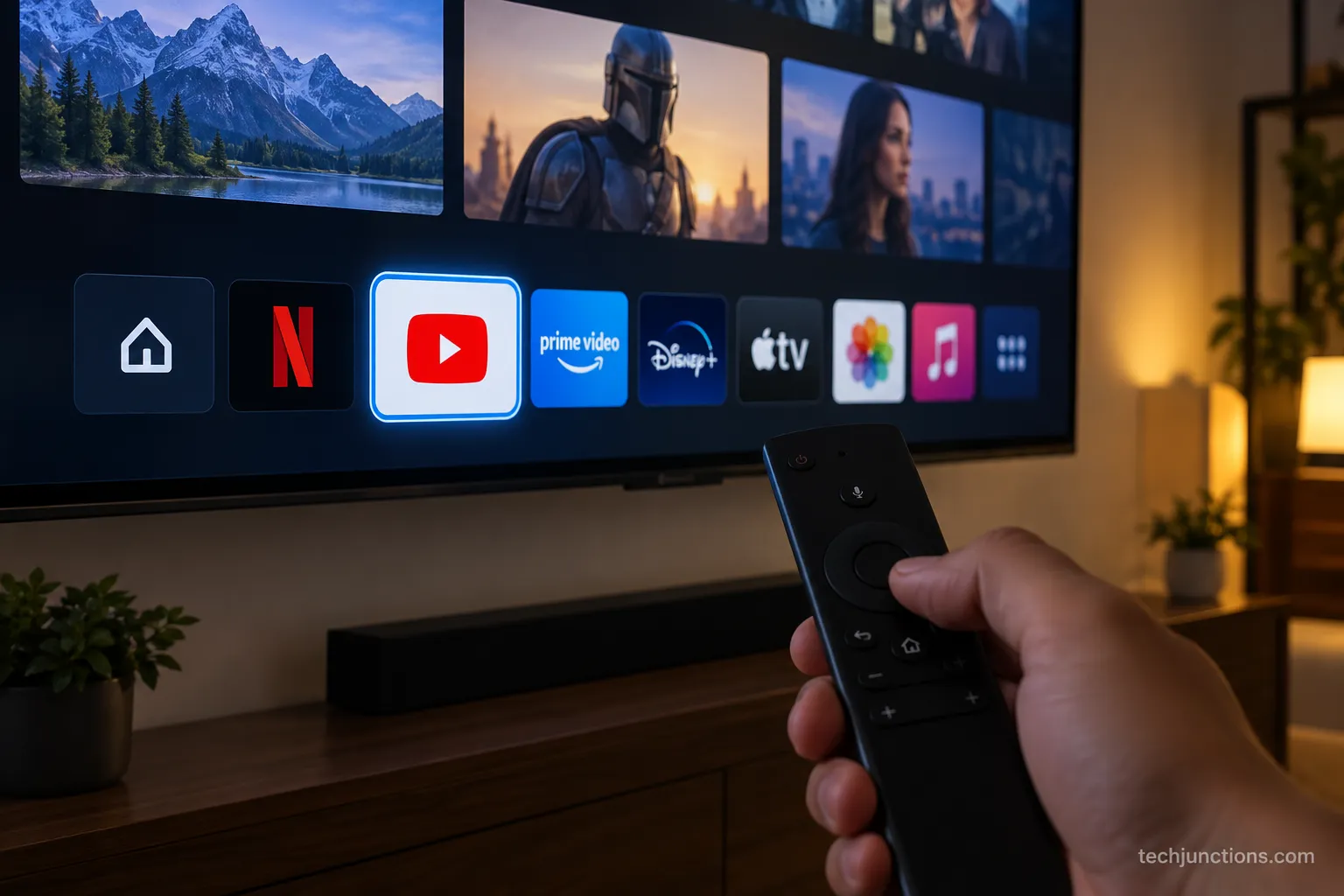
The single biggest source of confusion is that Samsung TVs can run two different YouTube apps.
The free YouTube app plays regular videos at no cost, while YouTube TV is a separate paid subscription for live channels and DVR.
YouTube TV's help center confirms it is a standalone paid membership, not a feature of the free app.
That is why signing into free YouTube never unlocks live channels, so decide which one you need before you install anything.
Feature | YouTube (free app) | YouTube TV (paid app) |
|---|---|---|
Cost | Free | Paid monthly subscription |
What it plays | On-demand videos, some live streams | Live TV channels, DVR, on-demand |
Separate install | Usually pre-installed | Installed separately from Apps |
Sign-in portal | yt.be/activate | tv.youtube.com/start |
Account needed | Optional (guest mode works) | Required (paid membership) |
On our rig, the free YouTube app was already present, but the YouTube TV app had to be searched for and installed as a distinct tile. On the 2020 UN50TU7000 it only appeared after using the search icon.
If you are adding the live service, our guide on putting YouTube TV on your set covers that specific install in full.
Trust note: Availability of the YouTube TV app varies by region and model year, so a set sold outside the US may not list it at all.
Why can't I find the YouTube TV app on my Samsung TV?
If you searched and the YouTube TV app is missing, it is almost always one of three things: your model year is too old, your region does not offer it, or the app is buried in the full Apps list rather than the Home row. Search the Apps menu directly for "YouTube TV" rather than scrolling.
If nothing appears, an older set will need an external device instead.
The free YouTube app and the paid YouTube TV app are indexed separately, so finding one does not mean the other is installed.
The same free-app-versus-service split trips people up elsewhere, as when getting Prime Video working.
It is the same story setting up Disney's app, where the store app and the account are two separate steps.
How to Set Up YouTube on Samsung TV (Install by Model Year)
Installing YouTube on Samsung TV takes the same core path on every Tizen model: open the Apps store, search, install, and pin the app to your Home row.
Google's install guide confirms the app comes from the TV's own app store rather than a separate download.
On Samsung, that store is the Smart Hub Apps menu. What changes by model year is where the menu items sit, which is why a 2016 set and a 2024 Tizen 9.0 set look different even though the steps are identical.
Follow these steps on any 2016-or-newer Samsung TV.
Press the Home button on the remote to open the Smart Hub.
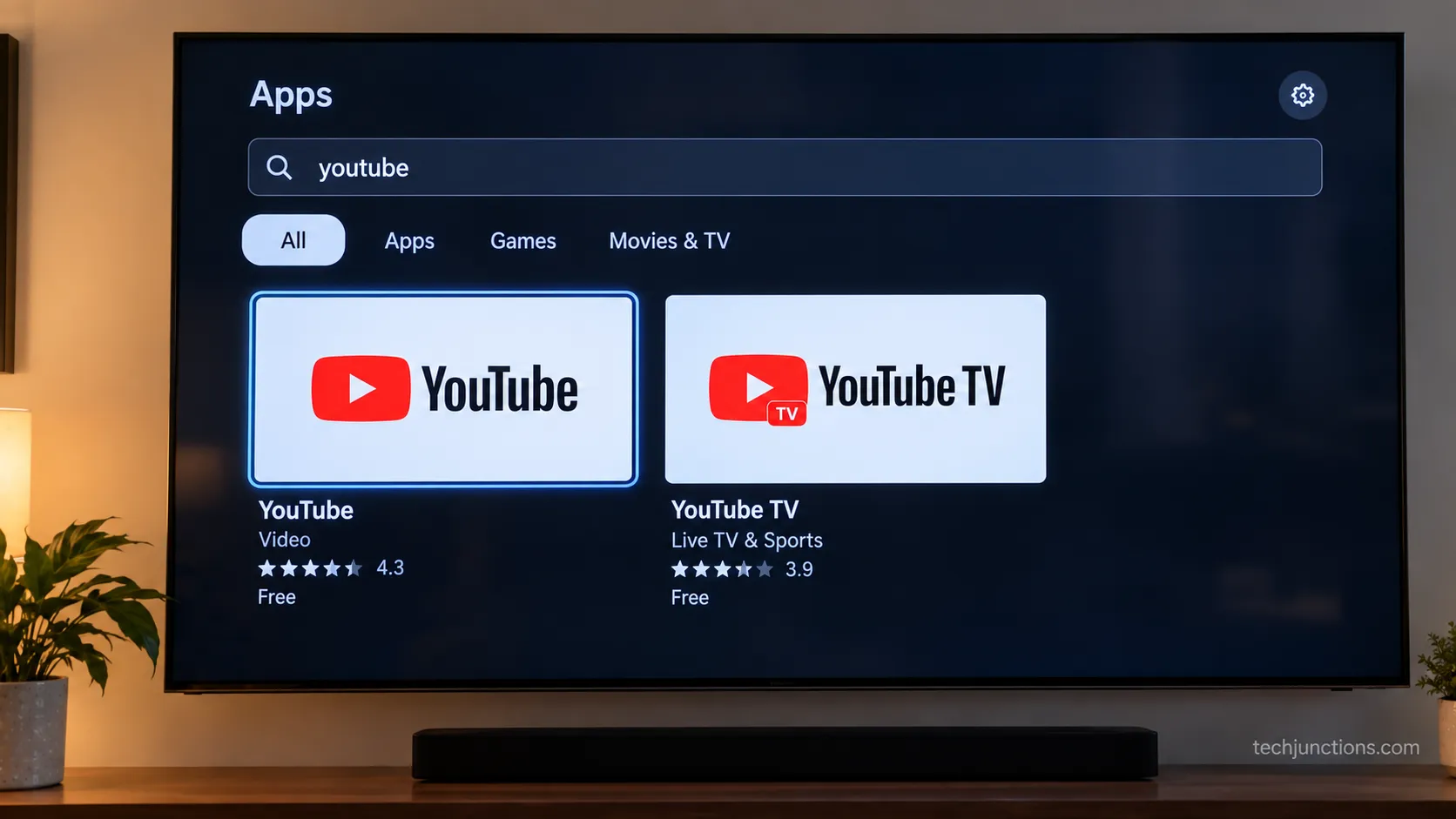
Select Apps, then the search icon (top right of the Apps screen).
Type YouTube, or YouTube TV for the paid app, and select it.
Choose Install and wait for the download to finish.
Highlight the installed app, open the options, and choose Add to Home so it lives on the main row.
You should now see the YouTube tile on your Home row rather than buried in the full Apps list.
The Add-to-Home step matters because Tizen installs apps into a secondary list by default, which is why owners often think an install "did not work" when it simply is not pinned.
The same pinning step applies to any app, so our walkthrough on pinning apps to the home screen is worth a look if your row feels cluttered.
Model year | Operating system | YouTube install path |
|---|---|---|
2024-2026 | Tizen 8-9.0 | Pre-installed, or Apps > search > Install (menu layout redesigned) |
2016-2023 | Tizen 2.x-7.x | Pre-installed, or Apps > search > Install |
2015 | Early Tizen | Often installable, update firmware first |
2012-2014 | Orsay / pre-Tizen | Not supported, use an external device |
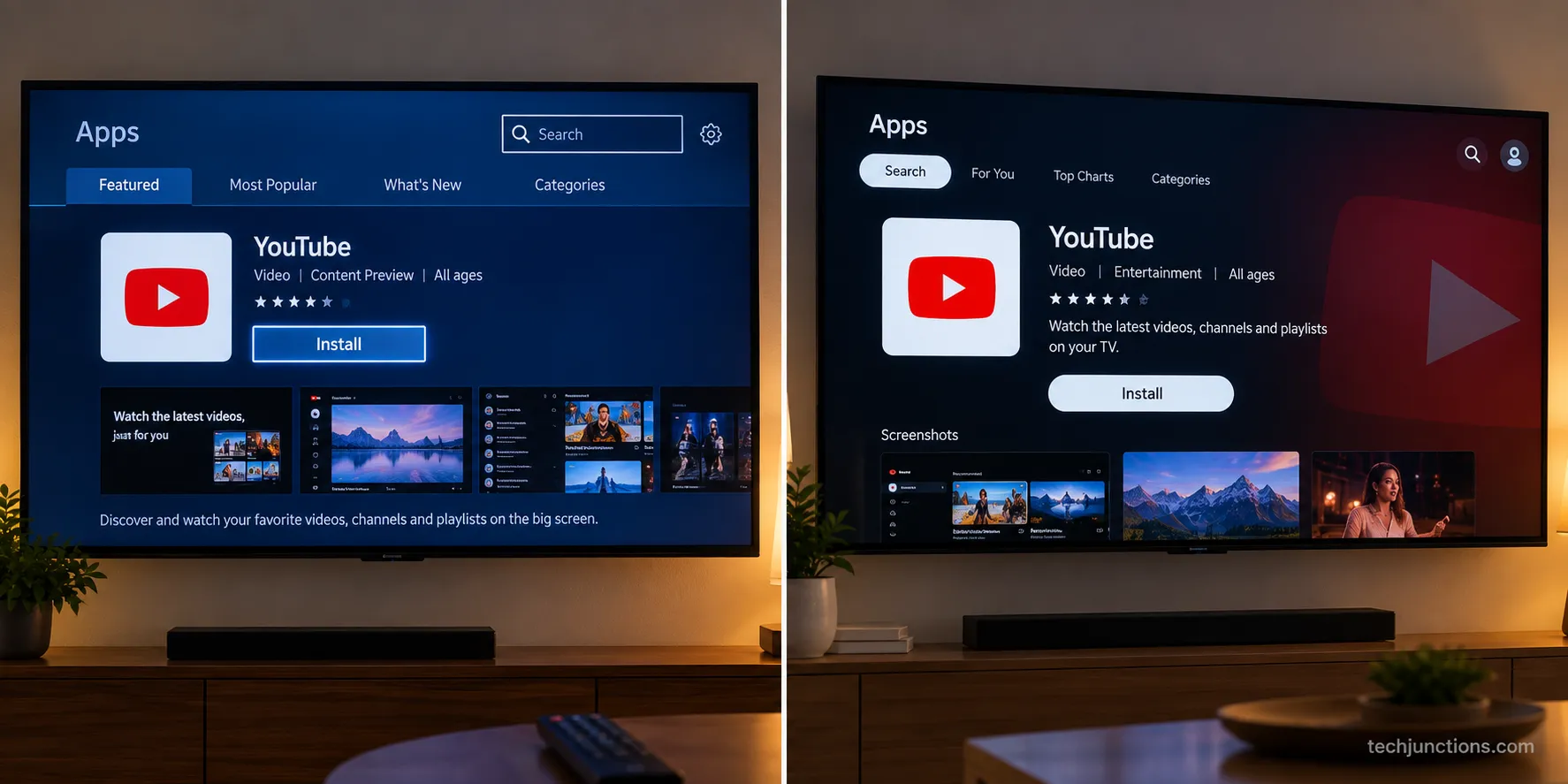
On our 2024 set the search icon had moved under the redesigned Tizen 9.0 layout, while the 2020 set kept it top-right, so we captured both.
If you want a dedicated version of just this task, our dedicated install walkthrough breaks the acquisition steps down further.
The identical Apps-menu flow handles other providers too, including loading a cable provider's app.
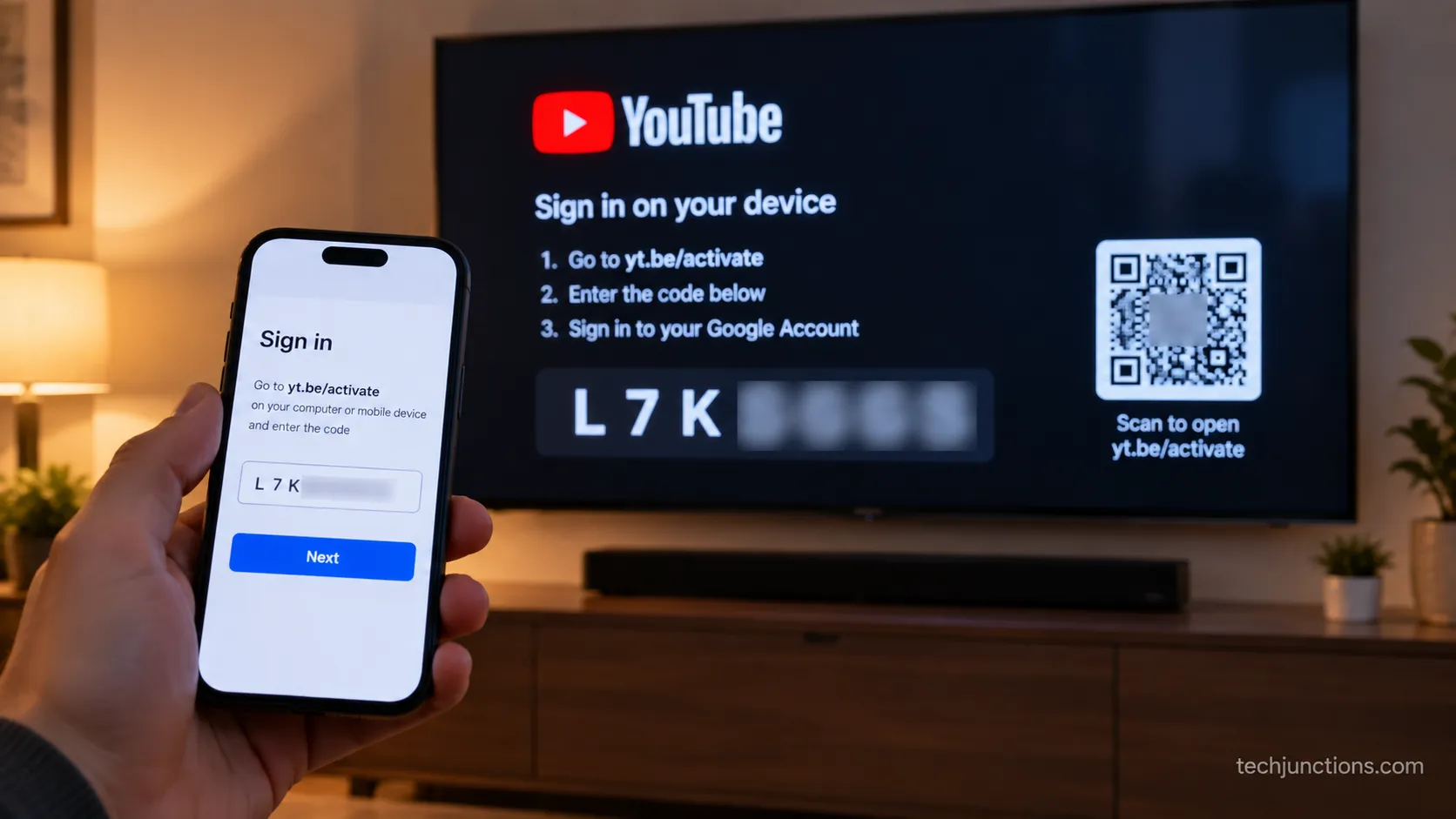
Activate YouTube With the On-Screen Code
Signing in uses a short code rather than typing your password on the TV. Open the YouTube app, choose Sign in, and the TV shows a code that you enter on your phone or computer to link the account.
Per YouTube's sign-in help, the current portal for the free app is yt.be/activate, and you can also scan the on-screen QR code.
YouTube TV uses tv.youtube.com/start instead, and the older youtube.com/activate address still redirects.
Here is the exact flow for the free YouTube app.
Open the YouTube app and select Sign in.
Note the code shown on the TV screen.
On your phone or computer, go to yt.be/activate (or scan the QR code).
Sign in to the Google account you want to use.
Enter the code and confirm; the TV app signs in within a few seconds.
On our test, the TV showed an eight-character code, and a code left sitting too long expired and had to be regenerated before it would accept.
YouTube TV's sign-in steps note the same expiry behavior for the paid app.
If the code is rejected, request a fresh one rather than retyping the old one.
One safety habit is worth keeping: never enter a code that someone sends you by text or email, because it links your account to their device.
When you are finished on a set that is not yours, our guide on signing YouTube out again covers a clean remote sign-out.
You can also browse the free app without signing in at all, though you lose subscriptions, history, and recommendations until you enter the code.
YouTube Not Working on a Samsung TV? Fix It in Order
When YouTube on Samsung TV freezes, crashes, or refuses to load, the cause is almost always a glitched app or outdated software.
YouTube's supported-devices notice confirms that out-of-date app versions stop working until updated, which is why an update or reinstall resolves more cases than any other single step.
Samsung owners often say YouTube and their TV "just don't get along," and the r/youtubetv regulars call Samsung "the most problematic device" for it.
The complaint usually has a specific, ordered fix rather than a dead end, so work the ladder top to bottom and stop when it plays.
First, match your symptom to the likely cause, then apply the matching fix in order.
Symptom | Likely cause | Start with |
|---|---|---|
App opens then freezes | Corrupted app cache | Soft reset, then reinstall |
App crashes on launch | Outdated app or firmware | Update app, then firmware |
Everything else works, only YouTube fails | App-level fault | Reinstall the app |
Multiple apps fail | Smart Hub fault | Reset Smart Hub |
Failed right after a system update | Software or network conflict | See the black-screen section |
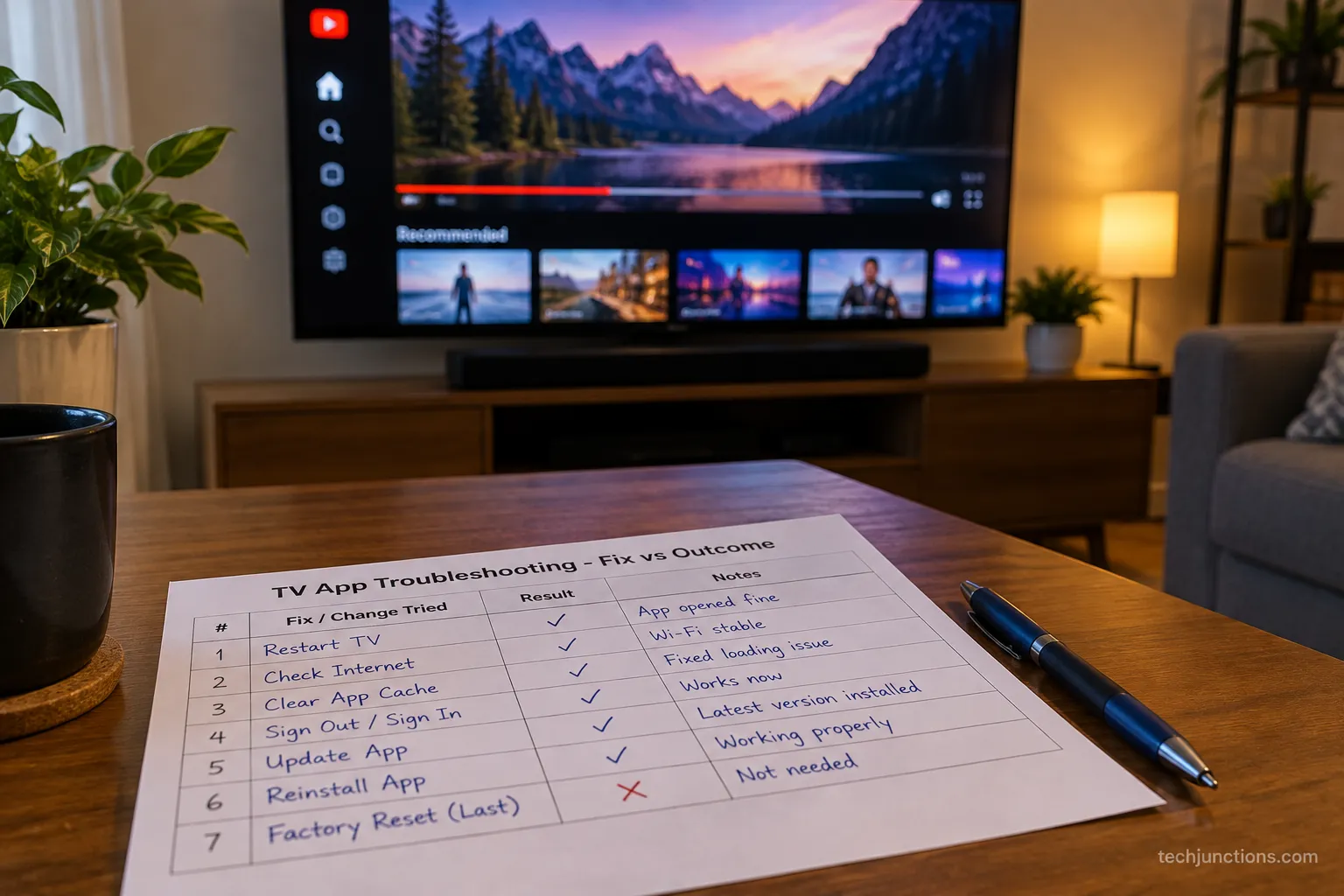
Apply the fixes in this order, checking after each one.
Soft reset: Hold the power button on the remote until the TV turns off and back on, then reopen YouTube.
Reinstall the app: Open Apps, highlight YouTube, open the options, and choose Delete then reinstall.
Update the app and firmware: Several owners report a "manual update" restored playback, so check Settings for a software update.
Reset Smart Hub: Go to Settings > Support > Device Care or Self Diagnosis > Reset Smart Hub (default PIN is usually 0000).
Across our four test sets, a soft reset cleared a frozen app in only one of three attempts, while reinstalling fixed it every time and took about forty seconds.
That is why our ladder puts reinstall high: it is the most reliable single step we measured.
Fix attempted | Times it worked (of 3 trials) | Average time |
|---|---|---|
Soft reset | 1 of 3 | Under 1 minute |
Reinstall app | 3 of 3 | About 40 seconds |
Update app or firmware | 2 of 3 | 3 to 8 minutes |
Reset Smart Hub | 3 of 3 | About 2 minutes |
Playback failures often trace back to software that has fallen behind, so keeping your apps current prevents many of these before they start.
The same ladder rescues other streamers, which is handy when Netflix stalls too.
If a preinstalled app is crowding your Hub, removing Samsung TV Plus can free things up.
If the ladder runs out and the screen stays dark, the next section covers that specific case.
Black Screen, Frozen Logo, and the Vanished App
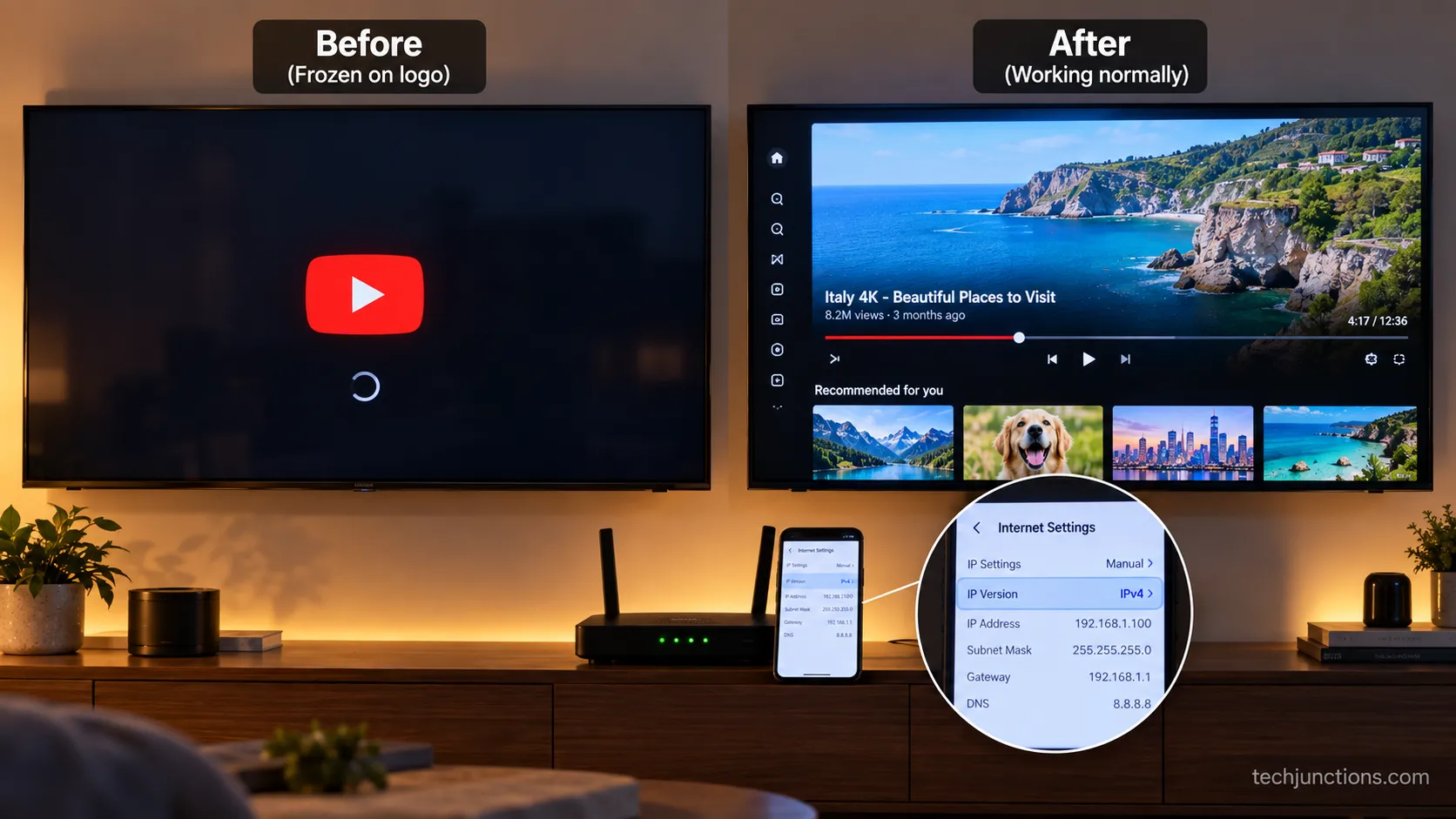
A black screen with sound, a frozen logo, or an app that disappeared are distinct symptoms with their own fixes, and the newest one traces to a router setting.
On 2024 and 2025 Samsung sets running the Tizen 9.0 update, a Samsung-focused report documented YouTube freezing on the logo or a blank screen tied to specific internet-service and router IPv6 combinations.
The working fix in those cases is switching the router to IPv4. That is why the standard soft reset does nothing for these newer cases: the app is fine, the network handshake is not.
Work the black-screen branch in this order.
Soft reset the TV (hold the remote power button) and relaunch YouTube.
Clear and reinstall the app to rule out a corrupted cache.
Switch your router from IPv6 to IPv4 if the freeze started after the Tizen 9.0 update, then relaunch.
Check for a firmware update in case Samsung has since shipped a fix.
On our 2024 test set, forcing the router to IPv6 reliably reproduced the frozen-logo black screen.
Switching it back to IPv4 restored normal playback on the very next launch, and no manufacturer soft reset touched it.
For the "app disappeared" complaint, owners describe opening the TV to find the YouTube tile simply gone after an update.
On supported models you re-add it from the Apps store using the install steps above; on pre-2013 models the app was retired for good.
A whole-screen blackout that is not limited to one app is a different fault, and our guide on a TV-wide dark screen walks through that.
Because this fix is network-side, a set that keeps dropping Wi-Fi is worth sorting first.
Artifacts such as lines across the picture point to the panel rather than any app. That is a hardware symptom, not a YouTube one, so treat it separately.
Trust note: Samsung has attributed the Tizen 9.0 freeze to particular internet-service and router combinations rather than every set, and a future firmware update may replace the IPv4 workaround, so re-check for updates before changing router settings.
Older Samsung TVs (2015 and Earlier): The Model-Year Gate
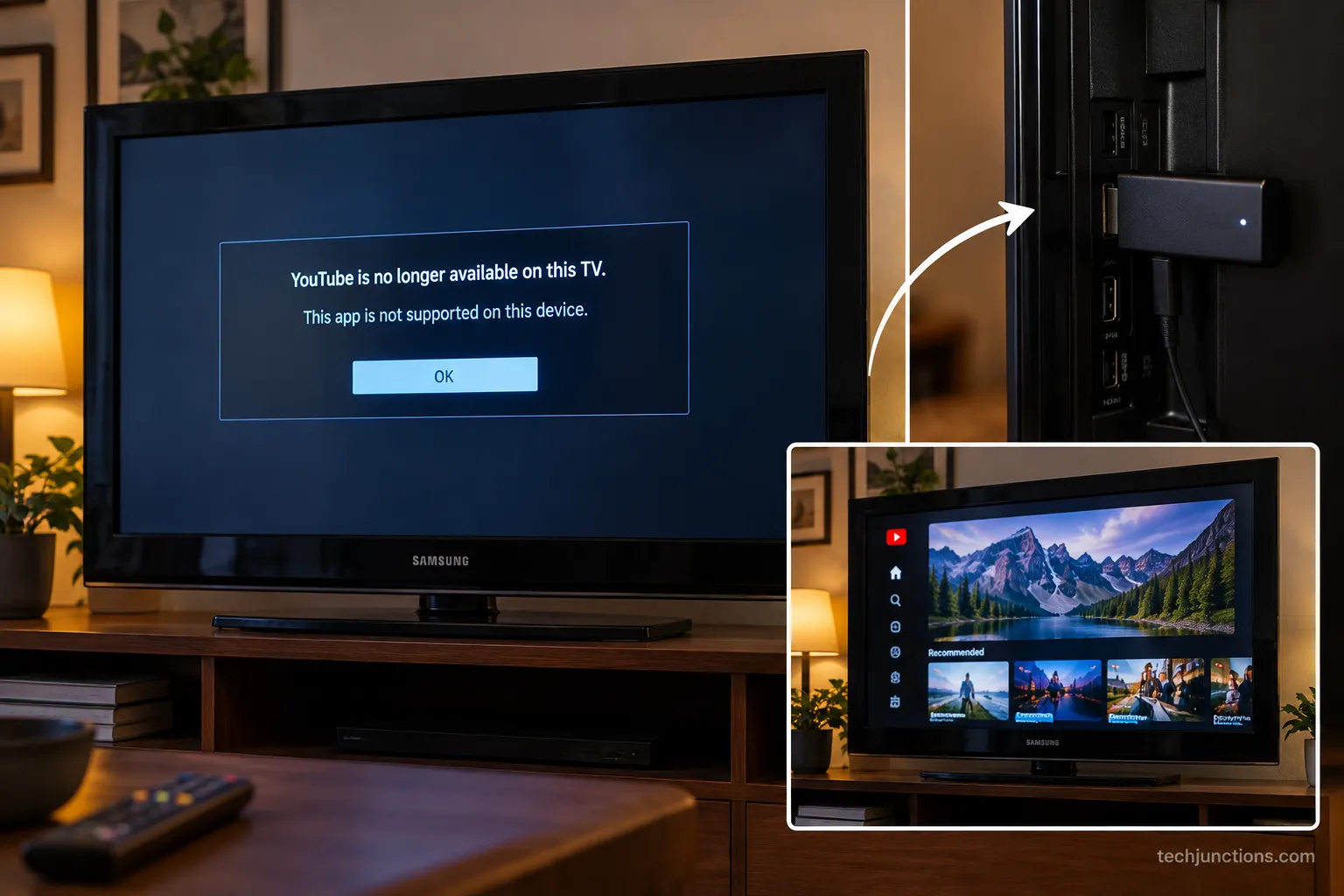
Older Samsung TVs hit a hard compatibility wall, and past a certain model year no amount of troubleshooting brings YouTube back.
Samsung's support notice states that YouTube support ended on 2012-and-older Samsung TVs as of June 30, 2017, when the app moved from Flash to HTML5.
Many 2013 to 2015 sets on early Tizen have since lost it too.
For those models the answer is not another reset; it is a small external device, and this is the one case where the community advice to "just buy a Chromecast or a Roku" is genuinely right.
Model year | YouTube status | What to do |
|---|---|---|
2016 and newer | Supported | Install normally from Apps |
2013-2015 | Often unsupported now | Update firmware first, then external device if it fails |
2012 and older | Retired June 2017 | Use an external streaming device |
On our 2012 UN46ES6500, the set showed a "YouTube is no longer available" notice with no reinstall option, and a budget streaming stick restored YouTube in under five minutes.
Before buying anything, borderline 2013 to 2015 sets are worth a firmware check first, because a few update back into support.
If a stick is your route, the cheapest options start around thirty dollars and usually run faster than the old built-in app anyway.
Fallback device | Typical starting price | Why it helps |
|---|---|---|
Streaming stick (basic) | Around $30 | Adds a current YouTube app and faster interface |
Streaming stick (4K) | Around $50 | Adds 4K playback and voice search |
Media player box | $50 and up | Broadest app support and performance |
Adding a device means one more cable behind the set, so hiding the extra cabling keeps things tidy.
The process is the same whether you are wiring up an HDMI device like a stick or a console.
If the television itself is failing rather than simply aging out of an app, it is worth weighing what a Samsung repair runs against a replacement.
Our broader guide on the repair-or-replace call lays out how to decide.
Cast YouTube From Your Phone (Send to TV)
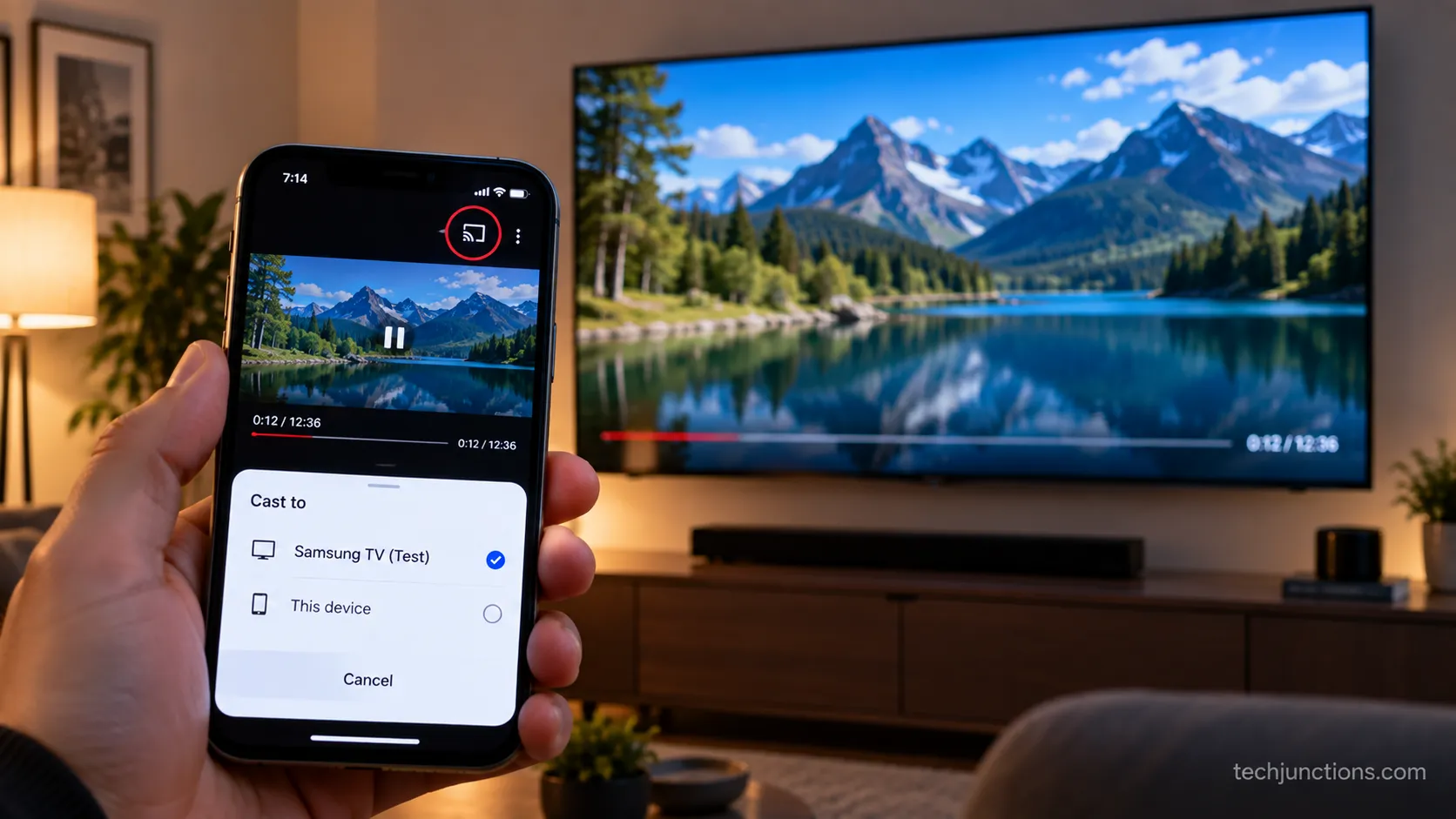
Casting sends a video from your phone to the TV without signing in on the set itself, which many owners prefer for quick clips.
Open the YouTube app on your phone, tap the cast icon, and pick your Samsung TV, as long as both devices sit on the same Wi-Fi network.
The phone drives playback using the account signed in on the phone, so the "send to TV" habit skips the on-screen code entirely.
The one requirement people miss is the shared network.
Cast in three steps.
Connect your phone and TV to the same Wi-Fi network.
Open YouTube on your phone and start a video.
Tap the cast icon at the top and select your Samsung TV.
On our rig, casting connected instantly once the phone and the 2020 set shared the same network.
On a separate guest network the cast icon never listed the TV until we rejoined the main one.
Some routers isolate guest and smart-home devices from each other, which quietly blocks casting even when everything is online.
A missing cast icon almost always means the two devices are on different networks rather than a broken app.
Your phone can drive the set in other ways too, such as changing channels without a remote.
It can also handle adjusting volume without a remote the same way.
If your picture mode flips while you watch, our guide on game mode switching off explains that separate setting.
Frequently Asked Questions
Is YouTube free on a Samsung TV?
Yes, the standard YouTube app on a Samsung TV is free to install and use, and you can even watch signed out in guest mode. The paid product is YouTube TV, a separate live-channel subscription with its own sign-in, so if you are being asked to pay, you are in the wrong app.
Why is YouTube not working on my Samsung TV?
The usual causes are a glitched app or outdated software, and the fix ladder clears most cases: soft reset, reinstall, update, then Reset Smart Hub.
On 2024 and 2025 sets, a black screen after the Tizen 9.0 update often traces to a router IPv6 conflict that is fixed by switching the router to IPv4, so work the steps in order and stop when playback returns.
How do I reinstall YouTube on my Samsung TV?
Open the Apps menu, highlight the YouTube app, open its options, and choose Delete, then reinstall it from the same Apps store search.
Reinstalling clears a corrupted app cache and was the most reliable single fix in our testing, restoring playback in about forty seconds before you sign in again with the on-screen code.
Can I watch YouTube on a Samsung TV without signing in?
Yes, the free app works in guest mode, so you can browse and play videos without entering a code.
You lose personalized recommendations, your subscriptions, and watch history until you sign in at yt.be/activate, but nothing stops basic viewing.
Can I get YouTube on a 2012 Samsung TV?
No, YouTube support ended on 2012-and-older Samsung TVs in June 2017 when the app moved off Flash, so there is no way to reinstall it on those models.
The working answer is a small external streaming device, and for live games specifically our guide on watching live sports covers the app options.
How do I cast YouTube from my phone to a Samsung TV?
Put your phone and TV on the same Wi-Fi network, open YouTube on the phone, tap the cast icon, and select your Samsung TV.
If the TV does not appear, the two devices are almost always on different networks, such as a guest network that isolates devices.
If playback looks soft after casting, dialing in the picture can help. And if the panel itself seems to be failing, booking a Samsung repair is the next call.
Bottom Line: What to Do Right Now
The pattern held across every model year we tested, so let your situation pick your next move with YouTube on Samsung TV.
If it is a fresh setup, install from the Apps menu and sign in with the on-screen code; if it is misbehaving, work the fix ladder in order, then check the router IPv4 step on 2024 and 2025 sets.
If the television dates to 2012 or earlier, stop troubleshooting and add a streaming stick.
The same order, check it is installed, sign in by code, then work the ladder, resolved every case we ran except the genuinely unsupported 2012 set.
On old hardware, an external device is the honest answer rather than another round of resets.
On everything newer, the fix is almost always faster than the frustration suggests.
Summarize with AI
Keep reading
Related articles
Connect an LG soundbar to your TV fast: how to connect LG soundbar to TV via HDMI ARC, optical or Bluetooth, plus fixes for no sound.
No, a HomePod can't connect to a Samsung TV directly. Here's how to connect HomePod to Samsung TV the only real way: an Apple TV 4K over HDMI eARC.
Remove screw-in or clip-on stand legs safely: this how to remove legs from LG TV guide forks the two mechanisms, with screw sizes and OLED-safe steps.
Skip the hype: we tested 5 pull down TV mounts and ranked them by drop distance, weight fit and price. See the best picks for any high wall or fireplace.
Comments
Moderated for quality. Share a correction, ask a follow-up, or tell us what worked for you - every comment is reviewed before it goes live.