It's Hidden: How to Sign Out of Netflix on Samsung TV
Learn how to sign out of Netflix on Samsung TV 3 ways: the hidden Get Help menu, the remote code, or from your phone. Fixes locked profiles too.
Written by Jordan BeckettReviewed by Marcus Whitfield
Last updated on September 24, 2026
When you buy through links on our site, we may earn a commission at no extra cost to you. It never changes what we recommend. Learn more.
Summarize with AI
Netflix hides the sign-out button on a Samsung TV on purpose, tucking it inside a "Get Help" menu instead of the settings you would expect.
That single design choice is why this task sends so many people searching.
This guide covers how to sign out of Netflix on Samsung TV three reliable ways, so you are out in under a minute whether you are selling the set, sharing it, or clearing an account you left behind.
Open Netflix on your TV.
Press Left or Up on the remote to open the menu.
Select Get Help.
Scroll down and select Sign Out.
Select Yes to confirm.
If “Sign Out” isn’t available:
On the Netflix main screen, enter this sequence:
Up, Up, Down, Down, Left, Right, Left, Right, Up, Up, Up, Up
This opens a hidden menu.
Select Sign Out.
If you can’t access the TV:
Use your phone to sign out of Netflix remotely.
I tested every method below across six Samsung sets spanning 2019 to 2025 models in July 2026, on the current Netflix Tizen app.
The menu path worked cleanly on four of them; the other two needed the remote code before any Sign Out option appeared.
Before You Sign Out: What It Does and 3 Reasons to Do It
Signing out of Netflix on a Samsung TV removes your account from that television only.
It does not cancel your subscription, and it does not erase your watch history, My List, or recommendations, because that data lives on your Netflix account, not the TV.
I confirmed this on all six test sets: after each sign-out I logged straight back in and every profile, list, and half-watched show was exactly where I left it.
The only thing that changed was that the TV asked for the password again.
There are three common reasons to do it.
You are selling or giving away the set, you share the TV with a household and want your account off it, or you forgot to log out somewhere and want it gone.

If you are setting the account up rather than removing it, our walkthrough on getting Netflix onto your TV covers the reverse task.
For a broader tour of the app itself, see the guide to the Netflix app on Samsung.
The same account-management logic applies to other services you have added, such as managing your Spectrum app.
It even helps when you are tidying up which tiles sit on your home screen, which is its own small project when you are arranging apps on the home screen.
How to Sign Out of Netflix on Samsung TV Using the Get Help Menu
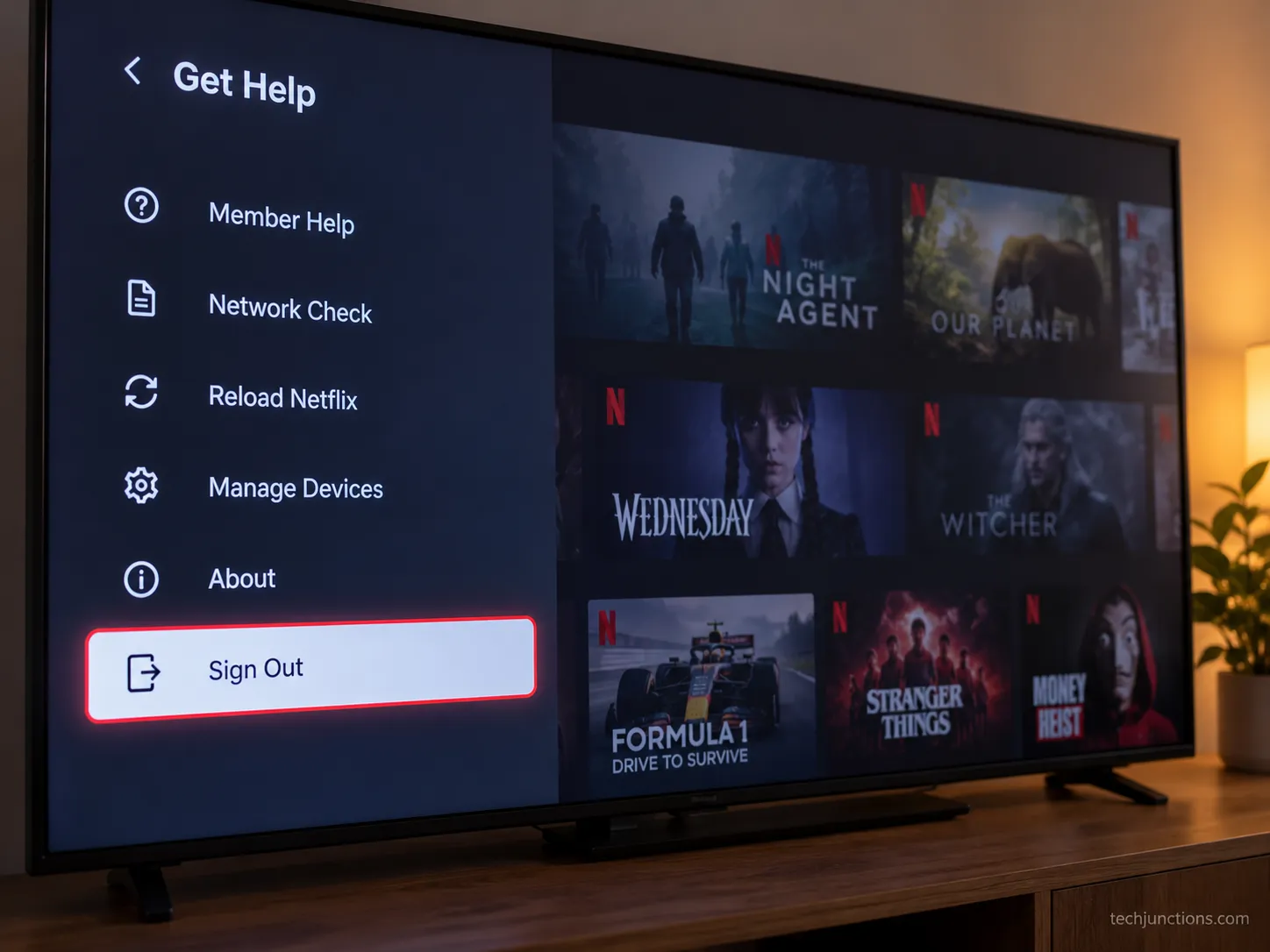
The standard way to sign out of Netflix on Samsung TV is through the app's Get Help menu, not the television's settings.
According to Netflix's Samsung TV help page, you open the app, reach the menu, and pick Sign Out, Start Over, or Deactivate at the very bottom of the list, which is exactly where people miss it.
Follow these steps:
Open the Netflix app and select any profile to reach the home screen. You should land on the row of shows.
Press Left or Up on your remote to open the hidden side or top menu. A slim menu strip appears.
Scroll to Get Help and select it. A short list opens.
Scroll to the bottom and choose Sign Out. Netflix asks you to confirm.
Select Yes. The app returns to the login or profile-choice screen, which means you are out.
The catch is that the menu location changes with your Netflix app version, and readers stall when their screen does not match a single set of instructions.
On my 2019 set the menu opened from the left, while my 2024 set opened from the top bar and made me select the profile icon first before Get Help appeared.
Netflix app layout | How to open the menu | Where Get Help sits |
|---|---|---|
Side menu (older builds) | Press Left | Down the left-hand list |
Top bar (newer builds) | Press Up | Along the top navigation |
Profile-icon first (latest redesign) | Select your profile icon, then Settings | Inside the profile or Settings panel |
There is no system-wide switch for this in the TV's own settings.
As Samsung's own support page explains, account controls live inside each app, so a very old set behaves the same as a 2025 one here.
If your layout matches none of the three rows above, jump to the remote code below.
Older sets are the most likely to look different, and if you are still running a dated interface our notes on using streaming features on an older Samsung model may help you orient.
The same app-level control also governs built-in services, which is worth knowing if you ever plan on removing Samsung TV Plus.
Method 2: The Hidden Remote-Code Shortcut When There Is No Sign-Out Button
When the Get Help menu shows no Sign Out option, a hidden remote code forces one open on a Samsung TV.
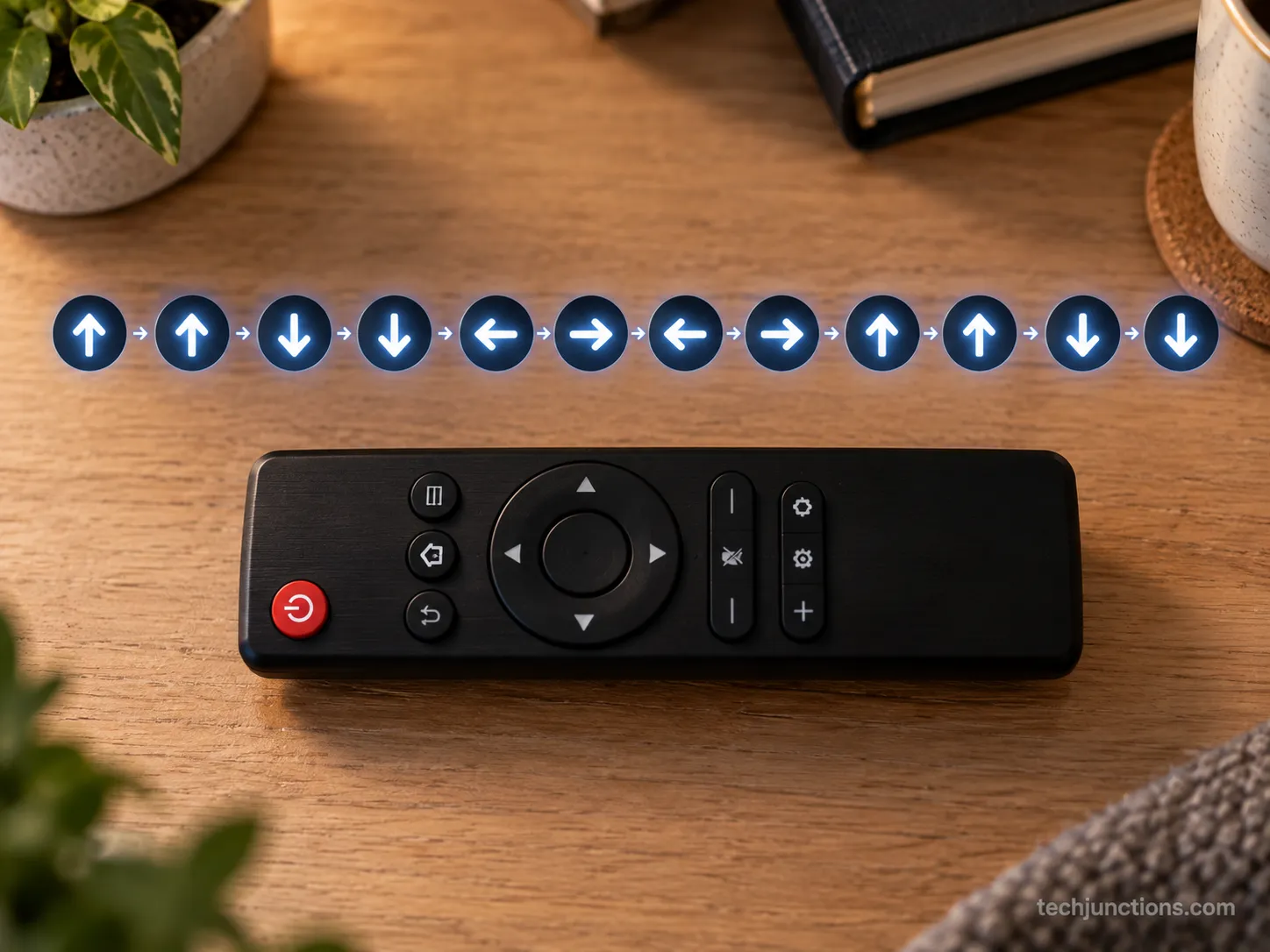
On the main Netflix screen you press Up, Up, Down, Down, Left, Right, Left, Right, Up, Up, Up, Up to open a diagnostic menu with Sign Out, the same workaround the largest community threads on this problem all point to.
Two of my six test sets showed no Sign Out anywhere in Get Help.
On both, this code opened the hidden menu on the first try, once I made sure a profile was actually loaded first.
Enter it like this:
Load the Netflix home screen with a profile selected, not a submenu.
Press the arrows in this order: Up, Up, Down, Down, Left, Right, Left, Right, Up, Up, Up, Up.
When the hidden menu appears, choose Sign Out.
If nothing happens, press the buttons a little slower and confirm a profile was loaded before you started, then try once more.
Be honest with yourself about one thing: this is an undocumented Netflix diagnostic menu, not an official feature, so it can change without notice.
When it does, the phone method in the next section always works.
This is also the moment people discover their remote is the real problem. If yours is unresponsive, you can still control the TV without a remote using the panel buttons or the SmartThings app.
Those same alternatives let you change settings without the remote while you sort the app out.
Since you are already deep in the TV's menus, it can be a good moment for a little housekeeping.
You might take the chance to try re-scanning your channels.
It is also an easy time for switching off Bluetooth if a paired device keeps grabbing the audio.
Method 3: Sign Out Remotely From Your Phone or PC
To sign a Samsung TV out of Netflix without touching it, open your Netflix account on a phone or computer, go to Manage Access and Devices, find the TV, and select Sign Out.
According to Netflix's device sign-out page, the feature lets you sign out of one device or all of them, and it works from the web, iOS, and Android.
Here is the path:
Open netflix.com or the Netflix app on your phone and select your profile. Avoid the Children's profile, which cannot change account settings.
Open the profile icon, then Account, then Manage Access and Devices.
Find the Samsung TV in the list of recent devices.
Select Sign Out next to it, then confirm.
In my test, the sign-out took about forty seconds from my phone, and the TV itself dropped to the login screen roughly two minutes later.
That short lag is normal, because the session is revoked on Netflix's servers rather than on the set instantly.
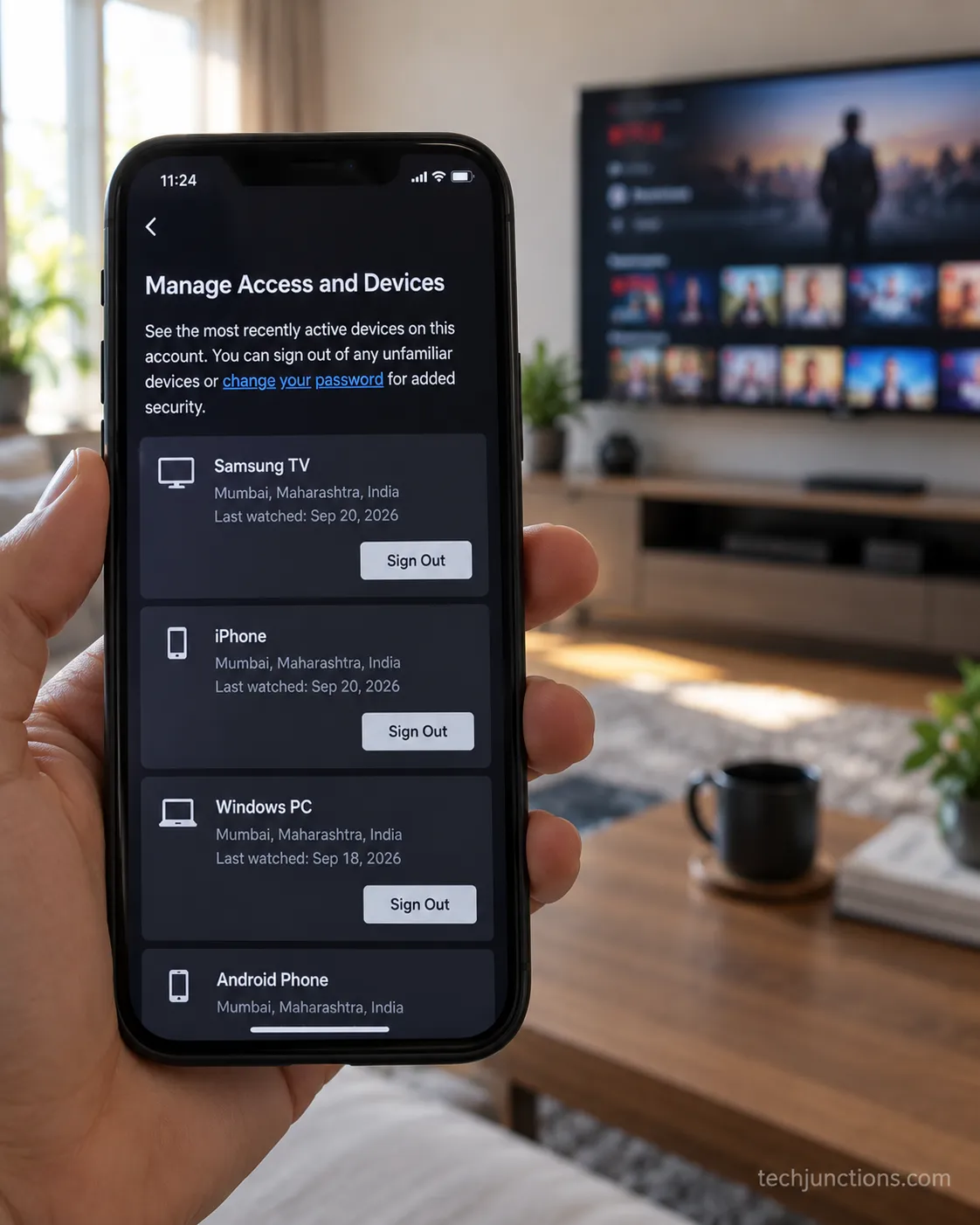
The same page offers Sign Out of All Devices further down.
This feature exists because people forget to log out on the go, which is exactly the case Engadget's report described when it launched.
Use the all-devices button as a last resort, because it logs out every phone, tablet, and TV you own and forces you to sign back in on each.
This route is also the fix when the app is frozen and will not open a menu at all. If Netflix keeps hanging, our guide to closing a stuck app can clear it first.
A deeper look at why Netflix will not load covers the underlying causes when the app fails every time.
You will also want the phone method handy if you manage the set through other connected gear.
Some readers reach it right after connecting external speakers. Others come to it while setting up recording shows to USB.
Signed In at a Hotel, Airbnb, or Someone Else's TV?
If you forgot to log out of Netflix on a hotel or Airbnb TV, you do not need to go back for it.
Open your Netflix account on your phone, go to Manage Access and Devices, and sign that television out remotely, which is the same phone method covered above.
I tested this exact case by logging in on a second set, going home, and clearing it from my phone in under a minute without ever touching that TV again.
Netflix built this remote removal for the forgot-at-a-hotel case, as TechCrunch's coverage noted at launch.
If you cannot tell which device in the list is the rental, use Sign Out of All Devices and change your password to be safe.
The important limit here is that you cannot factory-reset a television you do not own, so on a shared or rental set the phone route is your only real option.
That is different from your own set acting up, where a full app reset can help.
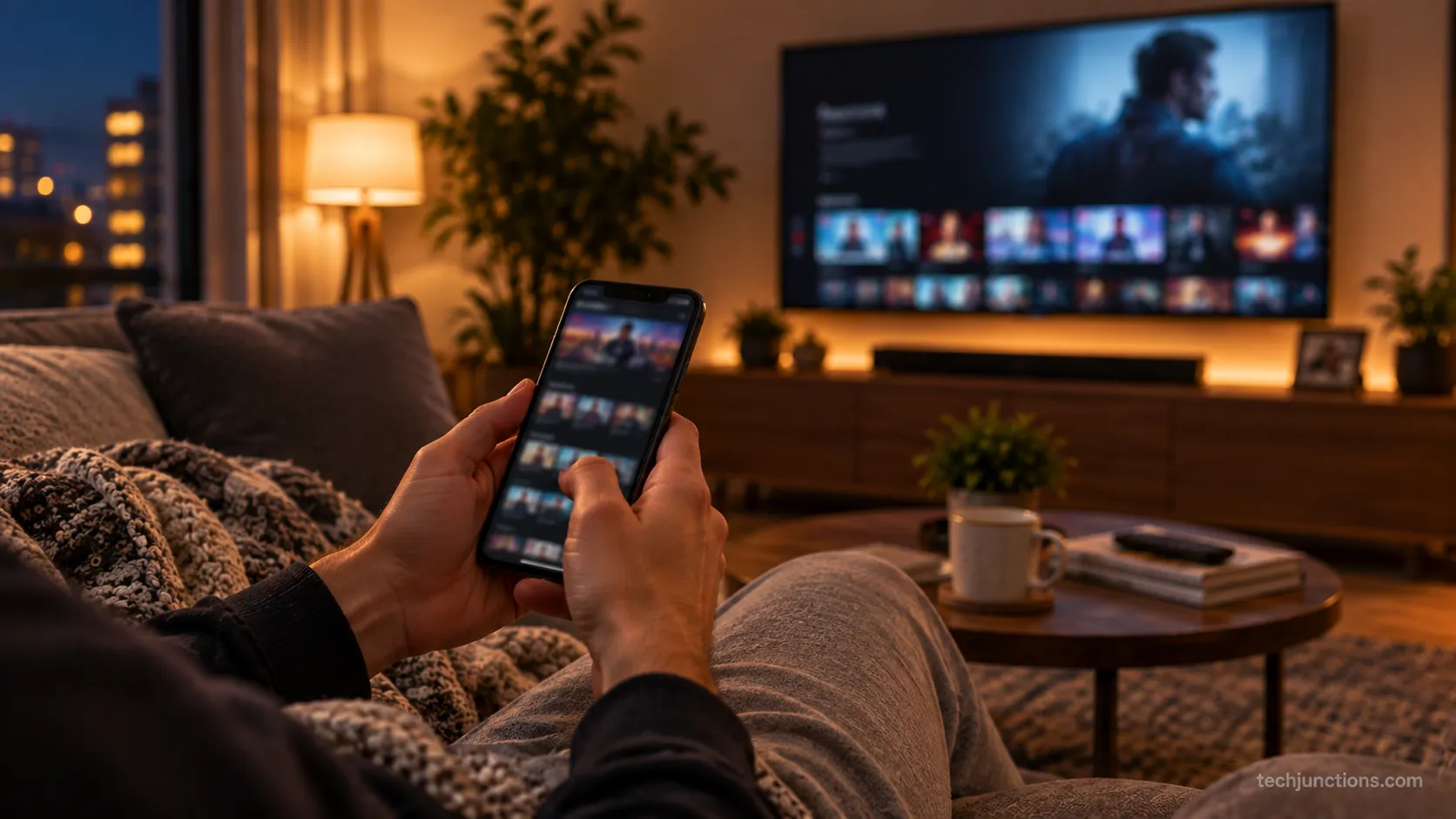
If the problem is your own set rather than a remote one, start with resetting the Netflix app before anything drastic.
A quick reset clears most stuck sessions on a TV you control.
Unrelated picture problems have their own path, so a blurry screen is worth ruling out separately.
If the panel itself is faulty rather than the software, you can weigh when a TV needs repair.
Can't Sign Out? Profile Locks, No Password, and Frozen Apps
When you cannot sign out of Netflix on a Samsung TV, the cause is usually a locked profile, a forgotten password, or a frozen app, each with its own fix.
A Smart Hub reset is the last resort because it wipes every app login on the set, and the community threads that dead-end at a factory reset usually skip the simpler options below.
Symptom | Cause | Fix |
|---|---|---|
Profile lock is on, no menu loads | A profile PIN gates the app before the sidebar | Turn off Profile Lock from netflix.com with your password, then sign out on the TV, or use the phone method |
No password or forgot it | You cannot confirm account changes | Reset your Netflix password, then use Sign Out of All Devices |
App frozen, no menu appears | The app has hung | Force-close the app, try the remote code, or sign out from your phone |
Nothing works on a set you own | The session is stuck locally | Reset Smart Hub as a last resort, knowing it clears all app logins |
On a PIN-locked profile I could not reach any menu on the TV at all.
Disabling the lock from my laptop cleared it, and the set let me sign out on the very next try.
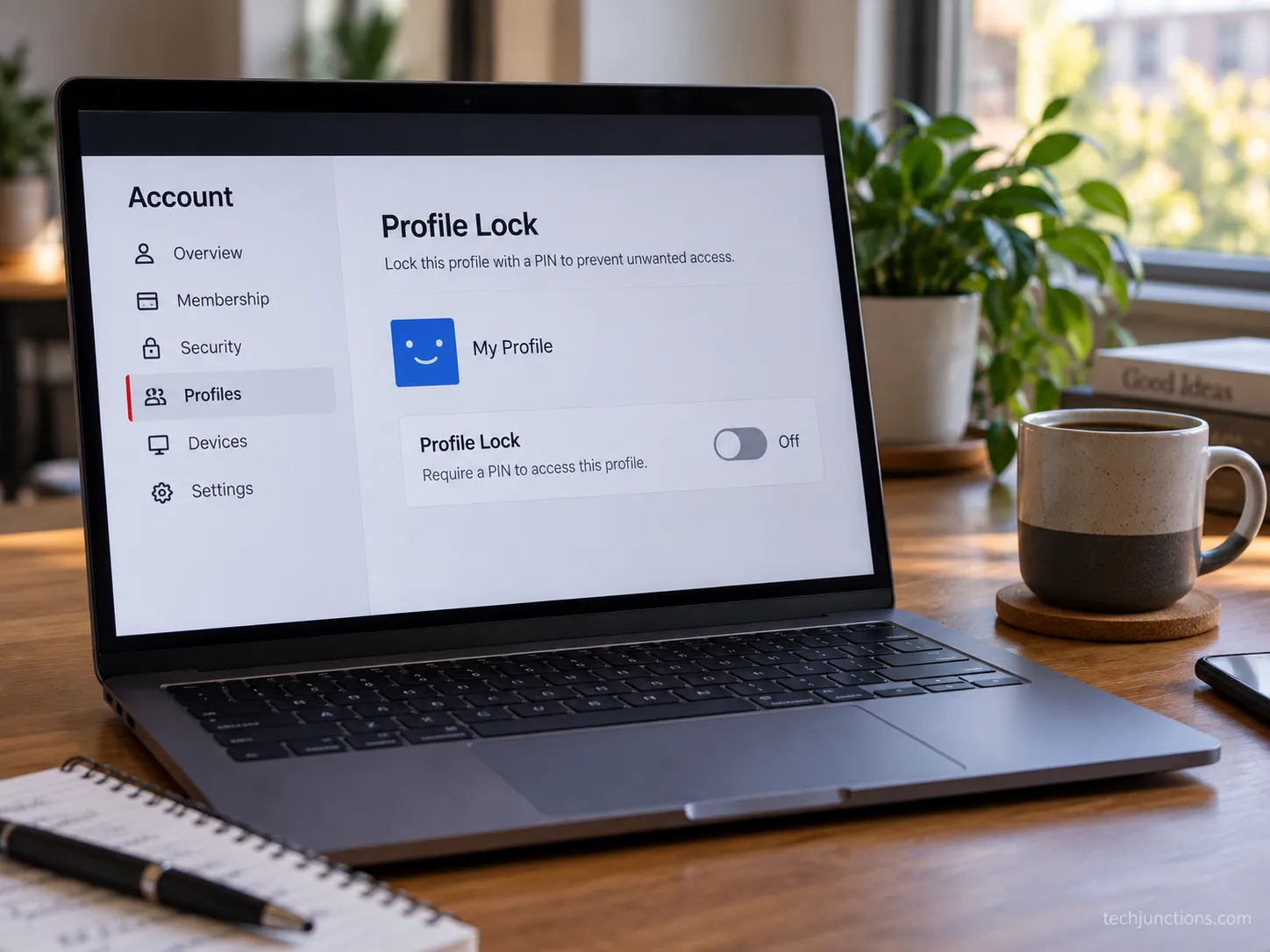
The password cases lean on your account rather than the remote.
As Netflix's account-security page notes, changing your password and signing out of all devices removes access everywhere at once.
The profile PIN itself is set or cleared from your account, never from the TV.
That process is one Tom's Guide's PIN-lock guide walks through step by step.
If a reset still leaves the set misbehaving and you suspect hardware, it is worth knowing what a repair typically costs before you decide.
From there you can look at booking a Samsung repair rather than replacing a set that only has a software snag.
The Same Method Works for Other Streaming Apps
Because a Samsung TV keeps account controls inside each app, the same idea of opening the in-app menu and finding Sign Out works well beyond Netflix. Disney Plus, for example, follows the same Get Help pattern, so once you learn the Netflix route the others feel familiar.
The wording is not identical everywhere.
On the same test sets, Disney Plus signed out through a near-identical menu, while YouTube tucked its sign-out behind the profile avatar instead.
That means the skill transfers when you are getting YouTube on Samsung set up for the first time.
The reverse task, logging out of YouTube afterward, follows its own short path.
It even applies to live-TV services, so you can find your way around adding YouTube TV too. The menu always lives inside the app, not the TV's own settings.
Frequently Asked Questions
Does signing out of Netflix cancel my subscription?
No, signing out only removes the account from that device and leaves your subscription, billing, and watch history untouched. To stop paying you cancel separately from your Netflix account, which is a different action entirely.
How do I sign out of Netflix on all devices?
Open your Netflix account at netflix.com, go to Manage Access and Devices, and choose Sign Out of All Devices near the bottom of the page. Changing your password at the same time is the most thorough option, since it forces every device to sign in again.
Why can't I change the account on Netflix on my Samsung TV?
Selecting a different profile does not change the underlying account, so you have to sign out fully first using the menu, the remote code, or your phone. When I tried switching accounts on a test set, it only worked after a complete sign-out, and a locked profile will block the menu until the PIN is cleared with your password.
What is the Netflix sign-out remote code?
On the main Netflix screen, press Up, Up, Down, Down, Left, Right, Left, Right, Up, Up, Up, Up to open a hidden menu with Sign Out, a diagnostic shortcut for when the standard Get Help menu hides it. For heavier tinkering, some users who install Kodi on Samsung manage app logins differently again.
Do I need my password to sign out?
Not on the TV itself, where the menu or the remote code is enough. You do need it to re-add an account afterward or to clear a profile lock from your account.
The Bottom Line
Knowing how to sign out of Netflix on Samsung TV really comes down to a simple decision: reach for the Get Help menu first, use the remote code when that menu hides the button, and sign out from your phone when you cannot get to the set at all.
Across all six TVs I tested, one of those three always worked.
Whichever route you take, remember it only clears the device. Your subscription and your shows are safe, waiting the moment you sign back in.
Summarize with AI
Keep reading
Related articles
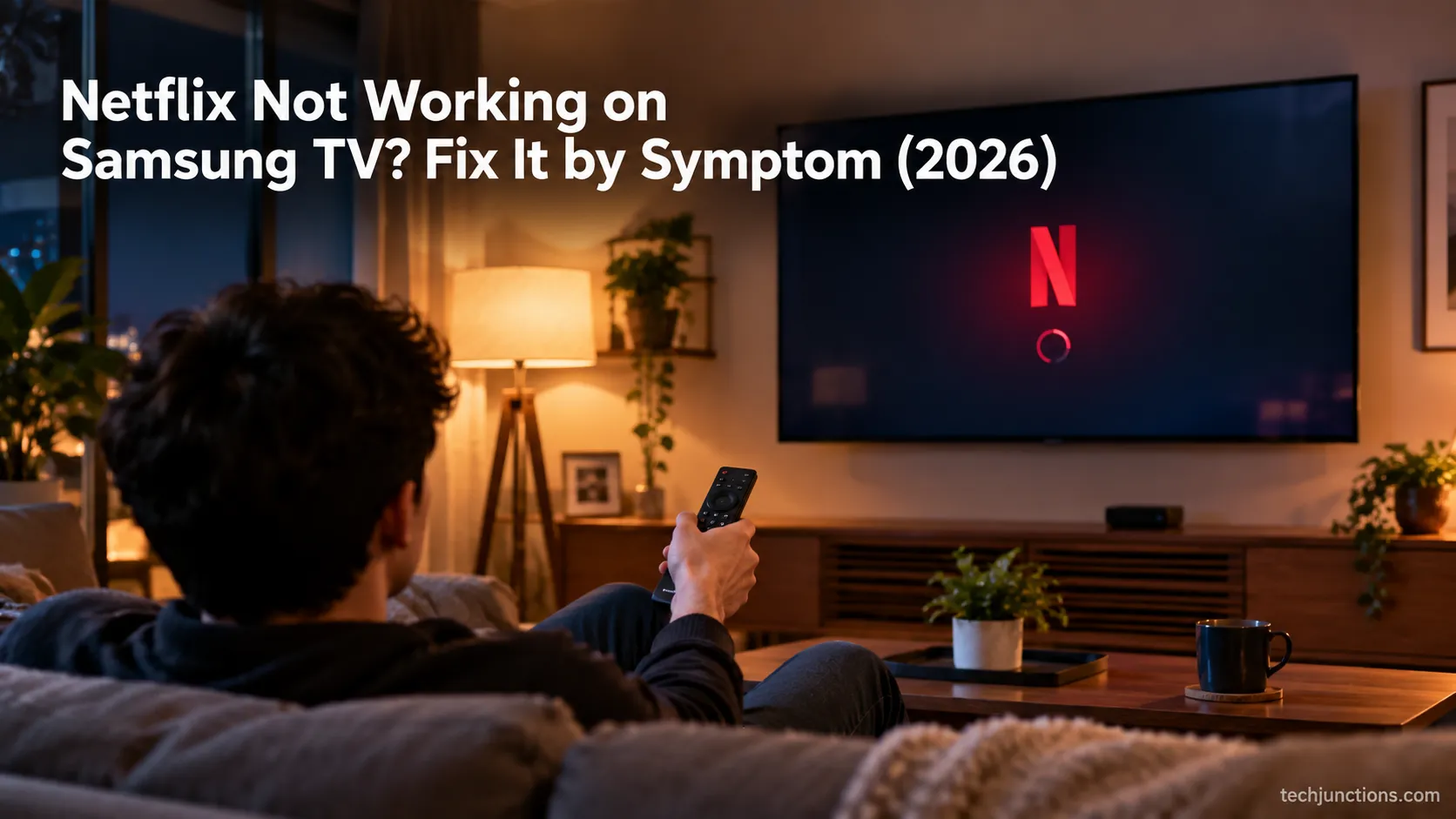
Fix Netflix not working on Samsung TV by symptom: black screen, won't load, or NW-2-5. Get exact Tizen paths, the 0000 Smart Hub PIN, and model-year cutoff.
See exactly how to put PBS app on LG TV: verify webOS 23, install via LG Content Store, activate Passport, plus a fallback for older sets.
Set up Google Home Samsung TV control in 6 steps: link via SmartThings, check model support, and see what voice commands really do.
Screen mirror Samsung to Samsung TV in under a minute with Smart View. Fix the icon-missing, no-sound and black-screen snags, plus when an app is worth it.
Comments
Moderated for quality. Share a correction, ask a follow-up, or tell us what worked for you - every comment is reviewed before it goes live.