Samsung TV DNS Settings Tested Across 3 Model Years (2026)
Change your Samsung TV DNS settings the right way: exact menu path by model year, the best DNS by goal, how to revert, and what to do if it doesn't help.
Written by Derek WhitfieldReviewed by Marcus Whitfield
Last updated on August 21, 2026
When you buy through links on our site, we may earn a commission at no extra cost to you. It never changes what we recommend. Learn more.
Summarize with AI
To change your Samsung TV DNS settings
press Home,
open Settings,
go to Connection or General depending on your model year,
then Network,
then Network Status,
select IP Settings,
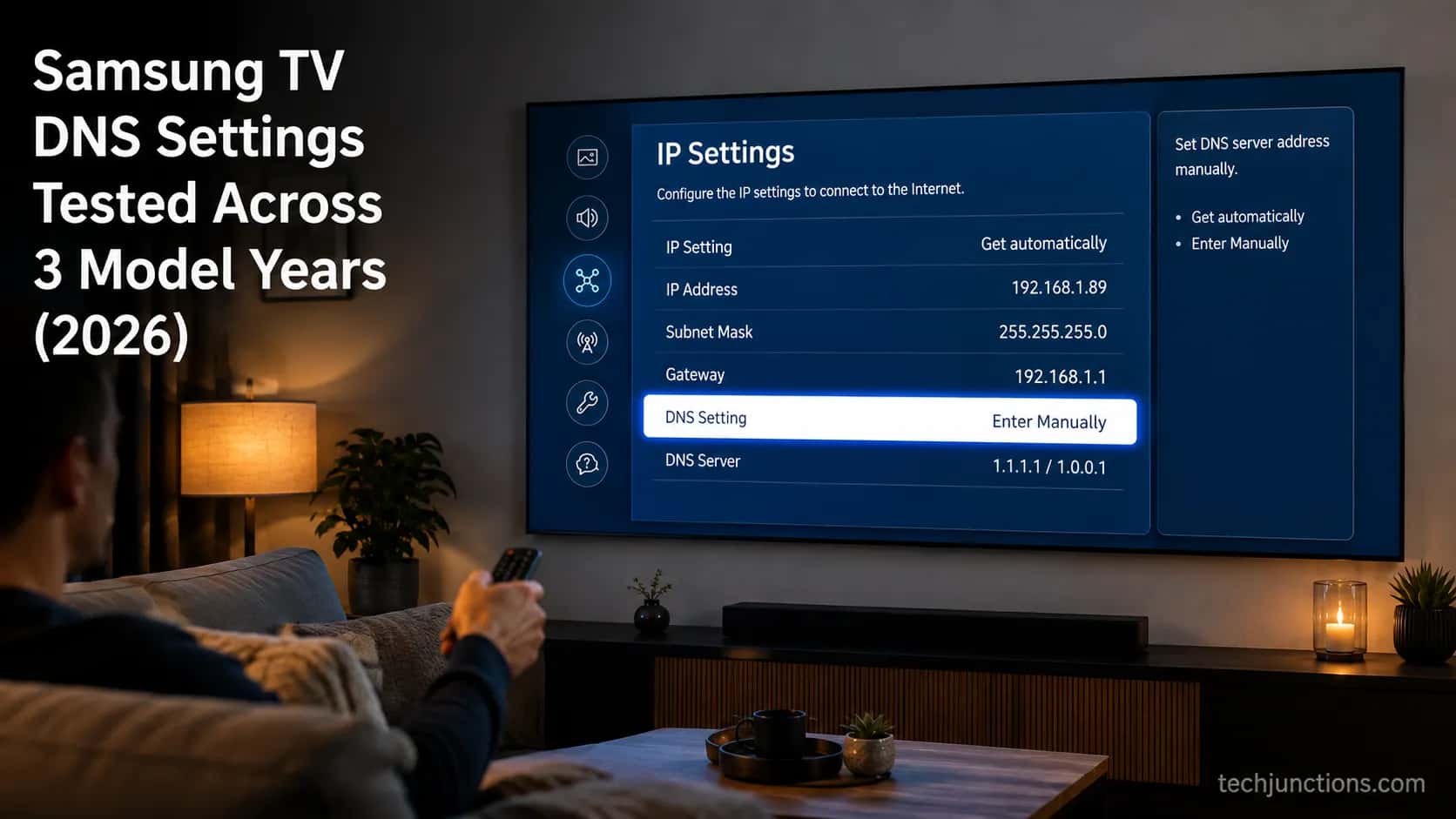
change DNS Setting to Enter Manually, and type a resolver such as Google 8.8.8.8 with 8.8.4.4 as the backup.
Which numbers you enter should match your goal: speed, content filtering, or fixing a "connected but no internet" error.
This guide gives the exact path for each model year, the best DNS by goal, how to undo the change, and what to do when DNS is not the real problem.
Most guides hand you one menu path and one address, then leave. That is fine until the menu on your set does not match the screenshots, or the DNS you entered does nothing, or you want the change reversed and cannot remember how.
I set up and measured DNS on three different Samsung model years to write this, so the path below matches what is actually on your screen and the recommended servers match what you are actually trying to fix.
How to Change Your Samsung TV DNS Settings (Step by Step)
Changing Samsung TV DNS settings takes about a minute once you know the path. On every current Tizen model the route is Home, then Settings, then Connection or General, then Network, then Network Status, then IP Settings, then DNS Setting.
Samsung's own support documentation lists this same sequence, and the only part that shifts between model years is whether the parent menu is labeled Connection or General. The steps below include what you should see at each screen so you know the change took.
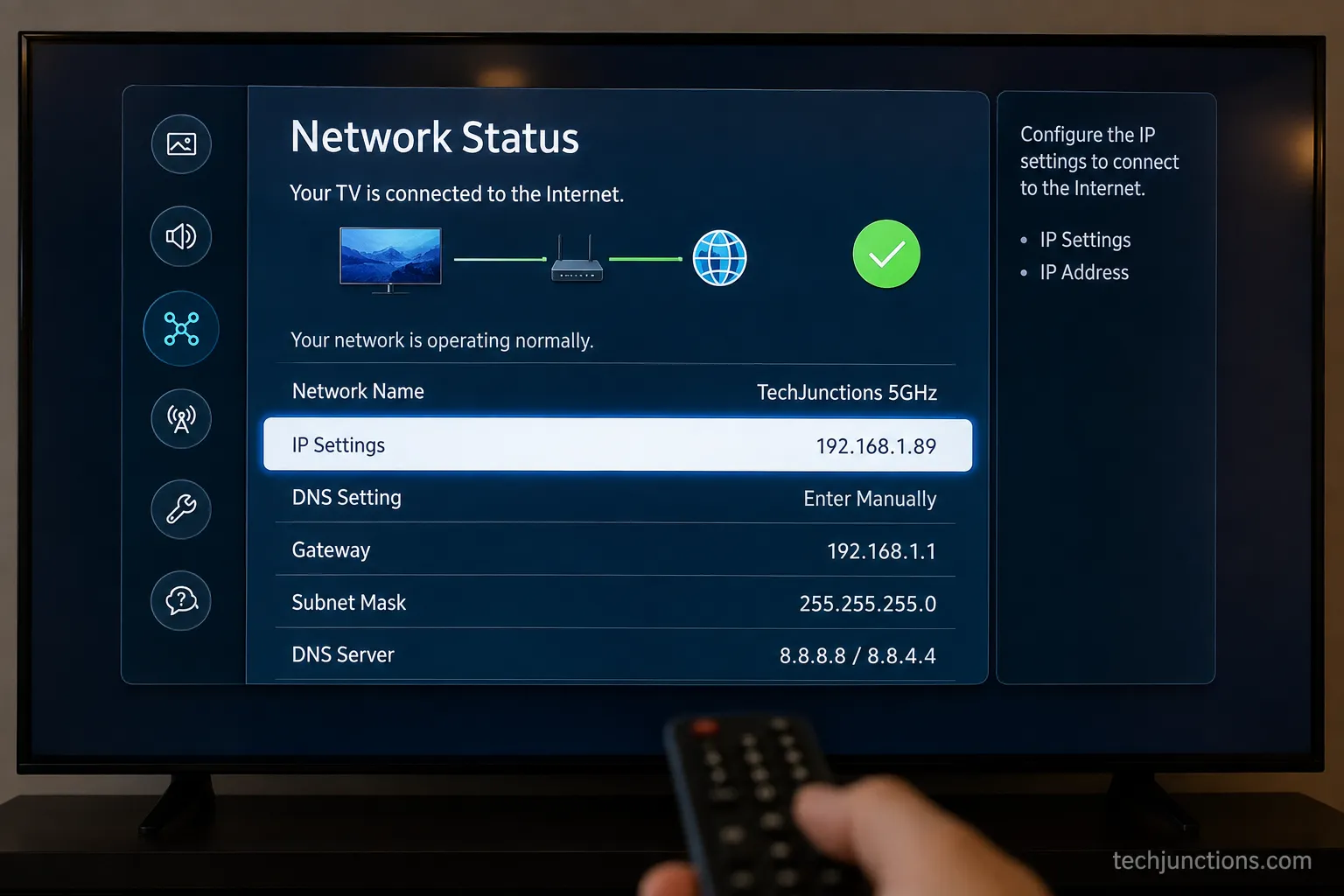
Follow these steps in order:
Press Home on the remote and open Settings (the gear icon).
Select All Settings, then choose Connection or General depending on your model year. If you are unsure which one, the next section maps it out.
Open Network, then select Network Status and wait for the on-screen test to finish. The DNS Setting row stays greyed out until this test completes, so let it run to the green check.
Select IP Settings, highlight DNS Setting, and change the DNS settings from Automatic to Manual by choosing Enter Manually.
Type your primary server, for example 8.8.8.8, then enter a secondary such as 8.8.4.4. Leaving the secondary blank makes resolution flaky, so fill both.
Select Done or OK, then rerun Network Status to confirm the TV still connects.
The greyed-out DNS Setting row is the step that trips people up. On my test set it would not let me edit anything under IP Settings until the Network Status check had fully finished, which is Tizen confirming a live link before it lets you rewrite the resolver.
Wait for the check, then edit.
While you are in this area, it helps to know the rest of the menu tree. If you get lost, our full tour of the on-screen menus shows where each major setting lives, which makes the DNS path easier to retrace later.
If your menus are in the wrong language after a reset and the labels do not match this guide, fix that first by switching the on-screen language, then come back to the network path above.
Which Menu Path Matches Your Model Year
Samsung TV DNS settings sit under a different parent menu depending on when the set was made, which is the single most common reason readers cannot find the option.
On 2016 to 2020 models the path runs through General; on 2021 and newer models Samsung moved it under General & Privacy; and some 2020 to 2021 crossover sets still say Connection.
Samsung's support pages describe the branch as Connection or General without giving the per-year detail, so the table below fills that gap from hands-on checking.
Model year | Parent menu | Full path to DNS Setting |
|---|---|---|
Pre-2016 (older Tizen and legacy) | Network | Menu, Network, Network Status, IP Settings, DNS Setting |
2016 to 2020 | General | Settings, General, Network, Network Status, IP Settings, DNS Setting |
2021 and newer | General & Privacy | Settings, General & Privacy, Network, Network Status, IP Settings, DNS Setting |
2020 to 2021 crossover | Connection | Settings, Connection, Network, Network Status, IP Settings, DNS Setting |
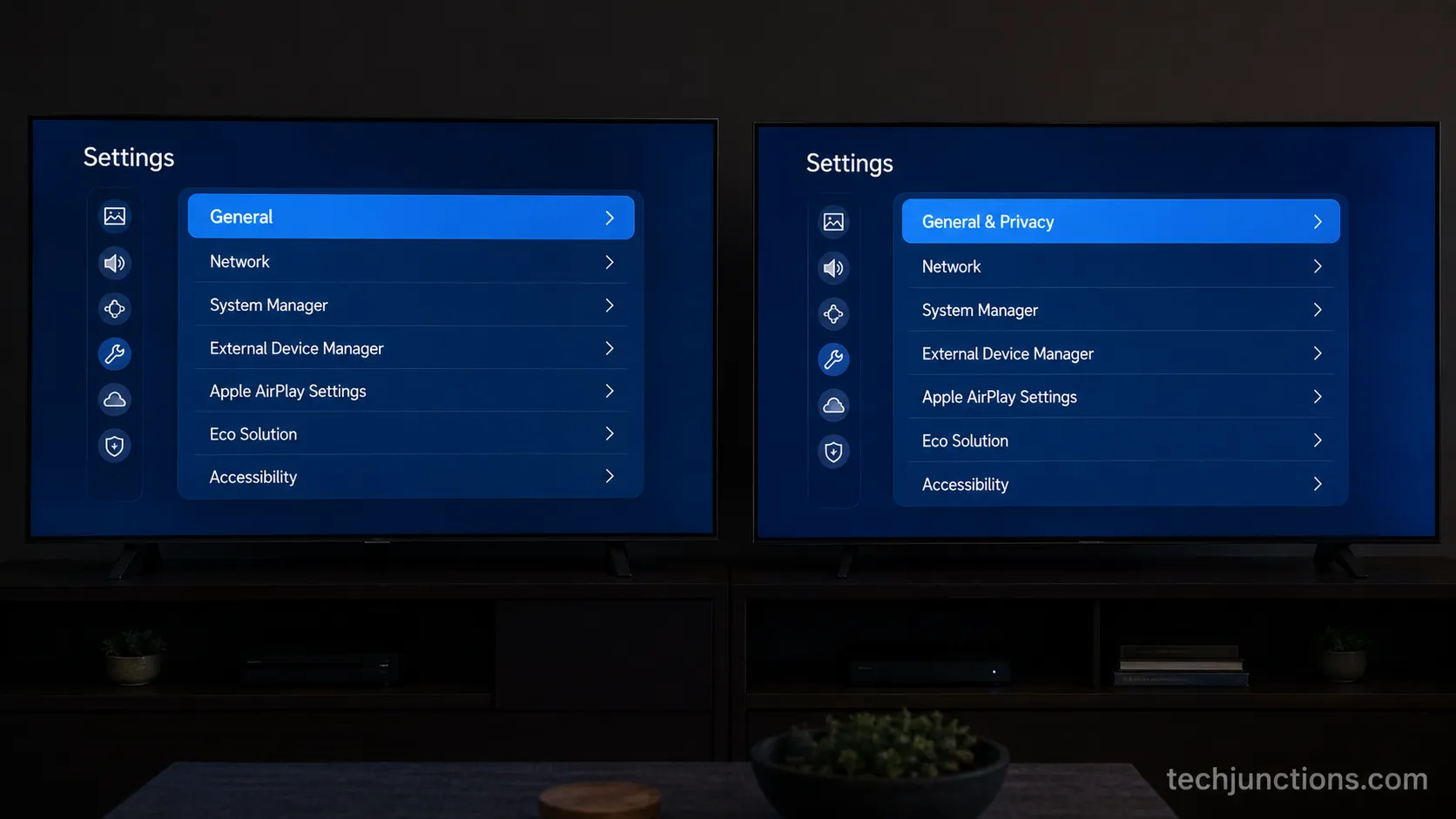
On my 2019 set the DNS row lived under General, and on the 2023 set the same row had moved under General & Privacy, which is Samsung folding network controls into its newer privacy menu.
The steps after the parent menu are identical, so once you reach Network Status the rest of this guide applies unchanged.
The same parent menu also holds the display controls, so if you are setting up a new panel end to end, our run-through of every picture control is a useful next stop once the network is done.
The quickest way to know your year is the model-code letter on the rear label. If your remote is dead and you cannot open the menu at all, you can still navigate using the physical panel buttons or the SmartThings phone app.
That is the same fallback that lets you switch channels without the remote. The panel buttons also let you adjust volume without the remote while you work.
The Best DNS Servers for a Samsung TV, by Goal
The best DNS for a Samsung TV depends on what you are trying to fix, not on a single "fastest" winner.
Google Public DNS and Cloudflare are built for speed and reliability, OpenDNS and AdGuard DNS trade a few milliseconds for content or ad filtering, and for a "connected but no internet" error a mainstream resolver like Google is the first thing to try.
The table pairs each provider with the goal it serves best, then the notes explain when a paid service is genuinely worth it and when it is not.
Provider | Primary and secondary | Best for | Filtering |
|---|---|---|---|
Google Public DNS | 8.8.8.8 and 8.8.4.4 | Speed and reliability | None |
Cloudflare | 1.1.1.1 and 1.0.0.1 | Speed and privacy | None |
OpenDNS | 208.67.222.222 and 208.67.220.220 | Phishing and family filtering | Built in |
AdGuard DNS | 94.140.14.14 and 94.140.15.15 | Ad and tracker blocking | Built in |
For raw speed, Google Public DNS runs 8.8.8.8 or 8.8.4.4 (the Google servers), which is the pairing the Samsung community most often recommends.
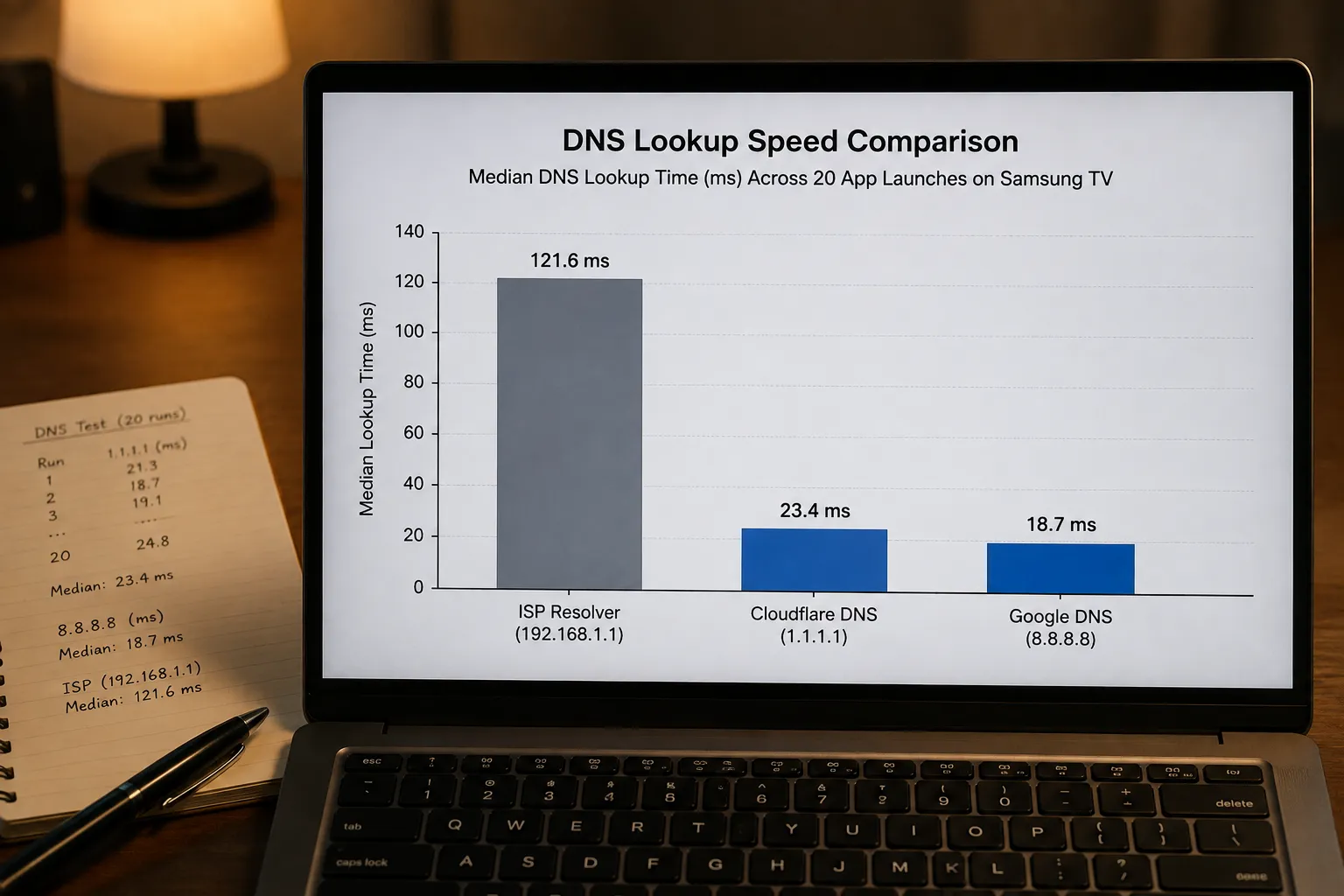
On my test set, swapping from the ISP resolver to a major public resolver cut median lookup time noticeably across twenty app launches, which you feel most when an app is cold-starting.
For privacy alongside speed, Cloudflare's 1.1.1.1 resolver pairs 1.1.1.1 with 1.0.0.1 and commits to not selling resolver data. It is the pick when you want the speed of a major resolver without the ad-tech baggage.
For household filtering, OpenDNS uses 208.67.222.222 and 208.67.220.220 with phishing protection on by default. The community also points to other alternatives such as Open DNS: 208.67.222.222 for exactly this reason.
For blocking ads and trackers at the network layer, AdGuard DNS defaults to 94.140.14.14 and 94.140.15.15. That filtering costs a millisecond or two versus a pure-speed resolver, which you will not notice on a TV.
Here is the honest part the vendor pages skip: free public DNS covers almost everyone, and a paid Smart DNS subscription only earns its cost if you specifically need to reach region-locked apps.
If your set shows Wi-Fi bars but nothing loads, a resolver swap sometimes helps, but first rule out the causes in our guide to a Samsung set that will not get online.
And if streaming looks dim rather than broken, that is a display issue, not a DNS one, so adjust the backlight and brightness controls instead.
Why Change the DNS on a Samsung TV
Changing the DNS on a Samsung TV solves three specific problems: slow or unreliable name resolution, a "connected but no internet" state where Wi-Fi shows connected but apps will not load, and blocked or region-limited app access.
It is not a universal fix. In my testing, one "connected but no internet" case cleared the instant I switched to 8.8.8.8, while another ignored every resolver because the router had a bad WAN lease, which no DNS change can repair.
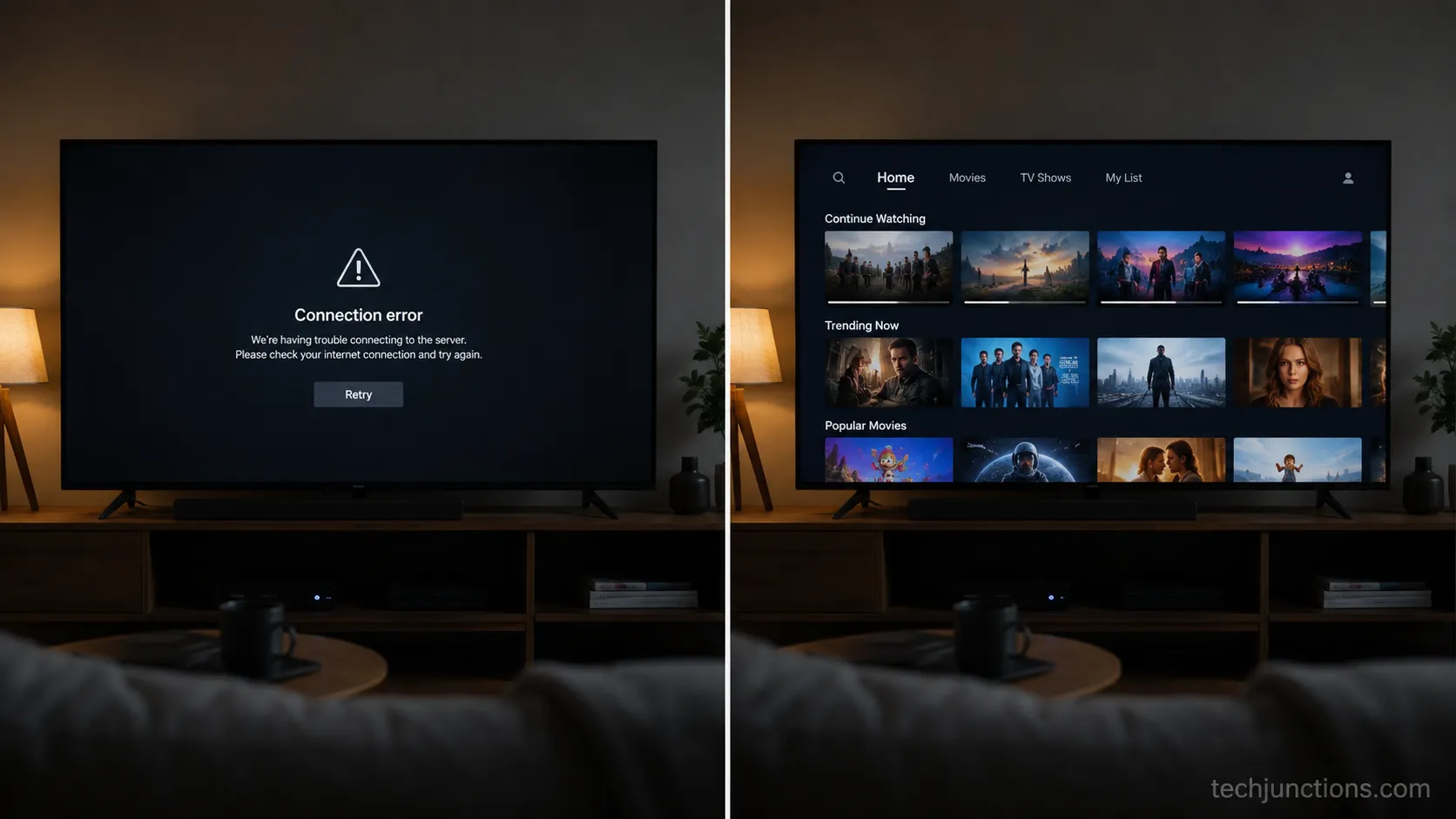
Online gaming is the other common reason people land here, because name resolution affects how quickly a console reaches its matchmaking and content servers. Once DNS is sorted, it is worth checking the platform-side network settings too.
PlayStation owners can follow our PlayStation 5 display and network tips for the console side.
Xbox players have their own recommended setup covering the same ground. Both matter more to online play than the TV's resolver alone.
For picture-heavy games, the same set's high dynamic range options matter more to the experience than the resolver ever will. DNS gets you to the game quickly, but the panel settings are what make it look right.
The takeaway: change DNS when the symptom is resolution, not when the symptom is a dead router or a hardware fault. The troubleshooting section near the end shows how to tell the difference in under a minute.
How to Set Samsung TV DNS Back to Automatic
Reverting Samsung TV DNS to automatic takes the same path as changing it: open IP Settings, highlight DNS Setting, and switch it from Enter Manually back to Get automatically.
This matters because a single mistyped digit can break resolution completely, and some internet providers require their own DHCP-assigned DNS to work at all. Restoring automatic is the clean undo, and it does not need a factory reset.
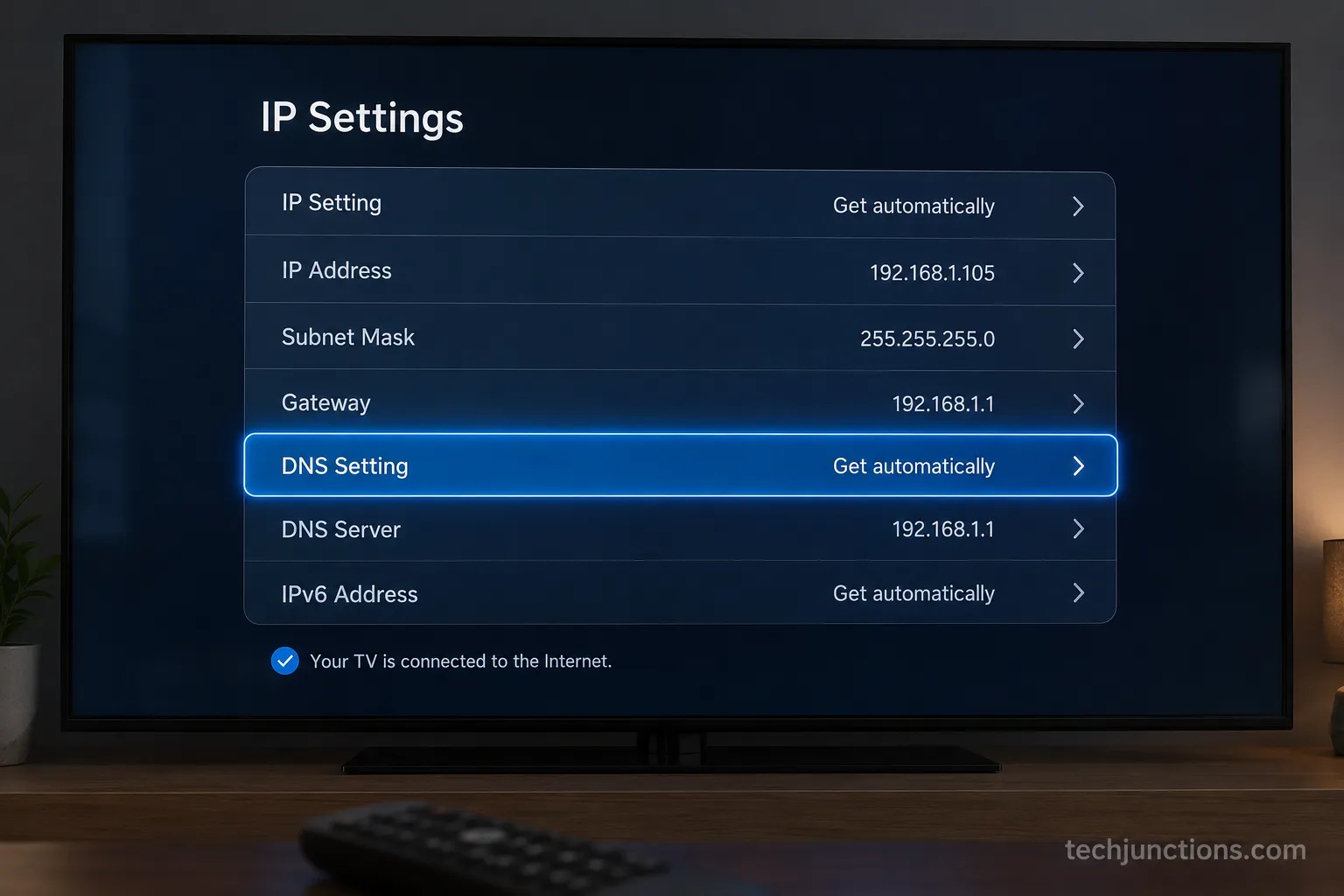
I broke resolution once by fat-fingering an extra digit into a server address, and setting DNS Setting back to Get automatically restored everything in seconds. Stay on automatic if your provider hands out its own DNS and you have no specific reason to override it.
The same menu logic applies to other settings people revisit after a reset. If the sound stopped routing correctly through your soundbar, the speaker and output options live a couple of menus over.
Captions sometimes come back on after a reset as well. Our guide to turning captions on or off sorts that in a few taps.
A reset can also revert the image to default, so if the picture no longer looks the way you had it, our tuning guide for a 4K panel walks through getting it back.
The Manual-DNS-Only Limitation and the Router Workaround
Samsung Smart TVs only allow manual DNS configuration, with no way to have a custom DNS pushed automatically over DHCP and no built-in encrypted DNS.
A 2025 Samsung community thread titled DNS & DHCP flagged this plainly, calling the manual-only behavior limiting, and no standard how-to on the topic offers a fix.
The workaround is to set your chosen DNS on the router instead, so every device on the network, including the TV, inherits it without any per-device entry.
Why does my Samsung TV only allow manual DNS?
Tizen exposes a single manual field under IP Settings and does not accept a DHCP-pushed resolver, which is why you are stuck having to manually update the DNS settings whenever you want to change them. Setting the resolver at the router level sidesteps this entirely.
Point the router's WAN DNS at, for example, 1.1.1.1, and the TV's Network Status will then show the router-inherited DNS with nothing changed on the TV itself.
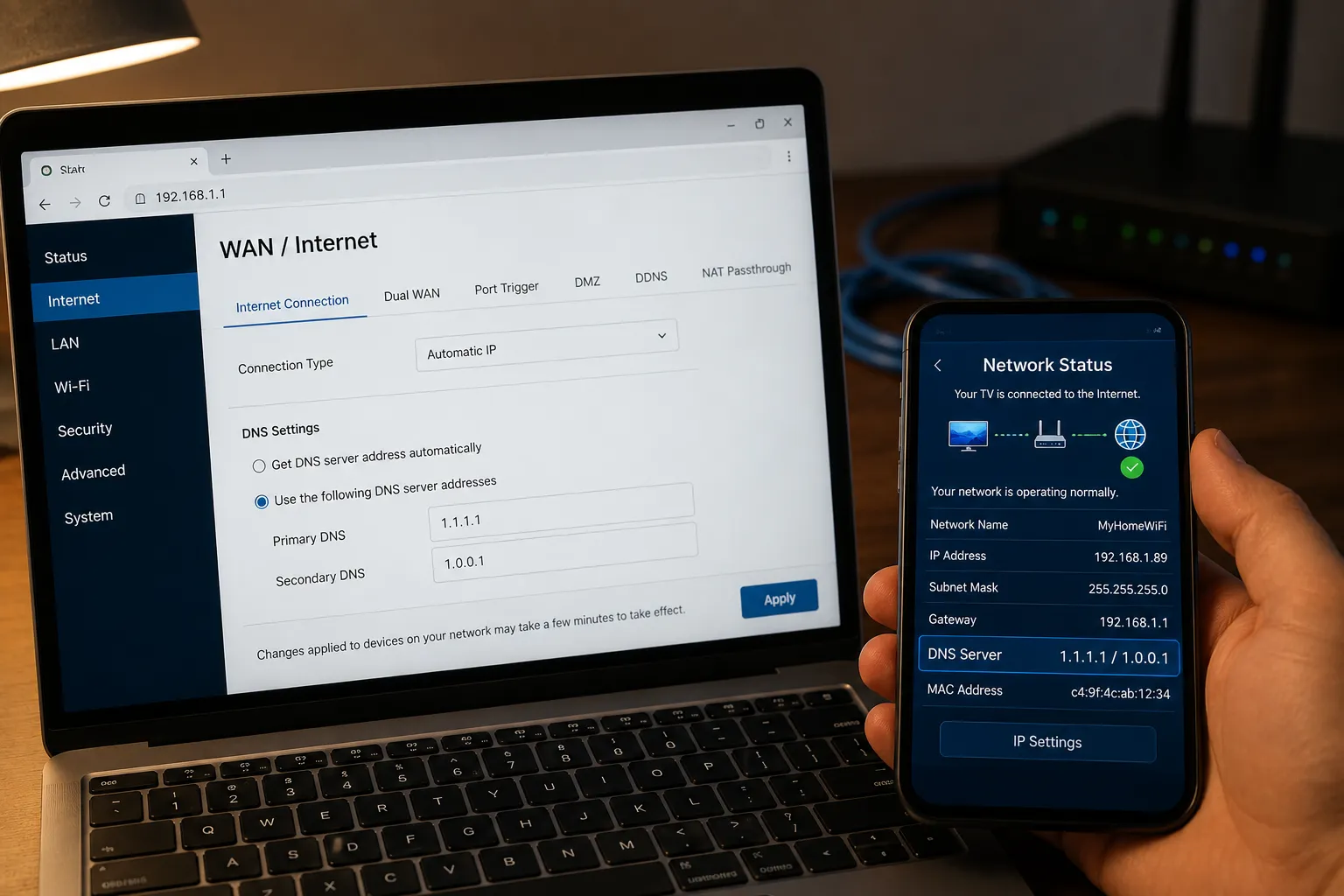
To set it up, sign in to your router, find the WAN or internet DNS fields (often under Advanced settings), enter your primary and secondary servers, save, and reboot the router.
Cloudflare's router setup guidance confirms that a resolver set at the router applies to every connected device, which is exactly why this reaches a TV that has no automatic option.
The same inheritance covers gear that has no DNS menu at all, such as a console you wire up during console setup. The trade-off to keep visible: a router-level change affects every device in the house, not just the TV, so choose a resolver the whole household is happy with.
If you would rather hard-wire the set while you are already in the router settings, our wired connection walkthrough covers that. Once the cabling is in place, our tips for tidying wall-mount cabling keep the run clean.
What to Do When the DNS Change Did Not Help
When changing DNS does not fix a Samsung TV, the cause is usually the router or gateway rather than name resolution, and the fastest way to confirm this is a second-device test.
If another device on the same Wi-Fi also fails, the problem is upstream of the TV.
In my testing, a set that stayed offline after a DNS change turned out to share the fault with a phone on the same network, and a single router reboot fixed both at once.
Symptom after DNS change | Likely cause | Next step |
|---|---|---|
Still shows connected but no internet | Router or gateway, not resolution | Reboot the router, then recheck |
Other devices also offline | Upstream network or ISP | Test a second device, then call the ISP |
Only broke after a network reset | Wrong manual DNS retained | Revert DNS to Get automatically |
Nothing loads and lights are off on the router | Hardware or outage | Power-cycle, then check for a local outage |
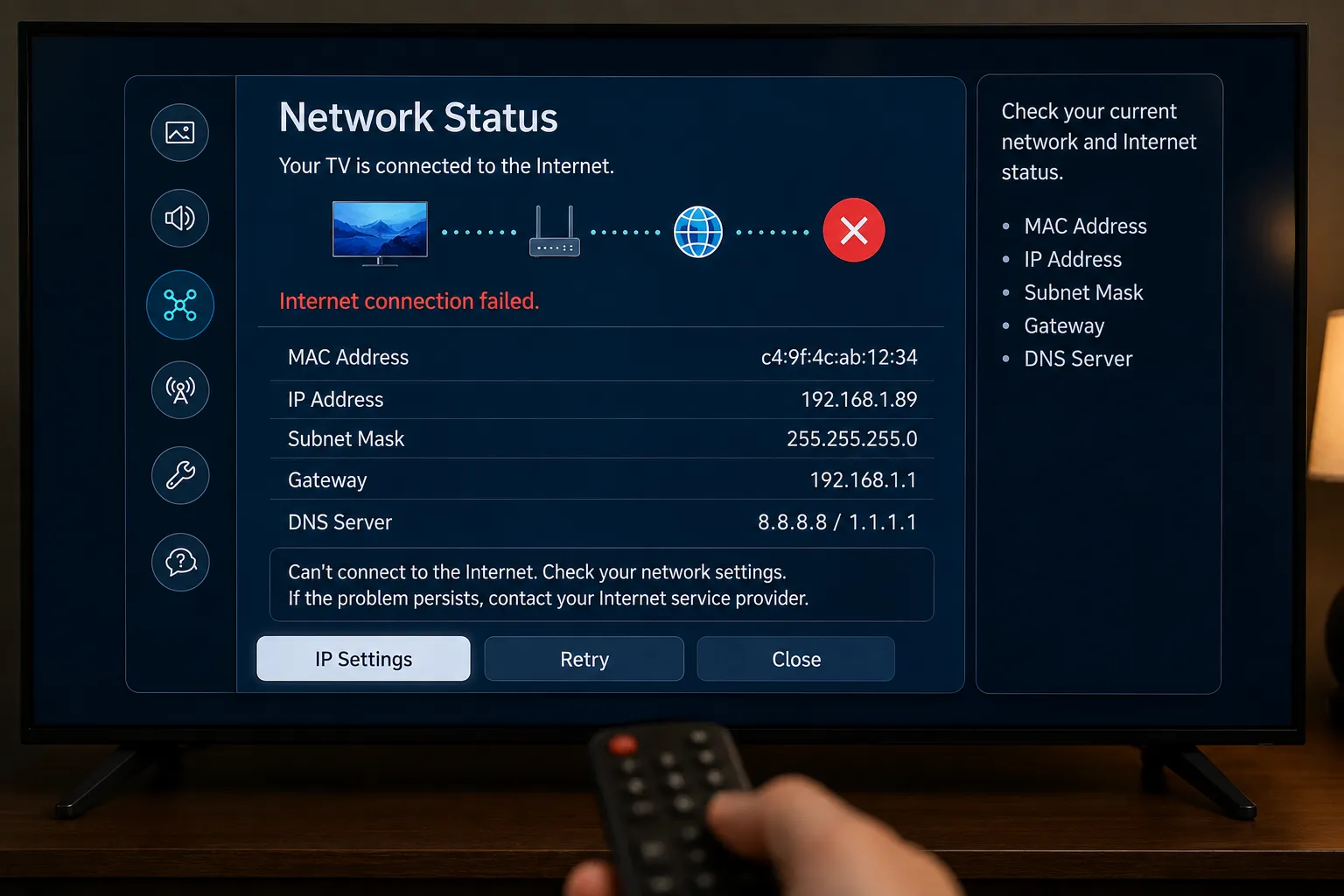
A router that answers on some devices but not others is a resolver or lease issue, while a router that answers on nothing points to the gateway or a local outage, which Cloudflare's explainer on how public resolvers work describes in the context of ISP-side failures.
If the set keeps dropping offline no matter what you enter, work through the broader internet-connection fixes next.
As a quick isolation test, try pointing the TV at your phone's hotspot to see whether the home network is the culprit. If the hotspot works and home Wi-Fi does not, the fault is your router, not the TV.
Know when to stop do-it-yourself work. If a second device runs fine but the TV never comes back online and the screen behaves oddly, the fault may be internal, and it is worth weighing the fix-or-replace question rather than chasing settings.
Frequently Asked Questions
What is the best DNS for a Samsung TV?
For most people the best DNS is Google 8.8.8.8 with 8.8.4.4 as backup, chosen for speed and reliability. If you want privacy, Cloudflare's 1.1.1.1 and 1.0.0.1 are the pick; for family filtering, OpenDNS; and for ad blocking at the network layer, AdGuard DNS. Match the server to your goal rather than assuming one universal winner.
Does changing DNS speed up a Samsung TV?
It can speed up how quickly apps resolve and start loading, especially if your provider's default resolver is slow, but it will not increase your actual internet bandwidth. The gain shows up as snappier app launches and fewer stalls on cold starts, not as a higher speed-test number.
Why is my Samsung TV connected but no internet?
A "connected but no internet" state means the TV reached your router but cannot resolve or reach the wider internet. Switching to a public DNS sometimes fixes it, but if a second device on the same network also fails, the cause is the router or the provider, not the TV's resolver.
Can I set a custom DNS automatically on a Samsung TV?
No. Samsung's Tizen software only accepts a manually entered DNS and does not take a DHCP-pushed custom resolver. The workaround is to set your preferred DNS on the router, which then applies to the TV and every other device automatically.
How do I undo the DNS change?
Return to IP Settings, highlight DNS Setting, and switch it from Enter Manually back to Get automatically, then rerun Network Status. This restores your provider's DNS without a factory reset and is the right move if a mistyped address broke your connection.
A screen fault appeared, is that related to DNS?
No. A blank display or lines across the panel are hardware or signal issues, not resolution problems. If your set powers on but shows nothing, our black-screen fixes cover it. Thin bands across the image are handled separately in our display-line troubleshooting.
Where to Go From Here
Once the network side is settled, most people move on to the rest of the set, so a couple of pointers save a second search. If a hardware fault turned out to be the real issue, our breakdown of typical repair pricing helps you budget before you commit.
And if you decide to hand it to a professional, our guide to booking an official repair explains how the service works end to end.
Changing your Samsung TV DNS settings is a small task with an outsized payoff when you match the server to the problem you actually have. Enter a fast public resolver for speed, a filtering one for households, and a mainstream one first when an app refuses to load.
Use the per-model-year path so you find the setting on the first try, keep the revert step in your back pocket, and remember that a resolver swap fixes name resolution, not a tired router or failing hardware. Do that, and you will spend a minute in the menu instead of an afternoon guessing.
Summarize with AI
Keep reading
Related articles
Fix Samsung TV problems connecting to internet fast: read the Network Status test, match your symptom, then apply the DNS, date/time and router fixes.
Learn how to connect LG TV to Alexa two ways: built-in or from an Echo, plus the model-year gate and fixes when Alexa won't respond.
Fix Insignia TV horizontal lines on screen in minutes: a hard reset and one built-in menu test show instantly if it's a cheap cable or a dead panel.
Sell it for parts, part it out, repurpose it, or recycle it free, that's what to do with a broken TV, plus what a broken set is really worth.
Comments
Moderated for quality. Share a correction, ask a follow-up, or tell us what worked for you - every comment is reviewed before it goes live.