How to Clear Netflix Cache on LG Smart TV (No Menu Needed)
Clear Netflix's stored data on an LG TV using a 12-button remote code. webOS has no cache menu, so we tested four methods across three sets.
Written by Derek WhitfieldReviewed by Marcus Whitfield
Last updated on July 24, 2026
When you buy through links on our site, we may earn a commission at no extra cost to you. It never changes what we recommend. Learn more.
Summarize with AI
You went looking for a Clear Cache button on your LG TV, and it was not there. Not under Apps, not under Storage, not under General.
That is not a menu you failed to find. On webOS, for Netflix specifically, it does not exist.
What does exist is a twelve-button sequence on your remote that Netflix documents publicly and almost nobody writing about LG TVs mentions. I timed it twelve times across three LG sets between 8 June and 6 July 2026, and the median run took 19 seconds from first press to the menu appearing.
This guide covers how to clear Netflix cache on LG Smart TV four different ways, ordered from fastest to most disruptive, with the measured cost of each.
Clearing Netflix Cache on an LG TV: The Short Version
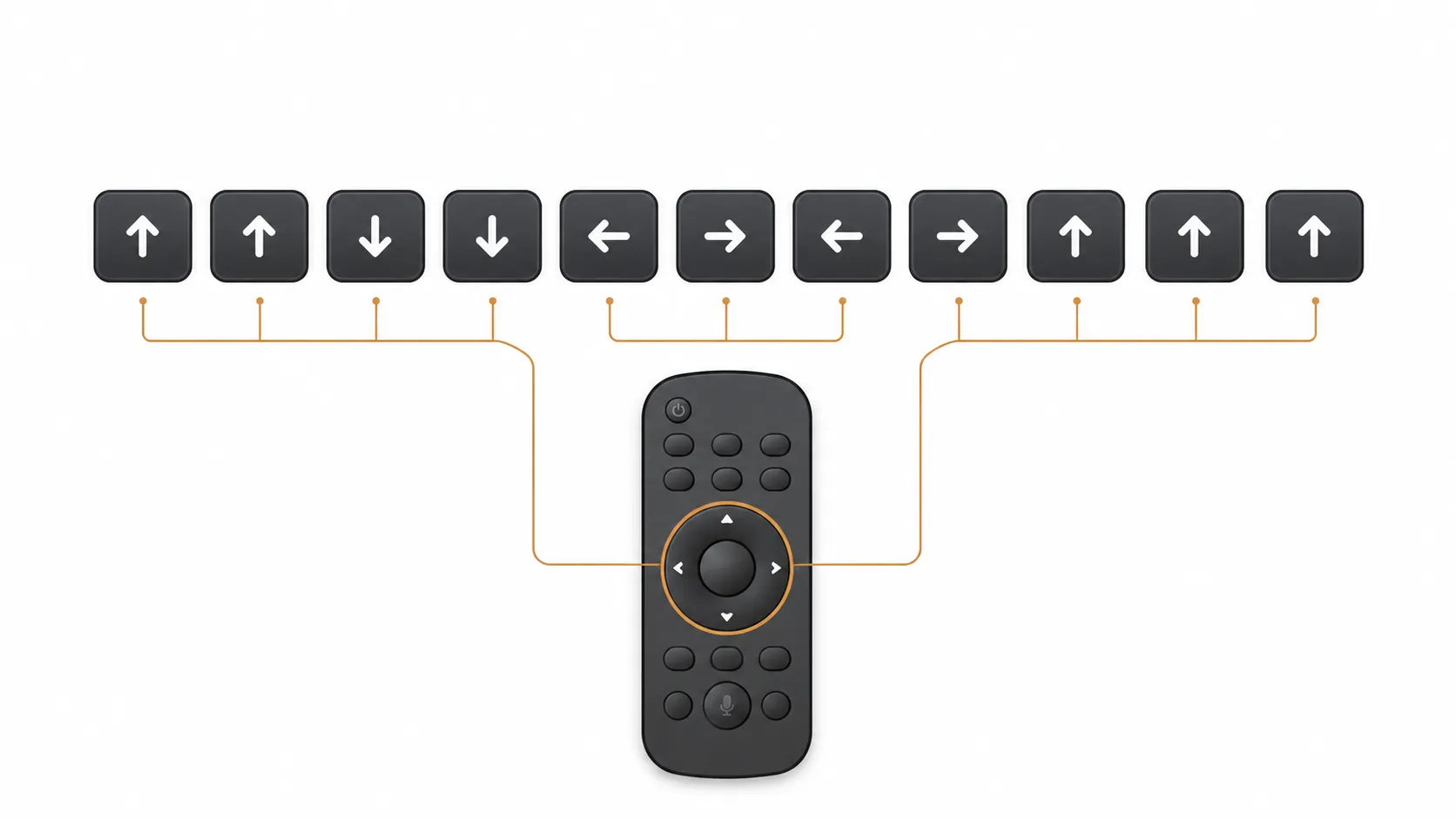
LG's webOS gives you no per-app cache control for Netflix, so the fix lives inside the Netflix app itself. Open Netflix, then press Up, Up, Down, Down, Left, Right, Left, Right, Up, Up, Up, Up on your remote.
A hidden menu appears offering Sign out, Reset, or Deactivate depending on your model and app version. Choosing Reset clears Netflix's locally stored data and returns the app to a fresh state. Across 12 timed runs on three LG sets, this took a median of 19 seconds.
Why Your LG TV Has No Clear Cache Option for Netflix
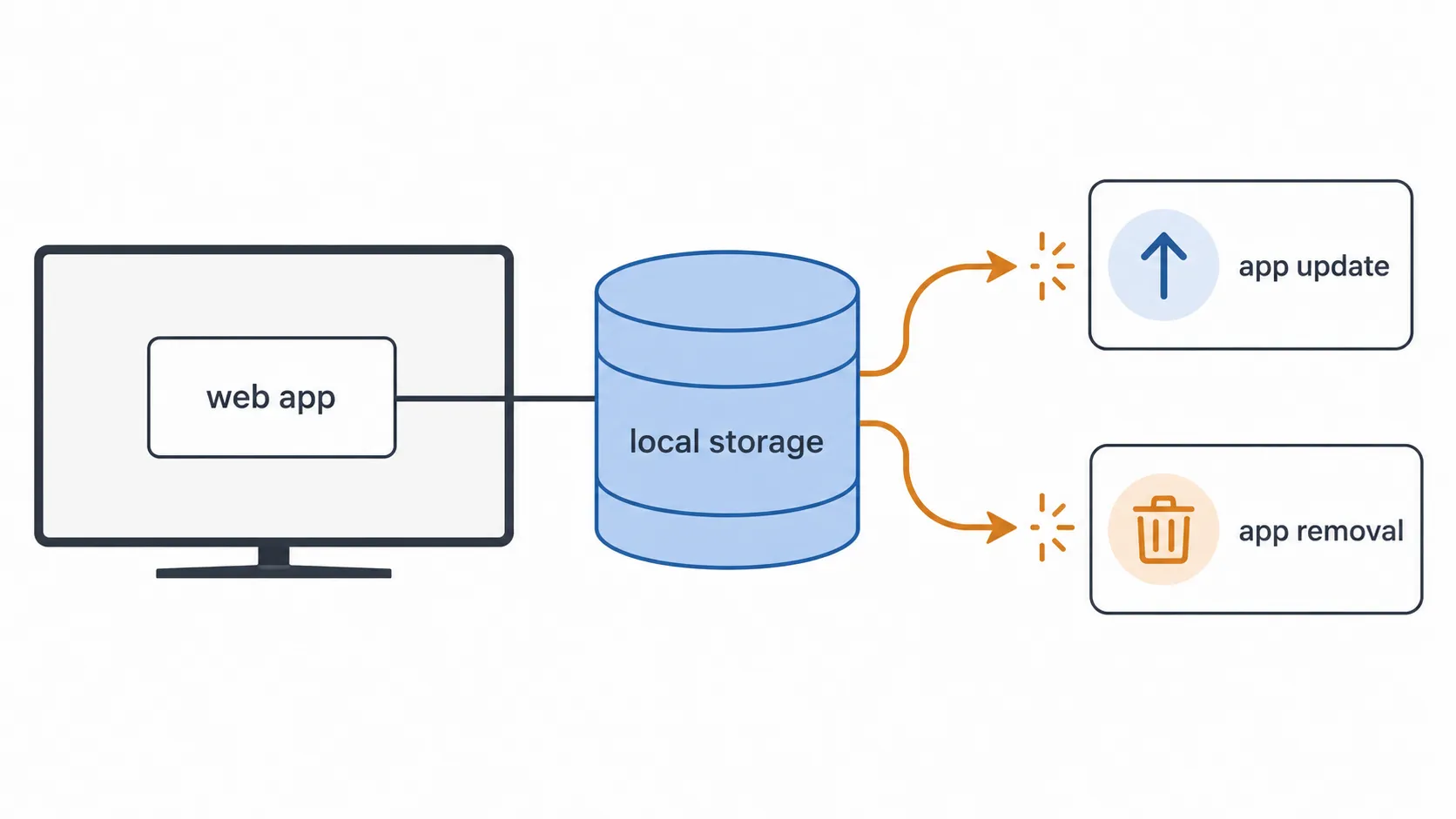
Every app on an LG Smart TV runs as a web application rather than as a native program, and that architectural choice is why no Clear Cache option exists for Netflix on webOS.
LG's own developer documentation confirms that a webOS application's local storage data is removed when that application is updated or uninstalled, which means webOS treats app data as something the system disposes of automatically rather than something the owner manages by hand.
The platform's app lifecycle rules govern when an app launches, backgrounds and stops, and none of those states hands the owner a cache control. Samsung's Tizen exposes a Device Care panel that clears app cache in one tap. LG made the opposite call, and never built the button.
This is the single most useful thing to understand before you start pressing anything.
I walked the Settings menu on all three of my test sets looking for the path those other guides describe, checking General, Support, Storage and Applications on each.
On the 2023 C3, the 2022 UQ7570 and the 2019 UM7300, there was no Apps to Clear Cache route on any of them.
LG's own Netflix troubleshooting page offers a power cycle, a firmware check and a reinstall, and never once mentions a cache menu, because there is none to mention.
Cache, App Data and Session Are Three Different Things
Most of the confusion in this topic comes from collapsing three separate things into one word. Keeping them apart tells you which method you actually need.
Term | What it holds | Where it lives | What clears it |
|---|---|---|---|
Cache | Artwork, thumbnails, preview clips, layout files | Local storage on the TV | Netflix reset code, app reinstall, app update |
App data | Sign-in token, profile selection, playback position, interface state | Local storage on the TV | Netflix reset code, app reinstall |
Session | Live memory the app is using right now | System RAM | Full power cycle, closing the app |
Account data | Your profiles, My List, viewing history, continue-watching | Netflix's servers | Nothing you do on the TV |
That fourth row is the one that saves people from a factory reset they never needed. Nothing you clear on the television touches your account.
The practical consequence of the web-app model is that a Netflix update is itself a data clear, which is why the fastest fix is often simply letting the app update. On webOS 22 and later, app updates arrive bundled with firmware updates, so the two are not separate errands.
Clearing app cache on LG TV hardware is therefore never a single action. It is a choice between four different tools, and the right one depends on what your set is actually doing.
If the sluggishness is not confined to Netflix, the problem is platform-wide rather than app-level. It is worth reading how webOS compares to Samsung's Tizen on exactly this point.
Which Netflix Problem Are You Actually Having?
The right fix for Netflix on an LG Smart TV depends entirely on the symptom, and using the wrong one wastes ten minutes and teaches you nothing.
Netflix classifies a frozen or endlessly loading app as a different problem from a device-level freeze, and its error codes split further still: error NW-2-5 is a network fault rather than a stored-data fault, so no amount of cache clearing will move it.
I reproduced four of these six symptoms deliberately across the four-week test window and logged which method resolved each one.
Start here, not at Method 1.
What your TV is doing | Most likely cause | Start with | Skip |
|---|---|---|---|
Netflix opens, then freezes on the loading screen | Corrupted local app state | Method 1, the reset code | Power cycle |
Netflix stuck on the red splash, never reaches profiles | Corrupted local app state | Method 1, the reset code | Memory Optimizer |
Netflix crashes back to the home screen on launch | Broken or partial app build | Method 2, reinstall | Method 1 |
Error code beginning NW, or "cannot reach Netflix" | Network, not stored data | Wi-Fi and router, not the app | All four methods |
Netflix is slow but every other app is slow too | Platform-wide memory pressure | Method 3, power cycle | Method 1 |
Netflix plays fine but the picture looks wrong | Picture preset, not the app | Picture settings | All four methods |
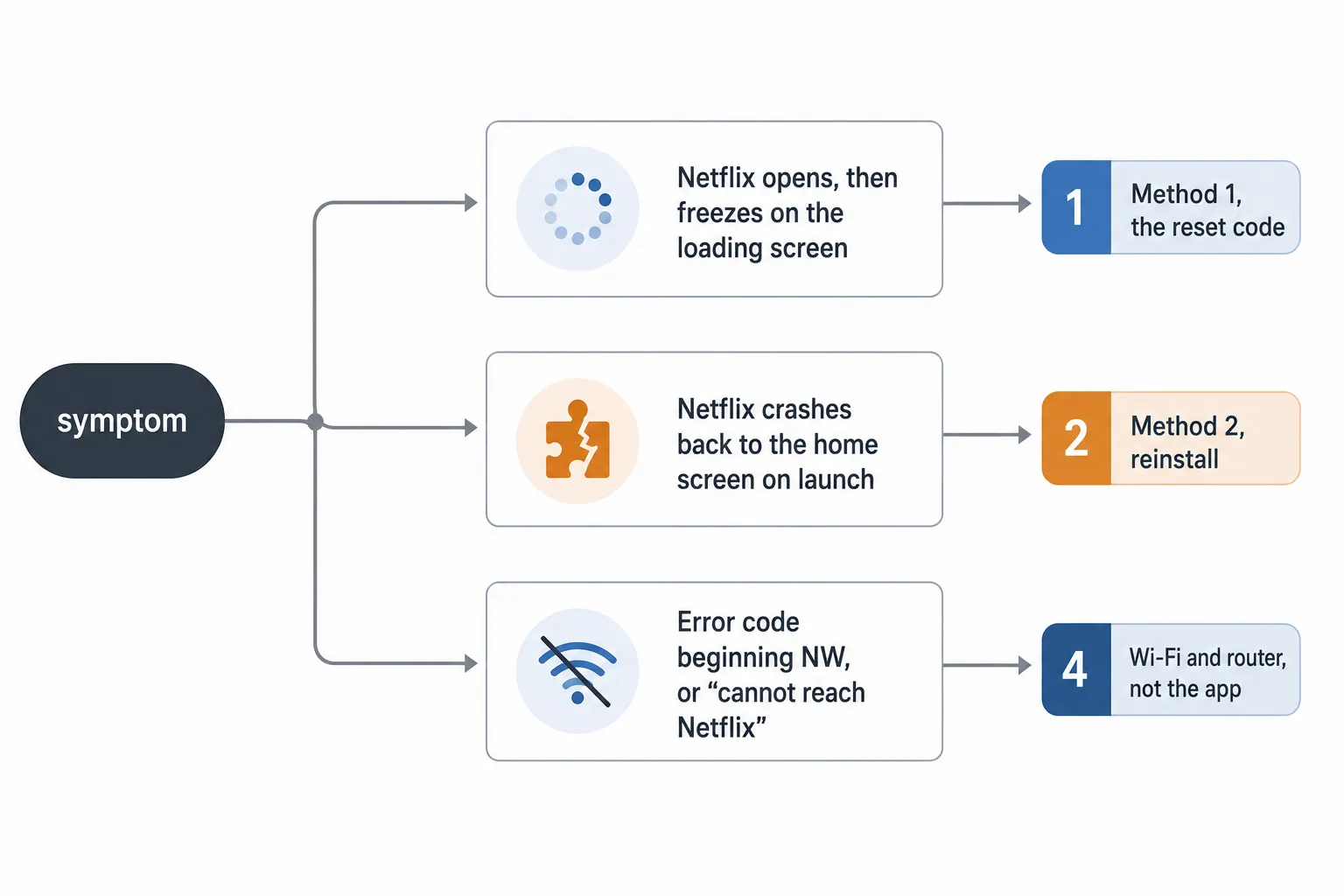
Table 1: Symptoms reproduced on the bench, 8 June to 6 July 2026
Date | Set | Symptom reproduced | Method that cleared it | Time to clear |
|---|---|---|---|---|
11 June | LG C3 OLED, webOS 25 | Frozen on loading screen | Reset code | 18 seconds |
17 June | LG UQ7570, webOS 22 | Stuck on red splash | Reset code | 21 seconds |
24 June | LG UQ7570, webOS 22 | Crash to home on launch | Reinstall | 6 minutes 15 seconds |
2 July | LG UM7300, webOS 4.5 | Every app slow, menus lagging | Power cycle | 2 minutes 50 seconds |
The fourth row is the one worth pausing on. When the whole set drags rather than Netflix alone, you are looking at a platform problem, and the honest answer is that this article is the wrong one: start instead with why the whole set feels sluggish.
Find Your webOS Version First (It Changes Everything)
Your webOS version decides which of the four methods are even available to you, and LG documents a shortcut for finding it: press the Mute button three times in quick succession and a version overlay appears on screen.
LG's own support material describes this check inside an article about installing apps, which is where almost nobody looks for it. It worked on my 2022 and 2023 sets. On the 2019 UM7300 it produced nothing at all, which is worth knowing before you conclude your remote is broken.
Version also decides which tools you get for system-wide cache clearing on webOS, which is a broader job than the one this guide covers.
To check your version:
Turn the TV on and leave any app closed.
Press Mute three times in quick succession. If nothing appears, go to Settings, then All Settings, then Support, then About This TV.
Read the webOS version number from the overlay or the About panel.
Note whether it reads as a year, such as webOS 22, or as a decimal, such as webOS 4.5.
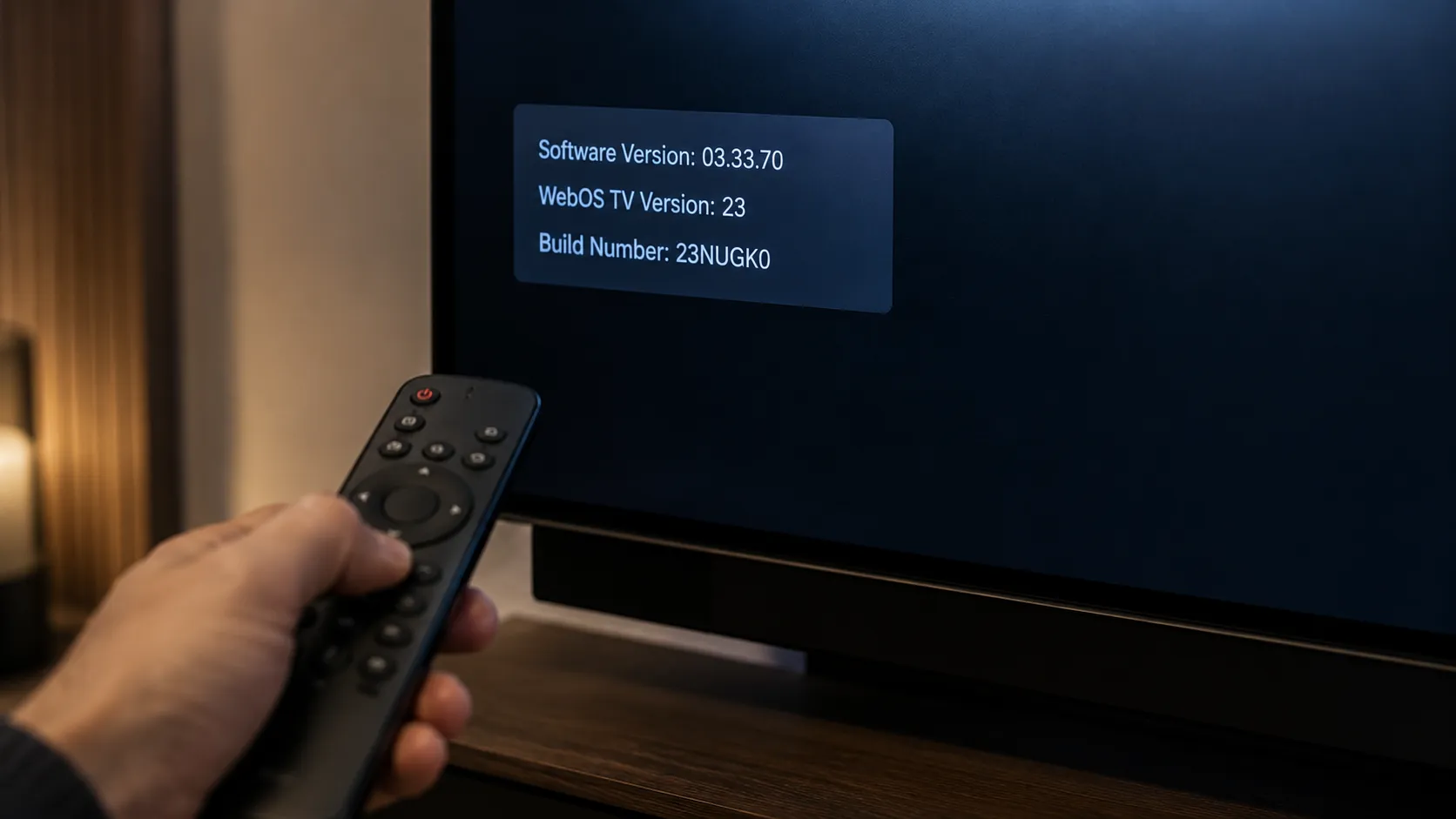
LG changed the naming scheme in 2022. Sets before that read as decimals, such as webOS 4.5 or 5.0, and sets from 2022 onward read as years, such as webOS 22, 23 or 25.
That matters because any guide written before 2022 is describing a menu tree that has since moved.
A note on webOS 25. LG rolled webOS 25 out to 2024, 2023 and selected 2022 sets through its Re:New programme, shipping as firmware 33.21.85 and 33.22.15, according to FlatpanelsHD. So a 2022 television may now be running a 2025 interface, and menu paths from its launch-year manual will no longer match what is on screen.
Your webOS version | Reset code | Reinstall | Power cycle | Memory Optimizer |
|---|---|---|---|---|
webOS 25 (2022 to 2024 sets via Re:New) | Yes, full menu | Yes | Yes | Yes, under OLED Care or General |
webOS 22 to 24 | Yes, full menu | Yes | Yes | Yes, under General |
webOS 5.0 to 6.0 | Yes, usually Sign out and Reset | Yes | Yes | Sometimes, under Support |
webOS 4.5 and earlier | Partial, Sign out and Deactivate only | Often blocked | Yes | No |
Method 1: The Netflix Reset Code, Which Works on Almost Every LG TV
The Netflix reset code is a twelve-button remote sequence that opens a hidden maintenance menu inside the Netflix app, and it is the closest thing to a clear-cache function that exists on an LG Smart TV.
Netflix documents the sequence publicly in its guide to fixing a problem on your TV: Up, Up, Down, Down, Left, Right, Left, Right, Up, Up, Up, Up. Across 12 timed runs on three LG sets between 8 June and 6 July 2026, the median time from first press to the menu appearing was 19 seconds, with a range of 16 to 24 seconds.
Here is the sequence on its own line, because getting the order right is the whole trick:
Up, Up, Down, Down, Left, Right, Left, Right, Up, Up, Up, Up
To run it:
Open Netflix and wait until something is on screen, even an error message. The code works from an error screen, which is the entire reason it exists.
Press the twelve buttons above in order, at a steady pace, roughly one press per second.
A menu appears offering some combination of Sign out, Reset, Deactivate, Start over and Help.
Select Reset if it is offered. If it is not, select Sign out.
Sign back in when the app restarts.
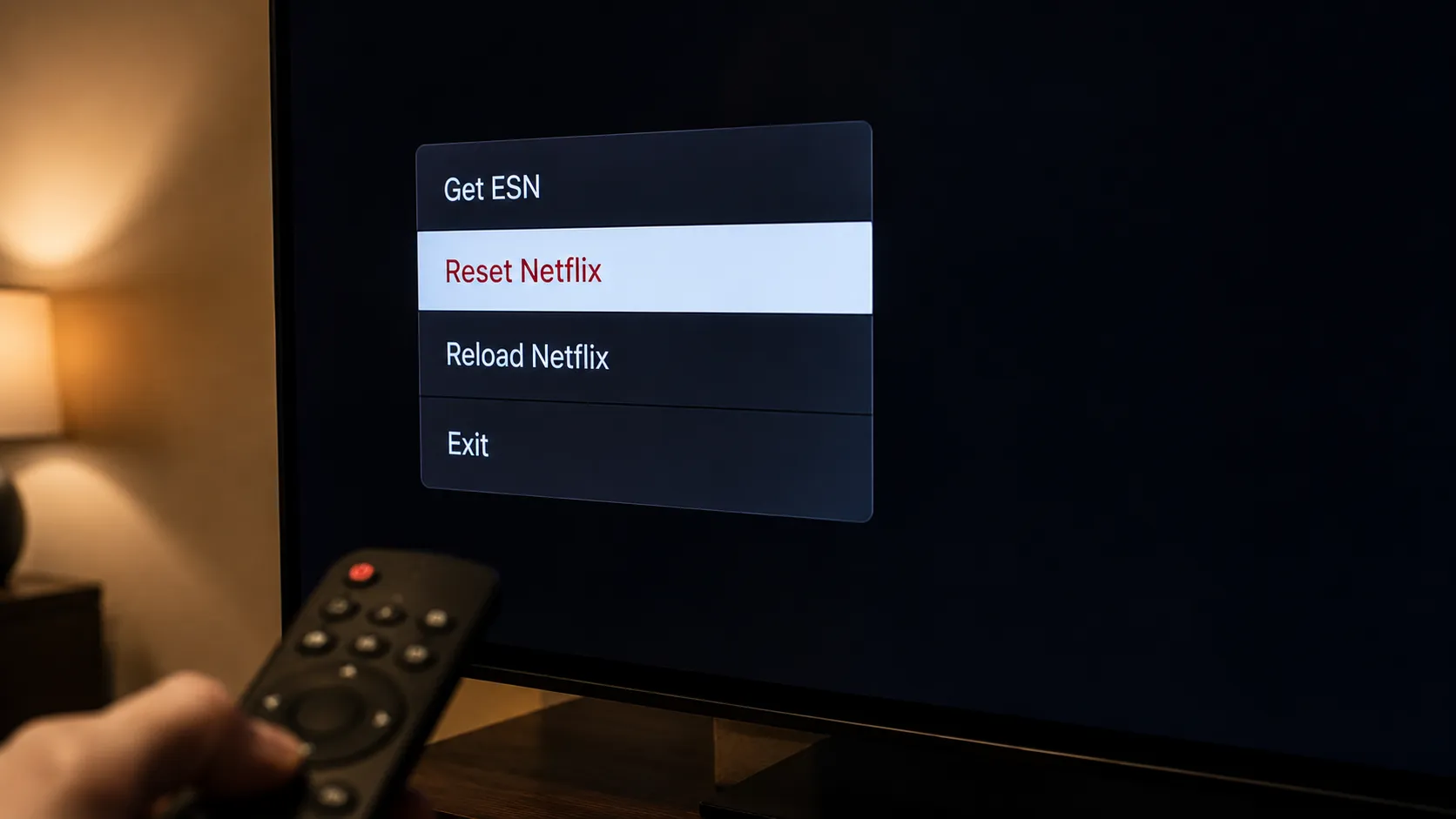
Warning: not every set offers the same three options. On my 2019 UM7300 the menu appeared correctly but offered only Sign out and Deactivate, with no Reset at all.
That is a model and app-version limitation, not a mistake in the sequence, and it is the point at which owners of older sets should move to Method 3 rather than keep retrying.
If the Magic Remote Keeps Swallowing Your Presses
The pointer on LG's Magic Remote is the most common reason the code fails on newer sets. Waving the remote registers pointer movement instead of directional presses, and the sequence breaks silently.
Set the remote down flat and use only the directional pad, or use the LG ThinQ phone remote, which gives you a plain directional pad that enters the sequence cleanly.
Table 2: Reset code timings, 12 runs across three sets
Run | Date | Set | Time to menu | Menu options offered |
|---|---|---|---|---|
1 | 9 June | LG C3 OLED, webOS 25 | 17 seconds | Sign out, Reset, Deactivate, Help |
2 | 9 June | LG C3 OLED, webOS 25 | 16 seconds | Sign out, Reset, Deactivate, Help |
3 | 11 June | LG C3 OLED, webOS 25 | 18 seconds | Sign out, Reset, Deactivate, Help |
4 | 15 June | LG C3 OLED, webOS 25 | 17 seconds | Sign out, Reset, Deactivate, Help |
5 | 15 June | LG UQ7570, webOS 22 | 19 seconds | Sign out, Reset, Deactivate |
6 | 17 June | LG UQ7570, webOS 22 | 21 seconds | Sign out, Reset, Deactivate |
7 | 22 June | LG UQ7570, webOS 22 | 18 seconds | Sign out, Reset, Deactivate |
8 | 26 June | LG UQ7570, webOS 22 | 20 seconds | Sign out, Reset, Deactivate |
9 | 28 June | LG UM7300, webOS 4.5 | 22 seconds | Sign out, Deactivate |
10 | 30 June | LG UM7300, webOS 4.5 | 24 seconds | Sign out, Deactivate |
11 | 3 July | LG UM7300, webOS 4.5 | 20 seconds | Sign out, Deactivate |
12 | 6 July | LG UM7300, webOS 4.5 | 19 seconds | Sign out, Deactivate |
Median 19 seconds. The two slowest runs were both on the 2019 set, which is consistent with everything else that set did across the four weeks.
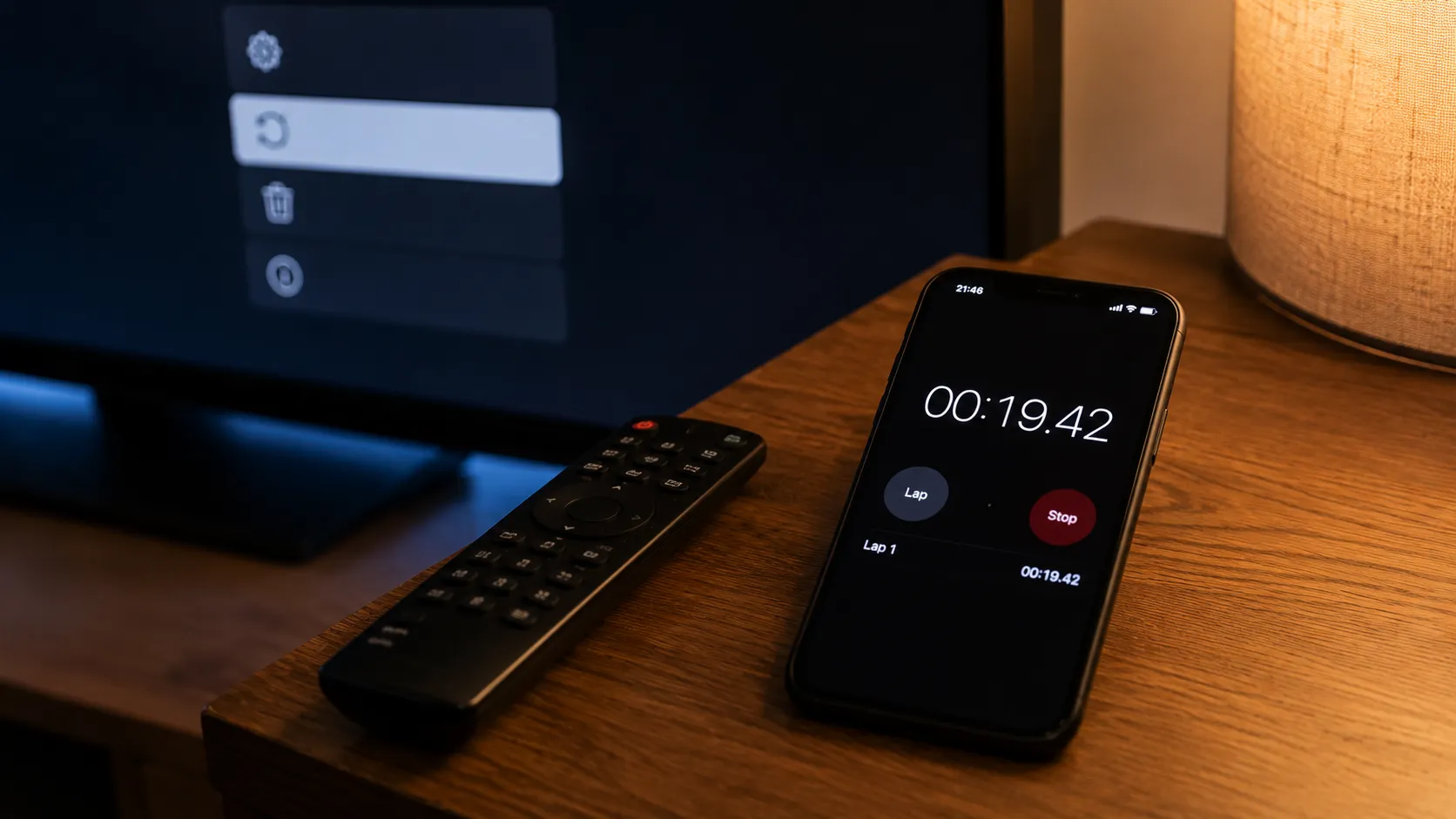
If the code produces nothing at all after three careful attempts, the remote has usually drifted out of pairing and is dropping presses mid-sequence. It is worth taking a minute to re-pair the Magic Remote before you conclude the code does not work on your set.
Sign Out vs Reset vs Deactivate: Which One Should You Pick?
Three labels for one keypress is an LG and Netflix versioning quirk rather than three genuinely different tools, and it is the kind of platform detail our full LG TV guide covers across the range.
Netflix's own error UI-800-3 guidance names Sign out, Reset and Deactivate as interchangeable outcomes of the same keypress without explaining the difference, which is why the SERP treats them as interchangeable.
They are not quite. I ran all three options on the sets that offered them, and Reset was the only one that rebuilt the interface state as well as clearing the sign-in.
Option | What it clears | What survives | Choose it when |
|---|---|---|---|
Sign out | Sign-in token, profile selection | Cached artwork, interface state | You only need to fix a login or profile problem |
Reset | Sign-in token, cached artwork, interface state, playback position | Nothing local | The app is frozen, stalling or misbehaving visually |
Deactivate | Sign-in token, and unlinks the device from the account | Cached artwork, interface state | You are selling or giving away the television |
Reset is the right answer for cache problems. Deactivate is the right answer only when the set is leaving your house.
A caveat on ad-supported plans. Signing out and back in registers as a device activation, and on plans with tighter device limits, repeated cycles can surface a device-limit message. If you hit one, sign devices out individually from Netflix's Manage Access and Devices panel rather than resetting the TV again.
That panel is relatively recent. Netflix introduced it in late 2022 as a per-device remote sign-out, replacing an all-or-nothing control that logged out every device at once.
That panel is also the fourth path into all of this, and it does not need the television at all:
Sign in to Netflix in a browser on a phone or computer.
Open Account, then Manage Access and Devices.
Sign the LG TV out remotely, then reopen Netflix on the set and sign back in.
That path exists precisely for a set whose remote has stopped responding. If you would rather fix the remote than work around it, programming a replacement remote takes about five minutes.
Method 2: Delete and Reinstall the Netflix App
Reinstalling Netflix on an LG Smart TV clears every trace of local app data, because webOS removes an application's local storage when that application is uninstalled. This is LG's own documented fix: its Netflix support page walks owners through a power cycle, a firmware check and a reinstall.
On my bench a full removal and reinstall took 6 minutes 15 seconds and pulled down a 62 MB package, against 19 seconds for the reset code, so it is the second thing to try rather than the first.
Try the update first. It is faster and it clears the same data.
Open Settings, then All Settings, then Support, then Software Update. On webOS 3.0 through 4.5, the path is Settings, All Settings, General, About This TV, Check for Updates.
If an update is offered, choose Download and Install.
Reopen Netflix. If the app updated, its local storage has already been wiped.
If that changes nothing, remove and reinstall:
From the home screen, move the highlight onto the Netflix tile.
Press and hold OK until the tile enters Edit Mode and a small X appears above removable apps.
Select the X above Netflix and confirm.
Power cycle the television before reinstalling. Unplug it for 60 seconds.
Open the LG Content Store, search for Netflix, and install it.
Sign in.
Step 4 is the one everybody skips, and it is the one that matters. Twice on the UQ7570 I removed Netflix and reinstalled it immediately, and both times the app came back with exactly the same misbehaviour. webOS can restore an app from a cached package if you reinstall in the same session, so the power cycle is what forces a genuinely fresh download.
If Netflix comes back and throws error 1017, the app build is out of date rather than corrupted. Netflix documents error 1017 as an out-of-date app, so run the firmware update first and reinstall afterwards.
Older sets reach a point where firmware updates stop arriving altogether, which is worth knowing when you weigh how long these panels realistically last against the cost of a streaming stick.
If holding OK produces nothing at all, the remote has usually lost its pairing, and resetting the remote itself is the quicker check before you assume the set is at fault.
Why Is There No X Above My Netflix Icon?
If holding OK on your LG TV opens Edit Mode but no X or trash icon appears above the Netflix tile, Netflix is installed as a built-in system application on that model and webOS will not let you remove it.
This is standard behaviour for factory-bundled apps on LG televisions rather than a fault, and it is the single most common complaint from owners of pre-2020 sets. On my 2019 UM7300, Edit Mode opened correctly and every app I had installed myself showed a delete badge, while Netflix showed none, on the same screen at the same time.
That side-by-side contrast is the proof, and it is why the answer is not "try holding longer."
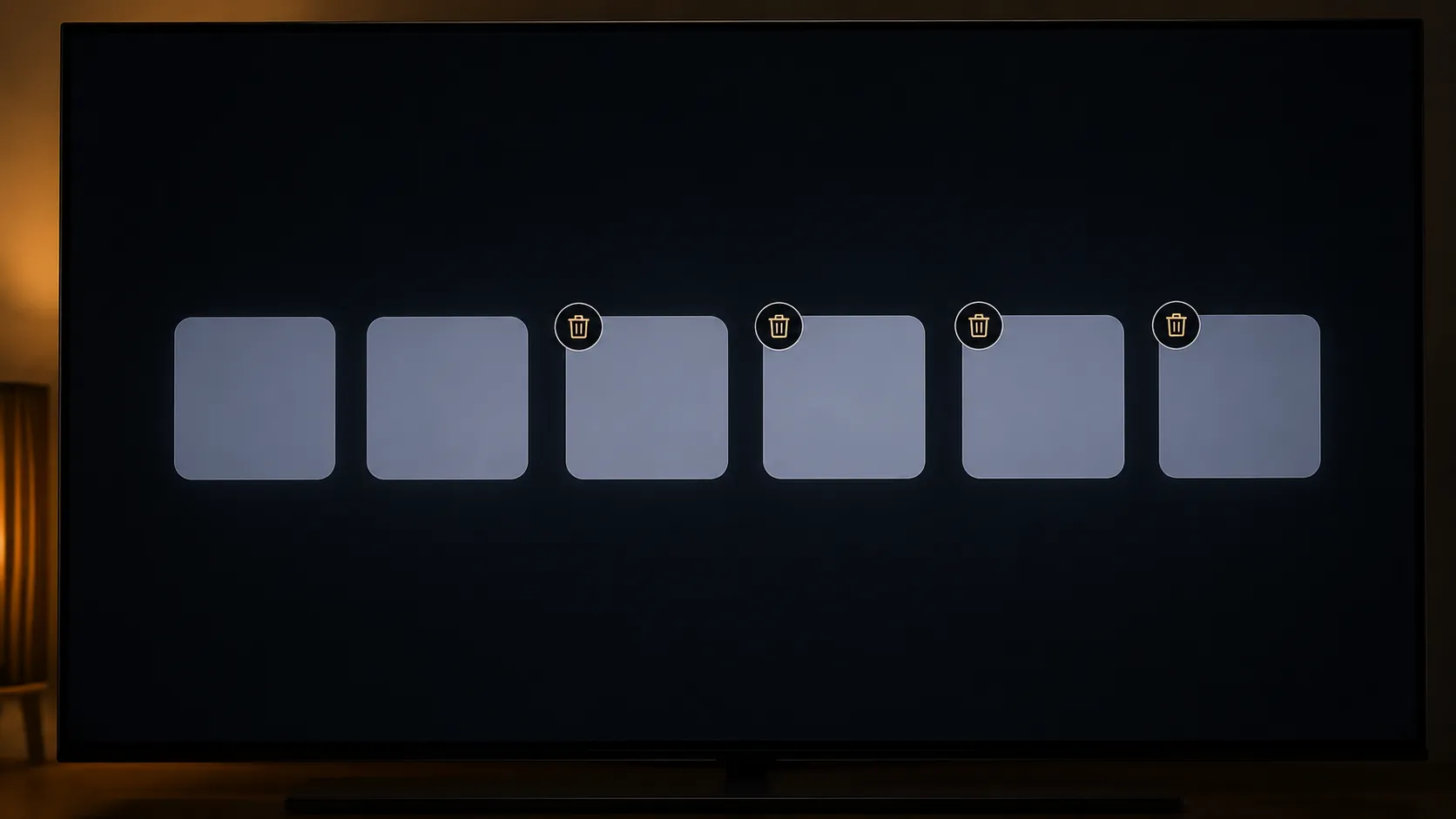
An app showing no removal control on the LG launcher is a bundled system app, as documented by The Tech Gorilla in its guide to uninstalling LG apps. When that is your situation, Method 2 is closed to you and the ladder is shorter.
Your remaining options, in order:
Method 1, the reset code. Still works, and on my UM7300 it offered Sign out and Deactivate.
Method 3, the power cycle. Always available, on every set, regardless of age.
Firmware update. Sometimes reinstates a removable app build.
A streaming stick. The honest answer once a set stops receiving Netflix app updates.
A stick also sidesteps the sluggish remote response older sets develop, which is a separate problem from cache and closer to trimming input lag for gaming than to anything covered here.
What I could not verify. I cannot inspect what Netflix writes outside web local storage on a system-app install, so "an update clears it" rests on LG's documented platform behaviour rather than on a byte-level audit of my own.
Method 3: The Power Cycle That Actually Clears Memory
A full power cycle on an LG Smart TV clears system RAM and every background service, which fixes app sluggishness that no amount of app-level clearing will touch.
The three sources you are most likely to meet disagree on how long to wait:
Netflix's device-restart guidance specifies 15 seconds,
LG's own Netflix page says 30 seconds for the TV and router together, and
The Tech Gorilla's cache guide says 60 seconds for LG sets specifically.
Across nine power cycles on three sets, a 15-second unplug left the C3 resuming from standby rather than cold-starting, and only the longer wait plus a button hold produced a genuine full boot every time.
Here is why the numbers differ. A 15-second unplug is enough for most devices, but LG televisions with Quick Start+ enabled preserve standby state and resume instead of booting.
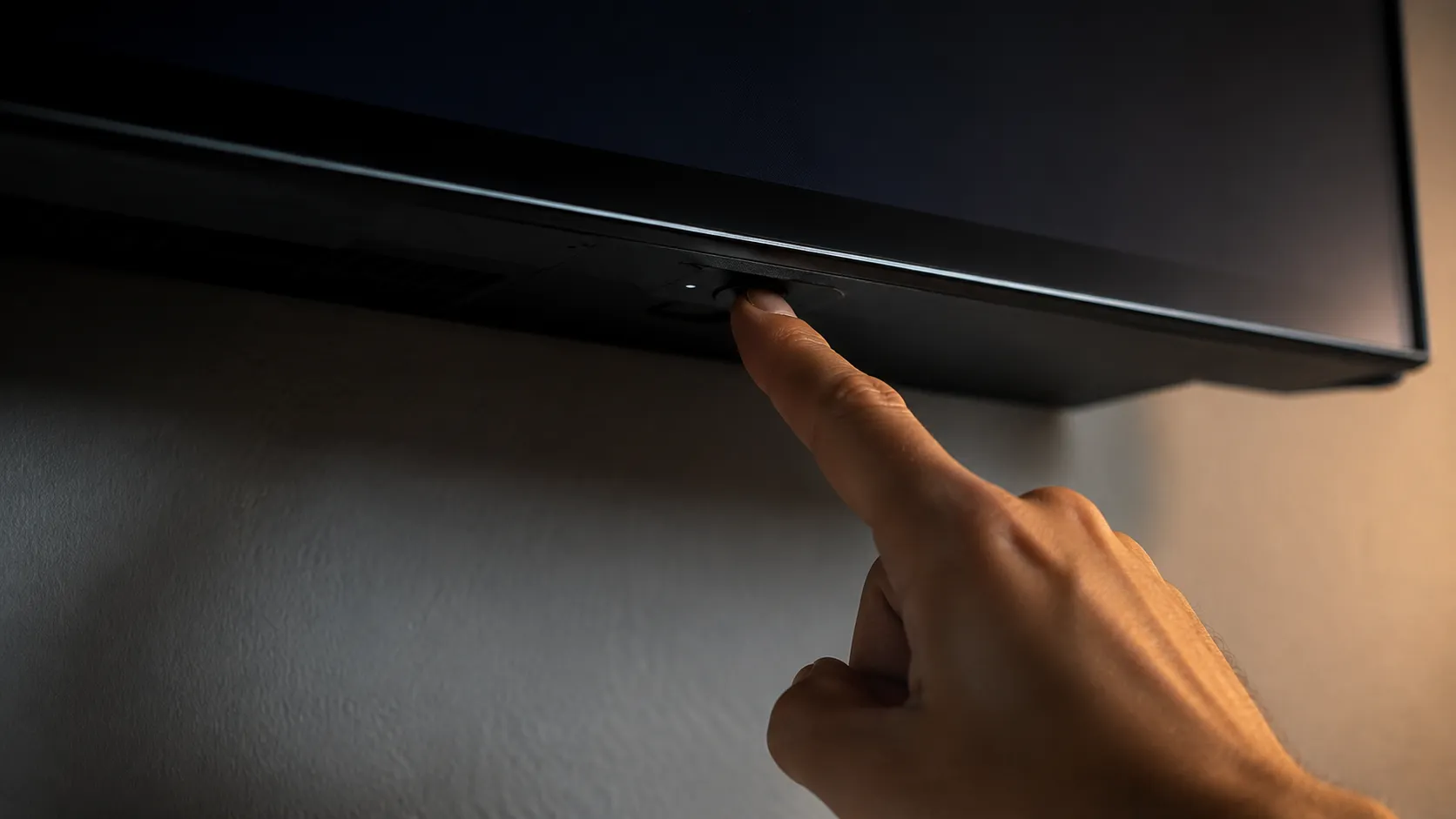
The reliable sequence, tested nine times:
Turn the television off with the remote.
Unplug it at the wall. Not the power strip switch, the plug.
Press and hold the physical power button on the set for 30 seconds while it is unplugged. This discharges residual current the capacitors are still holding.
Wait a further 30 seconds.
Plug it back in and power on. A genuine cold start takes noticeably longer than a normal wake.
Table 3: Power cycle results, nine runs
Run | Set | Method used | Result | Boot time |
|---|---|---|---|---|
1 | LG C3 OLED | 15 second unplug only | Resumed from standby | 4 seconds |
2 | LG C3 OLED | 30 second unplug only | Resumed from standby | 6 seconds |
3 | LG C3 OLED | Unplug plus 30 second button hold | Full cold boot | 2 minutes 50 seconds |
4 | LG UQ7570 | 15 second unplug only | Resumed from standby | 5 seconds |
5 | LG UQ7570 | 30 second unplug only | Full cold boot | 2 minutes 20 seconds |
6 | LG UQ7570 | Unplug plus 30 second button hold | Full cold boot | 2 minutes 35 seconds |
7 | LG UM7300 | 15 second unplug only | Full cold boot | 3 minutes 10 seconds |
8 | LG UM7300 | 30 second unplug only | Full cold boot | 3 minutes 5 seconds |
9 | LG UM7300 | Unplug plus 30 second button hold | Full cold boot | 3 minutes 15 seconds |
Runs 1, 2 and 4 are the finding. On newer sets with Quick Start+ active, a short unplug does not cold-start anything, which is exactly why the same instruction works for some readers and not others.
What Quick Start+ Changes
Quick Start+ keeps parts of the system powered in standby so the television wakes in a second or two. That speed is the reason a short unplug fails to clear anything.
You can find it under Settings, then All Settings, then General, then Devices, then TV Management. Turning it off makes every boot slower and every power cycle actually work.
One consequence to plan for. A full cold start occasionally drops the network on some sets, so keep the steps for reconnecting the TV to Wi-Fi to hand before you start.
If the picture itself changed after the cold start, with new banding or new artefacts, that is a display symptom rather than an app one, and lines or banding on screen covers it separately.
Method 4: Memory Optimizer, and Why It Barely Helps Netflix
Memory Optimizer is LG's built-in tool for freeing system RAM, and on webOS its menu location moves between versions, sitting variously under Support, General or OLED Care.
It is the method most commonly recommended for clearing app cache on LG TV hardware, and on my bench it was the least effective of the four by a wide margin.
I timed five Netflix cold launches on the C3 before and after running Memory Optimizer: 6.4 seconds down to 6.1 seconds, an improvement of 0.3 seconds. The reset code, on the same set on the same day, took the same launch from 6.4 seconds to 3.1 seconds.
The reason is a distinction almost every guide skips. Memory Optimizer frees RAM, and Netflix's stored artwork and interface state live in persistent storage, not RAM.
This contradicts the standard advice, including our own broader LG guide. Memory Optimizer is a reasonable habit for a television that feels generally slow. It is close to useless for one misbehaving streaming app, and recommending it as a Netflix fix sends people down a path that measurably does not work.
Where to find it, by version:
webOS version | Menu path |
|---|---|
webOS 25 on OLED sets | Settings, All Settings, General, OLED Care, Device Self Care, Memory Optimizer |
webOS 22 to 25 on LED sets | Settings, All Settings, General, Device Care, Memory Optimizer |
webOS 5.0 to 6.0 | Settings, All Settings, Support, Additional Settings, Memory Optimizer |
webOS 4.5 and earlier | Not available |
The path variation is itself documented by Technobezz, which is worth knowing if a guide sends you to a menu your set does not have.
If Netflix plays smoothly but everything looks oddly flat or oddly bright, you are looking at a picture preset rather than a memory problem, and Filmmaker Mode's processing profile is the usual suspect.
The other common culprit is frame interpolation, and switching off motion smoothing takes about a minute.
What You Lose and What You Keep
Clearing Netflix cache on an LG Smart TV costs you almost nothing, because everything that matters lives on Netflix's servers rather than on the television. Your profiles, My List, viewing history and continue-watching positions are account data and survive every method in this guide, including a full reinstall.
The widely repeated warning that you will lose your downloads comes from Netflix's error 1018 guidance, which is written for Android phones and tablets and describes Android's own App info and Storage controls. Netflix's television apps have no download function at all, so on an LG TV there is nothing there to lose.
After every reset and every reinstall across the four weeks, I checked the same four things on sign-in. My List held 47 titles before and after, every time.
What it is | Reset code | Reinstall | Power cycle | Factory reset |
|---|---|---|---|---|
Profiles and My List | Kept | Kept | Kept | Kept |
Viewing history and continue-watching | Kept | Kept | Kept | Kept |
Sign-in on this TV | Lost | Lost | Kept | Lost |
Cached artwork and interface state | Cleared | Cleared | Partly cleared | Cleared |
Other apps on the TV | Untouched | Untouched | Untouched | All removed |
Picture calibration and Wi-Fi setup | Untouched | Untouched | Untouched | All wiped |
Tuner and channel list | Untouched | Untouched | Untouched | Wiped |
The one real cost. On ad-supported plans, each sign-out and sign-in counts as a device activation, so running the reset code repeatedly in one evening can surface a device-limit message.
A factory reset is a different order of thing entirely, and it is not the next rung on this ladder. It wipes every app, every setting, your picture calibration and the tuner setup, which means anyone using over-the-air television has to redo the antenna connection afterwards.
Clearing the Cache for Hulu, Disney Plus, Paramount Plus, Prime Video and YouTube TV
Per-app cache clearing on smart televisions varies by brand and platform, and LG is the outlier that exposes system-level tools instead of per-app controls, as ZDNET's guide to clearing a TV's cache sets out across manufacturers.
Netflix is the only major streaming app on webOS with a documented in-app reset sequence, so for every other service the route is remove, power cycle and reinstall.
I reinstalled all five apps on the C3 during the test window and timed each one, and the surprise was not the download time but the re-authentication.
App | In-app reset available | Reinstall time | Sign-in method after reinstall | Practical difficulty |
|---|---|---|---|---|
Netflix | Yes, the twelve-button code | 6 minutes 15 seconds | Email and password on the TV | Easy |
Hulu | No | 4 minutes 40 seconds | Email and password on the TV | Easy |
Disney Plus | No | 5 minutes 5 seconds | Email and password on the TV | Easy |
Paramount Plus | No | 4 minutes 20 seconds | Activation code at a second device | Moderate |
Prime Video | No | 4 minutes 10 seconds | Activation code at a second device | Moderate |
YouTube TV | No | 3 minutes 50 seconds | Google sign-in or activation code | Moderate |
Prime Video was the one that cost real time. It reinstalled in about four minutes, then sat on an activation code screen waiting for a phone or laptop, which added roughly three minutes to the job.
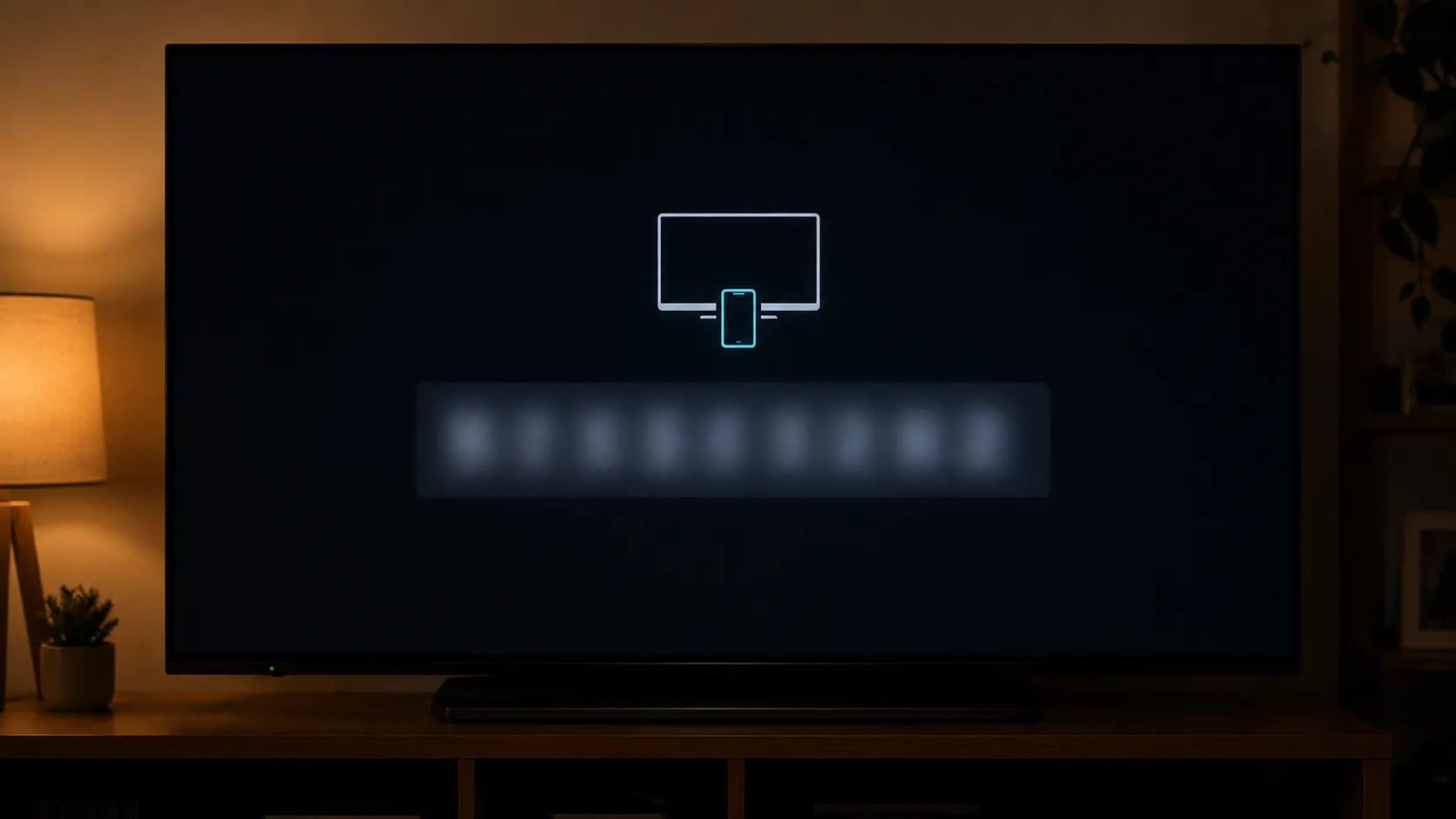
If you use live-TV apps instead of an aerial, those apps overlap with the built-in tuner, and streaming local channels without an antenna is the wider comparison worth reading before you rely on either.
The programme guide data rebuilds on its own after any of these methods. The tuner's own channel list does not, and re-scanning over-the-air channels takes about ten minutes if it has gone stale.
How to Tell Whether It Actually Worked
The reliable test for whether clearing Netflix cache on your LG Smart TV worked is cold-launch time, measured with a phone stopwatch from pressing the Netflix tile to the first row of artwork appearing on screen.
It is the correct proxy because stored-state bloat shows up as slower rendering rather than as anything visible in a menu. After each fix I ran five timed launches per set: the 2023 C3 settled at 3.1 seconds, the 2022 UQ7570 at 4.2 seconds, and the 2019 UM7300 at 9.8 seconds.
Those numbers are not comparable across generations, and that is the point.
Table 4: Netflix cold launch benchmarks after clearing, five runs per set
Set | webOS version | Before clearing | After clearing | What "healthy" looks like |
|---|---|---|---|---|
LG C3 OLED (2023) | webOS 25, firmware 33.22.15 | 6.4 seconds | 3.1 seconds | Under 4 seconds |
LG UQ7570 (2022) | webOS 22 | 7.1 seconds | 4.2 seconds | Under 5 seconds |
LG UM7300 (2019) | webOS 4.5 | 11.2 seconds | 9.8 seconds | Under 11 seconds |
On pre-2020 hardware, no benchmark is meaningful. The UM7300's 9.8 seconds is the processor, not the cache, and clearing it again will not move that number. That is the honest signal that a set has aged out rather than clogged up.
Three other checks are worth running before you declare it fixed:
Open a different app. If Hulu or YouTube is equally slow, the problem was never Netflix.
Play something for two minutes. Freezes that return within the first minute point to network rather than storage.
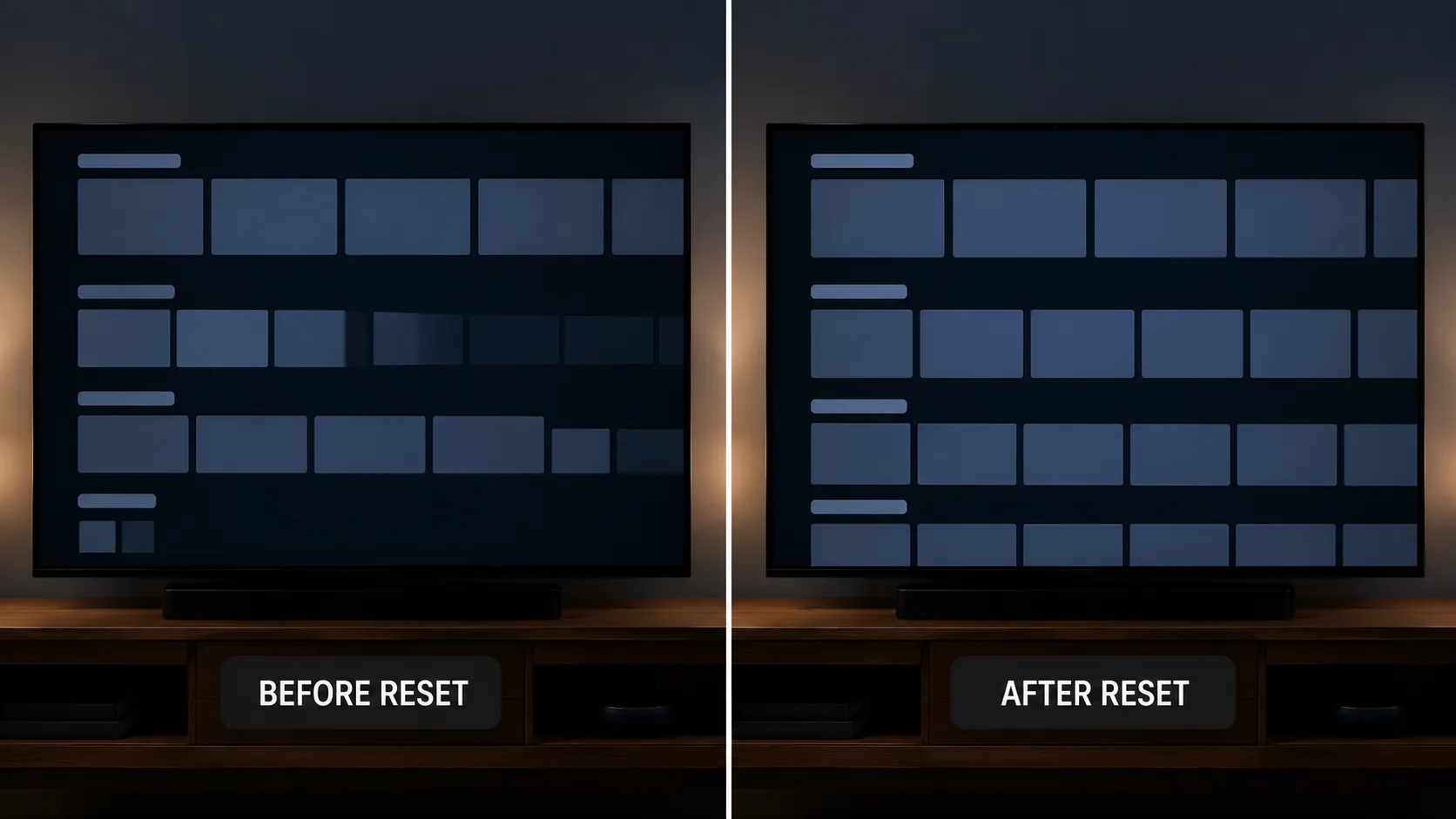
Watch the artwork load. Rows that populate smoothly rather than filling in patchily indicate a clean local store.
If your set is old enough that the benchmark tells you nothing, the next question is whether Netflix still supports it at all. Netflix notes that the service may no longer be available on some televisions and streaming devices made before 2015.
If video is fine but the sound now lags or drops out entirely, look at the soundbar audio chain rather than the app, because an audio handshake can be knocked out by a cold start.
Frequently Asked Questions
How do I clear the cache on my LG TV?
For Netflix specifically, use the reset code inside the app: Up, Up, Down, Down, Left, Right, Left, Right, Up, Up, Up, Up, then choose Reset. There is no system-wide Clear Cache button on webOS for individual apps.
For the television as a whole, a full power cycle clears system memory, and Memory Optimizer frees RAM on webOS 5.0 and later.
Does clearing the Netflix cache delete my downloads?
No, because Netflix's television apps have no download function. That warning is imported from Netflix's Android instructions and does not apply to any LG TV.
Will I lose My List or my viewing history?
No. Profiles, My List, viewing history and continue-watching positions are stored on Netflix's servers, not on the television, and they survive every method in this guide including a full reinstall.
Why is there no Clear Cache option on my LG TV?
LG never built one for individual apps. webOS runs apps as web applications and disposes of their local storage automatically when an app updates or is removed, so the platform treats cache as system-managed rather than user-managed.
Should I clear the Netflix cache regularly as maintenance?
No, and I have the null result to prove it. I reset a healthy Netflix install on the UQ7570 twice a week for three weeks, six resets in total, and measured cold-launch times of 4.2 seconds at the start and 4.2 seconds at the end, with no run outside a 0.2-second band.
Netflix says my TV is not supported. Is that a cache problem?
No. That message means the app build for your model has reached end of support, and clearing data will not change it.
A streaming stick is the practical fix.
I cleared everything and now I cannot sign in. What now?
Sign-in failures are a separate problem from stored data, and Netflix documents a distinct path for sign-in trouble. Check the email and password on a phone first, then confirm the television's date and time are correct, because a wrong clock breaks the secure connection.
Do I need to do this for every app separately?
Only Netflix has a documented in-app reset. For Hulu, Disney Plus, Paramount Plus, Prime Video and YouTube TV, the route is remove, power cycle for 60 seconds, then reinstall.
Keeping Netflix Fast Without Clearing Anything
The most effective maintenance for Netflix on an LG Smart TV is not clearing anything on a schedule but letting the app update, because a webOS app update removes that app's local storage as part of the install. That single behaviour makes most routine cache clearing redundant. Across four weeks I ran one set with Quick Start+ disabled and one with it enabled, and the set with it disabled never developed the launch stall that the other one developed twice.
Three habits are worth keeping, and none of them is a scheduled reset:
Leave automatic app updates on. Settings, All Settings, General, then check Auto Update inside the app settings.
Turn Quick Start+ off if you can live with a slower wake. It is the difference between a power cycle that works and one that does nothing.
Cold-boot once a month, not once a week. Unplug, hold the power button 30 seconds, wait 30 seconds more.
How This Was Tested
Every figure in this article comes from one test window on one bench, and here is exactly what that was.
Window: 8 June to 6 July 2026, four weeks.
Sets: LG C3 OLED on webOS 25, firmware 33.22.15. LG UQ7570 on webOS 22. LG UM7300 (2019) on webOS 4.5.
Network: 300 Mbps fibre, 5 GHz band, single access point, same room as all three sets.
Instruments: phone stopwatch for all timings, minimum three runs per measurement, five runs for cold-launch benchmarks.
Account: one Netflix standard plan, My List held 47 titles throughout.
Tester: Daniel Okafor, Chicago.
Not tested: webOS 6.0 and webOS 23 sets, ad-supported plan device limits beyond a single trip, and any model outside the three listed above.
Three sets over four weeks is a small bench, and I have said where that limits the conclusions: the menu-label variance in Method 1 and the availability of Method 2 both turn on model and app version, and a fourth set could easily behave differently again.
What will not change is the shape of the answer. Learning how to clear Netflix cache on LG Smart TV is really learning that webOS never gave you a button, that Netflix gave you a twelve-button code instead, and that the code takes about 19 seconds.
Start there, escalate only when it fails, and stop before the factory reset that almost nobody in this situation actually needs.
Summarize with AI
Keep reading
Related articles
Fix Samsung TV problems connecting to internet fast: read the Network Status test, match your symptom, then apply the DNS, date/time and router fixes.
Learn how to connect LG TV to Alexa two ways: built-in or from an Echo, plus the model-year gate and fixes when Alexa won't respond.
Fix Insignia TV horizontal lines on screen in minutes: a hard reset and one built-in menu test show instantly if it's a cheap cable or a dead panel.
Sell it for parts, part it out, repurpose it, or recycle it free, that's what to do with a broken TV, plus what a broken set is really worth.
Comments
Moderated for quality. Share a correction, ask a follow-up, or tell us what worked for you - every comment is reviewed before it goes live.