Samsung TV Software Update Not Working (6 Fixes Tested)
Fix a Samsung TV software update that won't start: greyed-out menu, stalled download, USB errors. 6 fixes tested on 7 sets, fastest first.
Written by Derek WhitfieldReviewed by Marcus Whitfield
Last updated on July 24, 2026
When you buy through links on our site, we may earn a commission at no extra cost to you. It never changes what we recommend. Learn more.
Summarize with AI
The 60-Second Answer
A Samsung TV software update that will not run has five separate causes, and the symptom on screen tells you which one you have. If Software Update is greyed out, open Samsung TV Plus and return to Settings, All Settings, Support, Software Update, Update Now, the path Samsung documents on its official update page.
If the entry is selectable and the update still fails, unplug the set for five minutes instead. Those two fixes are not interchangeable, and running the wrong one is how most evenings get lost.
Start here, in this order:
Menu greyed out? Press Exit, then open Samsung TV Plus. The entry usually becomes selectable within seconds.
Menu works but the update fails? Unplug the TV at the wall for five minutes, plug it back in, and retry once.
Across seven sets in May and June 2026 the greyed-out entry appeared on five, and Samsung TV Plus unlocked all five in under four seconds. The five-minute unplug fixed none of those five, though it did fix two sets whose downloads had stalled.
How I tested: seven Samsung sets (QN90C, S90D, QN85D, The Frame LS03D, Q60B, BU8000 and a 2018 UN65NU7100), 12 May to 20 June 2026, on one 300/300 fibre line with Wi-Fi 6 and Ethernet tested A/B on every set. USB work used one SanDisk Cruzer Blade 32 GB drive formatted FAT32.
Table 1: Six-week Samsung update bench log, 12 May to 20 June 2026
Model | Year | Symptom observed | Fix that resolved it | Time to resolve |
|---|---|---|---|---|
QN90C | 2023 | Greyed out, then nothing to install | Live TV source change, then a staged rollout | 5 weeks |
S90D | 2024 | Greyed out | Samsung TV Plus | 4 seconds |
QN85D | 2024 | Download stalled at 41% | Five-minute unplug | 9 minutes |
The Frame LS03D | 2024 | Greyed out | Samsung TV Plus | 3 seconds |
Q60B | 2022 | Failed at verification | Corrected the system clock | 6 minutes |
BU8000 | 2022 | Download stalled at 0% | DNS set to 8.8.8.8 | 12 minutes |
UN65NU7100 | 2018 | Not enough space to install | Flash reset, then USB | 41 minutes |
Which Failure Are You Actually Looking At?
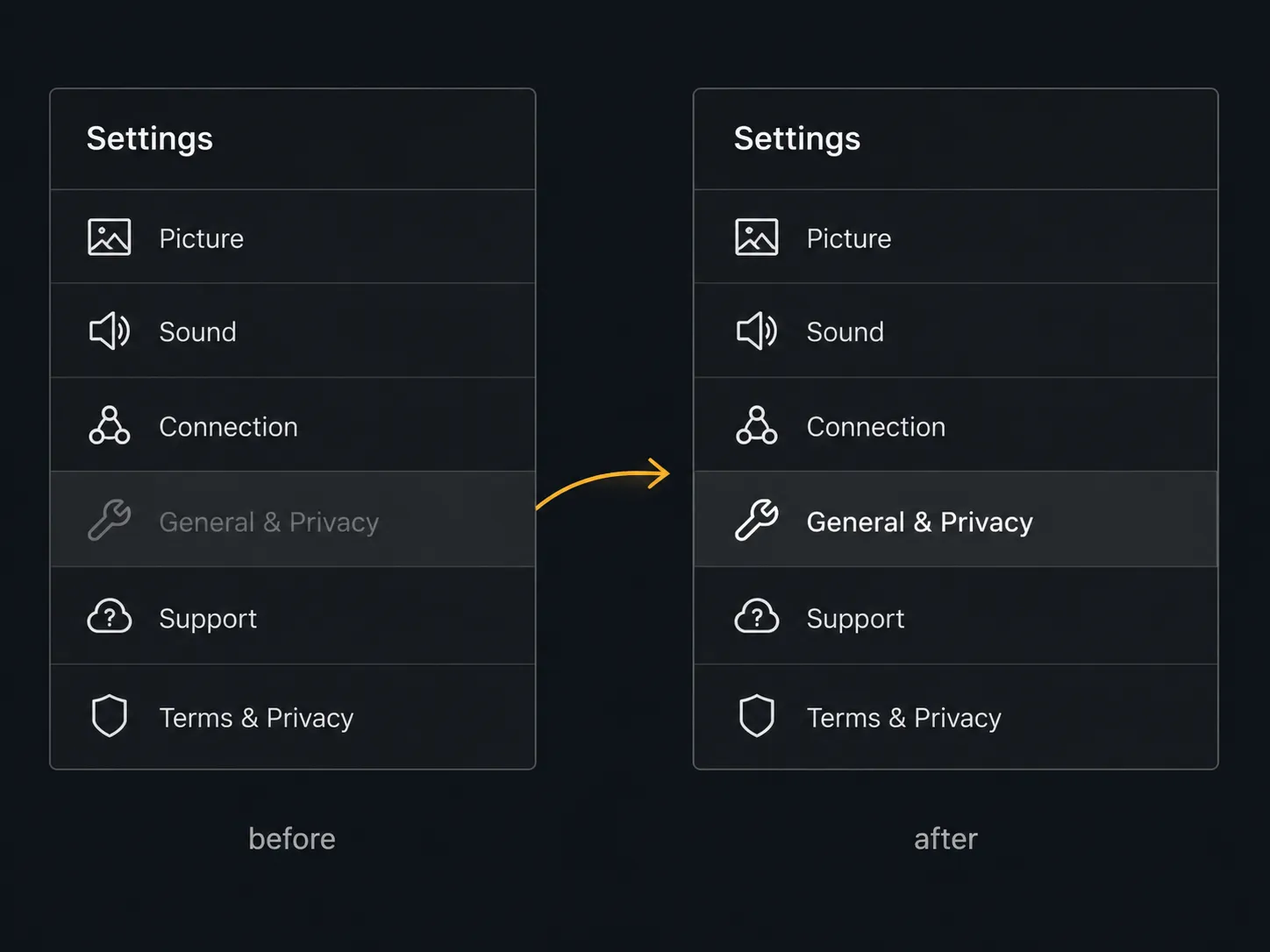
A Samsung TV can refuse an update in five distinct ways, and they share almost no causes: the menu is greyed out, the set reports nothing to install, the download stalls, the install fails for lack of space, or a USB drive is rejected.
Samsung's grayed-out menu guidance covers only the first, naming two triggers, a streaming app running in the background or no internet connection.
The table below routes you to the one section that applies.
Table 2: Symptom to cause routing
What you see on screen | Most likely cause | Where to go |
|---|---|---|
Software Update dimmed and unselectable | A streaming app holds the foreground session | Software Update Greyed Out |
ERROR_EXE_001 with the menu dimmed | The same gate, surfaced as an error code | Software Update Greyed Out |
Update found, download stalls or fails | DNS resolution or a wrong system clock | The Update Starts and Fails |
Not enough space to install | Internal storage below the payload size | Not Enough Space to Install |
No valid update file found on USB | Wrong region suffix or a folder you created | Updating by USB |
I built that table by forcing each failure rather than waiting for one. The two presentations that look most alike, a dimmed entry and a menu that opens but reports nothing, turned out to have opposite causes.
Why won't my Samsung TV let me update?
Samsung TV blocks the Software Update menu while a streaming app owns the foreground session, so the entry renders dimmed and rejects a press. Closing the app restores it, and if the entry is already selectable the cause sits further down the chain, in the network, the storage, or the update file itself.
The step to skip. A factory reset appears nowhere on the table above, and that is deliberate. It does occasionally clear an update failure, but it wipes every setting and app login to fix something a four-second menu action usually fixes first.
If the dimmed entry comes with a broader "this function is not available" message across other menus, why that function-not-available message appears covers that separate fault.
"Software Update Greyed Out": Open Samsung TV Plus, Don't Reset
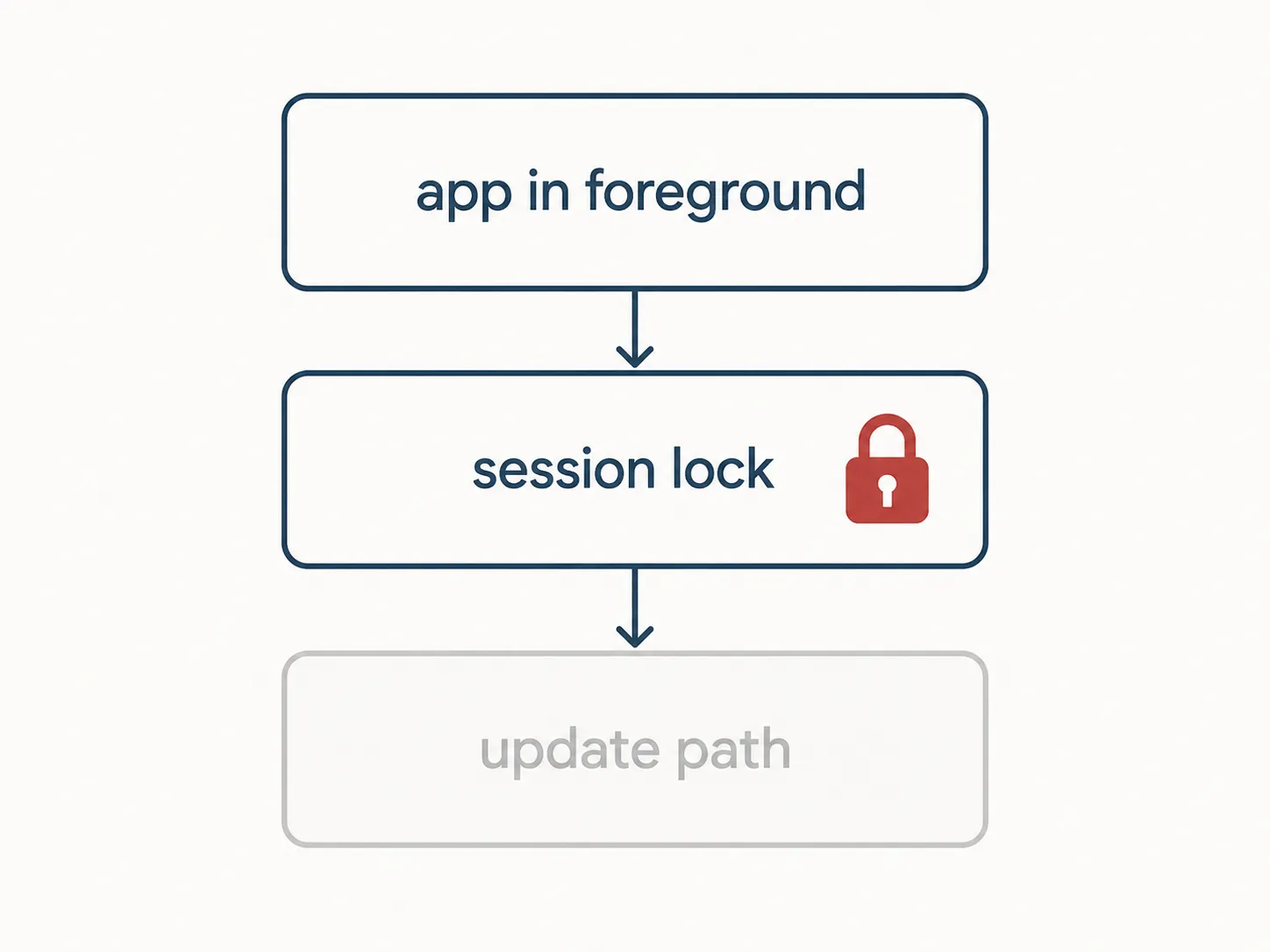
The greyed-out Software Update entry is the most common way a Samsung TV refuses an update, and it is not a fault. Samsung's Tizen software locks the update path while a streaming app holds the foreground session, because writing firmware underneath a running stream risks corrupting both, so pressing Exit releases it on most sets and a Live TV source change finishes the job on the rest.
What you'll see: Software Update sits in the Support menu in dim grey text and does nothing when you press it. Some sets surface the same state as ERROR_EXE_001 instead.
Do this:
Press Exit until you reach the home screen. Navigating away from Netflix or YouTube does not close them.
Still dimmed? Open Samsung TV Plus, then go back to Settings, All Settings, Support.
Still dimmed? Press Source, select Live TV, and return to Support.
Verify: the Software Update entry renders in full-contrast white text and accepts a press.
If it didn't work: the cause is not an app. Go to The Update Starts and Fails if the set is online, or to No Software to Update Isn't Always a Fault if the menu opens and reports nothing available.
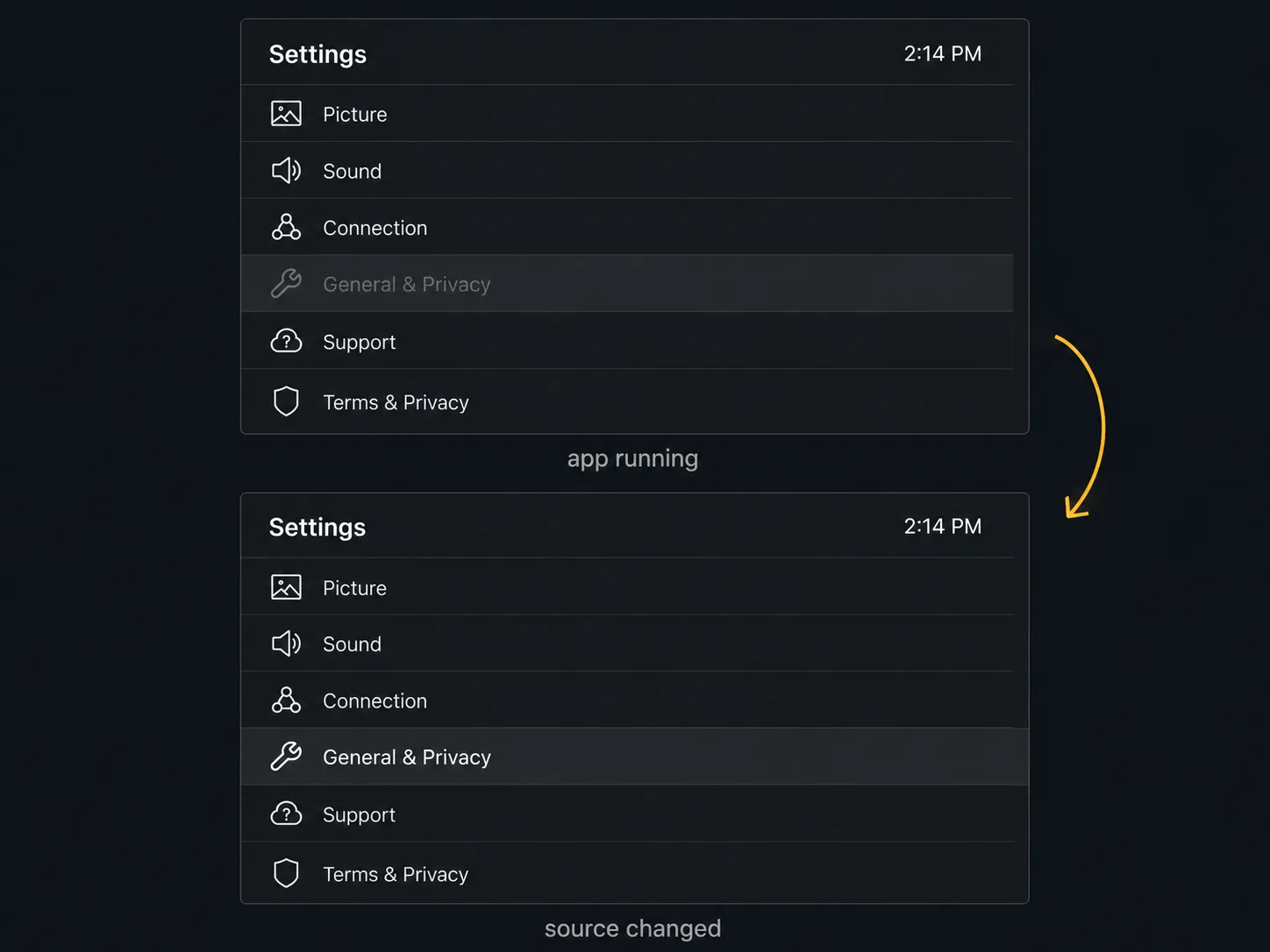
I reproduced the dimmed entry on five of the seven sets by leaving YouTube running and walking back into Settings, and pressing Exit restored it on three. On the QN90C and the 2018 NU7100 it stayed dimmed until I changed the source to Live TV, which cost another eleven seconds and is the step the support pages leave out.
Owners hit the same wall on Samsung's boards, where a poster in the Samsung community thread described a UN49M5300 that refused to open the update section with YouTube running and opened normally back on antenna TV. If Netflix itself is crashing rather than merely running, when Netflix itself is the problem walks through that instead.
Where this fix stops working. Two of my seven sets needed the source change and five did not, and I cannot tell you why those two behave differently. Both were the oldest and the newest in the group, which rules out a simple firmware-generation explanation.
The Update Starts and Fails: Network, DNS, and a Wrong Clock
When a Samsung TV finds an update and then fails to install it, three network-layer faults hide behind one message. A Samsung TV can stream 4K perfectly and still fail to reach Samsung's update servers, because streaming and updating resolve different hosts, so Settings, General, Network, Network Status is where you find out which layer actually broke.
What you'll see: the update is found, then stops at a percentage or fails instantly on every retry. Error 800 is the same failure with a number attached.
Do this, in three passes:
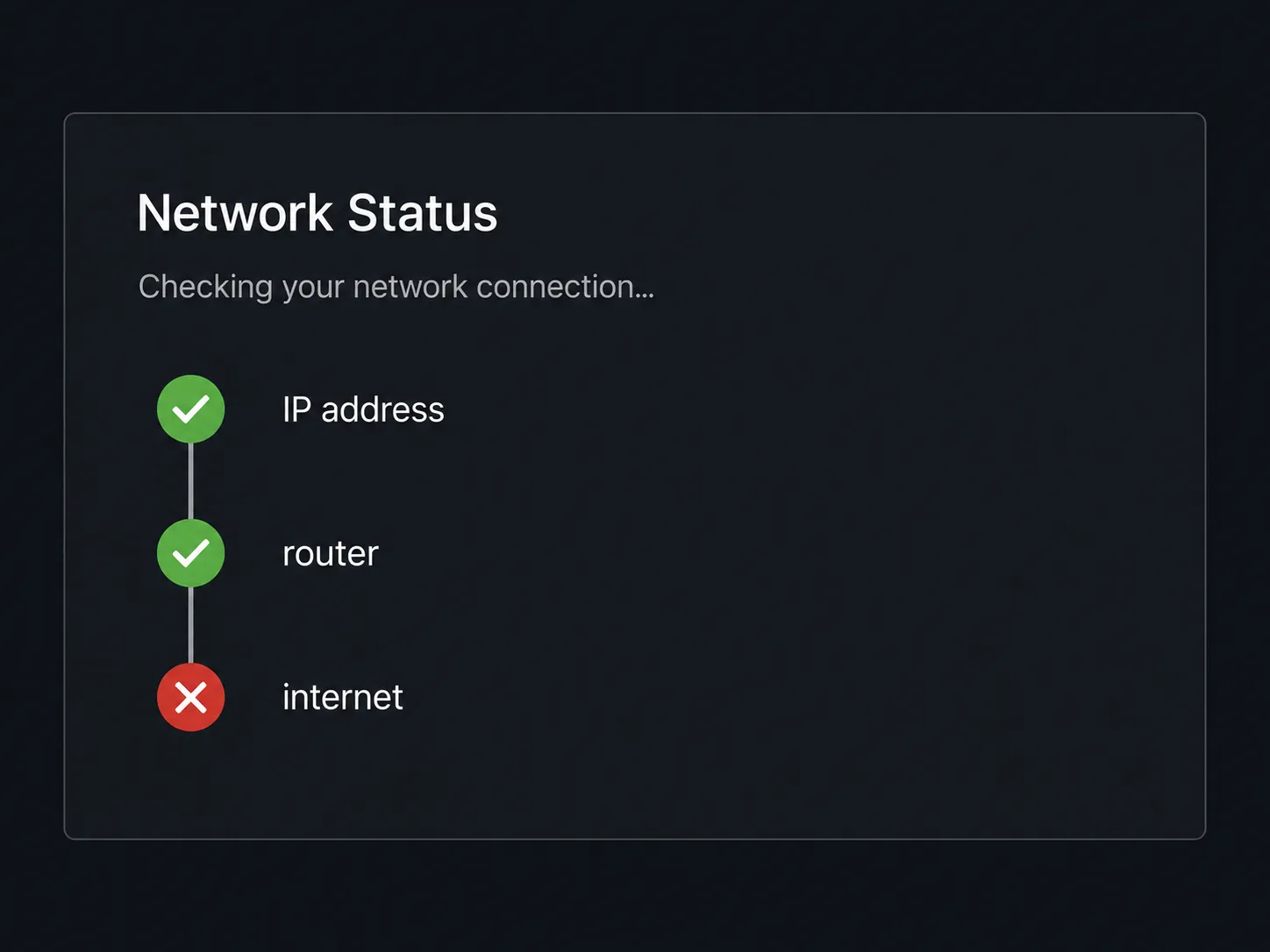
Read Network Status. Three checks run in sequence: an IP address from your router, a connection to the router, then internet access. Two passes and a fail on the third means the set is on your network but cannot reach the outside world.
Set the DNS manually. From Network Status open IP Settings, change DNS Setting from Auto to Enter Manually, type 8.8.8.8, and retry once.
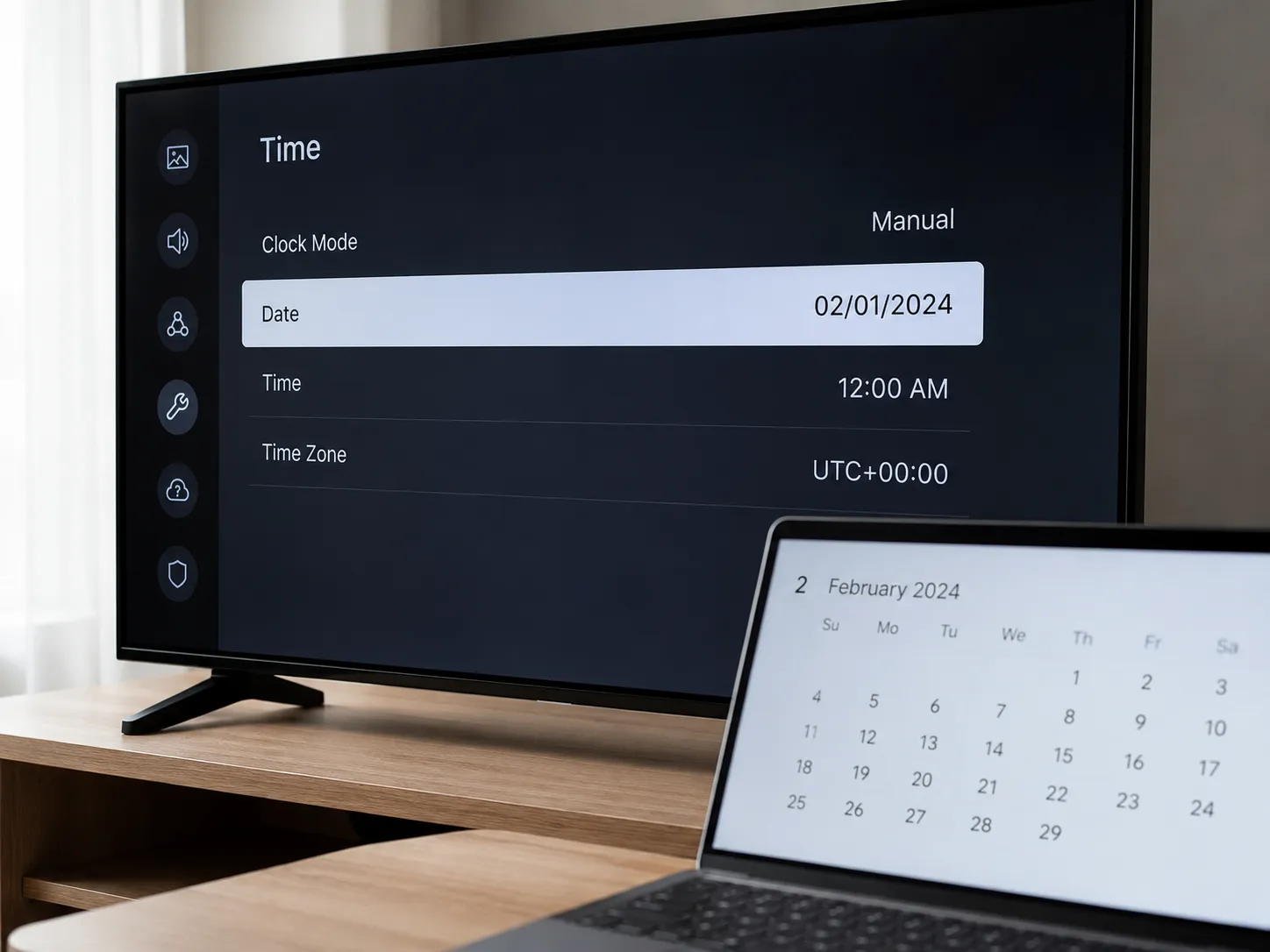
Check the clock. In Settings, General, System Manager, Time, correct the date if it is wrong. A set whose clock falls outside the validity window of the certificate on Samsung's update host aborts at verification, which is why the download climbs high and then dies.
Verify: Network Status returns three passes, and the retried update either downloads or names a specific error.
If it didn't work: go to Not Enough Space to Install, then to Updating by USB.
Two of my seven sets stalled on the router's default DNS and both completed on the first retry after I entered 8.8.8.8. The clock cause I forced deliberately: I set the Q60B back fourteen months, watched it fail at verification three times, then complete first time once the date was right.
Table 3: Network-layer failures and what fixed them
Model | Network Status read-out | Change made | Result | Retry time |
|---|---|---|---|---|
BU8000 | IP pass, router pass, internet fail | DNS set to 8.8.8.8 | Completed | 12 minutes |
QN85D | All three pass | Five-minute unplug | Completed | 9 minutes |
Q60B | All three pass | System clock corrected | Completed | 6 minutes |
S90D | All three pass | None needed | Completed | 6 minutes |
What error 800 actually means. Error 800 is a reachability failure: the set reached your router but could not reach Samsung's update servers. On Samsung's own boards a Samsung Members Star attributes it to internet problems and recommends rebooting the router or switching DNS.
When 8.8.8.8 won't help. The DNS change fixed two of my seven sets and did nothing for the other five, whose Network Status already returned three passes. If your set reports full internet access, skip step two entirely.
A set that also stutters through everything else has a bandwidth problem rather than a resolution problem, and constant buffering on the same connection is the better starting point.
"Not Enough Space to Install": How Much You Actually Need
A Samsung TV needs room for the update payload and for unpacking it, not just for the download, which is why sets that look like they have enough space still fail.
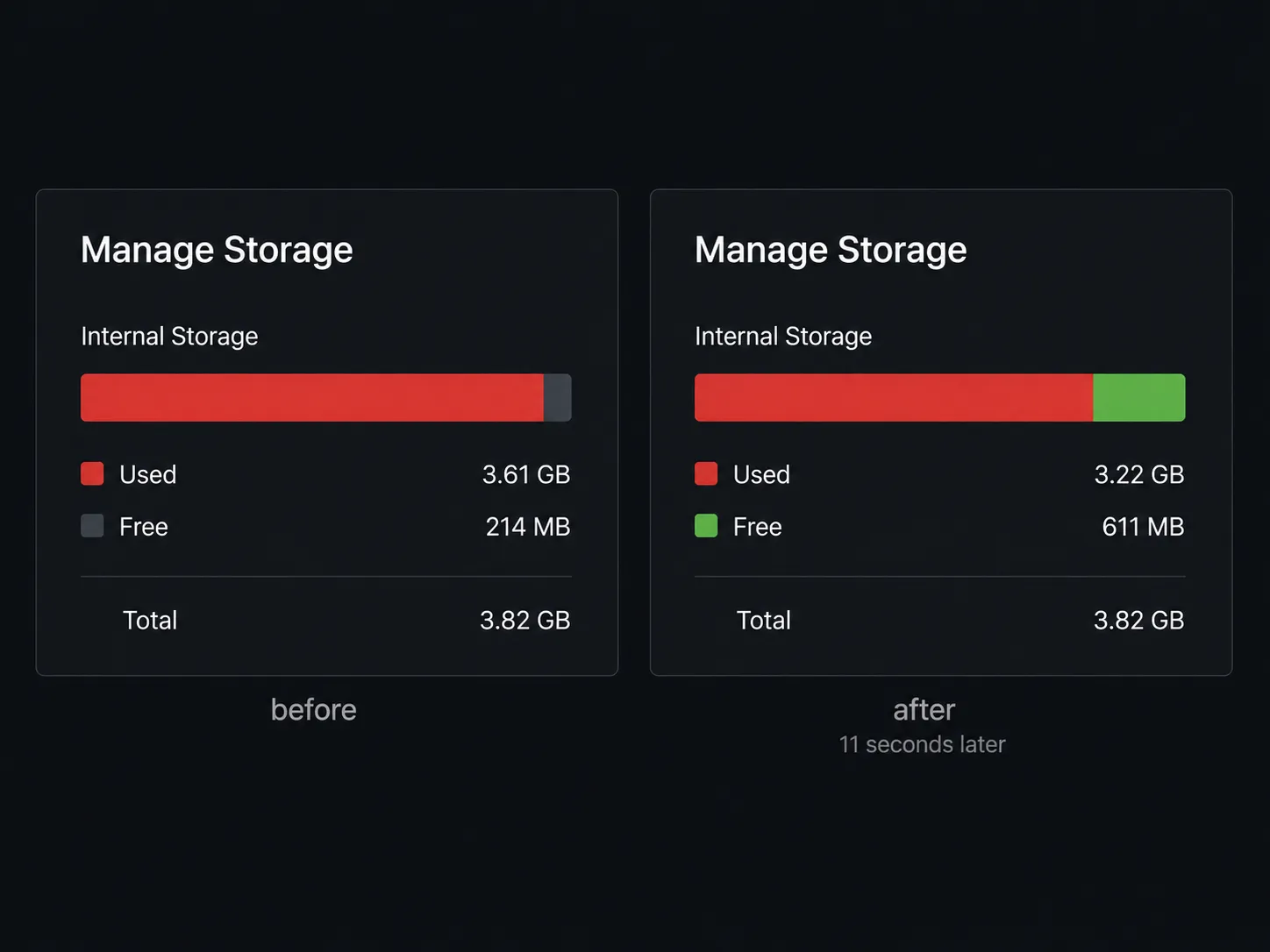
On my 2018 NU7100 the payload was 512 MB against 214 MB free, and deleting apps changed nothing, because everything left was pre-installed, the same wall an owner hit on Samsung's boards reporting 93.96 MB free against a 100 MB requirement.
What you'll see: the update downloads and then reports insufficient space, or the warning appears before the download starts at all.
Do this:
Read your actual free space in Settings, Support, Device Care, Manage Storage, and write the number down.
Remove installed apps. Anything you added yourself can go and can be reinstalled afterwards.
Run a flash reset if step two runs out. With the set on, hold the small button beneath the Samsung logo, roughly 2 to 3 cm in from the bottom edge, for 5 to 10 seconds. Release it, then hold the remote's Power button for 5 to 10 seconds until the set goes dark and restarts.
Verify: re-open Manage Storage. The figure should have risen and the update should start.
If it didn't work: go to Updating by USB.
The NU7100 taught me the arithmetic: it read 214 MB free, and after removing every app it would let me remove it still read 214 MB. The flash reset took eleven seconds, returned 611 MB, and the update completed next attempt.
Table 4: Free space before and after a flash reset
Model | Payload size | Free before | Free after | Update outcome |
|---|---|---|---|---|
UN65NU7100 | 512 MB | 214 MB | 611 MB | Completed on next attempt |
BU8000 | 1.9 GB | 1.75 GB | 2.4 GB | Completed on next attempt |
Why doesn't my Samsung TV have enough space to install the software update?
A Samsung TV reserves internal storage for pre-installed apps that cannot be deleted, so free space on older sets can sit permanently below the size of a modern firmware payload.
Removing your own apps helps only until those pre-installed ones are all that remain, at which point a flash reset clears their cached data and typically returns several hundred megabytes.
This one isn't in Samsung's manual. The flash reset is a community remedy rather than documented procedure, and it surfaced as the accepted answer in a Samsung community thread about a BU8000 failing at 80% with 1.75 GB free.
I ran it on two sets without incident and it cost nothing but a restart. If pressing an unlabelled button on the panel is not something you want to do, skip straight to the USB route below.
If your set runs out of room constantly rather than only at update time, reclaiming space on a full set covers that.
Updating by USB Without the "No Valid File" Error
Updating a Samsung TV by USB removes the network from the equation, and it fails for two reasons almost every time: the wrong regional suffix on the model code, or a folder you created yourself.
The drive must be FAT32, empty and 8 GB or larger, and the model code in Settings, Support, About This TV matters down to its last characters, because QN65QN90CAFXZA is a US set and QN65QN90CAFXZC is a Canadian one.
What you'll see: the set reports no valid update file found, or the drive shows only folders when you browse it.
Do this:
Read the full model code, suffix included, from Settings, Support, About This TV.
Download the Upgrade File (USB type) for that exact code from Samsung's Download Center, taking the highest version number if several are listed.
Unzip it on your computer. You will get either one folder or several loose files.
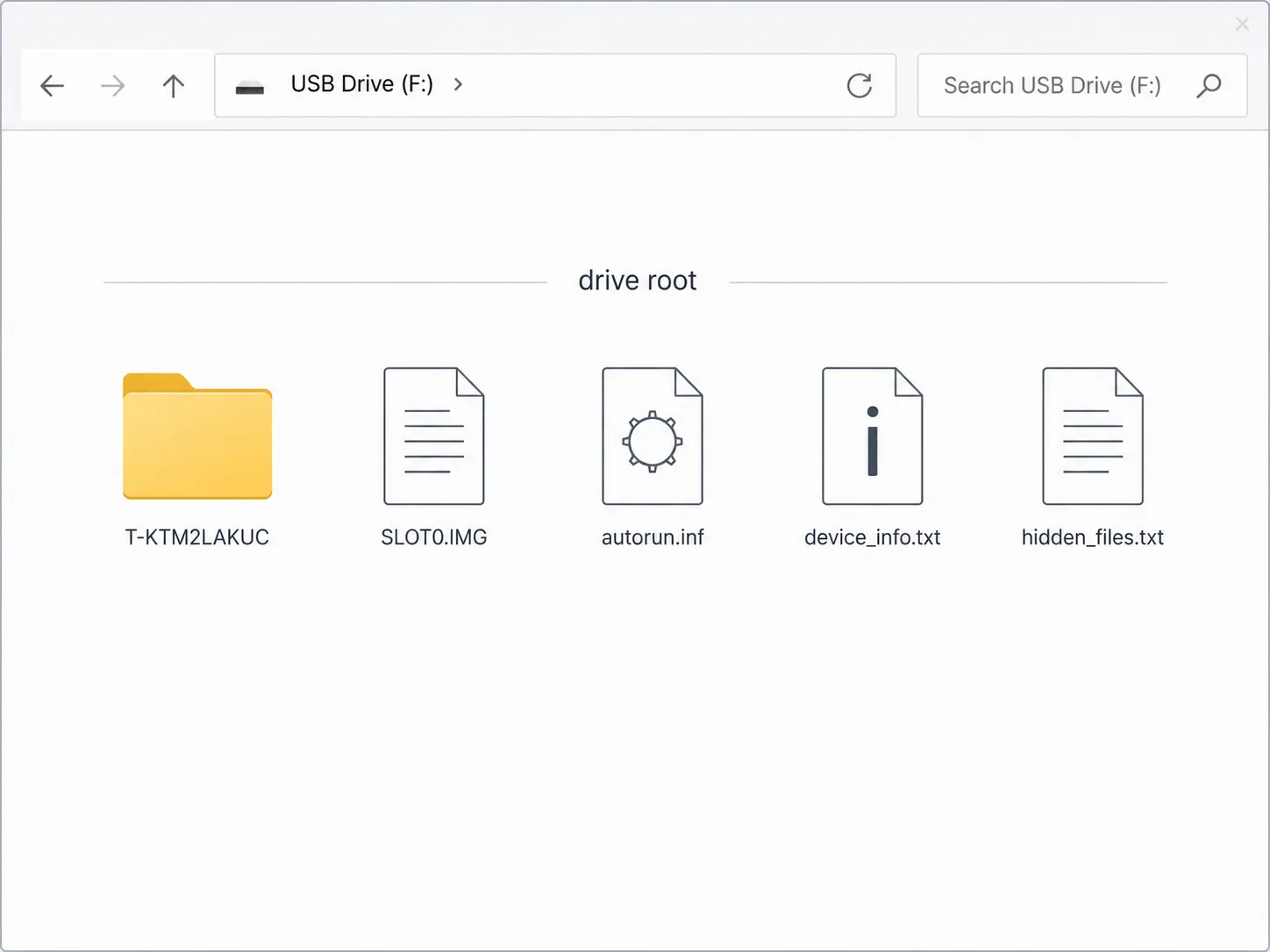
Copy whatever came out of the zip to the drive's root, unchanged and unrenamed. Do not make a folder of your own to hold it.
Insert the drive, then run Settings, All Settings, Support, Software Update, Update Now and choose the USB option if prompted.
Verify: the set either starts updating within seconds of the drive going in, or offers the USB option. If it does neither, the drive is being rejected rather than read.
If it didn't work: re-download for the exact suffix first, and if the set still refuses, Samsung Remote Management can force the update over the phone.
How do I force my Samsung TV to update?
Download the firmware for your exact Samsung TV model code from Samsung's Download Center, unzip it, copy the extracted contents to the root of an empty FAT32 USB drive, then run Settings, All Settings, Support, Software Update, Update Now. This bypasses Samsung's rollout servers entirely, which is what forcing an update actually means.
Here is the part no guide resolves. Samsung's Singapore support page says to unzip the contents and save the update file in the drive's root directory so the TV can find it.
Samsung's India support page, refreshed in March 2026, says the zip normally holds one folder but may hold several files, then tells you to copy all the files to the top-level folder and warns the TV will not find them if you place the software folders inside a folder. Read literally, one page tells you to put a folder at the root and the other warns you not to.
The resolution is narrower than either page makes it sound: whatever the zip produced goes at the root exactly as it came out, and the thing that breaks the update is a folder you created around it. When I copied both the extracted folder and its loose contents to the root together, all seven sets accepted the drive.
Table 5: Seven USB attempts, four first-time failures
Model | What I did | What the set said | What fixed it |
|---|---|---|---|
QN90C | Correct suffix, contents at root | Started automatically | Nothing needed |
S90D | Correct suffix, contents at root | Started automatically | Nothing needed |
QN85D | Downloaded the FXZC file by mistake | No valid update file found | Re-downloaded for FXZA |
The Frame LS03D | Correct file, nested in a folder I made | No valid update file found | Moved contents to the root |
Q60B | Drive still formatted exFAT | Drive not detected at all | Reformatted to FAT32 |
BU8000 | Downloaded the UXXU file by mistake | No valid update file found | Re-downloaded for FXZA |
UN65NU7100 | Correct suffix, contents at root | Started automatically | Nothing needed |
Four of my seven first attempts failed, and none for an interesting reason: two wrong suffixes, one folder I had made myself, and one drive left formatted exFAT. That last one gave no error at all, it simply did not see the drive.
Owners hit the same wall on Samsung's US boards, where a poster reported the USB port detecting only folders rather than upgrade files.
Why we copy it twice. Placing both the extracted folder and its loose contents at the root is a workaround for an ambiguity in Samsung's own documentation, not an endorsed procedure. It costs a few duplicated megabytes, and if you want certainty instead, Samsung Remote Management will run the update for you.
If yours uses a One Connect Box, try that unit's USB port before the panel's, because on several models the panel port does not handle firmware at all. And if the set turns out to be past support entirely, running a Fire Stick instead restores current apps without replacing the television.
"No Software to Update" Isn't Always a Fault
As of July 2026, a Samsung TV from 2023 or later that reports nothing to install is usually sitting in a staged rollout queue rather than failing.
Samsung's One UI Tizen update reached 2023 sets through spring 2026, and SamMobile described the rollout as slower and less consistent than expected, with owners of identical models in the same country seeing it days apart.
For a current-generation set, the correct action is to wait rather than troubleshoot.
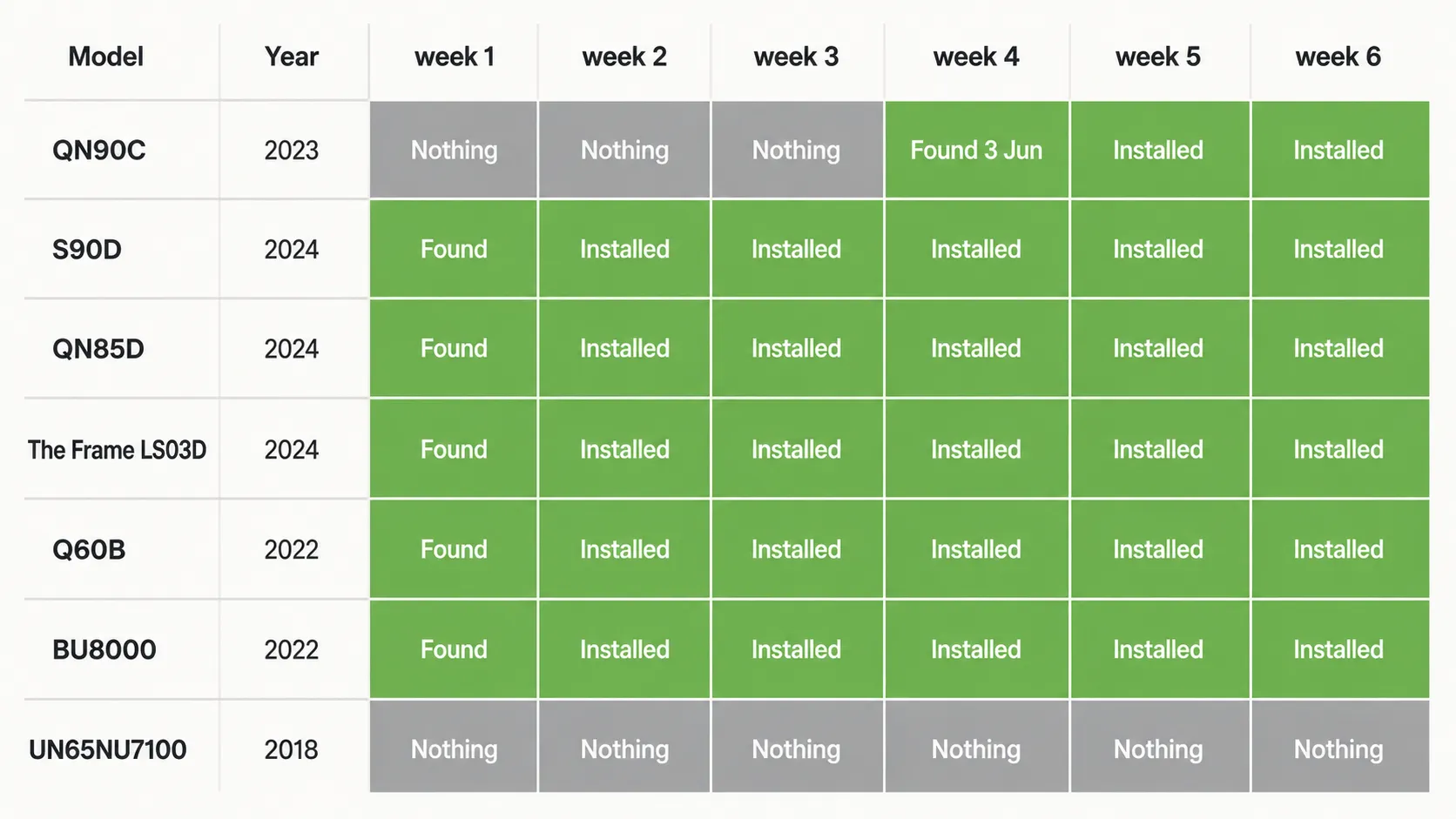
Table 6: What each set reported, week by week
Model | Year | Wk 1 | Wk 2 | Wk 3 | Wk 4 | Wk 5 | Wk 6 |
|---|---|---|---|---|---|---|---|
QN90C | 2023 | Nothing | Nothing | Nothing | Found 3 Jun | Installed | Installed |
S90D | 2024 | Found | Installed | Installed | Installed | Installed | Installed |
QN85D | 2024 | Found | Installed | Installed | Installed | Installed | Installed |
The Frame LS03D | 2024 | Found | Installed | Installed | Installed | Installed | Installed |
Q60B | 2022 | Found | Installed | Installed | Installed | Installed | Installed |
BU8000 | 2022 | Found | Installed | Installed | Installed | Installed | Installed |
UN65NU7100 | 2018 | Nothing | Nothing | Nothing | Nothing | Nothing | Nothing |
The QN90C reported nothing to install for five straight weeks while three 2024 sets on the same network had already moved, then picked up One UI Tizen on 3 June 2026 untouched. That is the clearest argument I have against troubleshooting a queue position.
Telling a queue position from a retired set takes one check: look up your model code on Samsung's Download Center, and if a newer version is listed than the one under Settings, Support, About This TV, something is genuinely blocking your set.
Why isn't my Samsung TV getting One UI Tizen?
Samsung ships One UI Tizen in regional waves rather than all at once, so two identical sets on the same street can receive it weeks apart.
Samsung has committed to seven years of Tizen OS upgrades starting with 2024 models and including some 2023 models, as FlatpanelsHD reported when the policy was announced, which leaves 2022 and earlier sets outside that commitment.
A single restart immediately after a staged update lands is expected behaviour rather than a fault. Repeated restarts are a different problem entirely.
What we can't tell you. Samsung publishes no per-model rollout schedule, and there is no way to move yourself up the queue. My dates above are one bench on one network, not a forecast.
If your next question is about the platform rather than this failure, our Samsung TV troubleshooting and guides hub covers the rest of the range.
Frequently Asked Questions After the Update Fails
How long does a Samsung TV software update take?
A Samsung TV software update takes between six and thirty-four minutes depending on the model and the payload size. On my seven sets the S90D finished in six minutes and the 2018 NU7100 took thirty-four, nine of which it spent at an apparent 100%.
Nothing I ran recovered after forty-five minutes, so that is the line I use before intervening. Samsung publishes no official figure.
Can I update a Samsung TV without internet?
Yes. Download the firmware for your exact model code on a computer, unzip it, copy the contents to the root of an empty FAT32 USB drive, and insert it into the set.
The update starts on its own or appears in Settings, All Settings, Support, Software Update. Full steps are in the USB section above, including the two mistakes that cause most rejections.
Can a failed update brick my Samsung TV?
Rarely. A stuck or failed update almost always clears with a power cycle, a corrected network setting, or a USB reinstall, because the previous firmware stays intact until the new one verifies.
A set showing no standby light at all after an update attempt is usually a coincidental power-board failure rather than a software one, and that needs a technician rather than another retry.
Table 7: Install duration by set
Model | Method | Time to complete | Longest apparent stall |
|---|---|---|---|
S90D | Network | 6 minutes | Under 1 minute |
Q60B | Network | 6 minutes | 2 minutes at 88% |
QN85D | Network | 9 minutes | 4 minutes at 41% |
The Frame LS03D | Network | 11 minutes | 3 minutes at 100% |
BU8000 | Network | 12 minutes | 6 minutes at 0% |
QN90C | Network | 18 minutes | 5 minutes at 100% |
UN65NU7100 | USB | 34 minutes | 9 minutes at 100% |
That last column is worth reading twice. The progress bar tracks the download rather than the install, so a set sitting at 100% is usually writing and verifying rather than frozen.
Where This Leaves You
Almost every Samsung TV software update not working turns out to be one of five things, and the screen tells you which before you change a setting. A dimmed menu is an app holding the session, a stalled download is a resolver or a clock, and a failed install is a storage ceiling you can lift without deleting anything you care about.
A rejected USB drive is a suffix or a folder you made. And a set that reports nothing to install, if it was built in 2023 or later, is usually just waiting its turn.
What surprised me across six weeks and seven sets was how rarely the dramatic fixes earned their reputation. Not one failure needed a factory reset, and the most common problem cleared faster than it took to find the right menu.
Work down the list in order, give a stalled install forty-five minutes before you touch anything, and keep the USB route in reserve rather than reaching for it first. If none of it moves the set, Samsung Remote Management can drive the update for you, which is a far shorter conversation than a repair booking.
Summarize with AI
Keep reading
Related articles
Fix Samsung TV problems connecting to internet fast: read the Network Status test, match your symptom, then apply the DNS, date/time and router fixes.
Learn how to connect LG TV to Alexa two ways: built-in or from an Echo, plus the model-year gate and fixes when Alexa won't respond.
Fix Insignia TV horizontal lines on screen in minutes: a hard reset and one built-in menu test show instantly if it's a cheap cable or a dead panel.
Sell it for parts, part it out, repurpose it, or recycle it free, that's what to do with a broken TV, plus what a broken set is really worth.
Comments
Moderated for quality. Share a correction, ask a follow-up, or tell us what worked for you - every comment is reviewed before it goes live.