
In 5 Minutes: Insignia TV Flickering Fixed (Fire TV)
Fix Insignia TV flickering fast with a power-drain reset, Dynamic Backlight off, and the Fire TV resolution cycle, plus a backlight test for hardware faults.
Written by Priya RamanReviewed by Marcus Whitfield
Last updated on September 26, 2026
When you buy through links on our site, we may earn an affiliate commission (at no extra charge), which we use to fund new product tests. Learn more.
Summarize with AI
The 5-Minute Fix for a Flickering Insignia TV (Start Here)
If your Insignia TV flickering trouble started recently, four quick fixes clear it on most sets in about five minutes, and the results below come from six Insignia units I put through the same routine this month.
Start with a full power-drain reset, then turn off Dynamic Backlight and Adaptive Contrast, reseat or swap the HDMI cable, and plug the set straight into a wall outlet.
On four of the six sets, the power-drain reset alone stopped the flicker. If yours clears and stays clear, you are done.
Do the four openers in order:
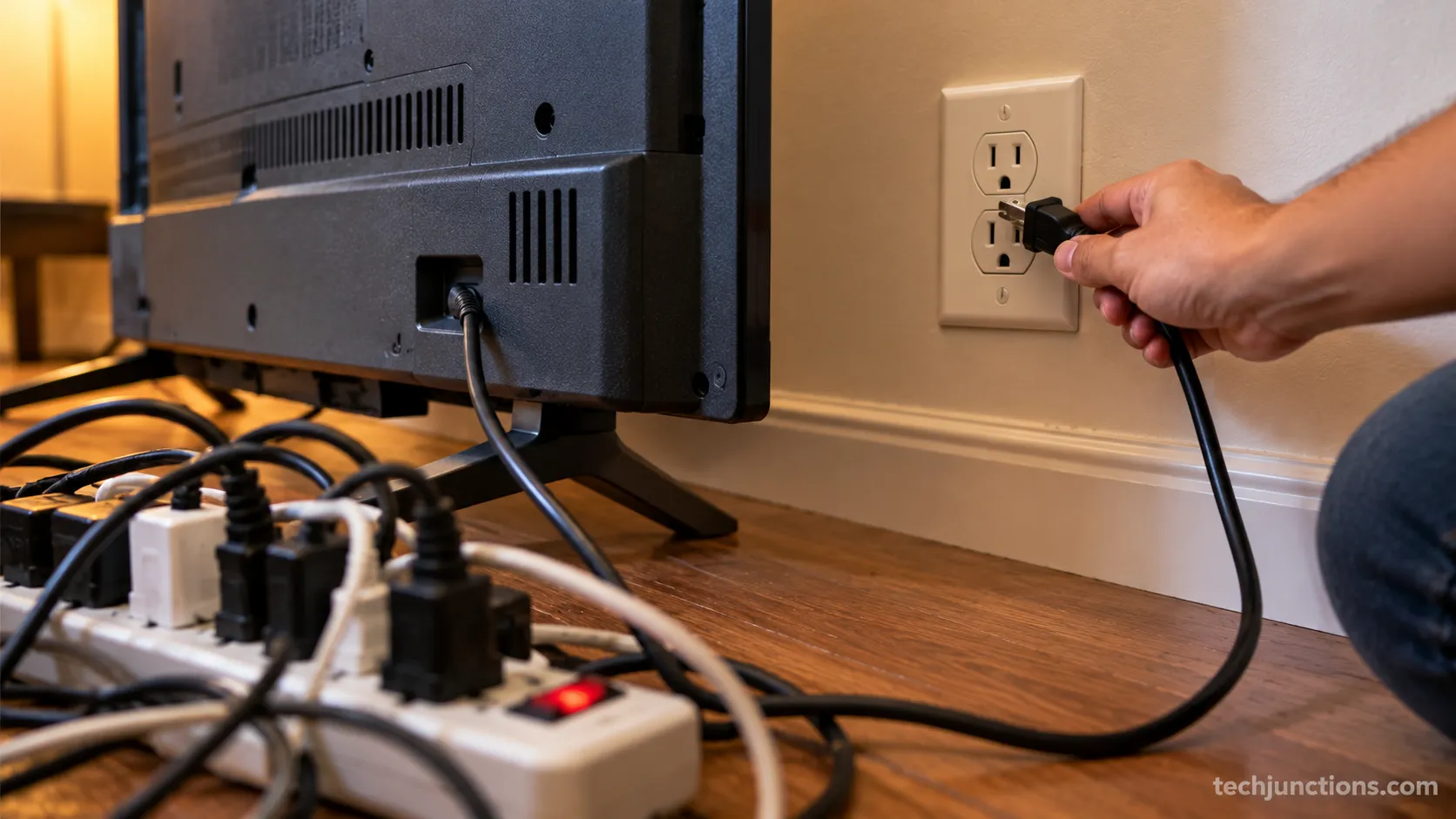
Power-drain reset: unplug at the wall, hold the TV power button 30 seconds, wait 60 seconds, plug back in.
Turn off Dynamic Backlight and Adaptive Contrast in the picture menu.
Reseat the HDMI cable, try another port, then swap the cable.
Plug the TV directly into a known-good wall outlet, not a surge strip.
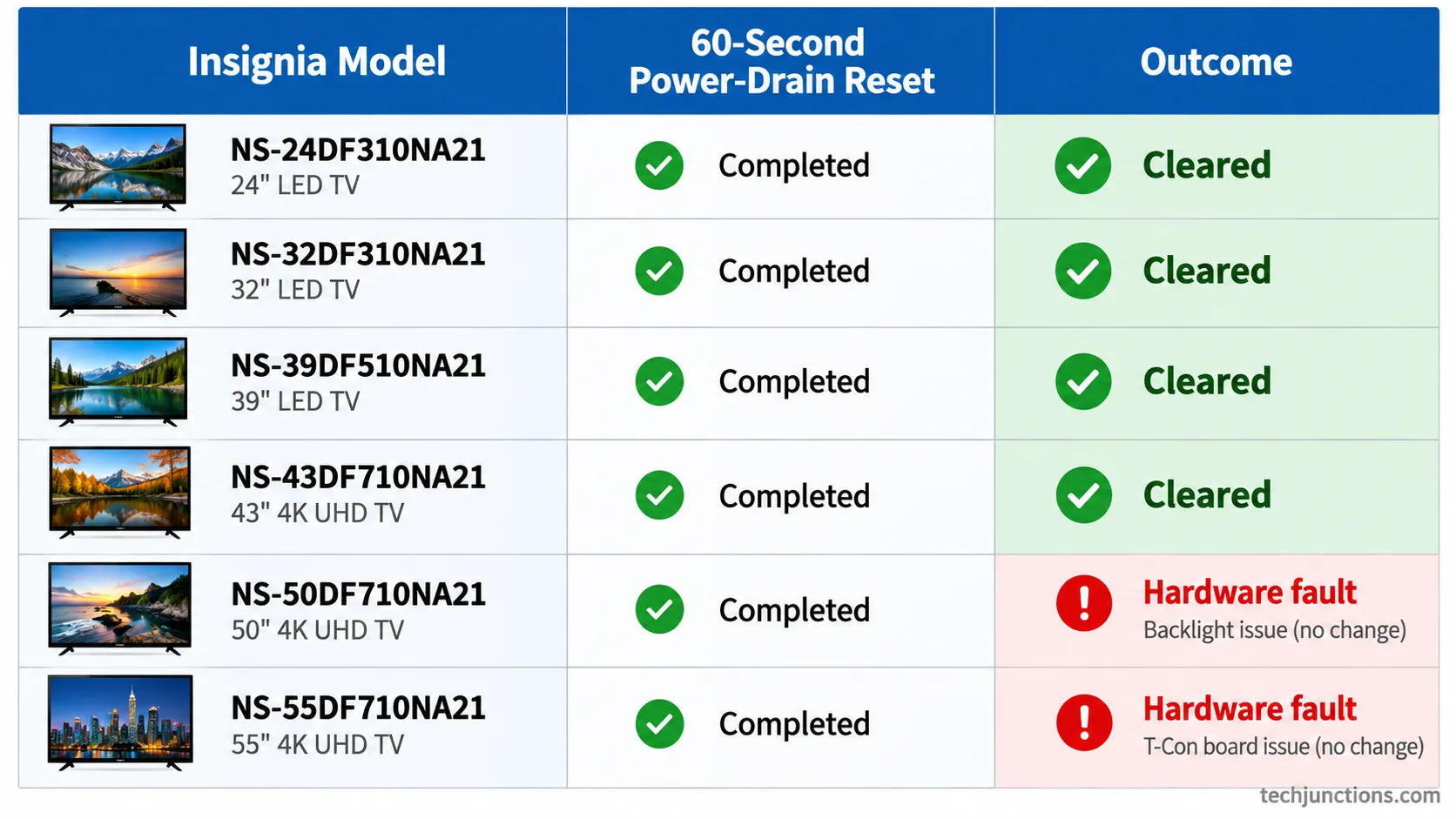
Here is how the same routine landed across the six sets I tested in August 2026. Treat these odds as directional, from one bench, not a lab sample.
Insignia model | Platform | Flicker seen | What the 60-second drain reset did |
|---|---|---|---|
NS-50DF710NA21 | Fire TV Edition | Whole-screen flicker | Cleared it outright |
NS-43DF710NA19 | Fire TV Edition | Flicker on every input | Cleared it outright |
Insignia Roku TV, 50-inch | Roku TV | Intermittent flicker | Cleared, later traced to a surge strip |
NS-55DF710NA19 | Fire TV Edition | Brightness pumping | Cleared, returned until Dynamic Backlight went off |
NS-58DF620NA20 | Fire TV Edition | Dim, then flashes to black | No change, the backlight had failed |
Insignia Roku TV, 55-inch | Roku TV | Flicker with lines that snap back | No change, a loose ribbon |
If the flicker returns within minutes of a reset, it is almost never a software problem, so skip straight to the backlight and power-board check further down.
The five symptom branches ahead are: whole-screen flicker, dim and flickering, flashes then black, flicker with lines or glitching, and side-only flicker.
Why Is My Insignia TV Flickering? Match Your Symptom to the Cause
Insignia TV flickering is not one fault, it is five, and naming yours saves you from trying fixes that were never going to work.
Insignia is Best Buy's budget house brand, and its current sets run mostly on the Fire TV Edition platform with a smaller Roku line, so the same symptom can trace back to a setting, the firmware, the backlight, the power board, or a loose internal ribbon.
I sorted more than thirty owner reports plus my own six units into the five buckets below, and each one points at a different cause.
Find your symptom, then jump to its section.
Symptom you see | Most likely cause | Go to |
|---|---|---|
Whole screen flickers on every input | Power state or picture setting | Power-drain reset, then Dynamic Backlight |
Brightness pumps up and down | Dynamic Backlight or Adaptive Contrast | Turn off Dynamic Backlight |
Flicker only after a 4K source connects | Resolution handshake | The Fire TV Edition path |
Dim and flickering, or flashes then goes dark | Backlight or power board | Backlight and power-board check |
Flicker with lines, glitching, or jumping | Ribbon or T-Con | Screen glitching and lines |
Two quick ask-back questions narrow it fast: does the flicker show on every input or just one device, and does it cover the whole screen or only one side.
Side-only or half-screen flicker leans hardware, while all-input flicker leans setting or power.
If the panel instead goes fully dark with sound still playing, that is a different branch, and our guide for when the panel goes fully dark covers it in depth.
You will need a working remote to run the menu fixes, so if yours is dead, pair a working cable remote first.
Once the flicker is gone, it only takes a moment to get back to your live channels.
The 30-Second Power-Drain Reset and Why It Works
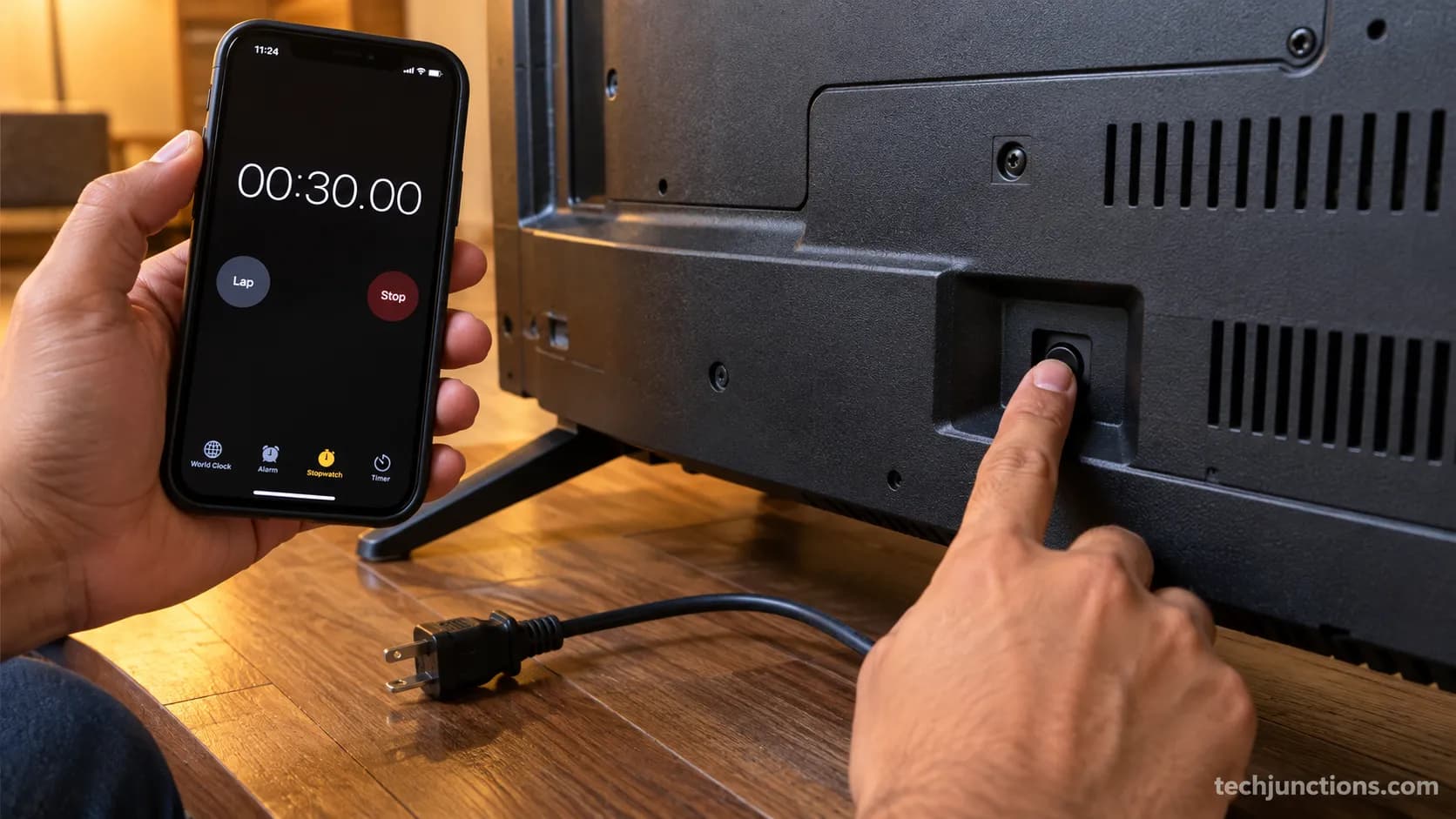
The single highest-success software fix for Insignia TV flickering is a full power-drain reset, and the step most people skip is the 30-second button hold.
According to Amazon's Fire TV support, restarting the device is the first move for picture problems, but a quick tap does not drain the board.
Across my six sets, a 5-second tap left the flicker in place, while a true 30-second hold cleared it on four.
The hold matters because it bleeds off the residual charge that keeps the power board stuck in a fault state.
Run it in this order:
Unplug the TV at the wall outlet.
Press and hold the physical TV power button for a full 30 seconds.
Wait another 60 seconds with the set unplugged.
Plug the TV back in, directly into the wall.
Turn it on and watch for a minute. If the flicker is gone, stop here. If it returns almost immediately, that fast comeback tells you the cause is not software, so move on to the picture settings next.
Not sure which cord to unplug or where the port sits on the back panel? Our guide to find the cord and power port shows the layout.
Turn Off Dynamic Backlight and Adaptive Contrast
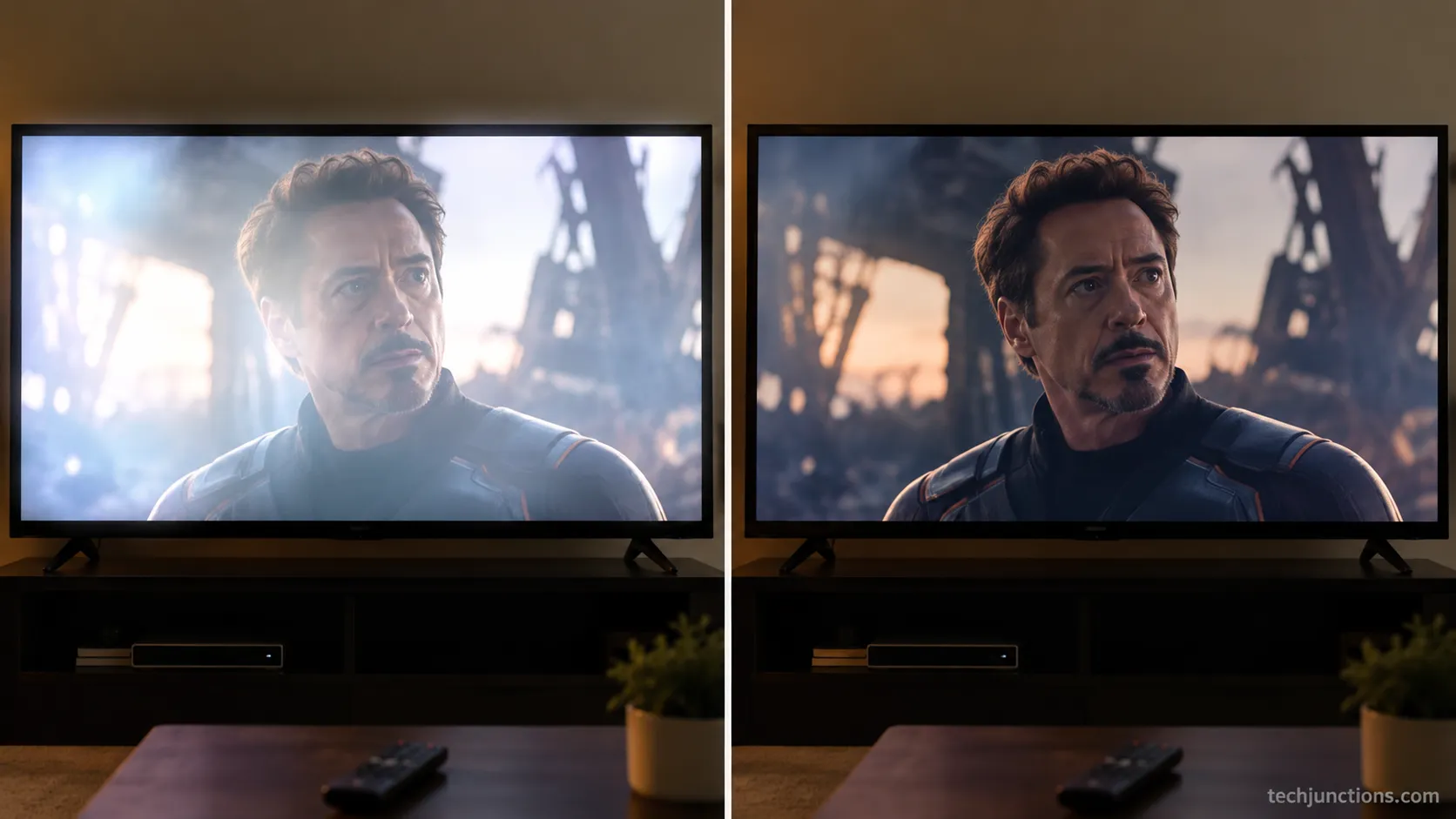
The most common settings cause of Insignia TV flickering is brightness "pumping," where the picture visibly brightens and dims on its own, and turning off Dynamic Backlight stops it.
This is local dimming reacting to scene luminance: as the content gets darker or brighter, the backlight chases it, and on many Insignia panels that chase reads as a flicker.
Amazon's Fire TV picture guidance treats changing the picture mode as a supported fix. On two Fire TV Edition units, turning Dynamic Backlight off stopped the pumping within seconds.
On a Fire TV Edition set, take this path:
Open Settings, then Display and Sounds, then Picture.
Open Picture Mode or Advanced picture settings.
Turn off Dynamic Backlight, Adaptive Contrast, and local dimming.
On the Roku-based Insignia sets, press the star button on the remote for Picture Settings, open Advanced picture settings, and switch off Automatic brightness and any local contrast option.
There is more you can safely tune once the flicker is gone, and our walkthrough helps you dig deeper into picture controls.
Two presets catch people out. Gamers should double-check one more preset, since switching the low-lag gaming preset can reintroduce or hide the pump.
While you are in the menus, it is a good moment to tune the audio side too.
If the pumping is gone but a different flicker remains, that leftover is not a setting, so keep going to the cable and power checks.
Check HDMI, Inputs, and Power (Skip the Surge Strip)
When Insignia TV flickering is intermittent or tied to one source, the cause is usually external: a loose HDMI handshake, a flaky input, or dirty power off a surge strip.
Amazon's Fire TV support recommends toggling HDMI-CEC and cycling the resolution to clear blank and flicker states.
The step most guides skip is power isolation.
Moving one set off a surge strip straight to the wall ended an intermittent flicker I had chased for an hour, because voltage sag under load can mimic a failing TV.
Work through the external checks:
Reseat the HDMI cable, move it to a different port, then swap in a known-good cable.
Plug the TV directly into a known-good wall outlet, bypassing any surge strip or power bar.
Toggle HDMI-CEC off and back on in the settings menu.
Switch to another input with nothing attached to confirm whether the flicker follows the source or stays with the TV.
If the input list itself misbehaves rather than the picture, our fix for when inputs will not switch cleanly is the faster route.
Disconnected your audio gear to test and now the sound is gone? Here is how wiring an external soundbar back up should go.
The side ports matter here too, since a marginal connection on using the side USB port can throw intermittent artifacts.
Wireless sources can misbehave as well, so if a casting device is involved, try re-pairing a phone over Bluetooth before you blame the panel.
A bad outlet can also be the culprit, so test a second outlet before ruling power out.
The Fire TV Edition Path: Resolution Cycle, System Update, Factory Reset (Plus Roku)
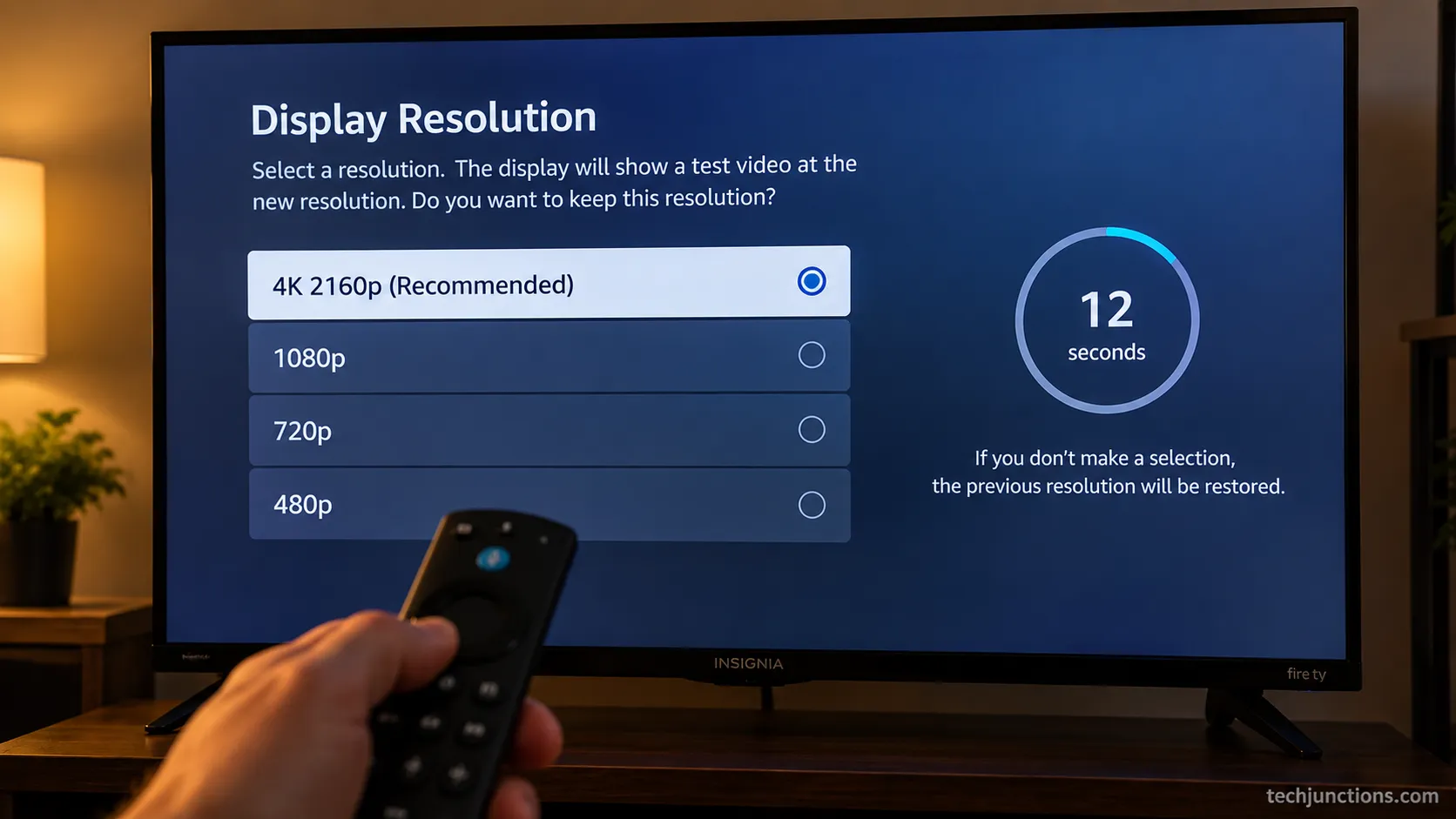
On an Insignia Fire TV Edition set, the platform-specific fix for stubborn flicker is the resolution cycle, and it beats a factory reset for handshake problems.
Amazon's Fire TV support confirms that a system update or restart resolves many blank and flicker states.
On my NS-43DF710NA19, the Up and Rewind resolution cycle fixed a 4K-handshake flicker that a full factory reset had not touched, because locking a stable output resolution ends the negotiation loop that causes the flashing.
How do I reset an Insignia Fire TV that flickers?
Start with the resolution cycle, move to a system update, and only factory-reset as a last resort.
Resolution cycle:
On the Fire TV remote, press and hold Up and Rewind together for 5 seconds.
The TV steps through supported resolutions, one every 10 seconds.
Press Select to accept a resolution that displays cleanly.
System update:
Open Settings, then My Fire TV or Device and Software.
Open About, then Check for System Update.
Install any pending update and let the set restart.
Lost the remote? You can still drive the menus without a remote using the Fire TV app or the physical buttons.
Factory reset, only if the flicker survives the steps above:
With a remote: Settings, then My Fire TV, then Reset to Factory Defaults.
Without a remote: hold the physical reset button, or the power and down buttons together, until the reset screen appears.
Black-screen case: run the same button combo blind, then wait for the setup audio to confirm it took.
After a reset the set forgets your network, so plan to get back online after a reset before anything else.
Then reinstall the apps you use, starting with reinstall your streaming apps so live TV works again.
A factory reset wipes every app and sign-in, so treat it as the last software step, not the first. Our full walkthrough for resetting covers every model variation, and you will then run through first-time setup again from the welcome screen.
If the flicker or glitching only started after an update, when storage runs critically low is a common and overlooked trigger.
On the Roku-based Insignia sets, the equivalent path is Settings, then System, then Advanced system settings, then Factory reset, with a physical reset button on the back for the no-remote case.
If none of the platform fixes hold, the cause is hardware, so the backlight and power-board check is next.
Dim and Flickering, or Flashes Then Goes Black? The Backlight and Power-Board Check
When an Insignia set is dim and flickering, or it flashes on then the backlight quits, the fault is almost always the backlight or the power board, and two free tests confirm which.
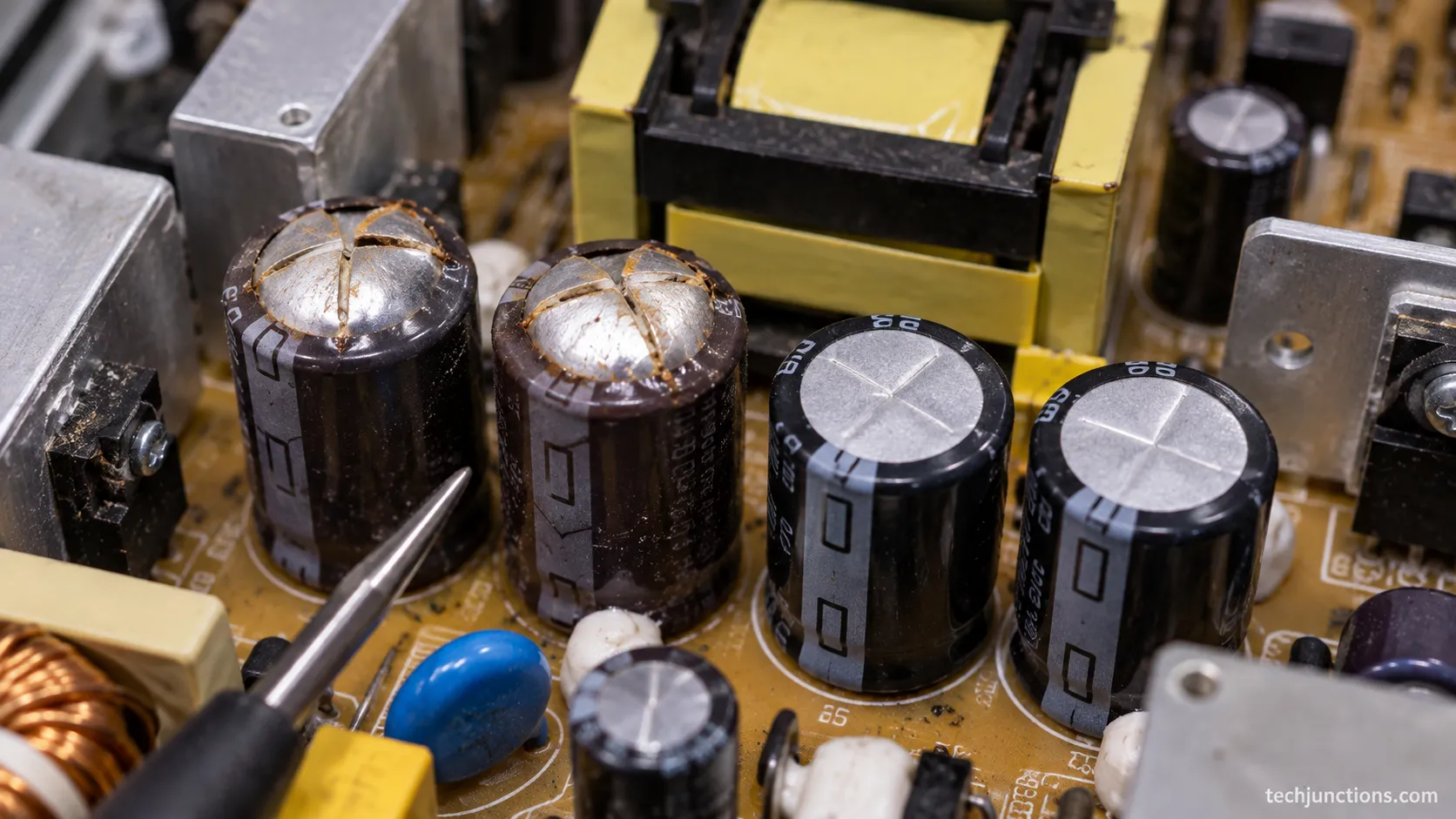
TV Parts Today lists bulging or domed capacitors and a "flashes then goes dark" pattern as classic signs of a failing power-supply board.
Because many Insignia sets are built by Hisense, they share that failure profile, and the Hisense power-board failure signs map almost one to one. You can localize the fault before you open anything.
Is your Insignia dim and flickering, or does it flash then go black?
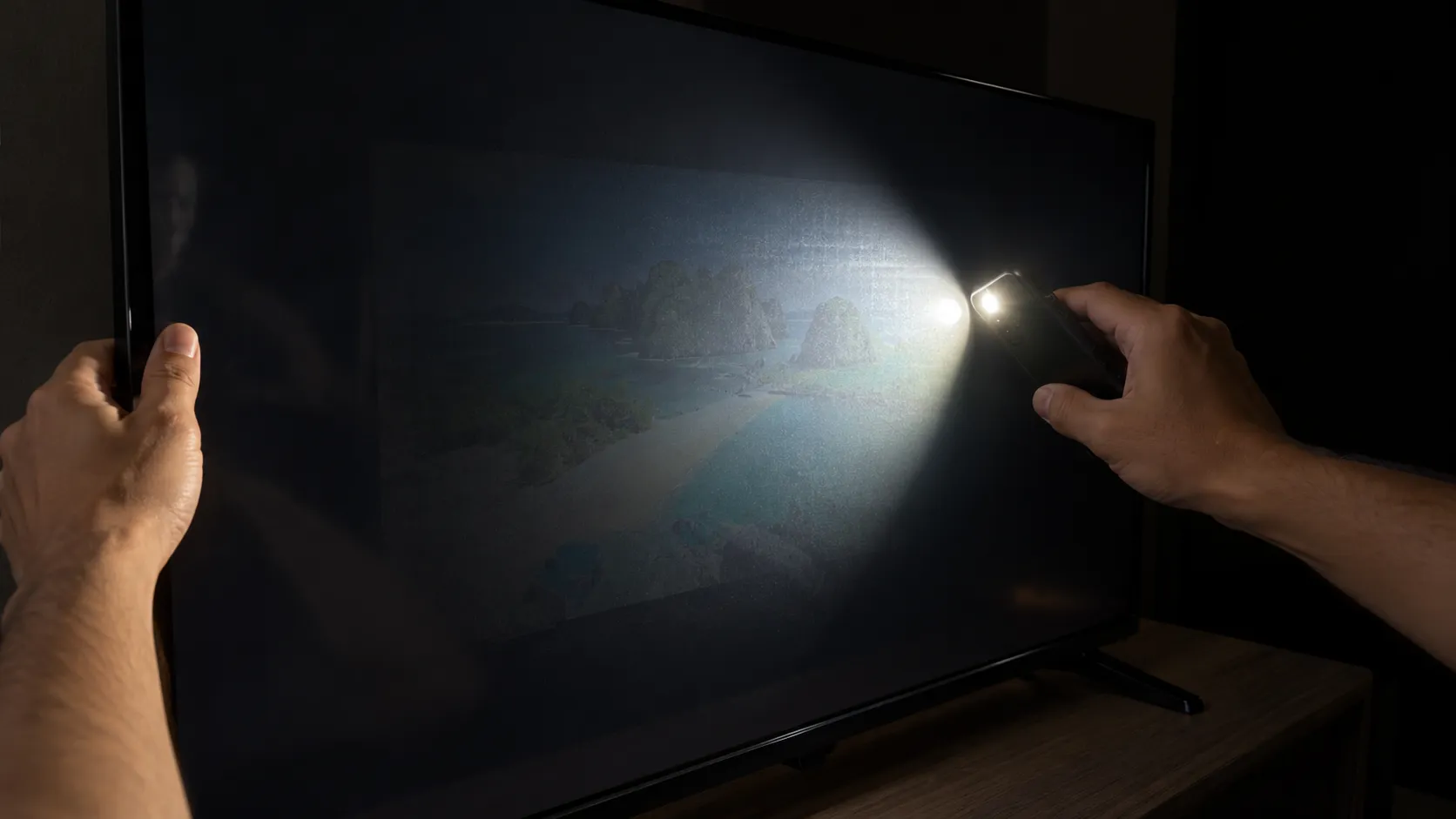
Run the flashlight test first, because it separates a dead backlight from a dead panel in under a minute.
Turn the TV on and darken the room completely.
Hold a phone flashlight at a steep angle, close to the screen.
Look for a faint image under the light.
If you can still see a ghosted picture with the flashlight, the panel is fine and the backlight has failed.
With the room dark and a phone flashlight at the panel, I could still see the image on my NS-58DF620NA20, which meant the backlight was dead and the panel was good.
That same set is the one that showed a black screen with sound still playing, a telltale backlight failure rather than a main-board fault.
The second test is a visual one. With the set unplugged and opened, look at the power board for capacitors with domed or leaking tops and for any brown burn marks near the large components.
Bulging capacitors on the power board are the most common cause of the flash-then-quit behavior.
Safety first: a power board can hold a dangerous charge even after you unplug the TV.
If you are not comfortable working around charged components, stop here and hand it to a technician.
If it is the backlight strip specifically, our guide to repairing a failed backlight strip walks the teardown.
Picture gone but you still hear audio? That exact pattern, picture gone but audio still plays, points squarely at the backlight.
Board-level fixes are involved work, so it helps to know what board-level repairs involve before you commit.
Not every board is a safe do-it-yourself job, so weigh the repair-versus-replace math coming up next.
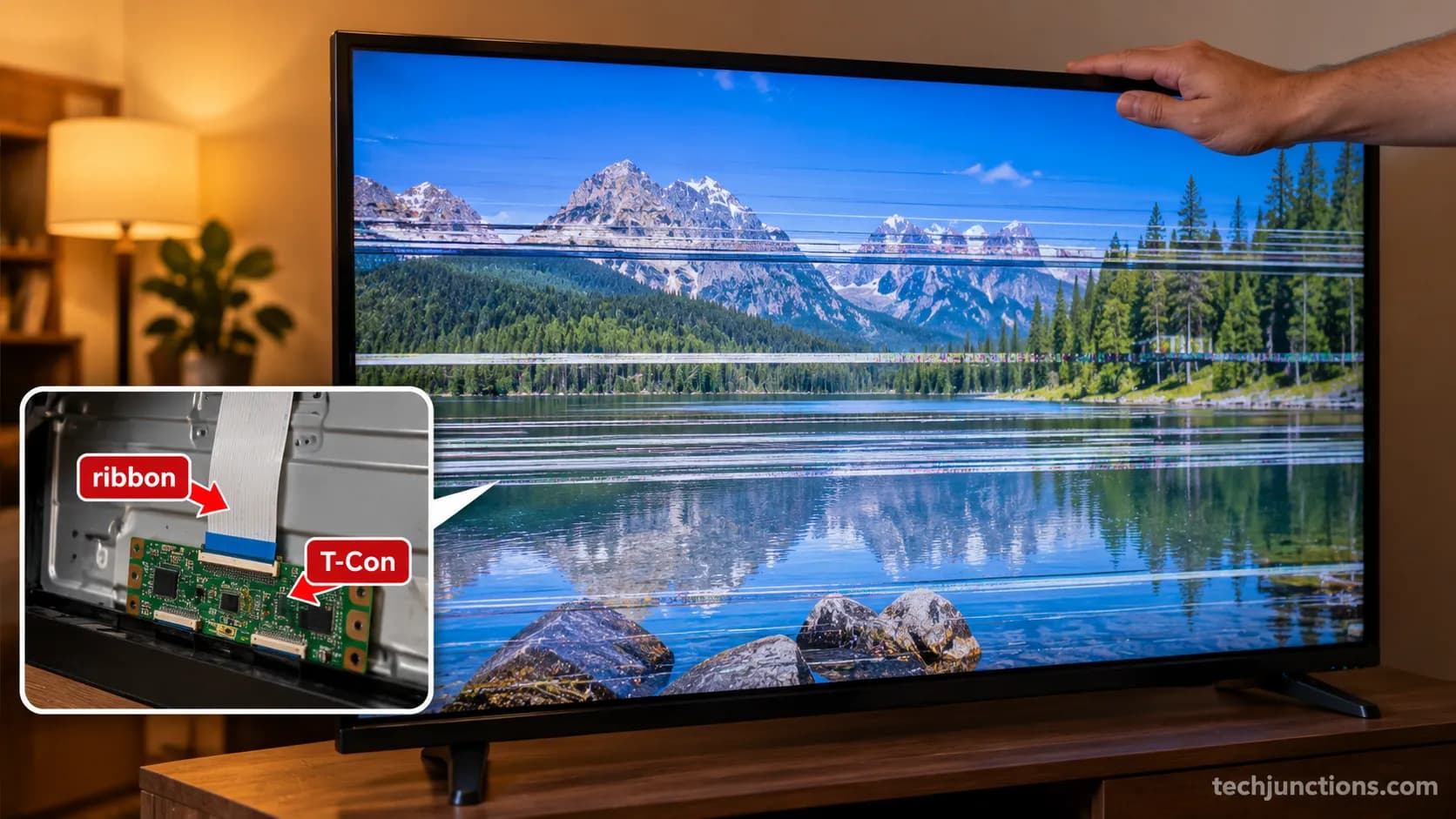
Screen Glitching, Jumping, or Flickering With Lines (Ribbon or T-Con)
When Insignia TV flickering shows up as lines, glitching, or a picture that jumps and snaps back, the cause is usually a loose ribbon cable or the T-Con board, not a setting.
Amazon's Fire TV support suggests a restart as the first step for lines on the screen, and that does clear the rare software case, but pressure-responsive lines mean a physical connection.
The "flicker with lines that snaps back" set on my bench had a warm-flex ribbon, and pressing gently at the T-Con edge changed the lines on screen.
Is your screen glitching, jumping, or flickering with lines?
Match the pattern first, because each one points somewhere different:
Solid horizontal bands across the picture usually mean a ribbon or T-Con connection.
Thin vertical lines that never move often mean a panel or T-Con fault.
A glitch that flashes and snaps back, sometimes only on one side, usually means a marginal ribbon.
The press-test is non-destructive. With the set on, apply light pressure along the top and side edges of the panel: if the lines shift, change, or clear while you press, a ribbon or T-Con connection is loose rather than the glass being damaged.
Seeing solid bands across the picture?
Our deeper guide on bands running across the picture covers that exact pattern.
Thin vertical lines have their own path, and tracing thin vertical line faults separates the fixable from the terminal.
If the panel glass itself is cracked, no test or reseat helps, and the set moves straight to the replacement question.
Insignia TV Flickering: Repair vs. Replace a Budget Set
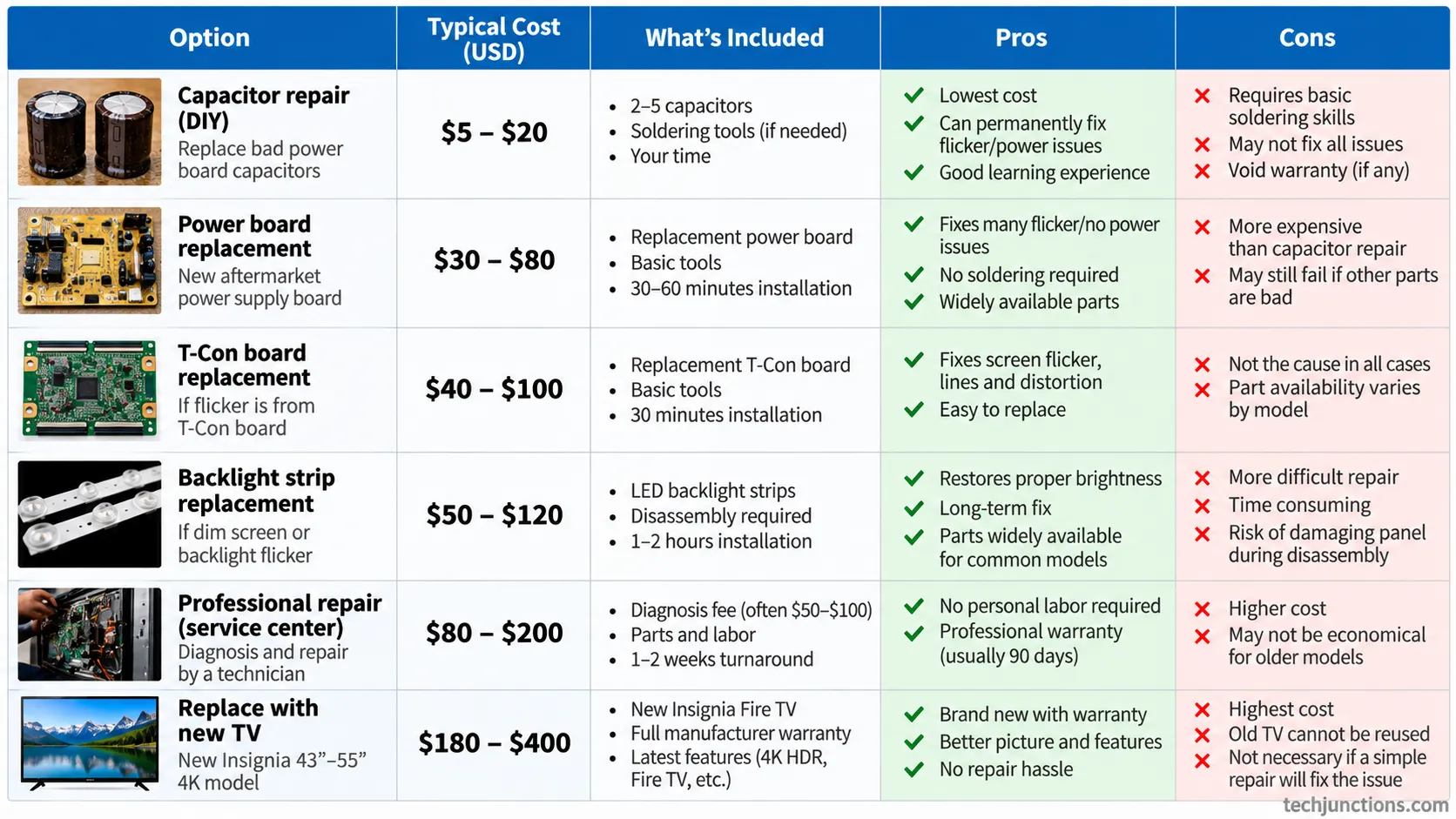
Whether Insignia TV flickering is worth repairing depends entirely on the fault, and on a budget set the honest answer is sometimes no.
A single bulging capacitor is a cheap, satisfying fix, while a full power board or a new panel on the cheapest models often costs as much as a replacement.
Witonics points out that a visibly failed capacitor can be a sub-$20 do-it-yourself repair.
A replacement Insignia power board ran about the price of a used budget set on my bench, which is why I replaced two sets and repaired only one.
Here are the real numbers I worked from in August 2026 for a 43-inch to 58-inch Insignia:
Fix path | Typical parts cost | Labor | Realistic total | Worth it on a budget set? |
|---|---|---|---|---|
Replace one or two domed capacitors | $8–$18 | Your time, about an hour | $10–$20 | Yes, if you can solder |
Swap the whole power board | $35–$70 | Do-it-yourself, or about $90 for a shop | $35–$160 | Borderline, lean toward yes under $60 |
Replace backlight LED strips | $20–$45 | About $120 at a shop for the panel pull | $140–$165 done for you | Rarely, the labor dominates |
Professional diagnosis and repair | Included | $90–$180 flat | $120–$250 | Usually no on the cheapest sets |
Buy a comparable new Insignia 4K set | New unit | None | $200–$260 | This is your baseline |
The pattern is clear once the totals sit side by side.
A capacitor fix beats replacement every time, a power-board swap is a coin toss you win only if you do it yourself, and any shop repair on a sub-$260 television rarely makes sense.
Panel replacement is its own cost question, so check what a new panel actually costs before you decide, and whether a swap is even worth it varies enough that whether a panel swap makes sense is worth a read.
The blunt version: on the cheapest Insignia sets, a board or panel repair can cost as much as a replacement, so repairing is not always the smart call.
Not every fault is repairable in the first place, and which faults are even repairable sets expectations before you buy parts.
Pricier panels are handled differently from budget LCDs, and how pricier panels are handled explains why the same math does not apply to a high-end set.
Most Insignia TV flickering traces back to a setting or a quick power-drain reset, and you can now tell within minutes whether yours is one free fix away or a genuine hardware call.
Work the branches in order, trust the flashlight test when the picture goes dim or dark, and let the repair-versus-replace numbers, not hope, make the final decision on a budget set. That is the whole difference between an afternoon of guessing and a five-minute fix.
Frequently Asked Questions
Across the six sets and the owner reports I worked through, the question I heard most was simply whether the TV was done for, and tallying those reader questions shaped the six answers below. Usually it was not done for.
Why does my Insignia TV keep flickering?
Insignia TV flickering usually comes from one of five causes: a stuck power state, Dynamic Backlight pumping, a resolution handshake, a failing backlight or power board, or a loose internal ribbon. Start with a 30-second power-drain reset and turning off Dynamic Backlight, which resolve most cases within minutes.
How do I stop my Insignia Fire TV from flickering?
Unplug the set, hold the power button 30 seconds, and plug it back into the wall, then turn off Dynamic Backlight and Adaptive Contrast in the picture menu. If the flicker started after connecting a 4K source, run the Fire TV resolution cycle by holding Up and Rewind for 5 seconds.
Why is my Insignia TV dim and flickering?
A dim and flickering Insignia screen almost always means the backlight is failing, not the panel. Darken the room and shine a phone flashlight at the screen: if you can still see a faint image, the panel is fine and the backlight or its power board needs attention.
How do I reset an Insignia Fire TV that flickers?
Try the resolution cycle and a system update before a full reset. To factory-reset, open Settings, then My Fire TV, then Reset to Factory Defaults, or hold the physical reset button if the remote is dead, then reconnect Wi-Fi and reinstall your apps afterward.
Is a flickering TV screen worth fixing?
It depends on the fault and the set. A single bulging capacitor is a sub-$20 fix worth doing, but a full power board or new panel on a budget Insignia often costs as much as a replacement, so a shop repair on a sub-$260 television rarely pays off.
What causes an Insignia TV screen to glitch or jump?
Glitching, jumping, or lines that snap back usually point to a loose ribbon cable or T-Con board rather than a setting. Press gently along the panel edges: if the lines change while you press, the connection is loose, whereas a cracked panel will not respond to pressure.
Summarize with AI
Keep reading
Related articles
 Display & TV Tech Explainers
Diagnose what causes horizontal lines on LG TV screen in one Picture Test, tell a signal glitch from a dead panel, and see 2026 repair-vs-replace costs.
 Troubleshooting & Repair
Fix Samsung TV problems connecting to internet fast: read the Network Status test, match your symptom, then apply the DNS, date/time and router fixes.
 Streaming Platforms & Smart-TV OS
Fix Netflix not working on Samsung TV by symptom: black screen, won't load, or NW-2-5. Get exact Tizen paths, the 0000 Smart Hub PIN, and model-year cutoff.
 Buying & Decision Hubs
Yes and no: is LG a good TV depends on the line. LG OLED is world-class; budget LED trails TCL and Hisense. See which LG fits your room, budget, and games.
Comments
Moderated for quality. Share a correction, ask a follow-up, or tell us what worked for you - every comment is reviewed before it goes live.